
| Minimum Software Version | 8.Y.X |
| Solution(s) | Hearings ⨉ Cases International ✓ Cases US ✓ Institutions ✓ Counsel ✓ Focused View⨉ |
Set a system-wide time zone so the sent date on newly ingested email PDFs always displays consistently.
System administrators can set the Email sent date timezone in the system settings. When an email is uploaded, the sent date shown on its PDF is converted to the configured timezone.
Note: This setting is role specific. Only system administrators can see and change it. If you cannot access System dashboard > Settings, contact your system administrator.How email sent dates are converted
Emails in the platform are stored as PDFs, and a PDF cannot be changed after upload. The sent date on a PDF is fixed at the point of ingestion, so changing a platform setting later never alters how it displays.
The Email sent date timezone setting converts the sent date during ingestion. Every email PDF then shows its sent date in the same timezone, whichever timezone the sender, recipient, or reviewer is in.
How the setting behaves
- It applies to newly ingested emails only. Existing PDFs are unchanged unless you re-upload or replace them. Replacing a document is an existing platform feature that uploads a new version. Once the setting is enabled, the new version reflects the configured timezone.
- Emails attached to emails are included. Email attachments are uploaded as separate documents, so their sent dates are converted too.
- Quoted earlier messages are not included. Only the email's own sent date metadata is converted. When you upload a whole thread as a single file, only the final email has sent date metadata. Earlier messages in the thread are plain text with no timezone information. If a client needs every message in a thread converted, split the thread and upload each email as a separate file.
- The setting applies to the PDF only. Where a project has a Date field populated from the email sent date, that field uses the browser's timezone and continues to display in each user's local timezone. A user in Singapore sees the Date field in Singapore time, and a user elsewhere sees their own local time. The email sent date in the PDF is read-only and always displays in the configured timezone, wherever the user is located.
- Conversion is part of ingestion. Timezone conversion adds an extra ingestion step. If that step fails, the upload fails, so users never see an inconsistent PDF.
Steps
Set the timezone
- Open the System dashboard.
- Select the Settings tab.
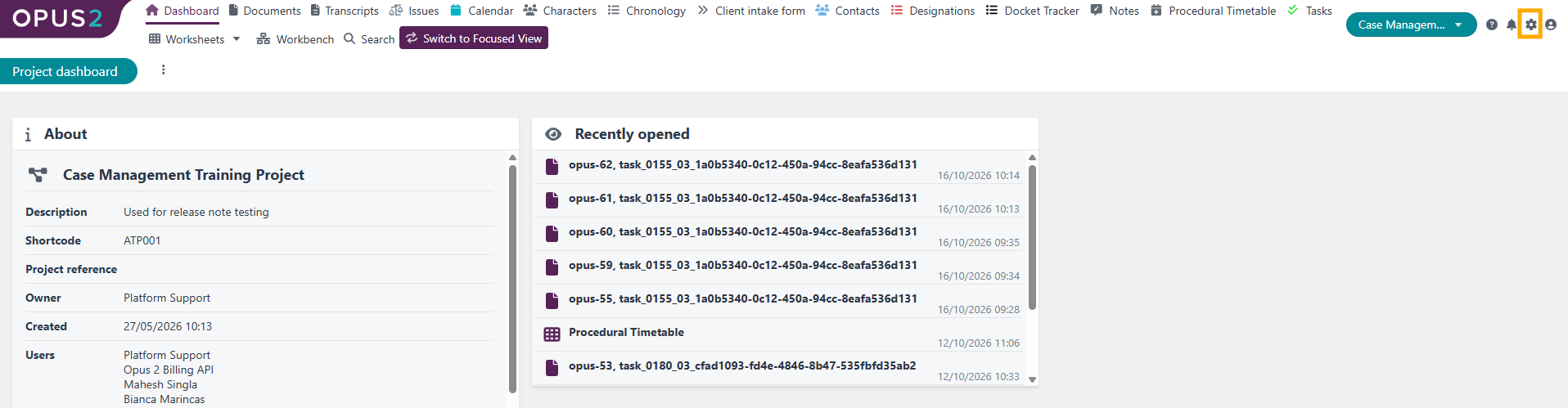
- In the Settings section, find Email sent date timezone.
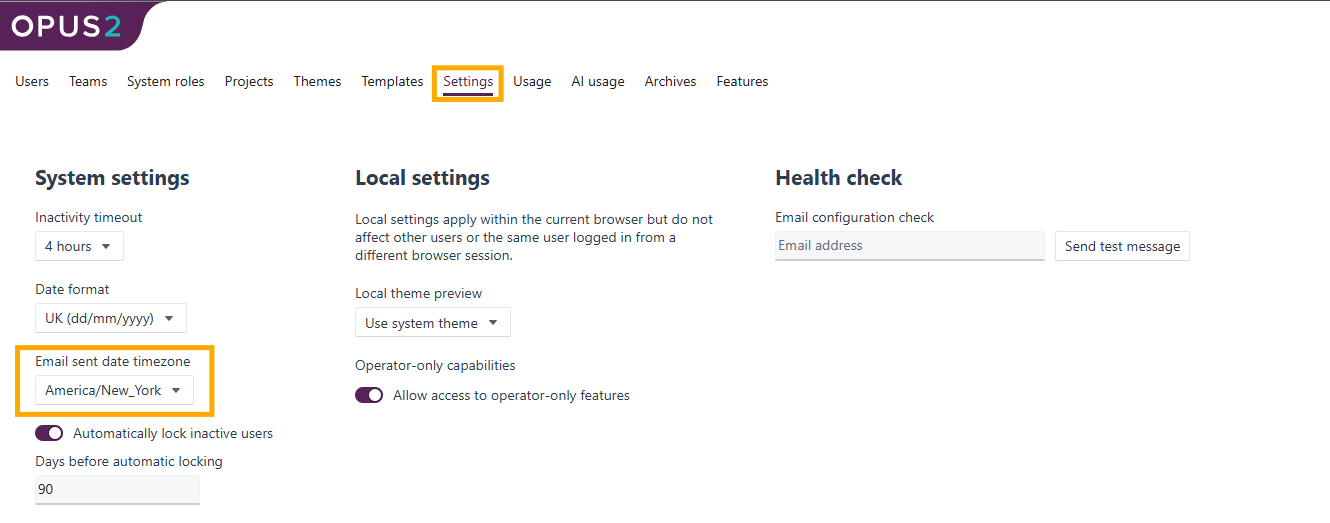
- Select the dropdown, then search for or scroll to the timezone you want, for example
America/Vancouver. - Select the timezone to apply it.
Check the result
- Open a project and go to Documents.
- Select Upload, then choose Upload document.
- In the Upload files window, drag and drop your email file or select Browse for files.
- Leave Extract email attachments selected if you want attached emails ingested as separate documents with converted sent dates.
- Select Upload. If the platform reports that the file already exists in the project, select Yes, upload again to continue.
- When processing completes, select the document in the document list.
- In the View tab, check the sent date at the top of the email PDF. It displays in the configured timezone.
- Select the Details tab to see the Date field. This field displays in your browser's local timezone and can differ from the PDF.
Examples
Different timezones for the PDF and the Date field
A system administrator sets Email sent date timezone to America/Vancouver. A user in Singapore uploads an email.
- The sent date on the email PDF displays in Vancouver time for every user.
- The Date field in the document list and Details tab displays in Singapore time for the user in Singapore, and in local time for anyone elsewhere.
Updating an existing email
An email was uploaded before the setting was enabled, so its PDF still shows the earlier sent date. To apply the configured timezone, replace the document with a new version, or delete and re-upload the original email file.
Related links
Related documentation
Opus 2 has help information accessible within the application; click the question mark and then select Documentation in the upper-right area of the platform. You can also access the documentation at: Opus 2 Support.
How to contact us
To contact us about the documentation, or if you have any other questions or issues about Opus 2 solutions, contact Opus 2 Platform Support by emailing Opus 2 Platform Support.