
| Minimum Software Version | 8.18.10 |
| Solution(s) | Cases International ✓ Cases US ✓ Institutions ⨉ Counsel ✓ |
Explains how to add and configure the Chart component in the Portal Builder, including creating charts in the project, configuring the component, and how portal users interact with charts.
The Chart component surfaces visual analytics that have already been created within a project. Charts must be configured in advance using the Data tables and charts functionality before they can be selected for portal display. Once added, portal users can view data visually and, depending on permissions, explore the underlying data in table or worksheet format.
Creating charts in the project
Before configuring the Chart component, ensure the required chart has been created and saved in the project.
Note: For full instructions on creating charts, see Data tables and charts.
- Open the project and navigate to Data tables and charts.
- Create the required chart based on worksheet data.
- Save the chart so it is available for selection in the portal.
Important: Only charts that already exist within the project can be displayed in the portal.
Example: Create a bar chart showing the number of procedural steps by status.
Adding a Chart component
- Open the Portal Builder.
- Add the Chart component to the desired location on the page.
- Open the Properties tab to configure the component.
Configuring Chart properties
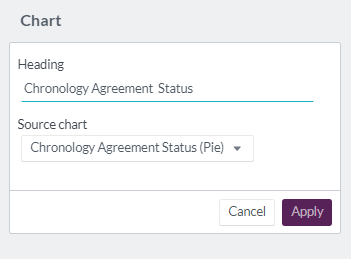
Configure the following options in the Properties tab:
| Option | Description |
|---|---|
| Heading | Header text for the Chart component (maximum 100 characters). |
| Source chart | Required. Select an existing chart created in the project's Data tables and charts section. |
Example: Configure a Chart component with the heading Case Status Overview using a previously created status breakdown chart.
How the Chart component appears to portal users
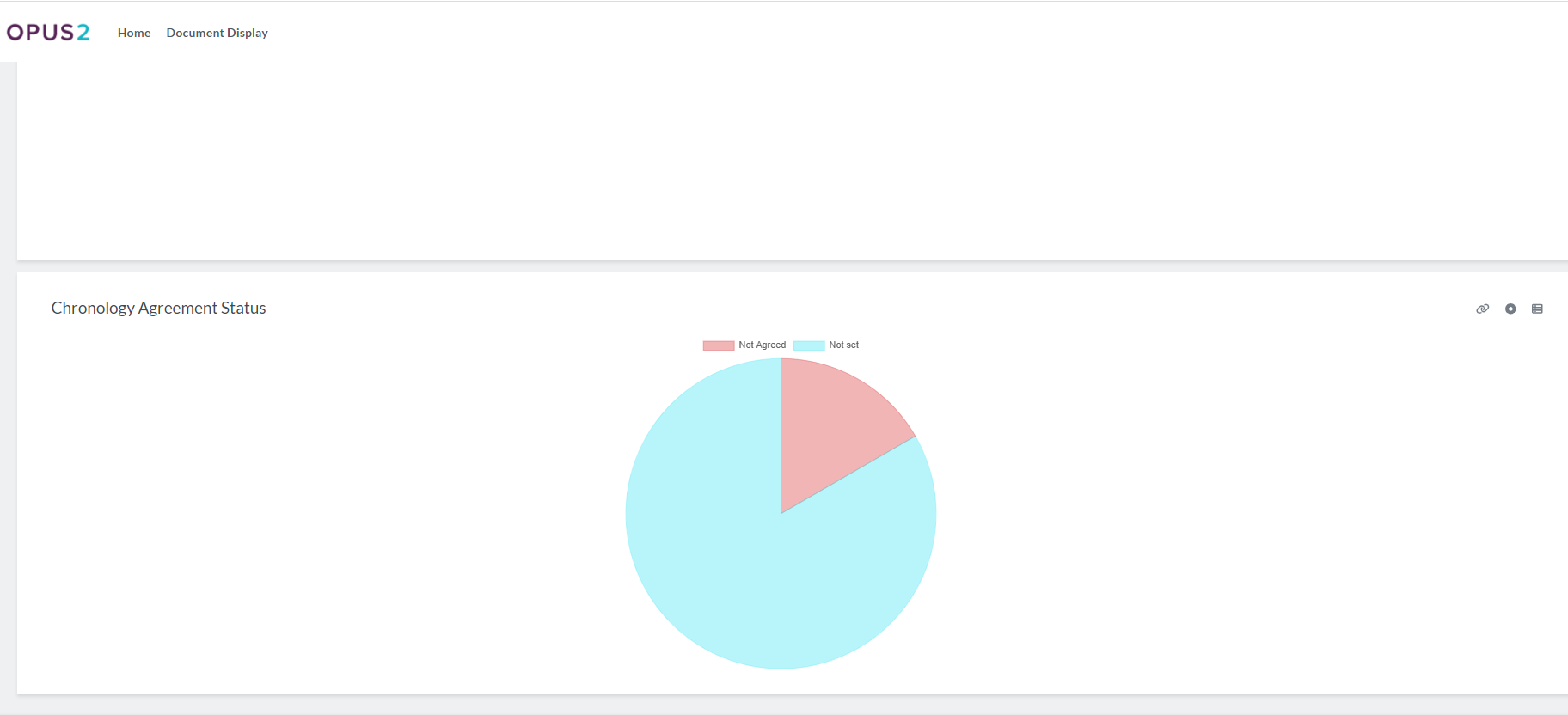
When viewed by portal users, the selected chart is displayed alongside three interactive icons:
| Icon | Function |
|---|---|
| Source worksheet | Links to the source worksheet where the data is stored. Appropriate user permissions are required to view the source information.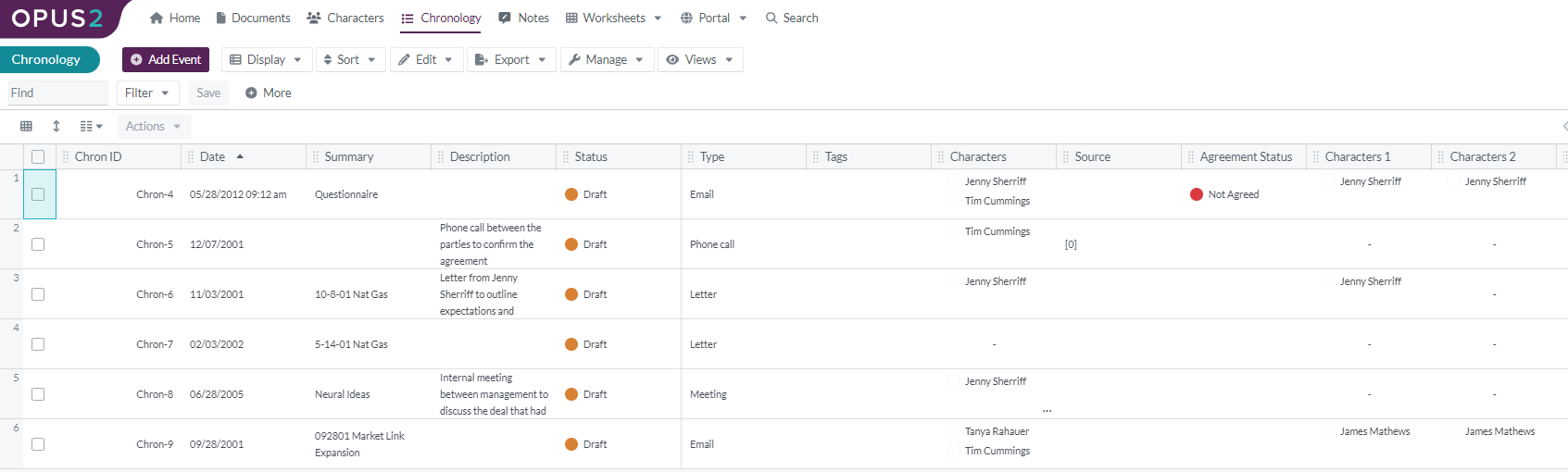 |
| Chart view | Displays the data in a graphical chart format.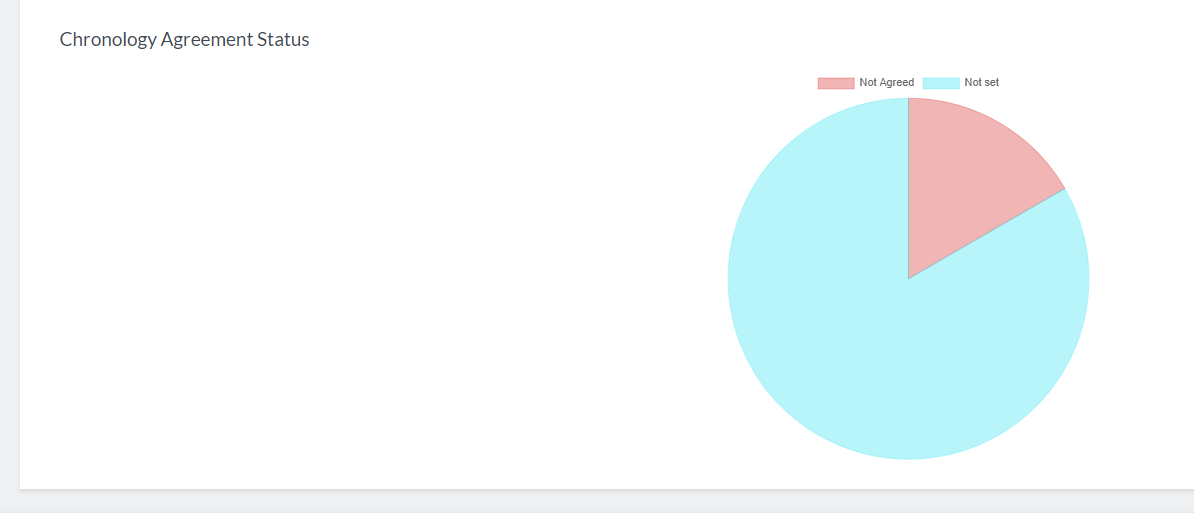 |
| Table view | Displays the same data in a tabular format for detailed review.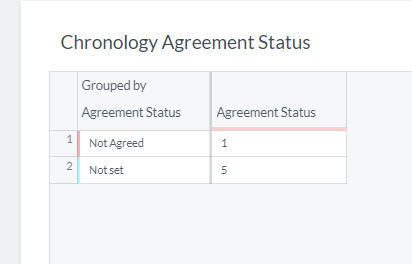 |
Portal users can switch between chart and table views to better understand the data.
Example: A portal user toggles from chart view to table view to see the exact numerical values behind the visual summary.
Related links
Related documentation
Opus 2 has help information accessible within the application; click the question mark and then select Documentation in the upper-right area of the platform. You can also access the documentation at: Opus 2 Support.
How to contact us
To contact us about the documentation, or if you have any other questions or issues about Opus 2 solutions, contact Opus 2 Platform Support by emailing Opus 2 Platform Support.