
| Minimum Software Version | 9.36.1 |
| Solution(s) | Hearings ⨉ Cases International ✓ Cases US ✓ Institutions ✓ Counsel ✓ Focused View✓ |
Focused View Enhancements
We're pleased to introduce several enhancements to Focused View designed to improve navigation, source verification, document selection, and the overall user experience.
Citation Navigation in Focused View
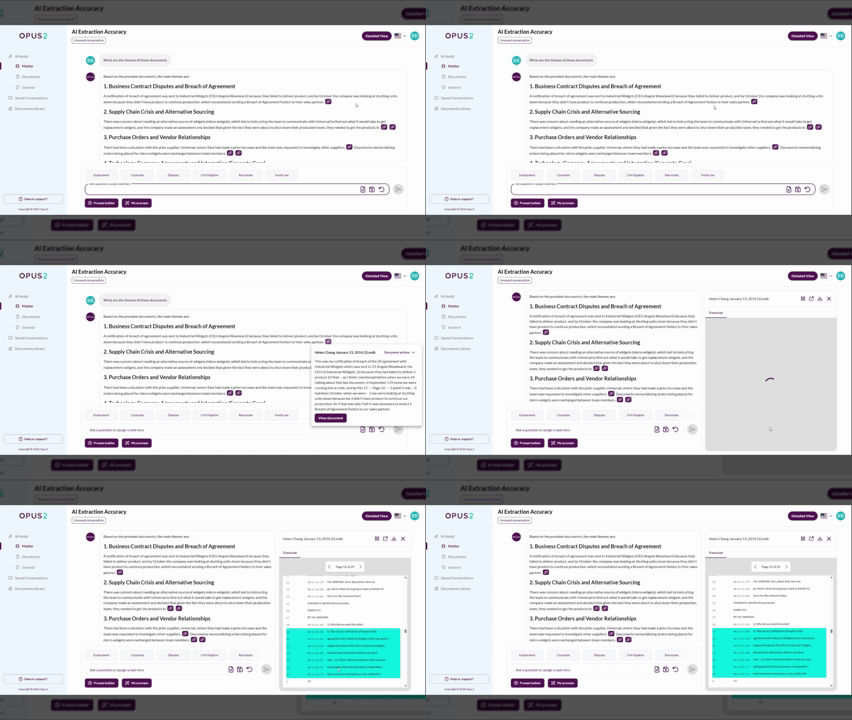
You can now navigate directly to cited content within Focused View.
Previously, selecting View document from a citation opened the source document without taking you directly to the referenced content. Now, selecting View document opens the relevant page with the cited passage highlighted. This behaviour applies to both documents and transcripts.
To review cited content:
- Select a citation within a generated response.
- Select View document.
The related document or transcript opens at the relevant location with the referenced text highlighted.
Transcript Page Navigation in Focused View
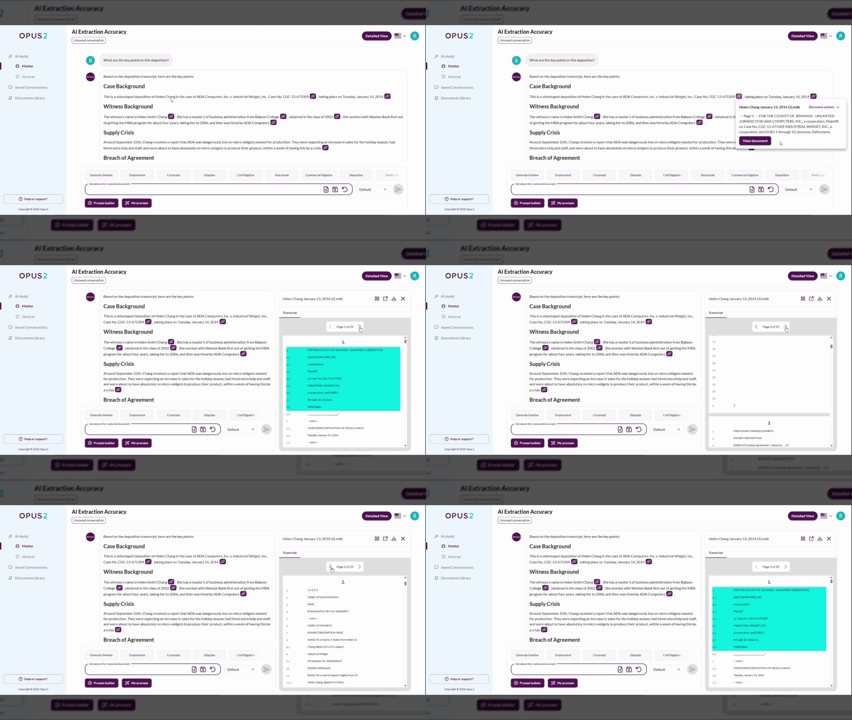
You can now navigate transcript pages directly within Focused View.
Previously, page navigation controls were only available when viewing documents. Page navigation controls are now also available at the top of transcripts, making it easier to move between transcript pages during review.
To navigate a transcript:
- Open a transcript in Focused View.
- Use the page navigation controls displayed at the top of the transcript.
Improved Copying of Generated Responses with Citations
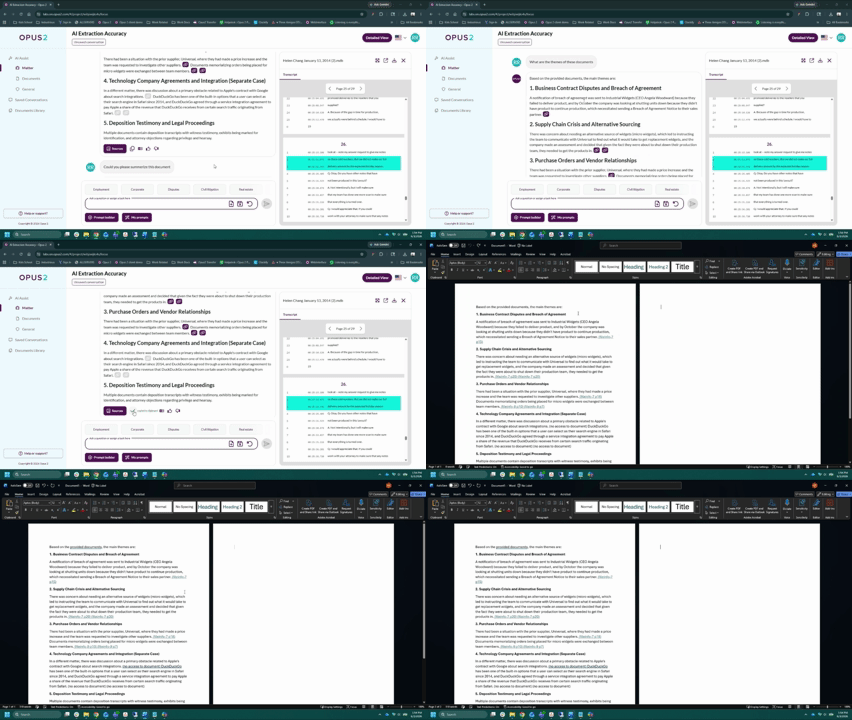
You can now copy generated responses while retaining citation links and source references.
Previously, copied responses did not preserve citations and hyperlinks correctly. Citations are now included at the end of the relevant sections and remain linked to the corresponding page in the source document. A Sources list is also included at the end of the copied response, with links to the relevant source documents.
To copy a response:
- Generate a response in Focused View.
- Use the copy action.
Citations and source references are preserved automatically.
Improved Copying of Table Outputs
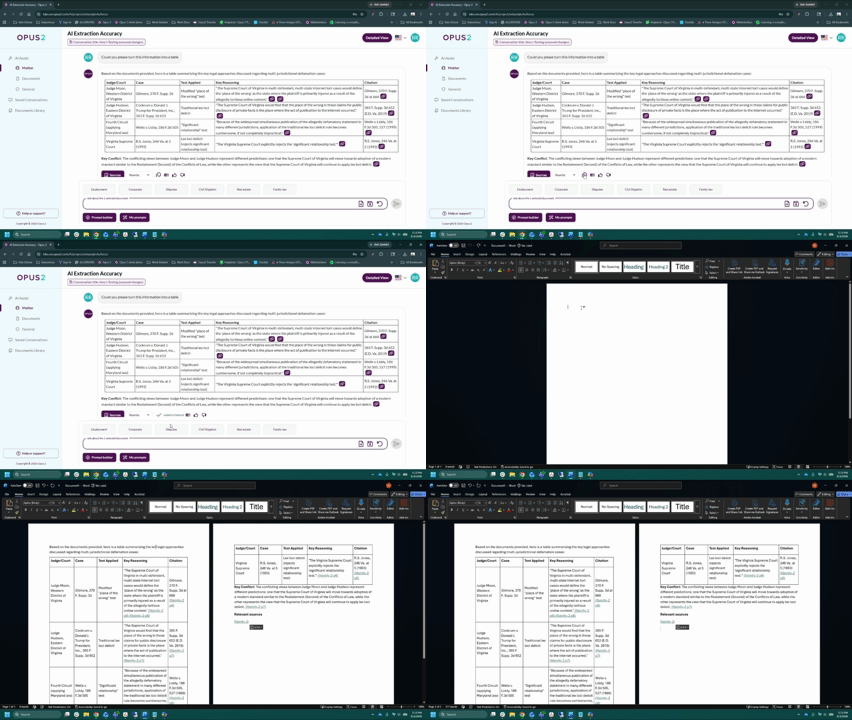
You can now copy table outputs with improved formatting and citation support.
Previously, copied tables could appear distorted or difficult to read due to inconsistent formatting. Copied tables now retain a clearer table structure, making them easier to review and share while preserving associated citations.
To copy a table:
- Generate a table-based response.
- Use the copy action.
The copied output retains a readable table format with associated citations.
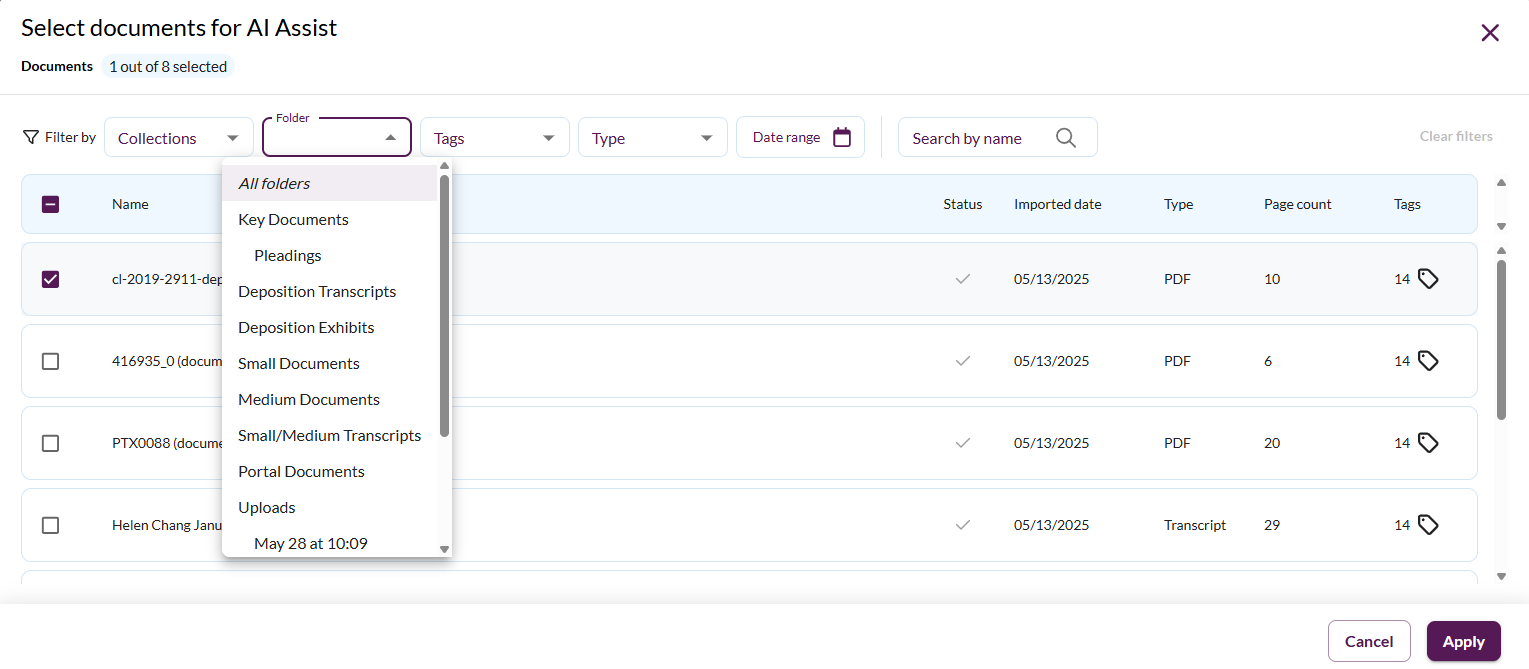
Folder Filtering for Document Selection and Document Libraries
You can now filter documents using the platform folder structure.
A new Folder filter has been added to document selection and the Documents library. The filter mirrors the existing folder hierarchy, allowing you to locate and work with documents based on their folder location.
To filter documents:
- Open the document selection interface or Documents library.
- Select one or more folders from the Folder filter.
Document results are updated based on the selected folders and continue to work alongside existing filtering options.
ACL Guidance Notification for Focused View
If you are an Opus 2 System Administrator, you can now view additional guidance when managing document-level access controls.
A contextual notification has been added to the ACL management dashboard when document-level ACLs are created or updated. The notification explains that users with access to Focused View may be able to generate AI insights based on content contained within restricted documents. Users who do not have permission to access those documents remain unable to open or view the underlying source documents.
If this behaviour is not acceptable for a particular user group, you can disable Focused View access for the relevant role.
The notification is informational only and does not prevent ACL changes from being saved.
Updated AI Models in Focused View
Focused View now uses updated AI models to support generated responses.
Previously, Focused View used Claude Sonnet 4.0. Focused View now uses Claude Sonnet 4.5 and Claude Sonnet 4.6, providing access to the latest supported model improvements.
No action is required. The updated models are available automatically within Focused View.
Upcoming features
Customisable Table of Contents for Bundles (collections)️- Preview release
We are introducing a new Table of Contents editor designed to give you greater flexibility in creating court-compliant indexes across key jurisdictions. The updated experience will be more intuitive and easier to use, with real-time preview capabilities. You will be able to set up a table of contents with flexible formatting and layout options, including font type, font size, headings, and section headings, a choice of unified or section-level tables, and control over column layout and visibility.
Stamps - Preview release
Based on customer feedback, we are investing in a new, modernised Stamps experience to provide an improved way to create, manage, and export stamps. The new Stamps feature will introduce, among other things:
- A more flexible and intuitive stamp builder, enabling you to easily create and customise stamps with concatenated fields, and helping you to design consistent, tailored stamps.
- Real-time preview to make stamp setup clearer and more predictable.
- Consistent stamp application and removal across documents, collections, and proxy documents, including the ability to remove a specific stamp, not just “remove all”.
- Metadata fields remain supported (as in Legacy Stamps), with more focused styling controls to prioritise consistent output between the platform and exports.
Search
We're improving our Search functionality to deliver faster, more accurate, and more reliable results.
These updates seek to:
- Return results more quickly and with greater accuracy.
- Provide clearer, more consistent highlighting so results are easier to understand and trust.
- Enable us to detect and resolve issues earlier through improved monitoring.
Related documentation
Opus 2 has help information accessible from within the application; accessible by clicking the question mark and then selecting Documentation in the upper right area of the platform application. You can also access the documentation at: Opus 2 Support.
How to contact us
To contact us about the documentation, or if you have any other questions or issues about Opus 2 solutions, contact Opus 2 Platform Support by emailing Opus 2 Platform Support.