
| Minimum Software Version | 8.18.10 |
| Solution(s) | Cases International ✓ Cases US ✓ Institutions ⨉ Counsel ✓ |
Explains how to add and configure the Notifications component in the Portal Builder, including heading appearance, display height, and maximum notification count.
The Notifications component surfaces informational updates directly within the portal, providing a simple, structured way to display notifications under a configurable heading. Administrators control the heading appearance, the amount of space the component occupies on the page, and the maximum number of notifications displayed.
Adding a Notifications component
- Open the Portal Builder.
- Add the Notifications component to the desired location on the page.
- Open the Properties tab to configure the component.
Configuring Notifications properties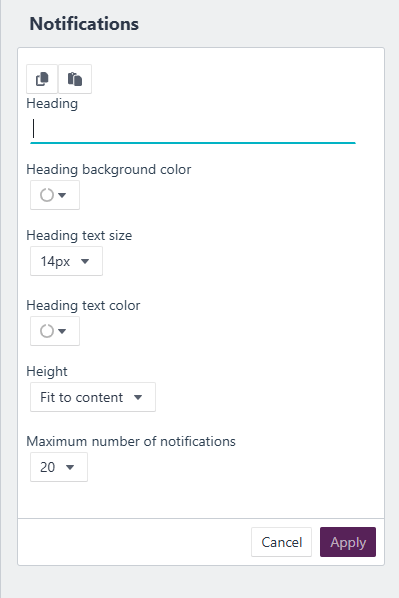
Configure the following options in the Properties tab:
| Option | Description |
|---|---|
| Heading | Header text for the Notifications component (maximum 100 characters). |
| Heading background colour | Select a colour using the colour wheel, hexadecimal, or RGB code. |
| Heading text size | Set the heading text size between 12px and 72px. |
| Heading text colour | Choose a colour using the colour wheel, hexadecimal, or RGB code. |
| Height | Set the display area to fit to content, at least half a page, or at least a full page. |
| Maximum number of notifications | Set the maximum number of notifications displayed to portal users. The default is 20. |
Example: Configure a Notifications component with the heading Latest Updates, a contrasting background colour, a half-page height, and a maximum of 20 notifications to ensure visibility on the portal homepage.
How the Notifications component appears to portal users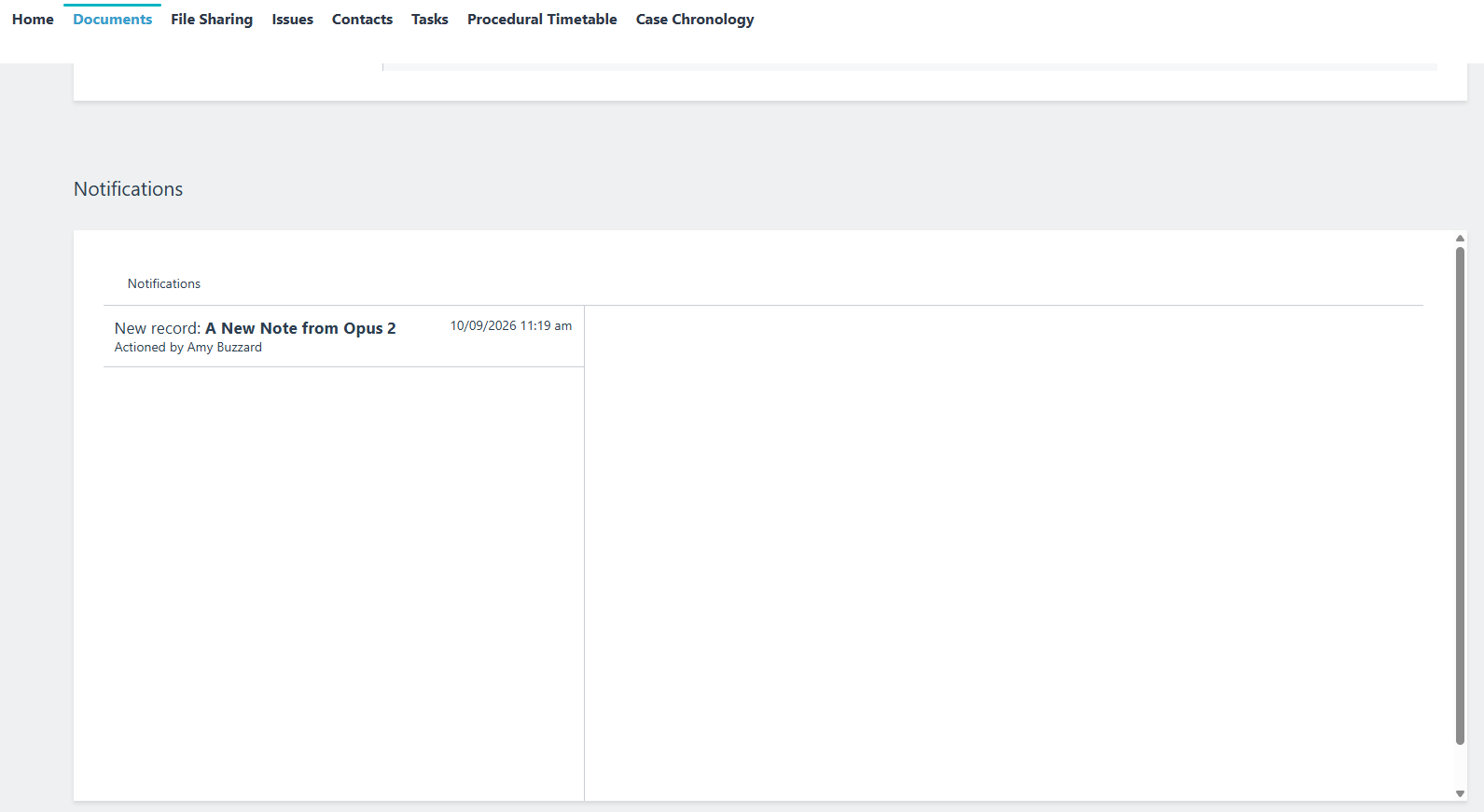
When viewed by portal users, the heading appears at the top of the component and notifications are listed beneath it. Each notification entry displays:
- The trigger type and record name (for example, New record: A New Note from Opus 2)
- The date and time the notification was triggered
- The name of the user who actioned it
Portal users will only see notifications that are directed at them — notifications intended for other users are not visible. The component height determines how much content is visible without scrolling.
Note: Portal users will only see notifications that are directed at them. Notifications intended for other users will not be visible.
Related links
Related documentation
Opus 2 has help information accessible within the application; click the question mark and then select Documentation in the upper-right area of the platform. You can also access the documentation at: Opus 2 Support.
How to contact us
To contact us about the documentation, or if you have any other questions or issues about Opus 2 solutions, contact Opus 2 Platform Support by emailing Opus 2 Platform Support.