
| Minimum Software Version | 8.14.3 |
| Solution(s) | Hearings ⨉ Cases International ✓ Cases US ✓ Institutions ✓ Counsel ✓ Focused View⨉ |
Explains how to create, edit, set access on, and copy folder structures in the Documents page in Opus 2.
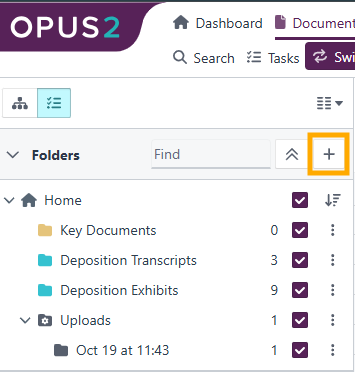
Folders are used to organise documents and transcripts in the Documents page. They are located in the Folder navigation panel on the left side of the page and must be created before documents can be uploaded into them.
Creating a new folder
- Select the + in the Folder panel. The Create folder dialog opens.
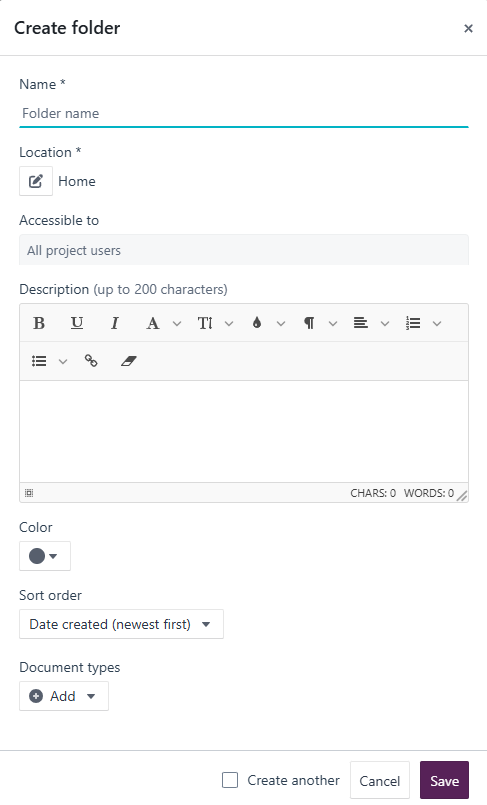
- Complete the following fields:
- Name – Enter a descriptive name for the folder.
- Location – Choose whether the folder sits at the top level or as a sub-folder.
- Accessible to – Choose who can access the folder: all project users or specific individuals or groups.
- Description – Optionally enter a description for the folder.
- Colour – Optionally assign a colour to the folder.
- Set the Sort order.
- Select Document types to choose whether the folder will contain Documents, Transcripts, or both.
- Select Save.
Setting access
Access to a folder can be set after it has been created.
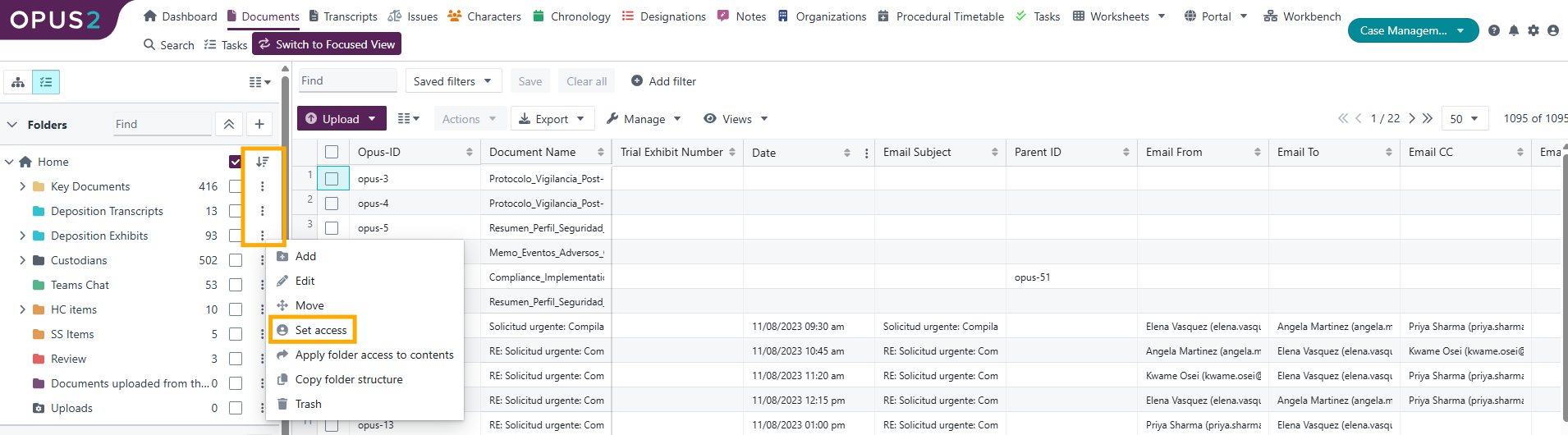
- Select the three-dot kebab menu next to the desired folder.
- Select Set access.
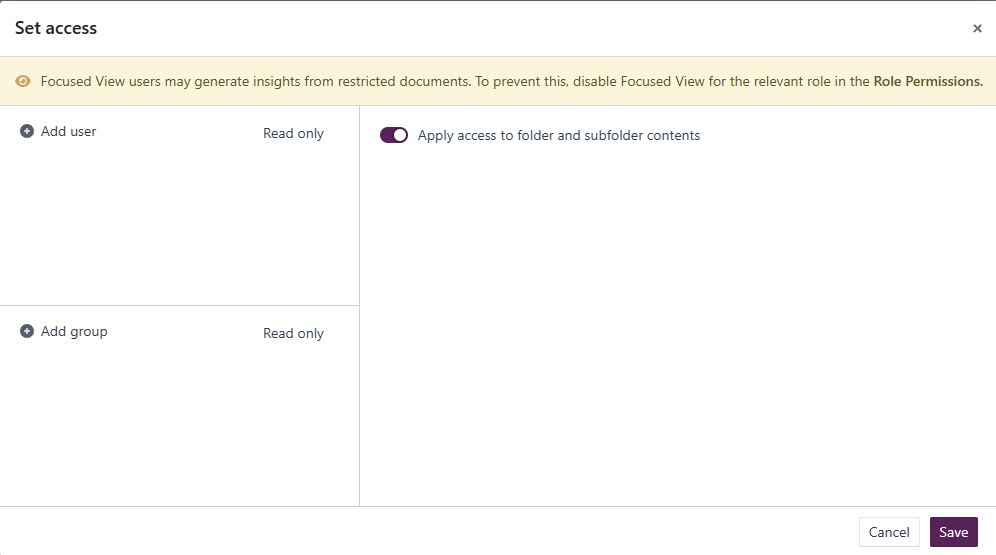
- In the dialog, select the users and/or groups to be given access.
- Use the toggle to apply access to the top-level folder only, or to all folders and their contents (if sub-folders are present).
Editing a folder
- Select the three-dot kebab menu next to the desired folder.
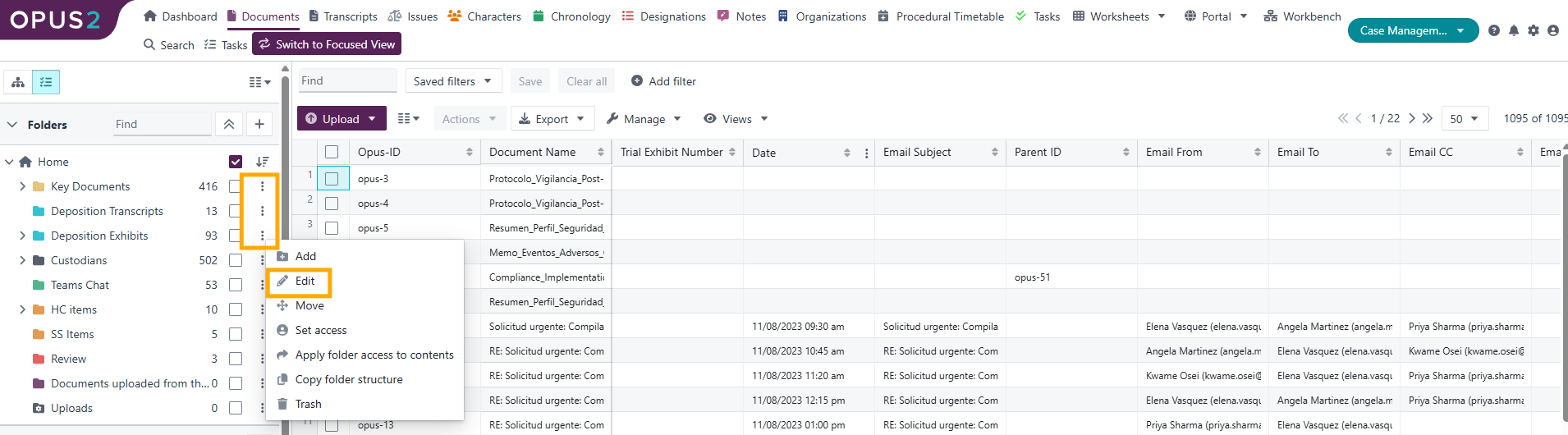
- Select Edit. The Edit folder dialog opens, containing the same options as folder creation.
- Make the required changes and select Save.
Copying a folder structure
To save time, the entire structure of a set of folders can be copied. The copied structure includes all settings but no documents.
- Select the three-dot kebab menu alongside the folder structure you want to copy.
- Selecting a folder with sub-folders copies the whole tree structure.
- Selecting a sub-folder copies that folder only.
- Select Copy structure.
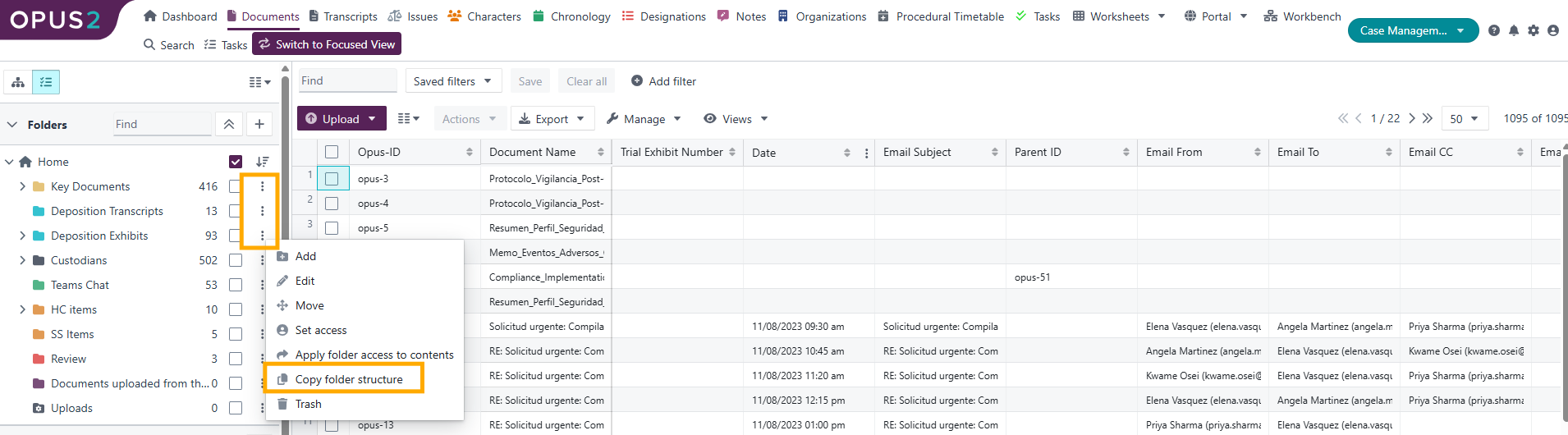
- Choose the destination for the copied folder or folders.
The copied folder structure appears in the chosen location in the Folders area.
Related links
Related documentation
Opus 2 has help information accessible within the application; click the question mark and then select Documentation in the upper-right area of the platform. You can also access the documentation at: Opus 2 Support.
How to contact us
To contact us about the documentation, or if you have any other questions or issues about Opus 2 solutions, contact Opus 2 Platform Support by emailing Opus 2 Platform Support.