
| Minimum Software Version | 8.16 |
| Solution(s) | Cases International ✓ Cases US ✓ Institutions ✓ Counsel ✓ |
Explains how duplicate files are detected and managed in Opus 2, including automatic detection on upload, manual review on the Files and Documents pages, email attachment handling, and access control considerations.
When populating projects with a large number of documents, the same file may be uploaded more than once, creating duplicates in the system. Opus 2 detects duplicates automatically during upload and provides tools for manual review on the Files and Documents pages. Some duplication management is handled by the system; other aspects require manual action.
Duplicate detection helps maintain a clean, accurate document set by identifying files that already exist in the project before or after upload. Detection is performed using a two-step check — first by file size, then by MD5 hash — to confirm whether two files are identical in content, regardless of filename. The level of detection available to a user depends on their role and permissions.
Duplicate detection on upload
Files are checked for duplicates at the point of upload. What they are checked against depends on the user's role:
- Access file manager capability enabled – Files in the upload dialog are checked against all files in the platform, including published documents, unpublished files, and files awaiting processing.
- Access file manager capability disabled – Files are checked only against published documents the user has access to.
Files in the same upload batch will also be checked against each other. So, if a user uploads multiple versions of the same file to the upload dialog, the first file will show as unique and the rest will show as duplicates.
The duplicate check works as follows:
- The file size (in bytes) of the uploaded file is compared against files already in the project.
- If a size match is found, an MD5 hash is generated for the uploaded file.
- The MD5 hash is compared against the matching file already in the project. If the values match, the uploaded file is flagged as a duplicate.
Handling duplicates in the upload dialog
When duplicates are identified, the following options are available:
- Number of duplicates identified – Displays how many duplicates have been detected.
- Only show duplicates – Filters the upload dialog to show only duplicate files.
- Remove duplicates – Removes all identified duplicates from the upload.
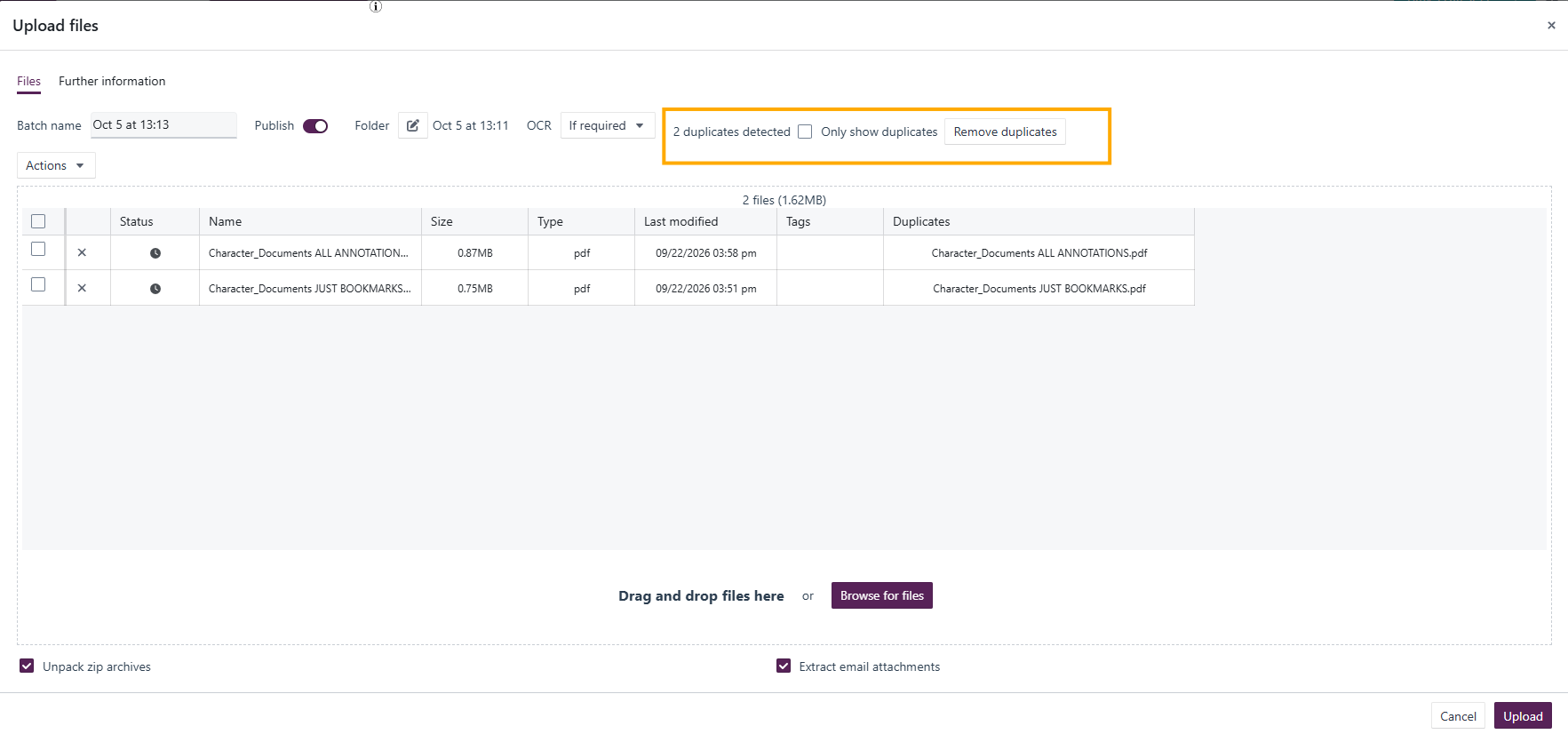
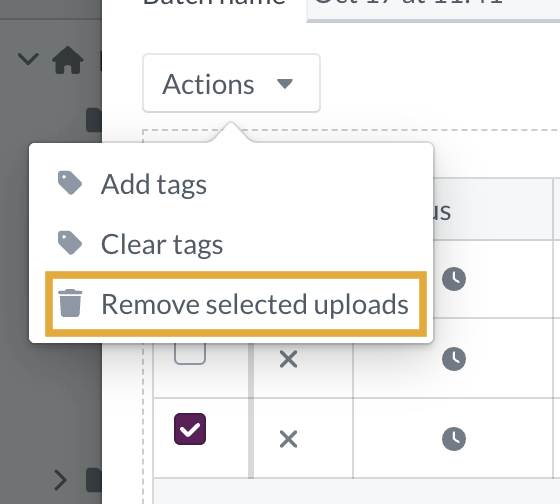
To remove only certain duplicates, select the relevant files, click Actions, and choose Remove selected uploads from the dropdown.
If no action is taken on duplicate files, a pop-up message will advise that some selected files are already present in the project. You can then choose to skip uploading the duplicates or continue with the upload.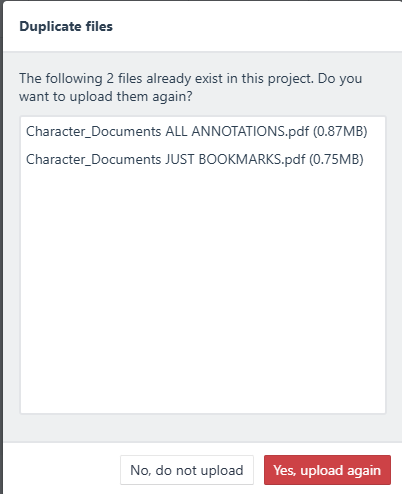
Duplicate detection on the Files page
When uploading a large batch of files, it can be advisable to upload to the Files page without publishing as documents first, to check for duplicates before publication.
On the Files page, use the Duplicate filter to identify files with duplicates in the project:
- True – Displays only files that have duplicates present.
- False – Displays only files with no duplicates.
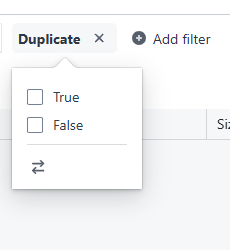
Once filtered, sorting by filename will display duplicate files next to each other, making it straightforward to identify and delete one before publishing.
Note: Filename is not considered during the duplicate check. Two files with identical content but different filenames will still be flagged as duplicates.
The Principal Duplicate field indicates whether a document has exact duplicates in the project. The first file uploaded within a duplicate group is identified as the principal file. Users with access to the Files page can designate a different file within the group as the principal.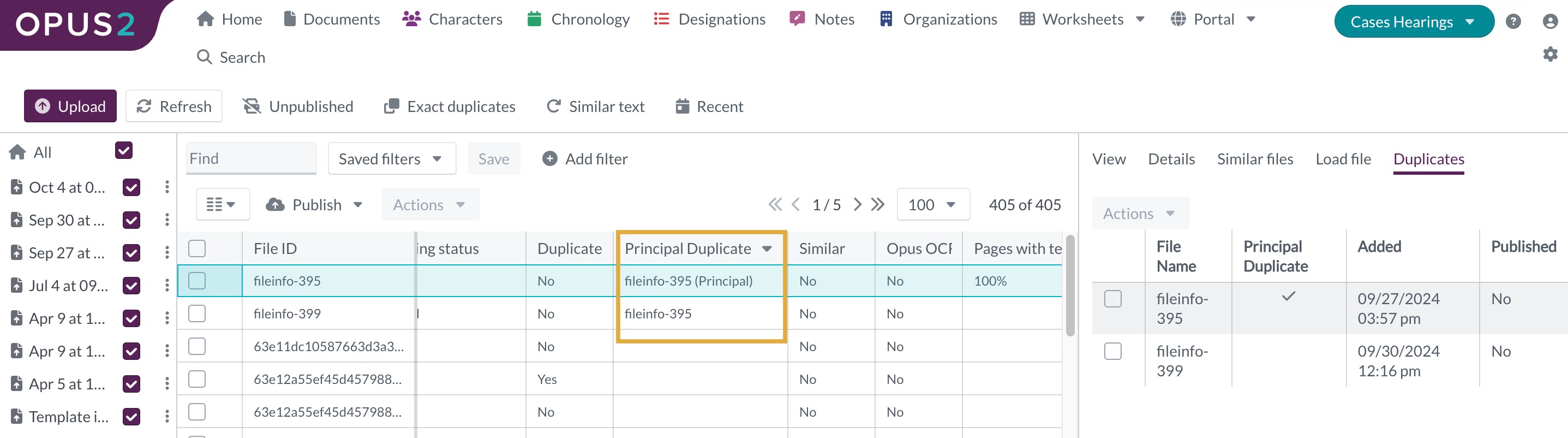
Duplicate detection on the Documents page
On the Documents page, you can search for duplicates of a specific document by filtering on the MD5Hash field. This system field displays the hash value for each document. Documents that are identical in content but have different filenames share the same MD5Hash value.
To find duplicates of a specific document:
- Locate the MD5Hash value for the document.
- Enter the value as a text string into the Find box at the top of the Documents table.
- Any duplicate documents will be displayed in the results.
The Duplicates metadata field provides another way to identify duplicate documents. This system field is visible to users with the See duplicate metadata capability and displays all duplicate files alongside the principal file. The first file uploaded within a duplicate group is identified as the principal.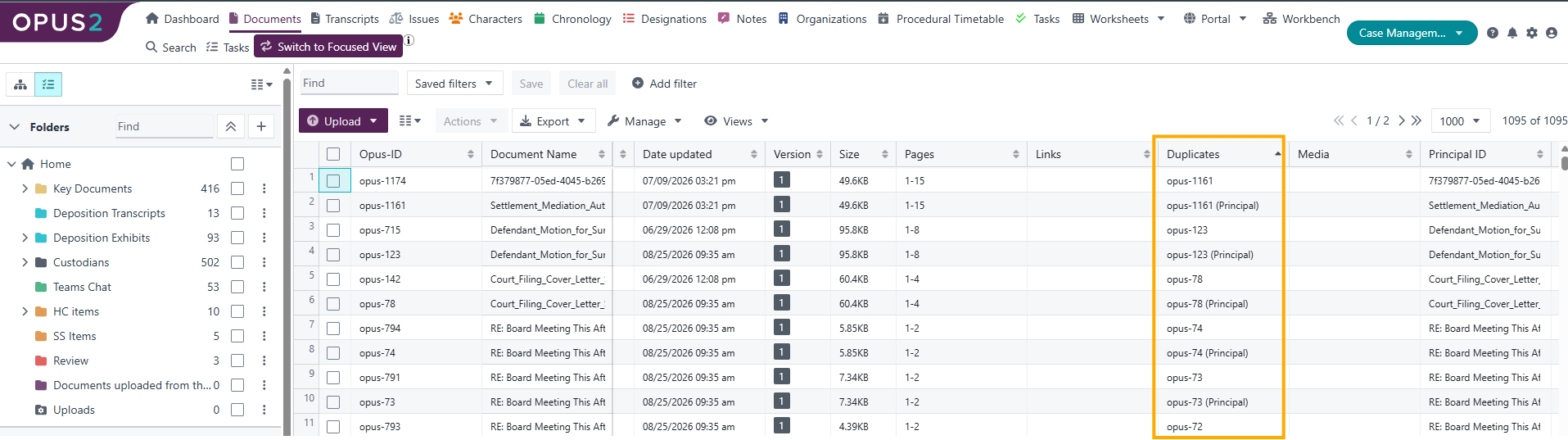
Duplication management of email attachments
When uploading an email with attachments, Opus 2 automatically extracts the attachments as individual documents and links them to the parent email via an automatically created relationship of type attachment.
If the attached documents already exist in the platform, Opus 2 will not extract them again. Instead, only the email is uploaded and the existing documents are linked to it using the same attachment relationship. This is handled automatically during file ingestion when the email is unpacked and is not visible during the initial upload.
Access control and duplicate detection
Duplicate detection only includes files the user has access to. For example:
- If user A uploads a file and restricts access so that only they can view it, and user B then uploads the same file with no access restrictions, user B will not receive a duplicate warning.
- When user A returns to the Documents page, they will see that a duplicate of their file now exists.
In general, users are only alerted to duplicates when they have access to both documents. This prevents users from gaining information about the project through the duplicate detection mechanism that they would not otherwise have access to.
Note: Users whose role includes the Access File Manager capability will receive a duplicate warning regardless of any access controls set at folder or document level, as they have access to the full file list through the Files page.
Related documentation
Opus 2 has help information accessible within the application; click the question mark and then select Documentation in the upper-right area of the platform. You can also access the documentation at: Opus 2 Support.
How to contact us
To contact us about the documentation, or if you have any other questions or issues about Opus 2 solutions, contact Opus 2 Platform Support by emailing Opus 2 Platform Support.