
| Minimum Software Version | 8.18.10 |
| Solution(s) | Hearings ⨉ Cases International ✓ Cases US ✓ Institutions ⨉ Counsel ✓ |
Explains the document relationships functionality, including how document families are used to organise related documents and manage relationships such as translations, attachments, duplicates, and email threads.
Document relationships provide a structured way to organise and manage related documents through the creation of document families. A document family is a group of documents connected by a defined relationship, with a principal document designated as the primary or parent. Both predefined and custom relationship types are supported.
Document relationships support a variety of use cases, including managing translated versions of documents, linking email attachments to emails, identifying duplicates, organising email threads, grouping related evidence, and tracking document variations. This flexibility allows users to create document structures that align with their specific workflows and review requirements.
Key concepts
| Term | Description |
|---|---|
| Document family | A group of related documents connected through a relationship |
| Principal document | The primary document within a family |
| Related document | A document linked to the principal document through a defined relationship |
| Relationship type | Defines how documents within a family are connected |
| Custom relationship type | A user-defined relationship category |
Creating a document family
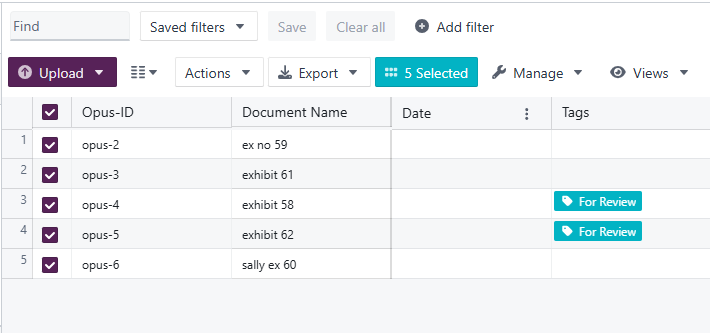
Step 1: Select documents
- Navigate to the Documents page.
- Using the checkboxes, select one or more documents to be added to the family.
Step 2: Open relationships
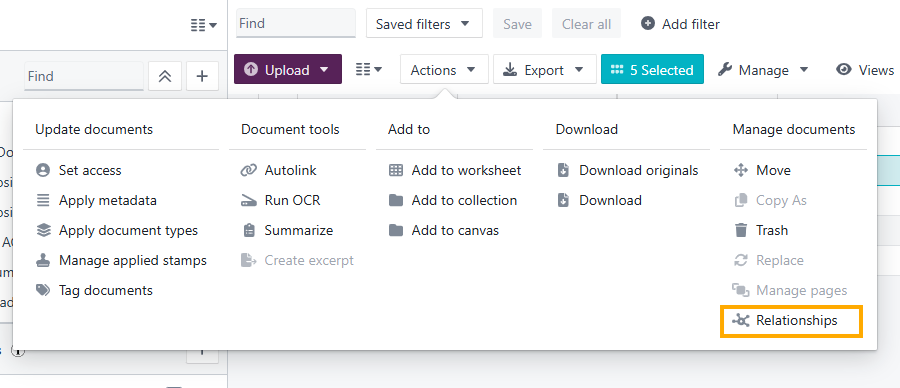
- Open the Actions dropdown menu.
- Select Relationships.
Step 3: Configure the family
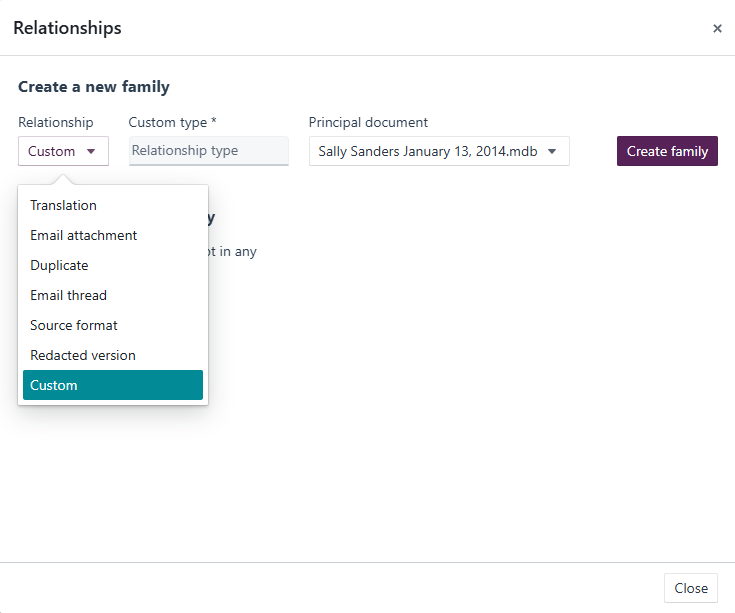
In the Relationships dialog:
- Choose a relationship type from the Relationships dropdown.
- Select an existing relationship type, or
- Enter a new relationship type to create a custom one.
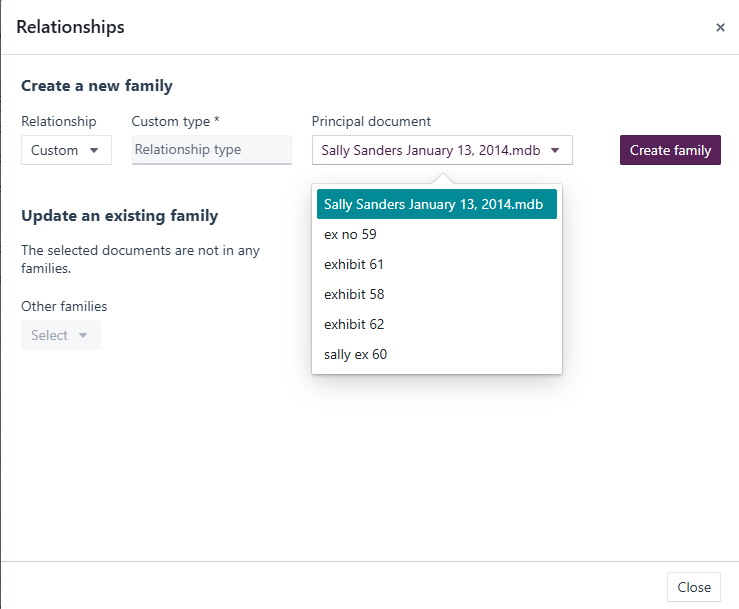
- Select the Principal Document from the dropdown list.
Step 4: Create the family
- Review your selections.
- Click Create Family.
The new document family is created and can be viewed in the Related Documents tab within the document's Details Pane.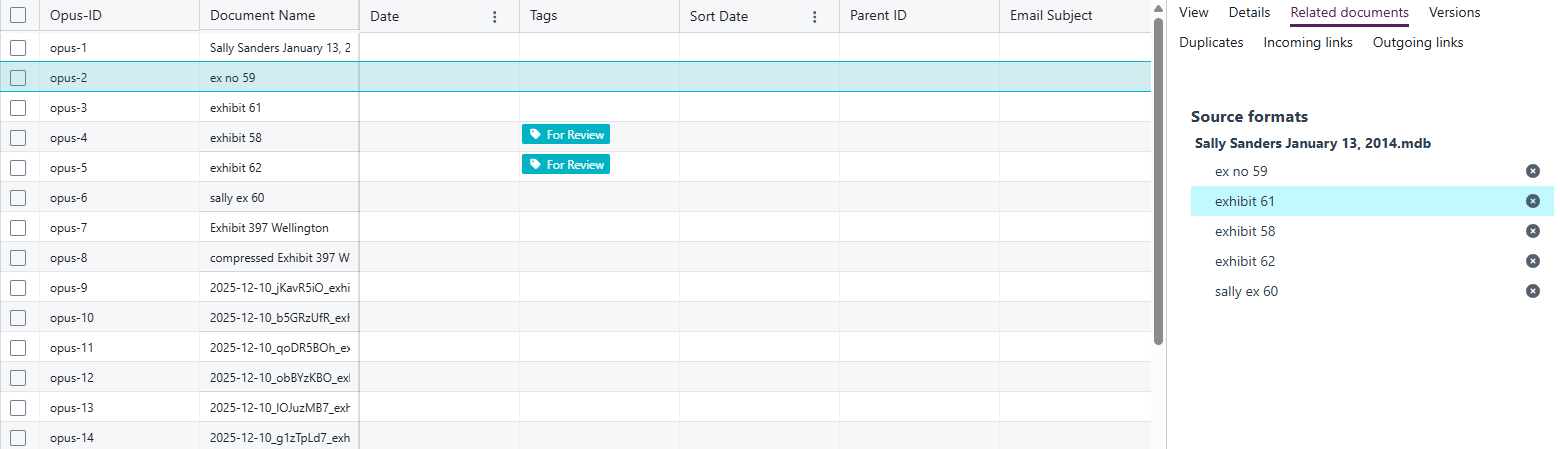
Relationship types
Document relationships can represent a range of document associations. Common examples include:
| Relationship type | Description |
|---|---|
| Translation | Connects translated versions of a document |
| Attachment | Associates attachments with a parent document or email |
| Duplicate | Identifies duplicate copies of the same document |
| Email thread | Groups related email messages into a conversation |
| Related document | Connects documents that share a business or evidential relationship |
Users can also create custom relationship types to meet specific case or project requirements.
Adding documents to an existing family
Step 1: Select documents
- Navigate to the Documents page.
- Select one or more documents using the checkboxes.
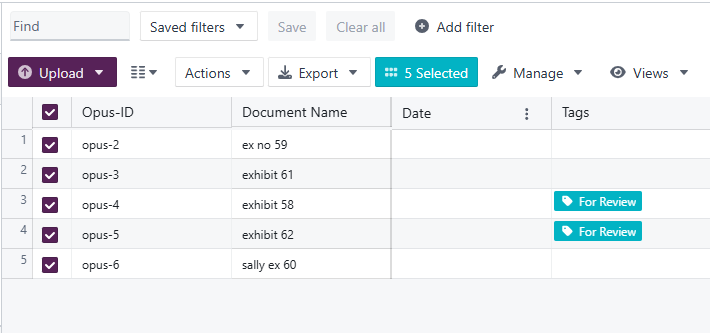
Step 2: Open relationships
- Open the Actions menu.
- Select Relationships.
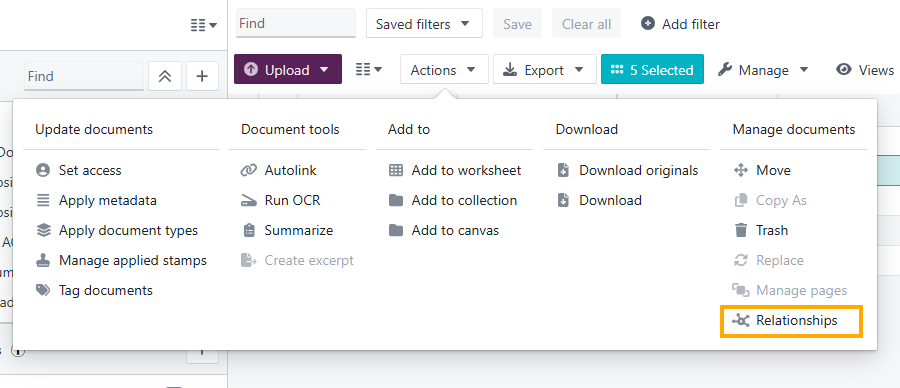
Step 3: Select existing family
- In the Relationships dialog, select the family from the Other Families dropdown.
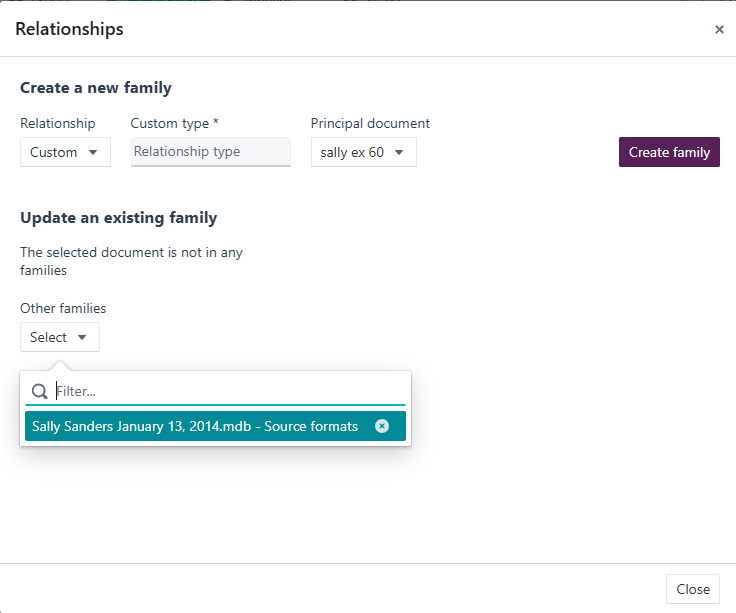
- The existing family members will appear on the right side of the dialog.
Step 4: Add documents
- Select Add Selected to Family.
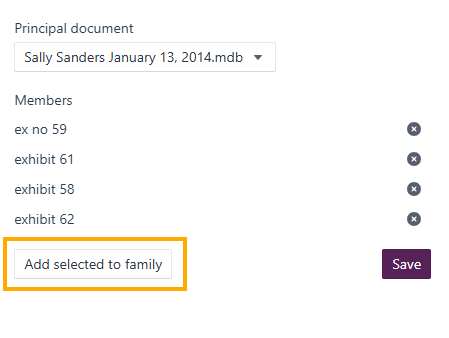
- Click Save.
The selected documents will now appear as members of the chosen family.
Removing documents from a family
Document relationships can be managed from two locations: the Relationships dialog, or the Related Documents tab in the Details Pane.
Removing documents from the Relationships dialog
- Navigate to the Documents page and select one or more documents that belong to the family.
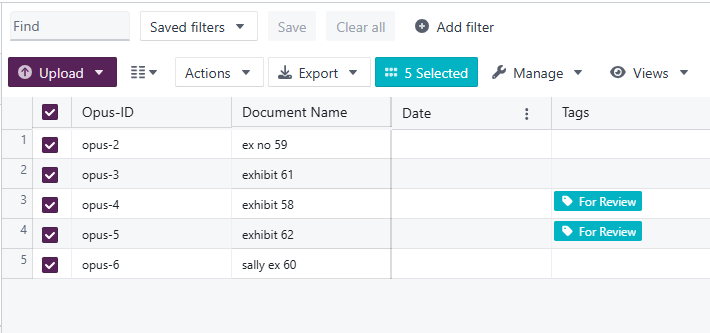
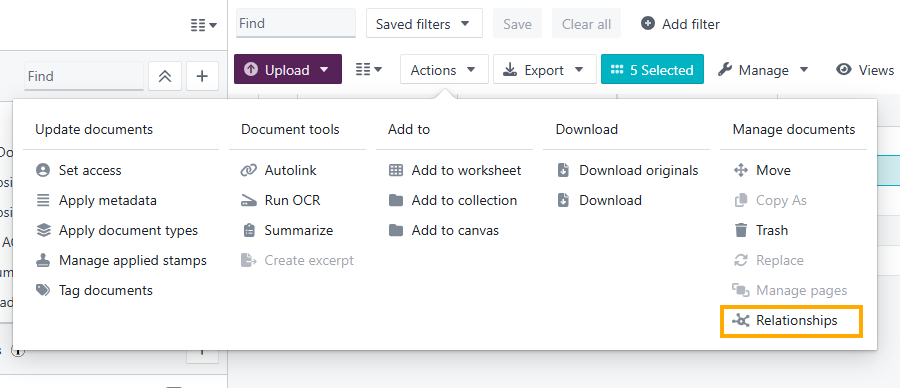
- Open the Actions menu and select Relationships.
- Under Update an Existing Family, select the family you want to modify. The family members will be displayed on the right side of the dialog.
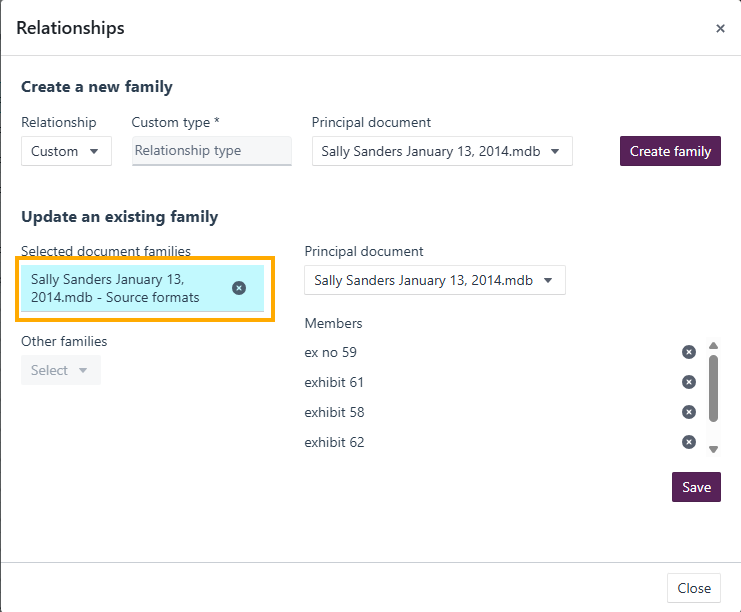
- Click the X next to any document to be removed.
- Click Save.
Removing documents from the Related Documents tab
- Open the Details Pane and navigate to the Related Documents tab.
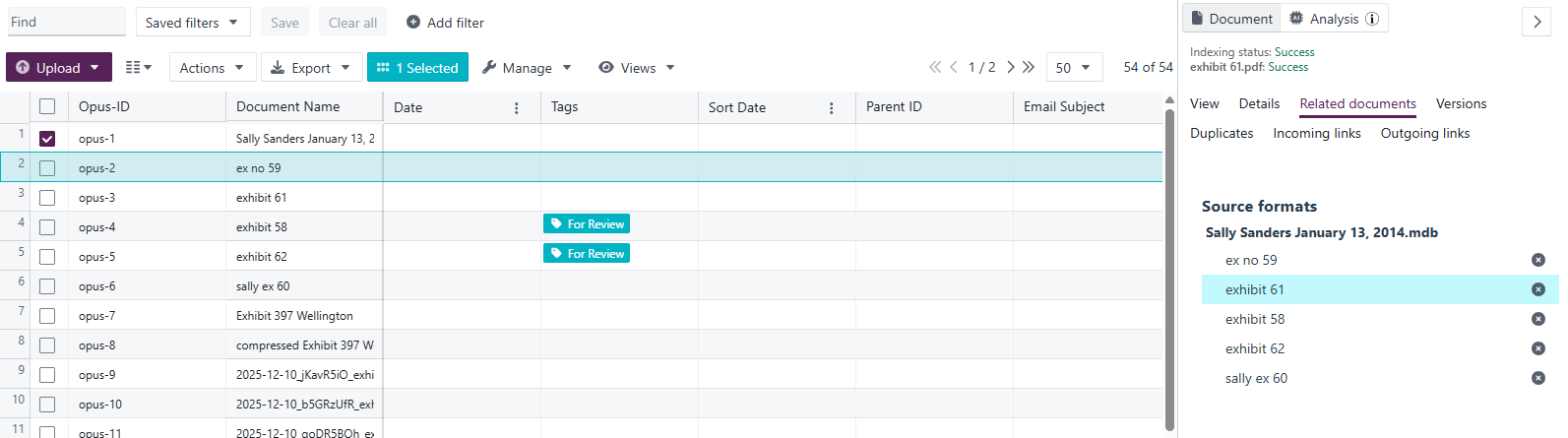
- Click the X next to the document to be removed.
- In the Remove Member dialog, click Remove to confirm.
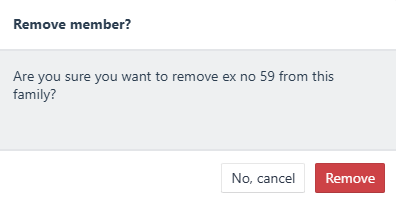
The document is removed from the family and will no longer appear in the Related Documents tab.
Viewing document relationships
- Select a document that belongs to a family.
- Open the Details Pane.
- Navigate to the Related Documents tab.
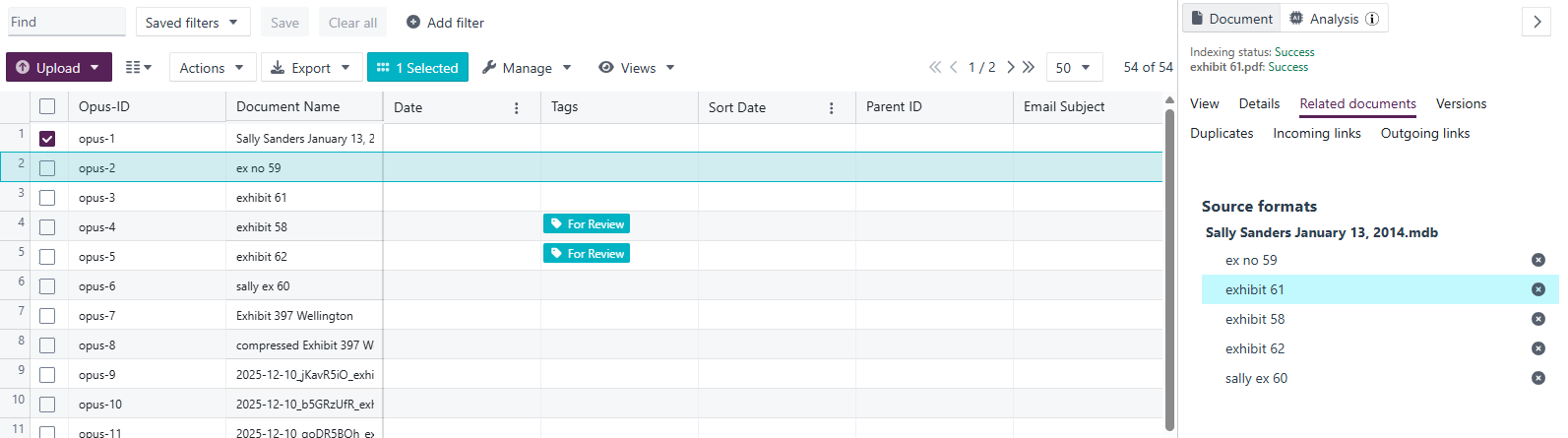
The tab displays the principal document, related documents, relationship type, and family membership.
Deleting a document family
Document families can be deleted when the relationship between documents is no longer required.
Important: Deleting a document family removes the relationship grouping between documents but does not delete the documents themselves from the project.
Step 1: Open the Relationships dialog
- Navigate to the Documents page and select any document that belongs to the family.
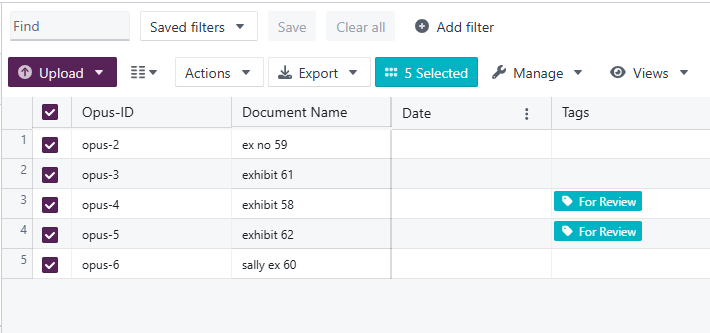
- Open the Actions menu and select Relationships.
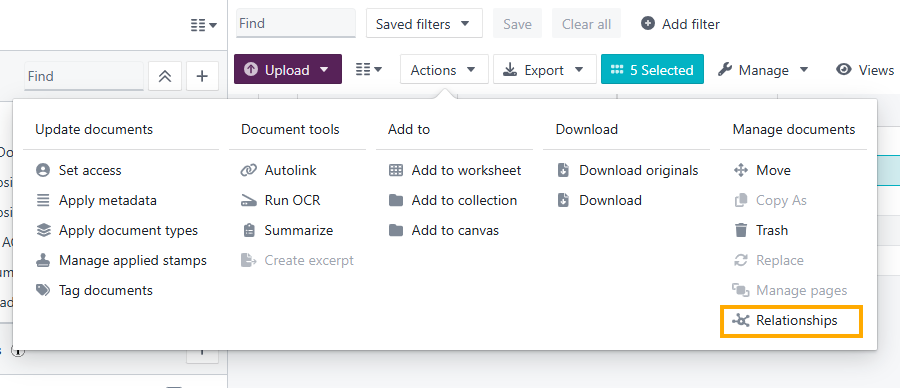
Step 2: Select the family
- Under Update an Existing Family, select the family to be deleted.
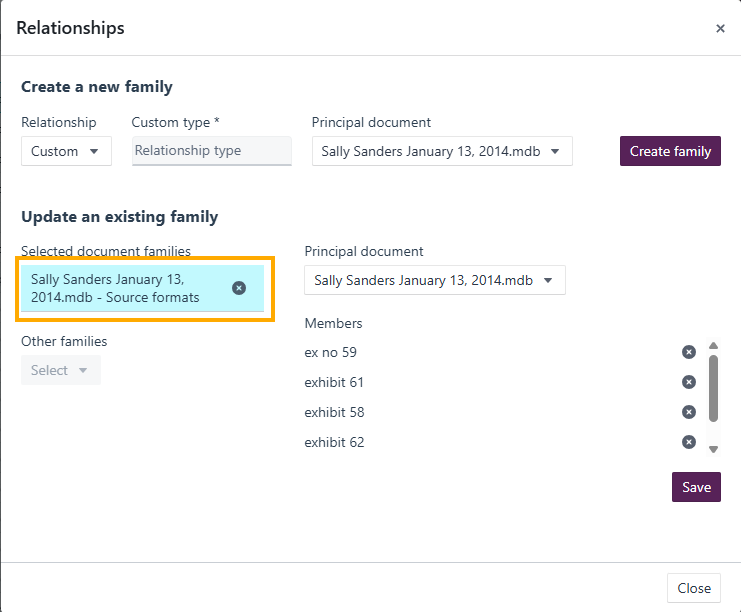
- Review the documents within the family to confirm the correct family has been selected.
Step 3: Delete the family
- Click the X next to the family name.
- Confirm the deletion when prompted in the Delete Family dialog.
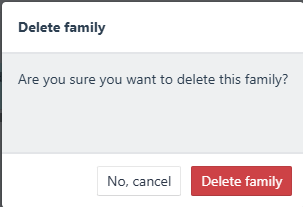
The document family and associated relationship structure are removed. All documents remain in the project and will no longer appear as related in the Related Documents tab.
Related links
Related documentation
Opus 2 has help information accessible within the application; click the question mark and then select Documentation in the upper-right area of the platform. You can also access the documentation at: Opus 2 Support.
How to contact us
To contact us about the documentation, or if you have any other questions or issues about Opus 2 solutions, contact Opus 2 Platform Support by emailing Opus 2 Platform Support.