
| Minimum Software Version | 8.18.10 |
| Solution(s) | Cases International ✓ Cases US ✓ Institutions ⨉ Counsel ✓ |
Explains how Notify: Context-dependent user works in Notifications, allowing email recipients to be determined dynamically based on worksheet data when an event occurs.
The Notify: Context-dependent user option allows notification recipients to be determined dynamically at the moment a triggering event occurs, based on data stored in a worksheet record. This is useful for workflows where responsibility varies by record, such as task assignment, reviews, or approvals.
When configuring notification rules, there are scenarios where the recipient cannot be fixed in advance. The Notify: Context-dependent user option addresses this by reading the value stored in a User or Multiple users field at the time the event occurs and sending the notification to that user.
This option is available only for worksheet-based notifications and requires that the relevant worksheet includes a field of type User or Multiple users.
When Context-dependent user is available
The Notify: Context-dependent user option can be used only when all of the following apply:
- The notification trigger is worksheet-based.
- The worksheet includes a User or Multiple users field.
- The trigger event is one of: New record, Record change, or Date alert.
When configuring the rule, administrators must also specify which user field should be used to determine the recipient.
Configuring a context-dependent notification rule
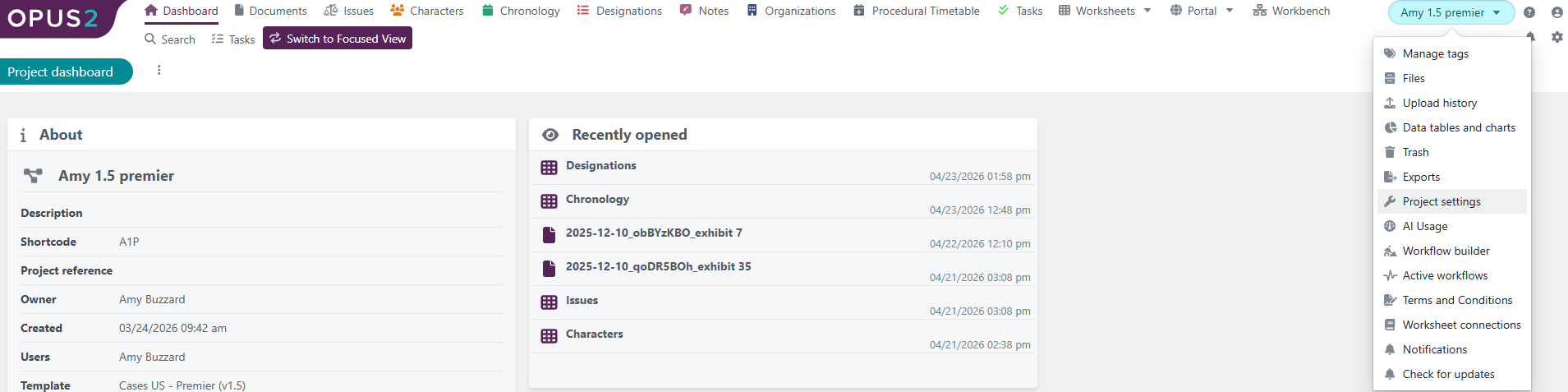
- Open Project settings.
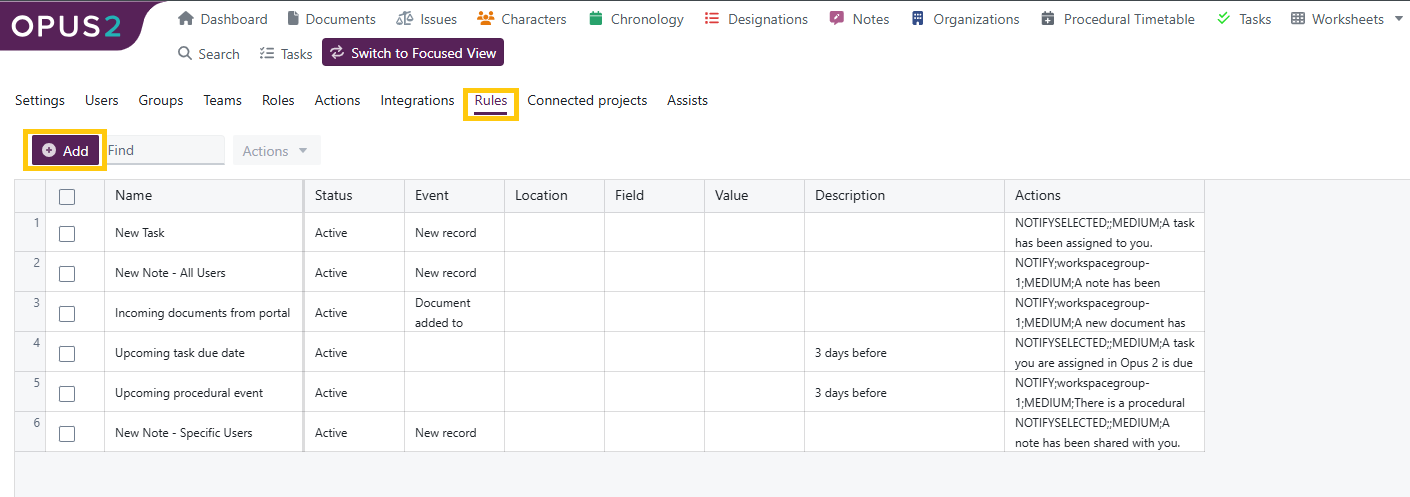
- Navigate to the Rules tab.
- Add a new notification rule.
- Choose a worksheet-based trigger — for example, New record, Record change, or Date alert.
- In the Actions section, select Notify: Context-dependent user.
- Choose the User or Multiple users field from the worksheet that should determine the recipient.
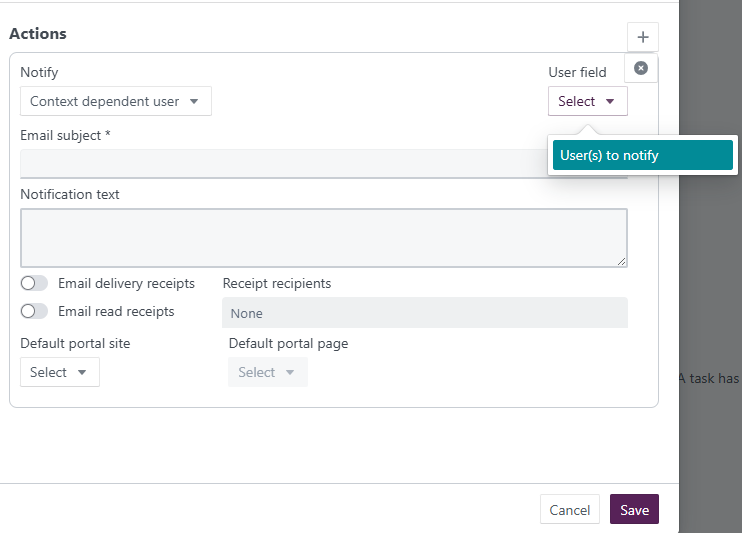
- Configure the email subject and notification text.
- Select Save and activate the rule.
When the trigger event occurs, Opus 2 sends the notification to the user or users stored in the selected field of the affected record.
Example: Notifying users of review tasks
The following examples are based on a project worksheet named Review tasks with these fields:
- Document (Document field)
- Reviewer (User field)
- Due date (Date field)
Rule 1: Notify reviewer of a new task
| Setting | Value |
|---|---|
| Trigger | New record |
| Worksheet | Review tasks |
| Action | Notify: Context-dependent user |
| User field | Reviewer |
Outcome: When a new review task is created, the user entered in the Reviewer field automatically receives an email notification.
Rule 2: Notify reviewer before due date
| Setting | Value |
|---|---|
| Trigger | Date alert |
| Worksheet | Review tasks |
| Date field | Due date |
| Offset | 3 days before |
| Action | Notify: Context-dependent user |
| User field | Reviewer |
Outcome: Three days before the task is due, the assigned reviewer receives a reminder email.
In both cases, the recipient is determined dynamically based on the value entered in the Reviewer field for each record.
Related links
Related documentation
Opus 2 has help information accessible within the application; click the question mark and then select Documentation in the upper-right area of the platform. You can also access the documentation at: Opus 2 Support.
How to contact us
To contact us about the documentation, or if you have any other questions or issues about Opus 2 solutions, contact Opus 2 Platform Support by emailing Opus 2 Platform Support.