
| Minimum Software Version | Spring26 |
| Solution(s) | Hearings ⨉ Cases International ✓ Cases US ✓ Institutions ⨉ Counsel ✓ |
Overview
Using collections in the Detailed View in Opus 2 Cases, you can build an e-bundle/virtual binder with a customisable table of contents (ToC). This supports compliance with court requirements as well as using the capabilities to customise the ToC to house styles.
The Table of Contents Editor enables you to quickly build a customisable TOC using flexible formatting and layout options, with an instant preview, before exporting to PDF or Word.
You can choose between a unified table or section-level tables per collection section, and you can have different TOCs per collection or individual section if required. Bundle page numbers are now also supported as well as Page numbers within a document.
Note: Anyone with View All and Edit collections capabilities can create TOCs.
Editing a TOC for a collection
- Right-click on the 3-dots kebab menu for a collection, where your bundle documents have been assembled.
Tip: Your TOC is built to include the documents from the location that you select. For example, if you select a collection with sections (Hearing bundle selected in our example), the collection and the sections (Pleadings, Evidence, Correspondence) are all represented in the TOC. If you select a single section (Evidence in our example), and then right click Edit table of contents, the TOC includes just those documents in that one section.
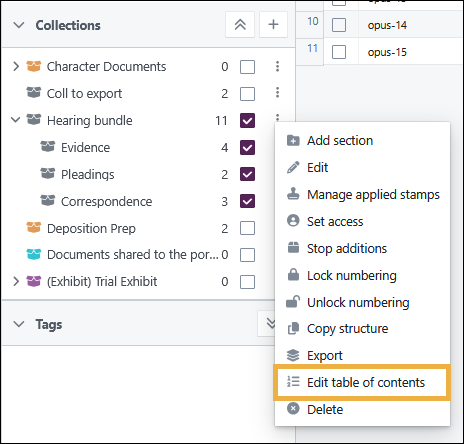
- Select Edit Table of Contents.
The Table of Contents Editor opens. The preview on the right side shows you the immediate effect of selecting different layout, content, and style options.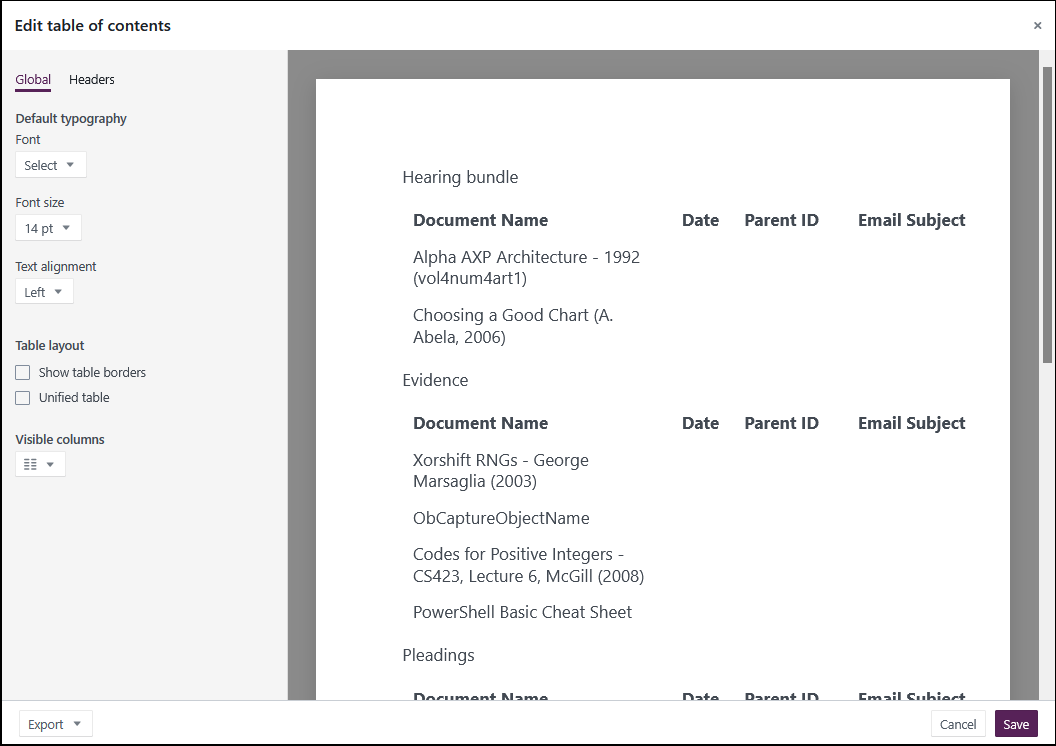
Global tab
The Global tab contains the following options:
| Field name | Description |
|---|---|
| Table Columns | |
| Metadata checkboxes | Select all the metadata columns you want visible in your TOC. The columns are shown in the order you select them. To change the order, clear the checkboxes and select again. There are two new fields for bundle exports.
If you want to edit the document metadata, go back to the document in the source folder in Detailed View, make your changes, and the metadata automatically updates in the TOC Editor. Note: There is no limit on the number of columns you can select, so ensure your table fits your physical page. You can also manually resize columns to get the preferred layout. |
| Default typography | |
| Font and Font size | Select from the available fonts and sizes for your TOC contents. |
| Text alignment | Select from the available text alignment choices to align all the text in the table of contents. These settings apply unless you override them with individual heading section alignment settings on the Headers tab. |
| Table Background colour | Select from the colour palette to change the background colour of your table of contents. These settings apply unless you override them with individual heading section background colour settings on the Headers tab. |
| Bold and Italic | Select this option to show either Bold or Italic font styles. Clear the selection to remove any style changes. These settings apply unless you override them with individual section heading choices settings on the Headers tab. |
| Table layout | |
| Show table borders | Select this option to show both internal and external table borders. Clear the selection to remove all borders. |
| Unified table | Select this option to have a single continuous table with no gaps between sections. TOC with sections (Unified table option not selected) - headers appear above each section mini-TOC; column headers repeated in each table: 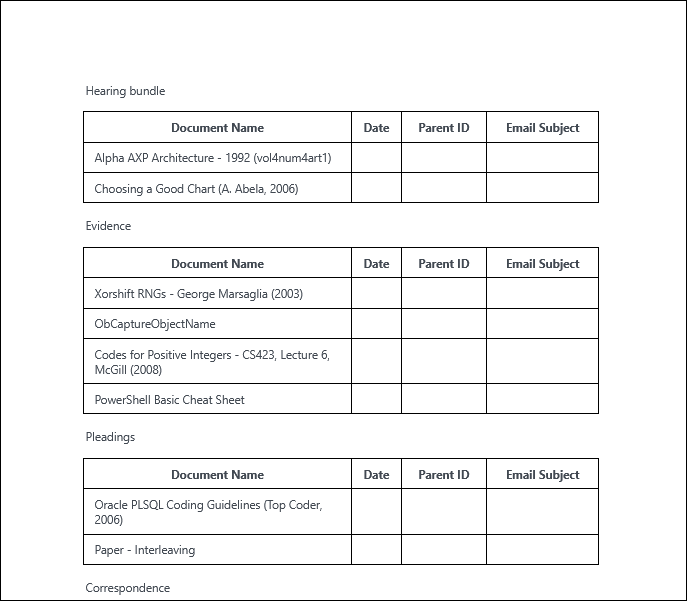 Unified TOC (Unified table option selected) - headers are part of the table; column headers appear once at the start of the table: Unified TOC (Unified table option selected) - headers are part of the table; column headers appear once at the start of the table: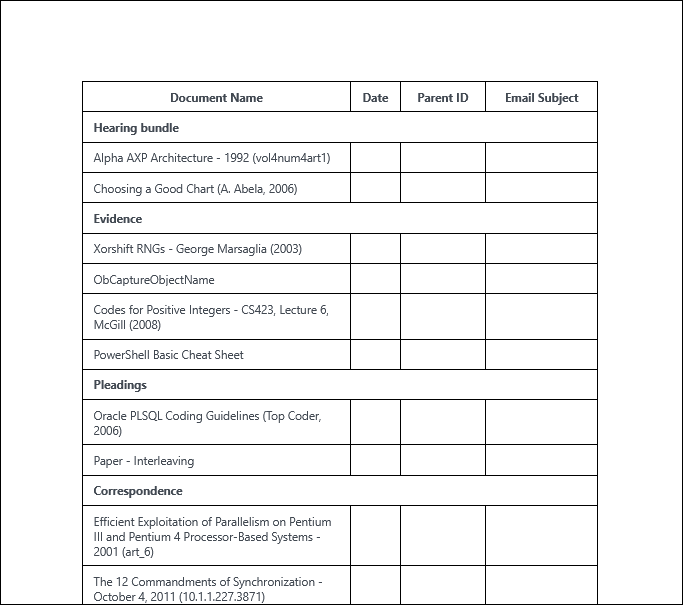 |
| Unified table > Column headings in section row headings | If you select a Unified TOC, an additional option for Column headings appears. The setting controls whether column headings appear on the same row as the section heading. Not selected: Column names remain ABOVE the section name in a separate row. 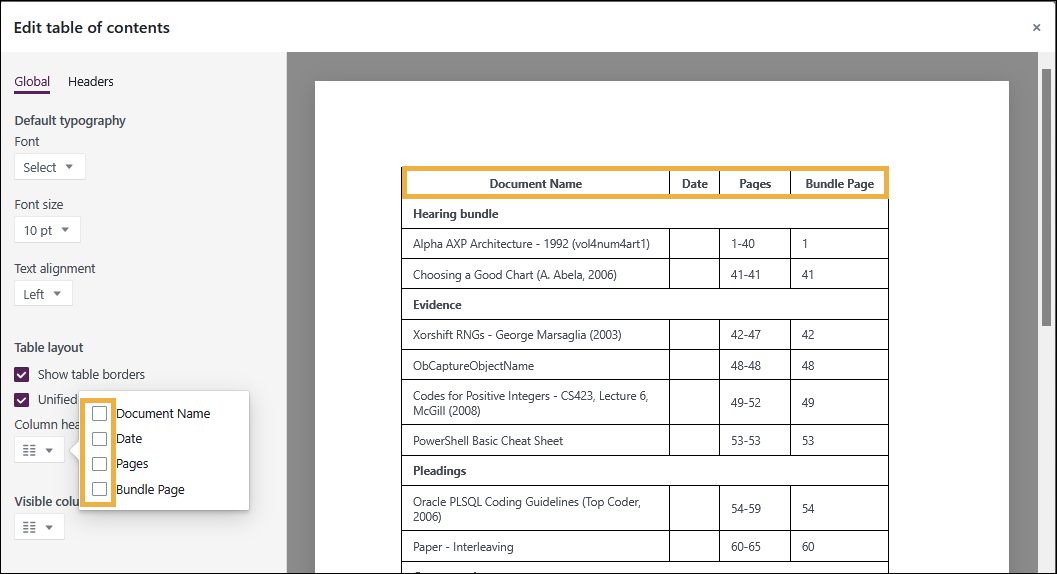 Column names selected: Column names are PART of the section name row. Column names selected: Column names are PART of the section name row.Column names are determined by the metadata fields selected using the Visible columns setting, also on this tab. Be careful not to select too many column names and force the section name off the page. 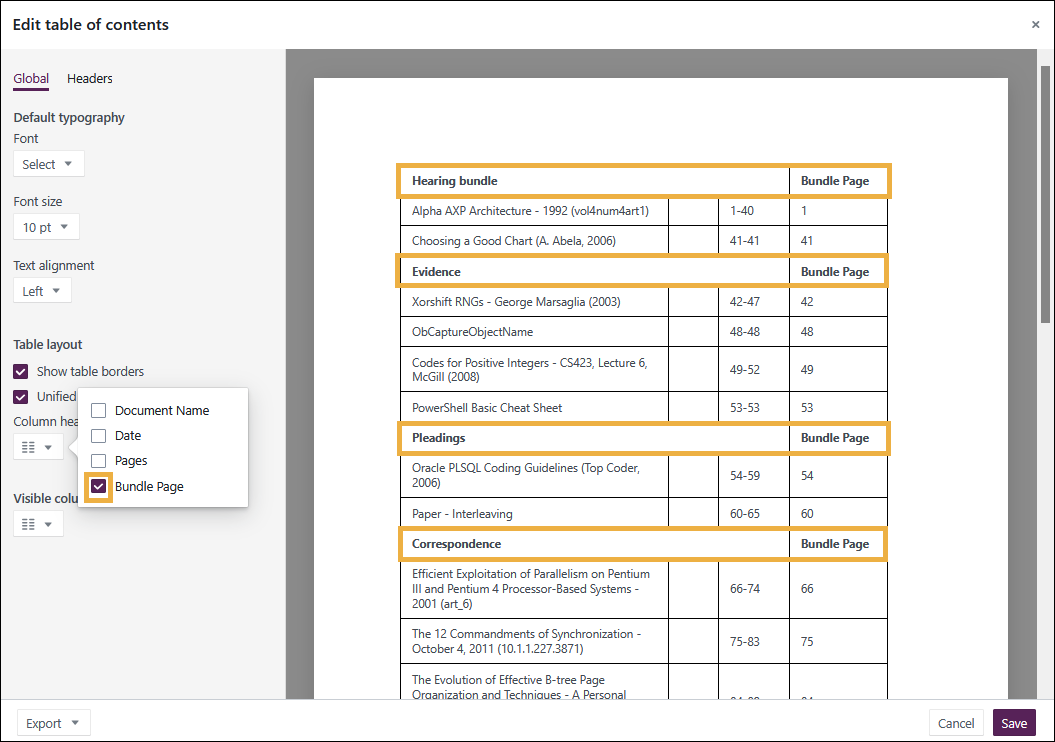 |
| Indent sub-sections | If you select Indent sub-sections, the table indents the sub-sections for easy readability. 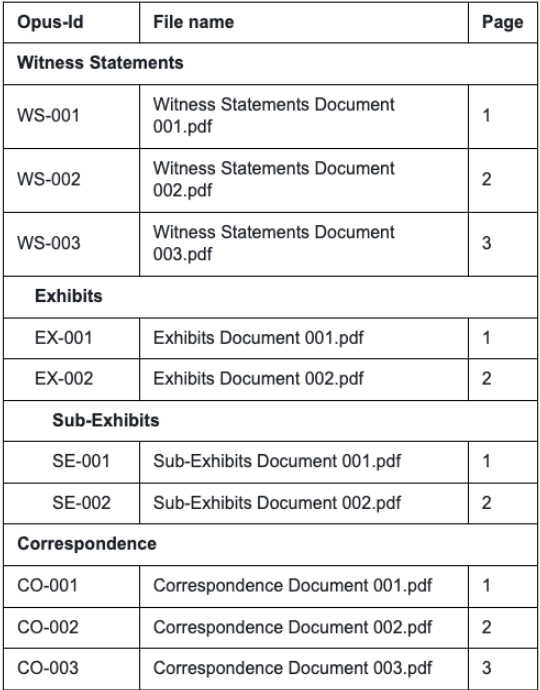 |
| Prologue | |
| Prologue | Select this option to create a custom title or heading for your table of contents. |
| Export | |
| Word document (.docx) | Select this option to export your TOC in Word without the document bundle. The document downloads to your browser's default download folder. To export the TOC with the bundle, use Export. |
| Exports the document to PDF using your browser's printing feature. You can then save the PDF in your chosen location. | |
Headers tab
Section headers are taken directly from the name of the section in the collection in the Detailed View; to change section names, edit them in the Collections section of the Detailed View.
Optionally, select from the following:
| Field name | Description |
|---|---|
| Column headings | |
| Text alignment | Only available for sectional ToC. Select from Use Default, Left, Centre, or Right from the dropdown list. This will override any alignment selection made in the Global tab. |
Background colour | Only available for sectional ToC. Select from the colour palette to change the background colour of your headings in the table of contents. This will override any heading colour selection made in the Global tab. |
| Bold and Italic | Select this option to show either Bold or Italic font styles. Clear the selection to remove any style changes. This will override any style selection made in the Global tab. |
| Section headings | |
| Text alignment | For either unified or sectional TOC, select from Use Default, Left, Centre, or Right from the dropdown list. The section headers move in the preview to show you the new position. |
Background colour | Only available for unified ToC. Select from the colour palette to change the background colour of your sections in the table of contents. This will override any background colour selection made in the Global tab. If the colour selection is removed, the section will default to the ToC background colour selected in the Global tab. |
| Bold and Italic | Select this option to show either Bold or Italic font styles. Clear the selection to remove any style changes. This will override any style selection made in the Global tab. |
| Sub-section headings | |
| Bold and Italic | Select this option to show either Bold or Italic font styles. Clear the selection to remove any style changes. This will override any style selection made in the Global tab. |
- Select Save to save your settings for this TOC.
Note: New documents added to a collection automatically appear in the TOC. If colleagues are adding new documents, close the TOC and reopen it to ensure all documents are reflected in the TOC. Formatting selections are maintained when new documents are added to a collection or collection section.
Related articles