
| Minimum Software Version | 8.18.10 |
| Solution(s) | Cases International ✓ Cases US ✓ Institutions ⨉ Counsel ✓ |
Explains how to link and synchronise media files with an existing transcript in Opus 2, enabling aligned playback between the transcript and associated audio or video files.
Media files can be linked and synchronised with an existing transcript to enable aligned playback for review and analysis. The transcript must be in MDB format and media files must be in MP4 (recommended) or MPG format.
Uploading media to a transcript
There are two ways to upload media to a transcript.Method 1: Via the Transcript Viewer
- In the Documents or Transcripts tab, locate and select the transcript you want to upload media for.
- In the Details panel, select the preview to open the Transcript Viewer.
- Select the menu icon at the top right of the Transcript Viewer.
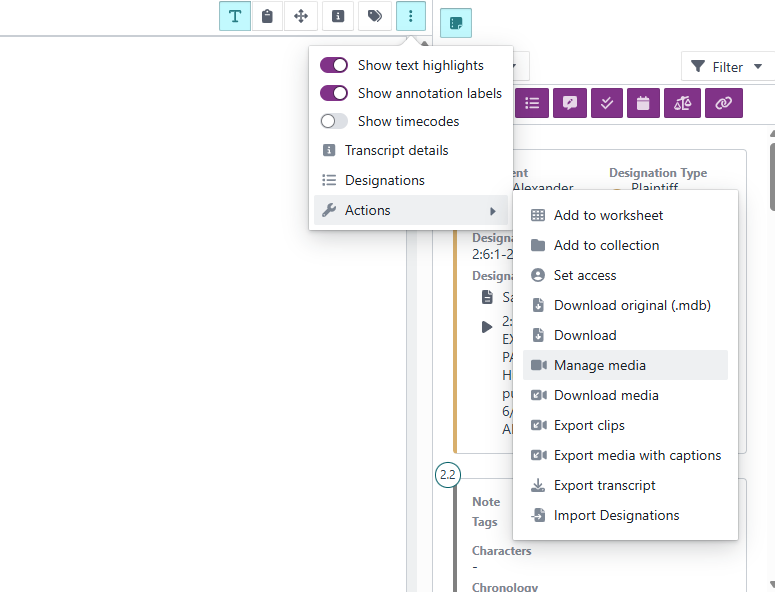 Select Manage media. The Manage transcript media dialog opens.
- Select Browse for files or drag and drop the media file or files into the dialog.
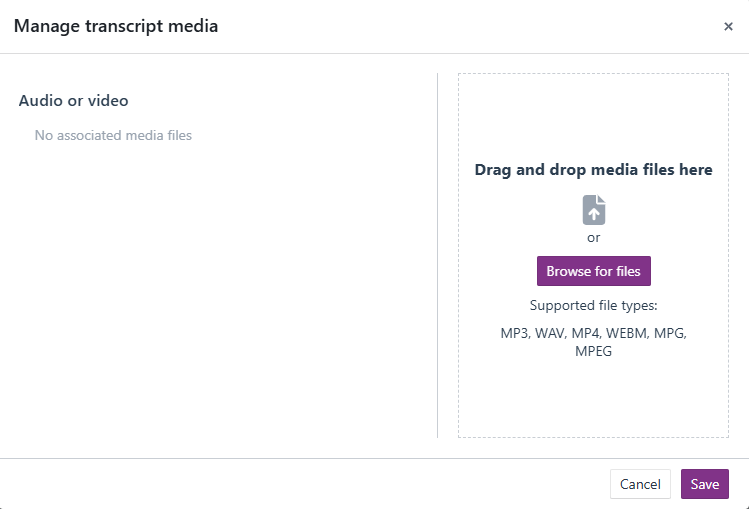
- Select Save to complete the process.
Method 2: Via the Actions dropdown
- In the Documents or Transcripts tab, locate the transcript you want to upload media for.
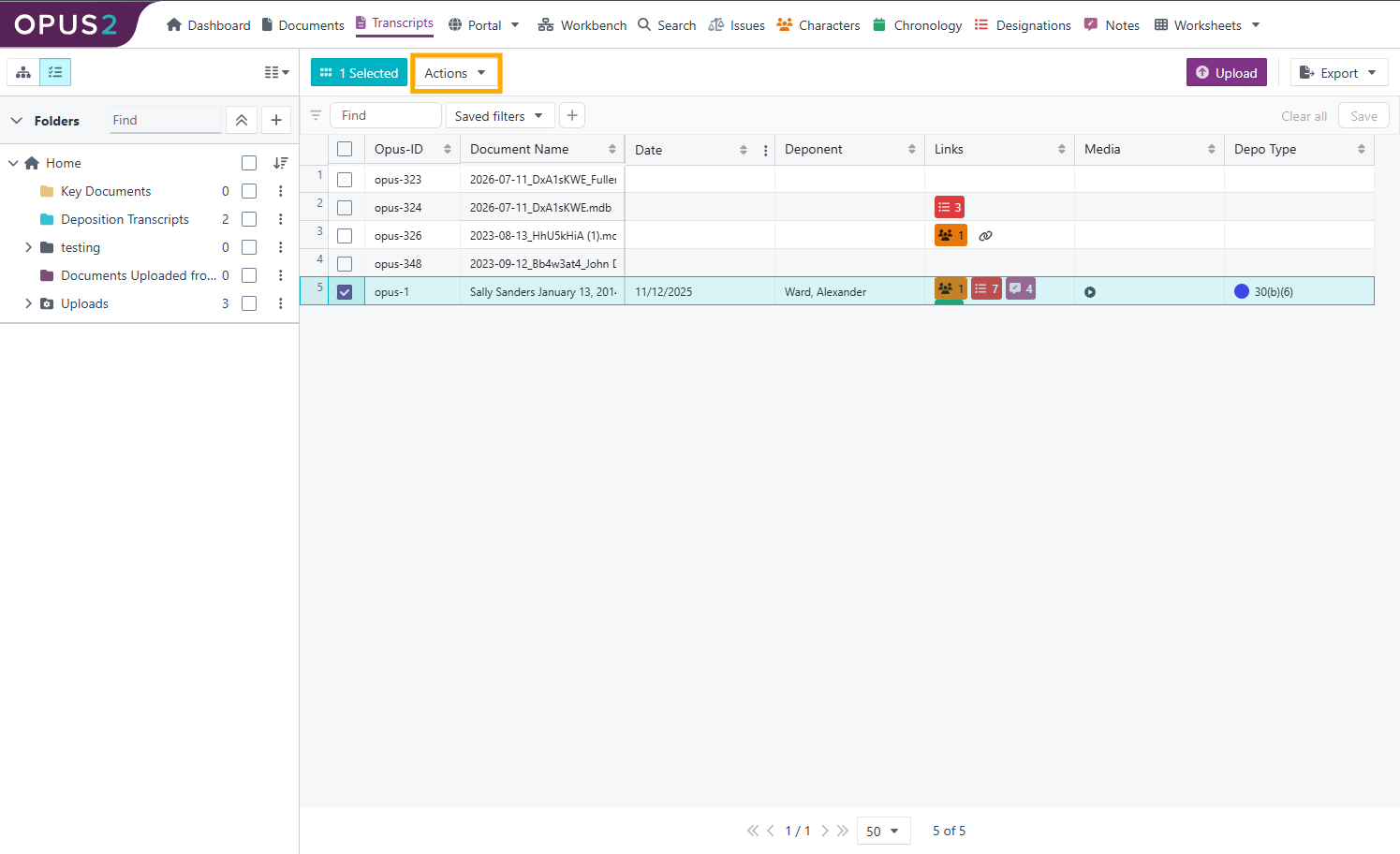
- Select the checkbox next to the transcript. Only one transcript can be selected at a time for this action.
- Select the Actions dropdown.
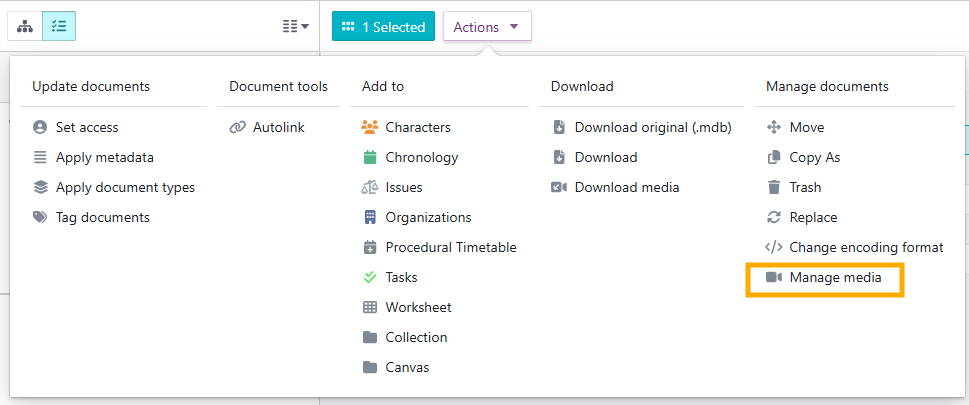
- Select Manage media. The Manage transcript media dialog opens.
- Drag and drop the media file into the dialog, or select Browse for files to locate the file. Supported file types: MP3, WAV, MP4, WEBM, MPG, MPEG.
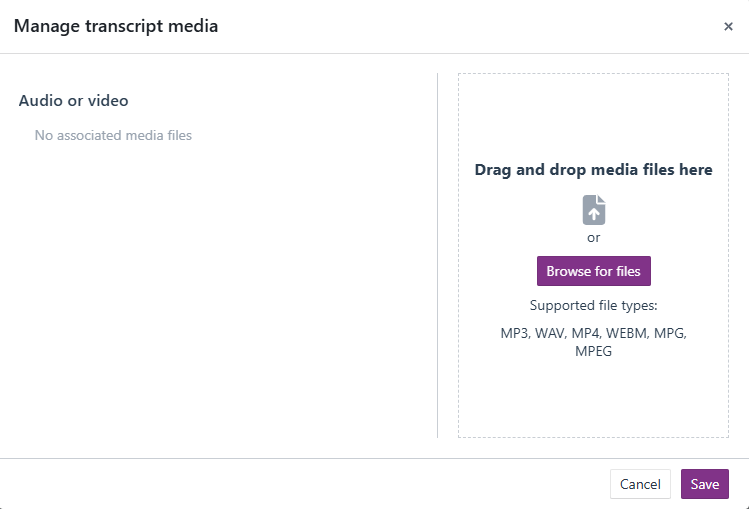
- Select Save to complete the process.
Related links
Related documentation
Opus 2 has help information accessible within the application; click the question mark and then select Documentation in the upper-right area of the platform. You can also access the documentation at: Opus 2 Support.
How to contact us
To contact us about the documentation, or if you have any other questions or issues about Opus 2 solutions, contact Opus 2 Platform Support by emailing Opus 2 Platform Support.