
| Minimum Software Version | 8.Y.X |
| Solution(s) | Hearings ⨉ Cases International ✓ Cases US ✓ Institutions ✓ Counsel ✓ Focused View⨉ |
Explains how to manually link designation records to one another and how to import related designations in bulk via a spreadsheet.
Related designations allow designation records to be linked to other designation records within the Designations worksheet. Links can be created manually from within the worksheet or imported in bulk via a spreadsheet. During collaborative designation review, this allows responses to be added or linked to designations across transcripts in a single operation.
What is a related designation?
The Related Designations field is a multiple remote records field that allows you to link designation records to other designation records within the Designations worksheet.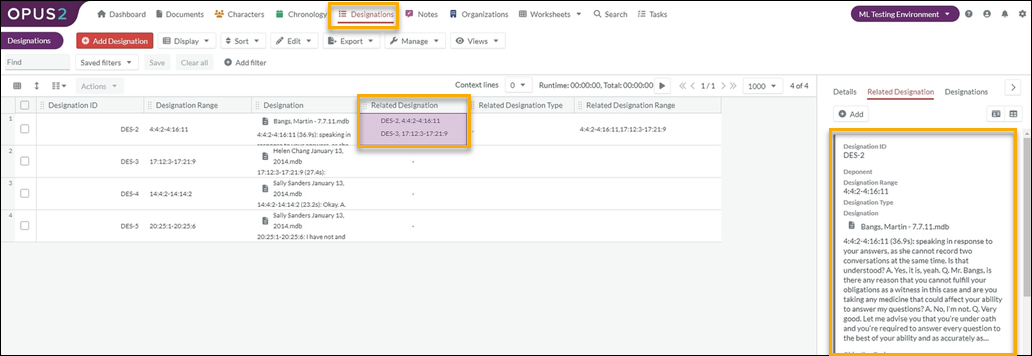
Manually linking designation records
- Select Designations at the top of the screen to open the Designations worksheet.
- Select the designation record you want to link.
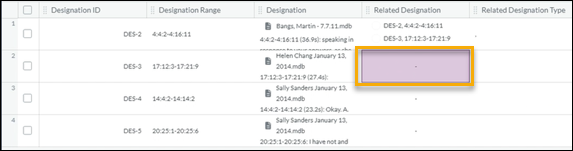
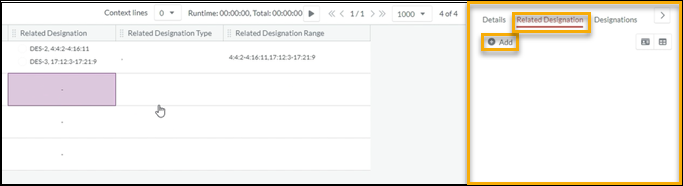
- Select the Related Designation tab on the right side of the screen and select Add.
- Select the designation record you want to link to.
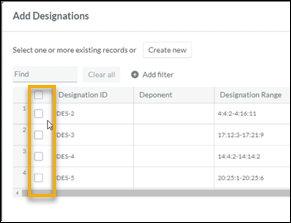
- Select Save.
Importing related designations
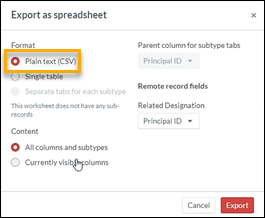
- Select Export > Spreadsheet to export all current records you want to link.
- Select Plain text (CSV).
- Open the exported spreadsheet in Microsoft Excel.
- Identify the four fields required for this import: ID, Designation ID, Designation Range, and Related Designation. Delete all other columns.
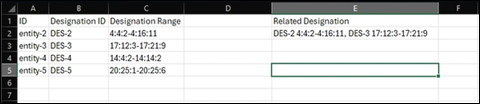
- To replicate the formatting of the existing Related Designation field for new linked records, create a CONCATENATE formula in an empty column. For example:
=CONCATENATE(B2," ",C2).
Note: The Designation ID and Designation Range must be used along with all other Principal ID fields set in the Designations worksheet. All fields must be listed in the order they appear in the Designations worksheet.
- Copy the formula down the column to populate all rows.
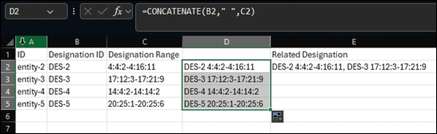
- Select the entire spreadsheet and paste values only (removing all formulas) over the top.
- Copy one or more values from the new column into the Related Designation column.
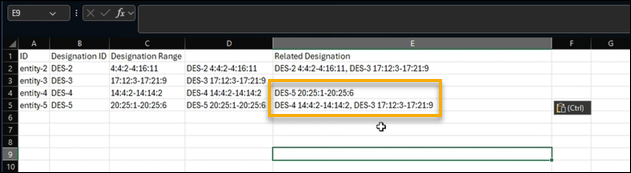
Note: To link more than one record, separate the designation values with a semicolon or comma followed by a space.
- Save the spreadsheet.
- In the Designations worksheet, select Manage > Import items and browse for the file.
- Select the spreadsheet containing the edited records and select Import. The Designations Import dialog opens.
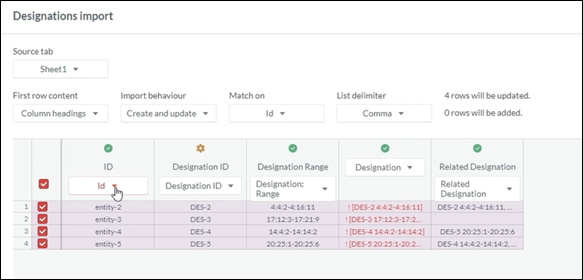
- Using the dropdown menu under each field name, set all fields to Ignore except ID and Related Designation.
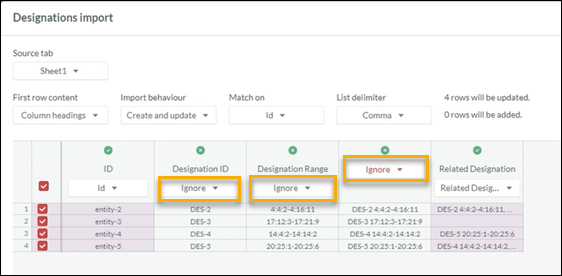
- Select Import.
The newly imported related designations appear in the worksheet.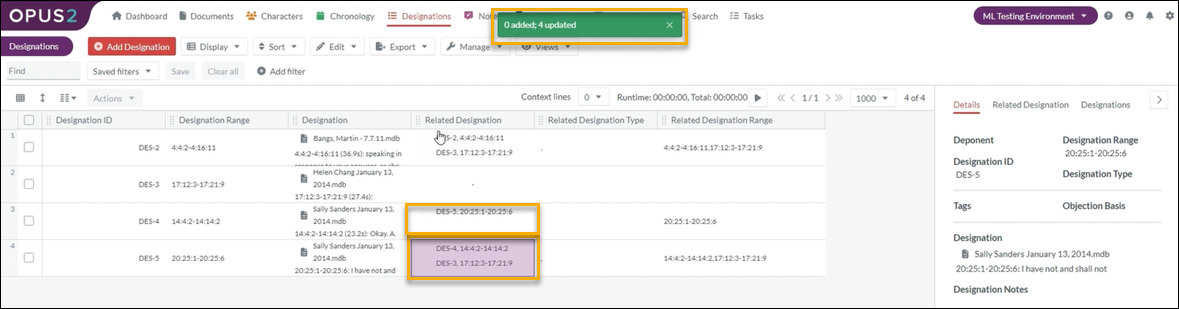
Related designation format examples
The format required for the Related Designation field depends on which fields are configured as Principal ID fields in your Designations worksheet. All Principal ID fields must be included, separated by spaces, in the order they appear in the worksheet.
Example 1: Three Principal ID fields — Designation ID, Designation Range, Objection title
46 1:1:1-1:1:8 OBJECTIONExample 2: Two Principal ID fields — Designation ID, Designation Range
DES-1 10:11:1-10:18:2Example 3: Three Principal ID fields — Deponent, Designation ID, Designation Range
Smith, Joseph DES-535 11:14-11:21Related links
Related documentation
Opus 2 has help information accessible within the application; click the question mark and then select Documentation in the upper-right area of the platform. You can also access the documentation at: Opus 2 Support.
How to contact us
To contact us about the documentation, or if you have any other questions or issues about Opus 2 solutions, contact Opus 2 Platform Support by emailing Opus 2 Platform Support.