
| Minimum Software Version | 8.18.10 |
| Solution(s) | Cases International ✓ Cases US ✓ Institutions ⨉ Counsel ✓ |
Explains how users log in to Opus 2 for the first time, including email verification, password creation, and multi-factor authentication (MFA) setup.
Before a user can log in to Opus 2, an administrator must create the user account and assign an appropriate role. Once this is completed, the user receives an automated email containing a secure link to verify their email address and complete initial account setup.
First-time login requires the user to:
- Accept the Opus 2 Acceptable Use Policy,
- Set up multi-factor authentication (MFA), and
- Create a password.
MFA is mandatory and must be completed using a supported authenticator application.
Logging in for the first time
Step 1: Receive account setup email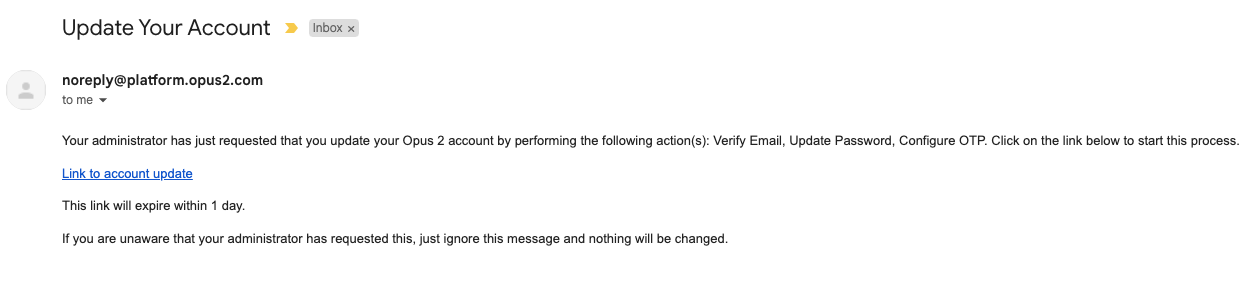
After an administrator creates the account, the user receives two emails:
- The first email contains information about the addition to the Opus 2 platform.
- The second email contains a link to verify the user's email address.
Select the link in the second email to begin the login setup process.
Example: A newly onboarded team member receives an Opus 2 welcome email with a verification link.
Step 2: Review login requirements
After selecting the link, the user is redirected to the Opus 2 platform, which displays the initial setup requirements. Select Proceed to continue.
Step 3: Accept the Acceptable Use Policy
Review the Opus 2 Acceptable Use Policy and accept the terms to proceed. Acceptance is required before accessing the platform.
Step 4: Set up multi-factor authentication (MFA)
Opus 2 requires MFA for all users. Supported authenticator apps include Google Authenticator and FreeOTP.
- Follow the on-screen instructions to configure MFA.
- Scan the QR code using the authenticator app.
- Enter the one-time code generated by the app.
- Optionally, enter a device name for the authenticator app.
- Select Submit.
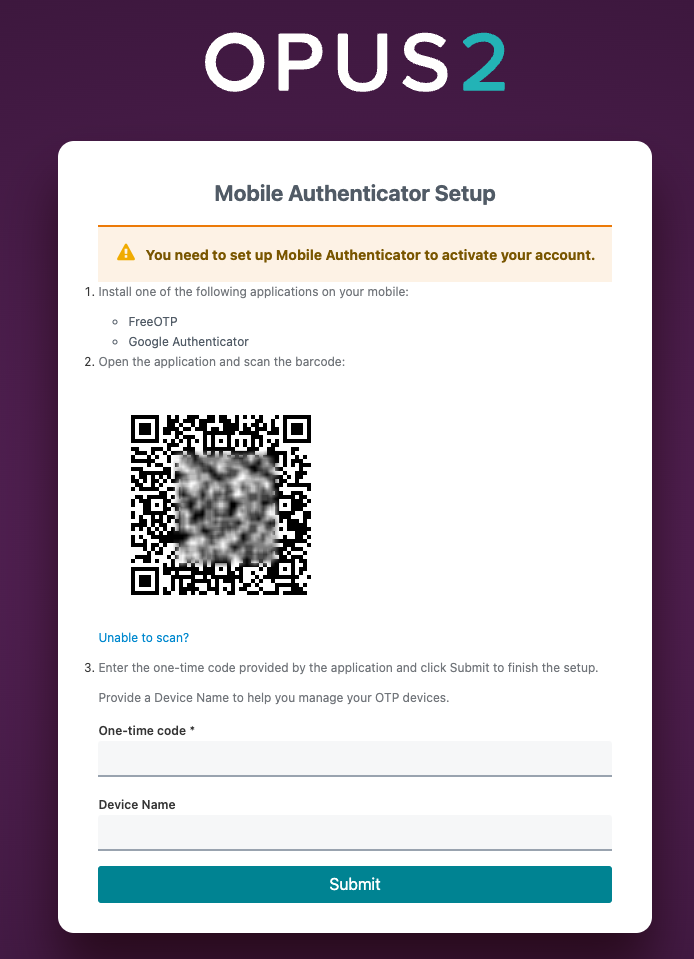
Example: A user scans the QR code using Google Authenticator and enters the generated six-digit code.
After setup, a new app-generated code will be required at every login.
Step 5: Create a password
- Enter a password that meets the platform's requirements.
- Confirm the password.
- Select Submit to complete account setup.
The account is now ready for use.
Related links
- Creating, updating, and assigning system roles
- Project user management
- Platform authentication options
Related documentation
Opus 2 has help information accessible within the application; click the question mark and then select Documentation in the upper-right area of the platform. You can also access the documentation at: Opus 2 Support.
How to contact us
To contact us about the documentation, or if you have any other questions or issues about Opus 2 solutions, contact Opus 2 Platform Support by emailing Opus 2 Platform Support.