
| Minimum Software Version | 8.14.3 |
| Solution(s) | Hearings ⨉ Cases International ✓ Cases US ✓ Institutions ✓ Counsel ✓ Focused View⨉ |
Explains the three ways to access AI Analysis in Opus 2 and how to add analysis results to a worksheet.
Opus 2 AI Analysis can be accessed in two ways:
- From the document preview on the Documents page
- From within the Document or Transcript Viewer
Accessing AI Analysis
From the Documents page
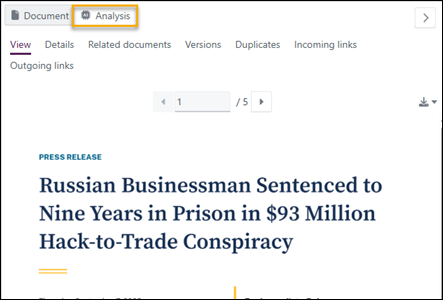
Select a document to open it in the Details panel, then select Analysis. This method works for both documents and transcripts
From the Document or Transcript Viewer
Select AI at the top left of the viewer. This method works for both documents and transcripts.
Adding analysis results to a worksheet
If you want to add the results of AI analysis to a worksheet, there are two ways to do this:
- From within the Document or Transcript Viewer.
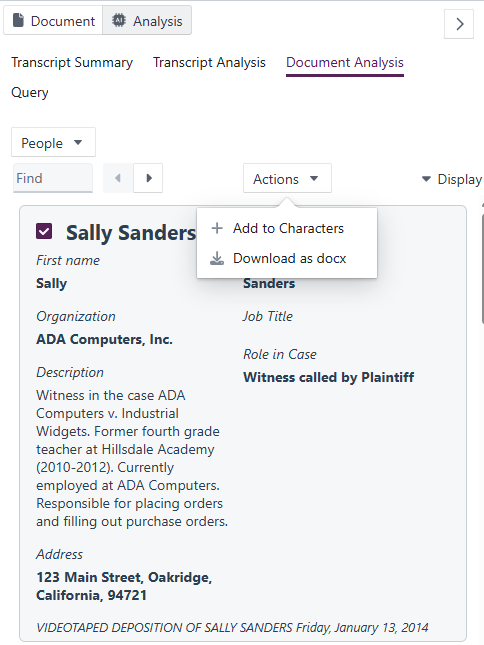
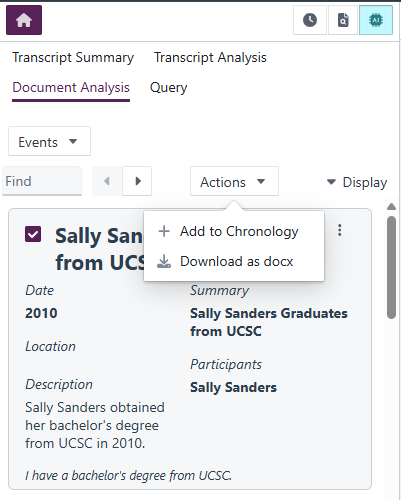
- From the document preview on the Documents page, select entities using the checkboxes and then select Actions > Add to [worksheet name].
For more information, see Single document analysis.
A note on AI accuracy
While this AI release is generally available, AI models — especially in complex legal workflows — can still produce imperfect results. Opus 2 is committed to ongoing refinement and sees this as the beginning of a longer journey.
User feedback is invaluable in shaping how these features evolve. If you are willing to share your experience — what is working well and where improvements could help — the Opus 2 Product team would welcome your input. Contact Opus 2 Platform Support.
Related links
Related documentation
Opus 2 has help information accessible within the application; click the question mark and then select Documentation in the upper-right area of the platform. You can also access the documentation at: Opus 2 Support.
How to contact us
To contact us about the documentation, or if you have any other questions or issues about Opus 2 solutions, contact Opus 2 Platform Support by emailing Opus 2 Platform Support.