
| Minimum Software Version | 10.7.9 | Date: September 2026 |
| Solution(s) | Hearings ⨉ Cases International ✓ Cases US ✓ Institutions ⨉ Counsel ✓ |
The Add to action allows you to link one or more documents to a worksheet record, move them into a collection, or place them on a canvas — all from the Documents tab. You can connect documents to any subtype associated with any worksheet in your case.
When reviewing documents, you may need to associate them with existing case worksheets, organise them into collections for sharing or review, or surface them on a canvas for presentation. The Add to action in the Documents tab provides a single, consistent method to perform all of these connections without leaving the documents view.
Add to worksheet record
Use this method to connect documents to a worksheet without specifying the worksheet in advance.
- From the Documents tab, select the document or documents using the checkboxes.
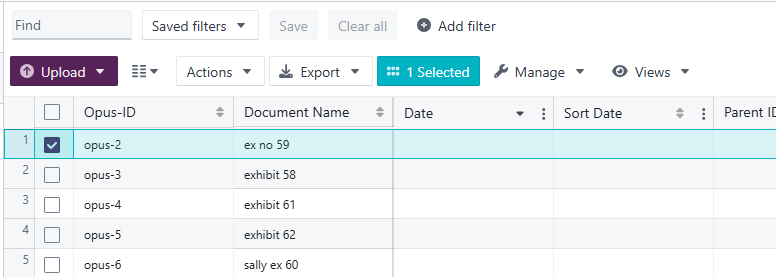
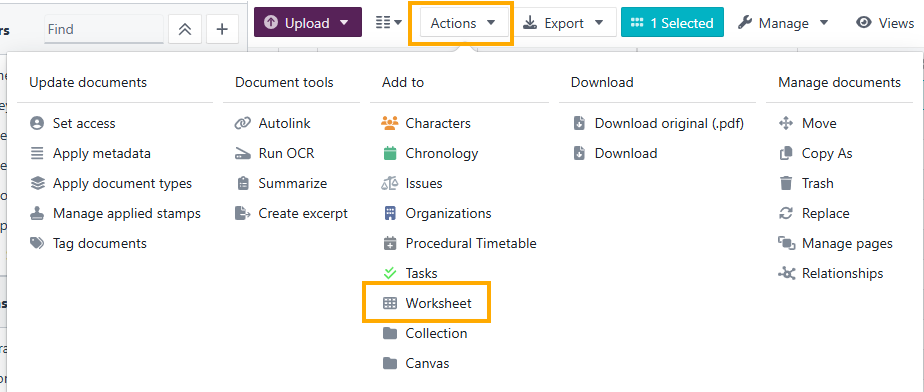
- Select Actions and choose Worksheet.
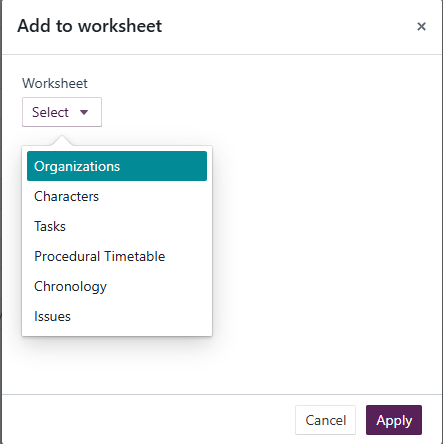
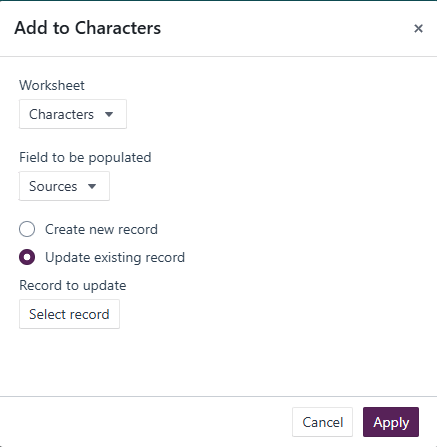
- In the Add to worksheet dialog box:
- Select the worksheet you wish to connect to.
- Select the Field to be populated; for migrated cases, use the Sources subtype for the Character link.
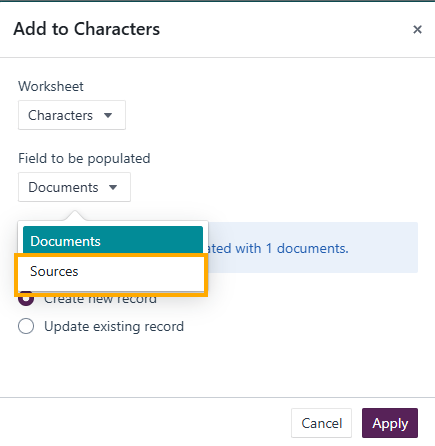
- Select whether you wish to Create new record or Update existing record:
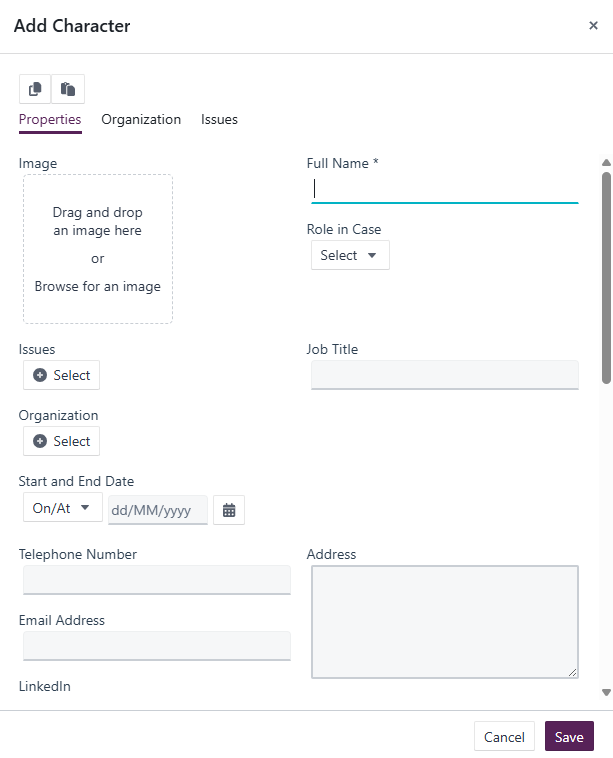
- Create new record opens the Add dialog for that worksheet.
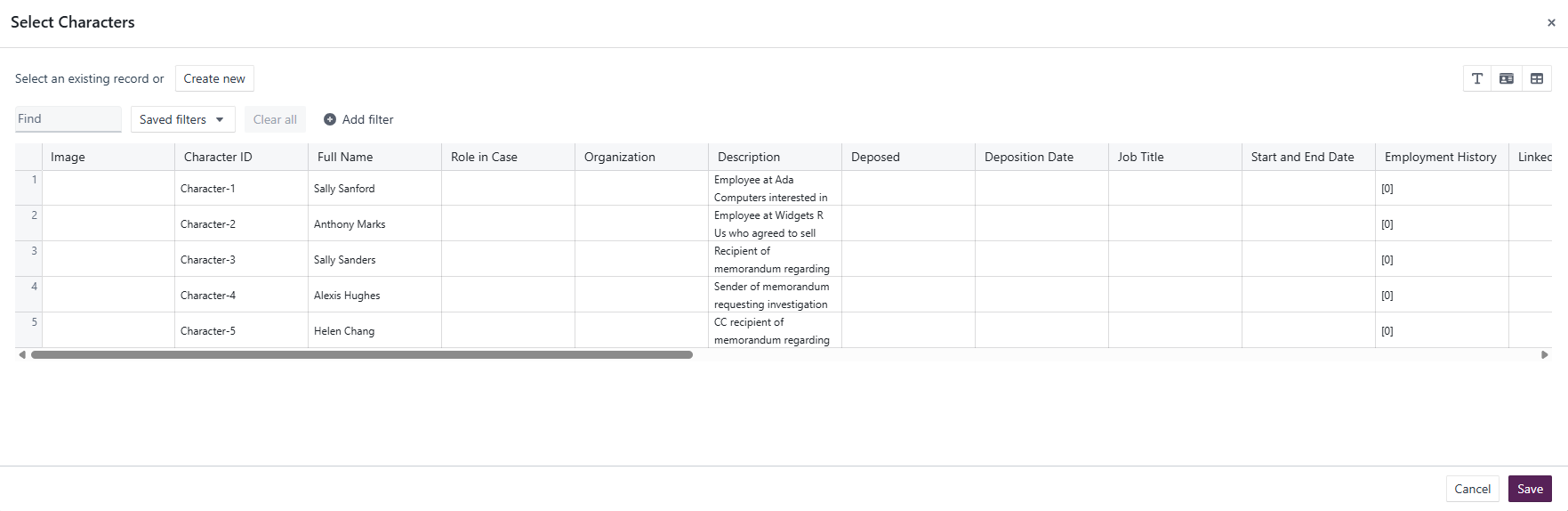
- Update existing record displays a Select record button, which opens the Select dialog for that worksheet so you can choose the existing record.
- Create new record opens the Add dialog for that worksheet.
- Select the worksheet you wish to connect to.
- Select Apply to complete the worksheet connection.
Add to worksheet-specific record
Use this method when you already know which worksheet you want to connect the documents to.
- From the Documents tab, select the document or documents using the checkboxes.
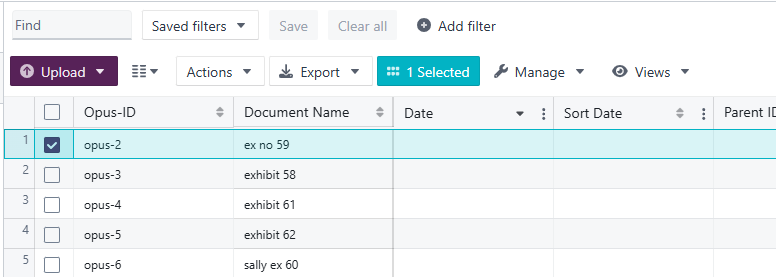
- Select Actions and choose the specific worksheet you want to connect the document to.
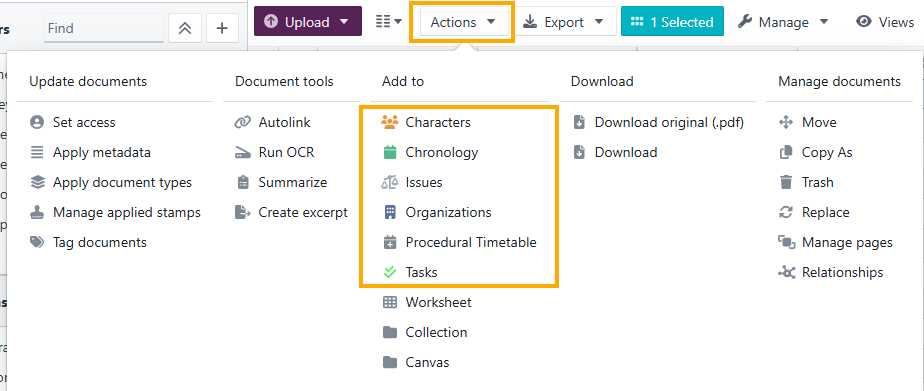
- In the Add to dialog box:
- Select the Field to be populated; for migrated cases, use the Sources subtype for the Character link.
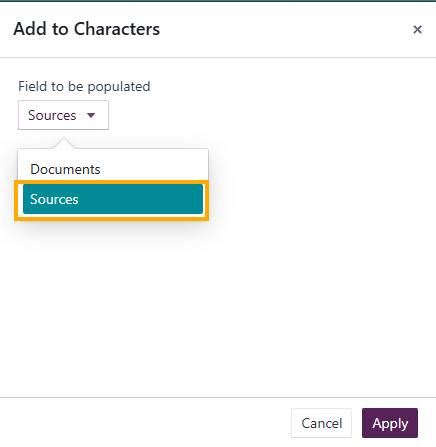
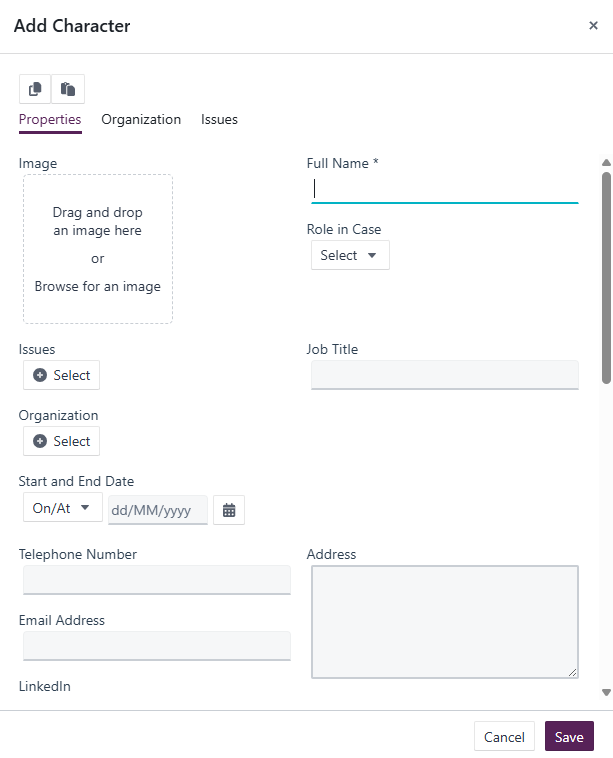
- Select whether you wish to Create new record or Update existing record:
- Create new record opens the Add dialog for that worksheet.
- Update existing record displays a Select record button, which opens the Select dialog for that worksheet so you can choose the existing record.
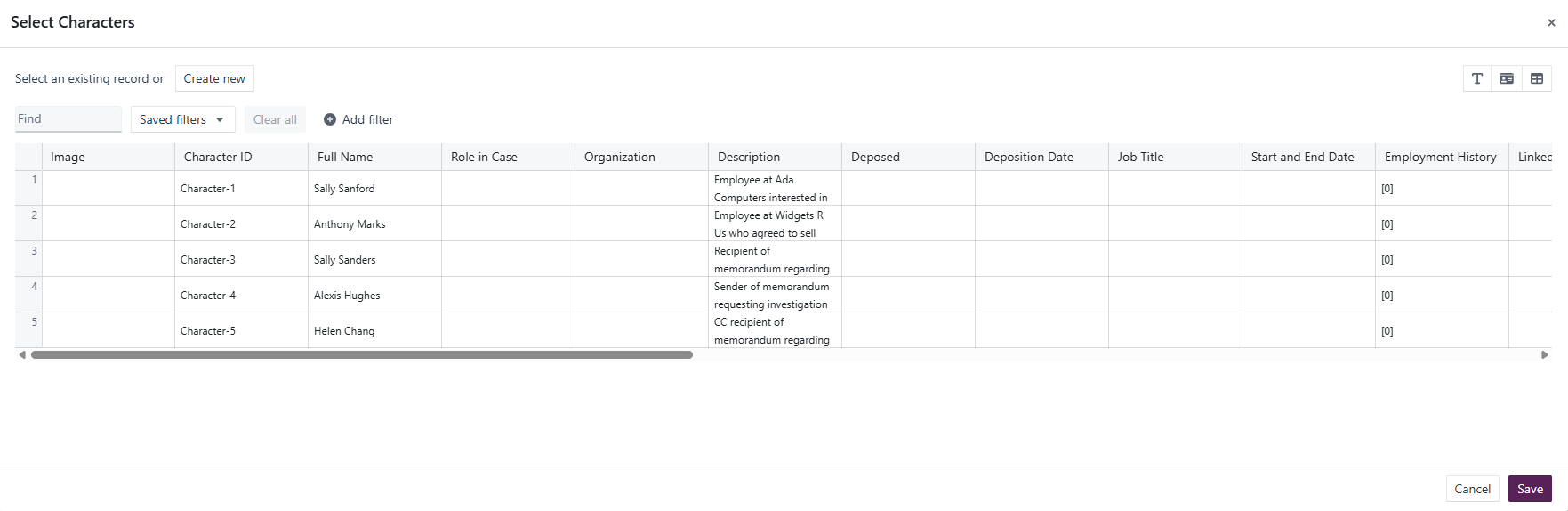
- Create new record opens the Add dialog for that worksheet.
- Select the Field to be populated; for migrated cases, use the Sources subtype for the Character link.
- Select Apply to complete the worksheet connection.
Add to collection
- From the Documents tab, select the document or documents using the checkboxes.
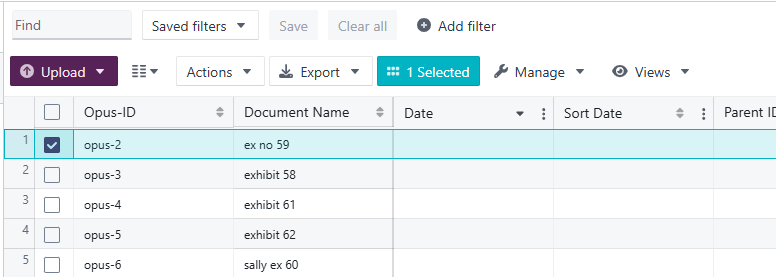
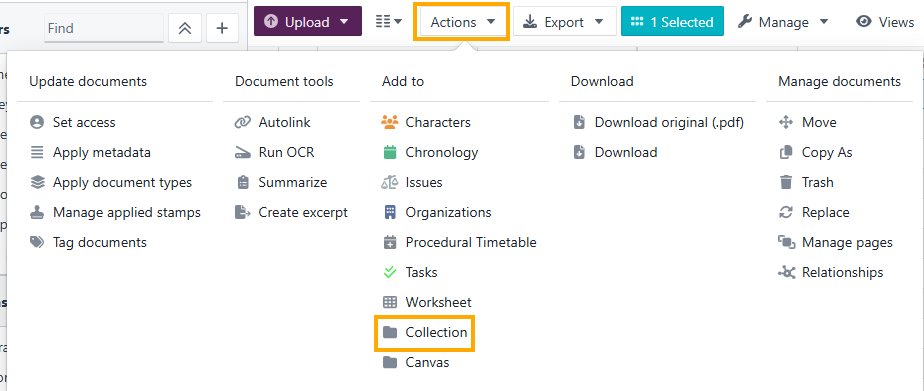
- Select Actions and choose Collection.
- In the Add to collection dialogue box:
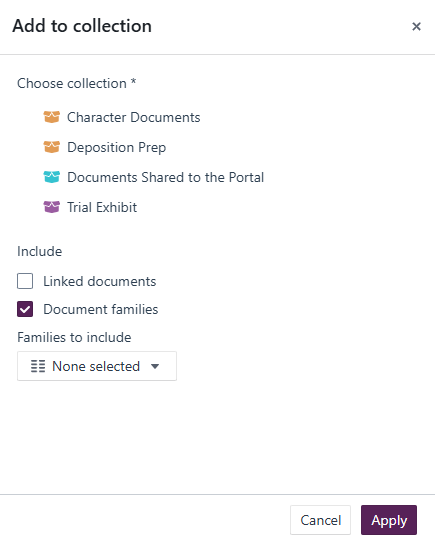
- Select the collection from the list.
- Decide whether to include any Linked documents or Document families using the checkboxes.
- If including document families, select the families to include from the dropdown menu.
- Select Apply to add the documents to the collection.
Add to canvas
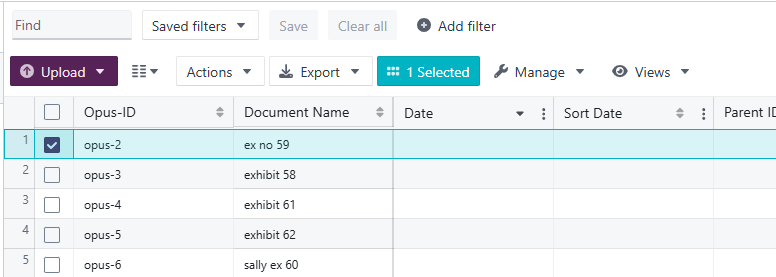
- From the Documents tab, select the document or documents using the checkboxes.
- Select the Actions dropdown and choose Canvas.
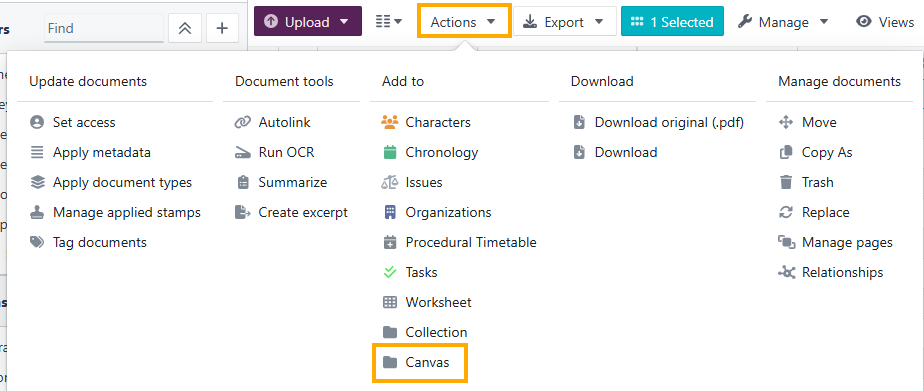
- In the Select canvas dialog box, choose the canvas from the list.
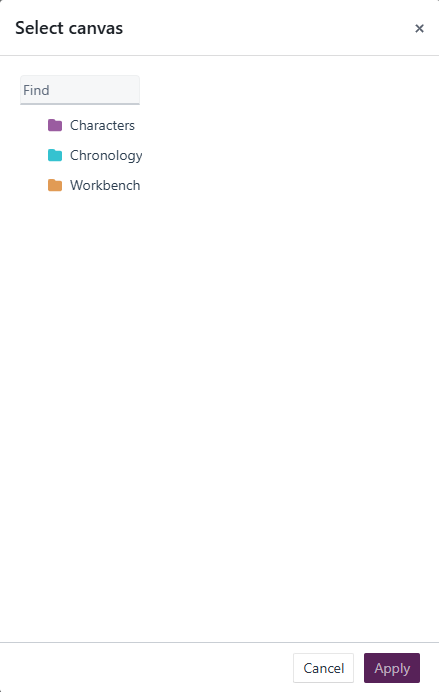
- Select Apply to add the documents to the canvas.
The Add to functionality can also be accessed by right-clicking on a document in the Documents tab and selecting Add to, or through the kebab menu in the document viewer and selecting Actions.
Related links
Related documentation
Opus 2 has help information accessible from within the application; accessible by clicking the question mark and then selecting Documentation in the upper right area of the platform application. You can also access the documentation at: Opus 2 Support.
How to contact us
To contact us about the documentation, or if you have any other questions or issues about Opus 2 solutions, contact Opus 2 Platform Support by emailing Opus 2 Platform Support.