| Minimum Software Version | 8.18.6 |
| Solution(s) | Hearings ⨉ Cases International ✓ Cases US ✓ Institutions ⨉ Counsel ✓ |
How do permissions for viewing documents work in Focused View?
Permissions work as follows:
- If no users are allowed to view a document, the document does not enter the AI workflow and is not displayed anywhere.
- If a user is not allowed to view a document, it is unavailable for selection in Focused View but is still listed. Citations are also greyed out and unavailable.
- AI responses may still include insights derived from restricted documents.
Important: For clients who already have access to Focused View, all access options delivered in build 8.18.6 are shipped ON; for all other clients who do not have Focused View, the access options are OFF.
How do I switch on Focused View?
For Opus 2 Solutions Operations and Customer Support staff there are operator-only toggles for Focused View at the tenant and workspace levels.
To use these settings at the tenant level:
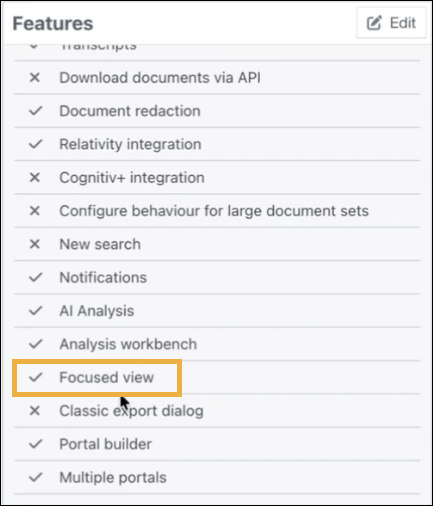
Select Sys Admin > Features > choose from the following options:
- AI Focused View
- AI Focused View - hide general assist
- Focused View URL field box
To change access to Focused View at the role level, do the following:
Select Sys Admin > System Roles - Select a Role (e.g. Opus 2) and edit to add or remove Focused View.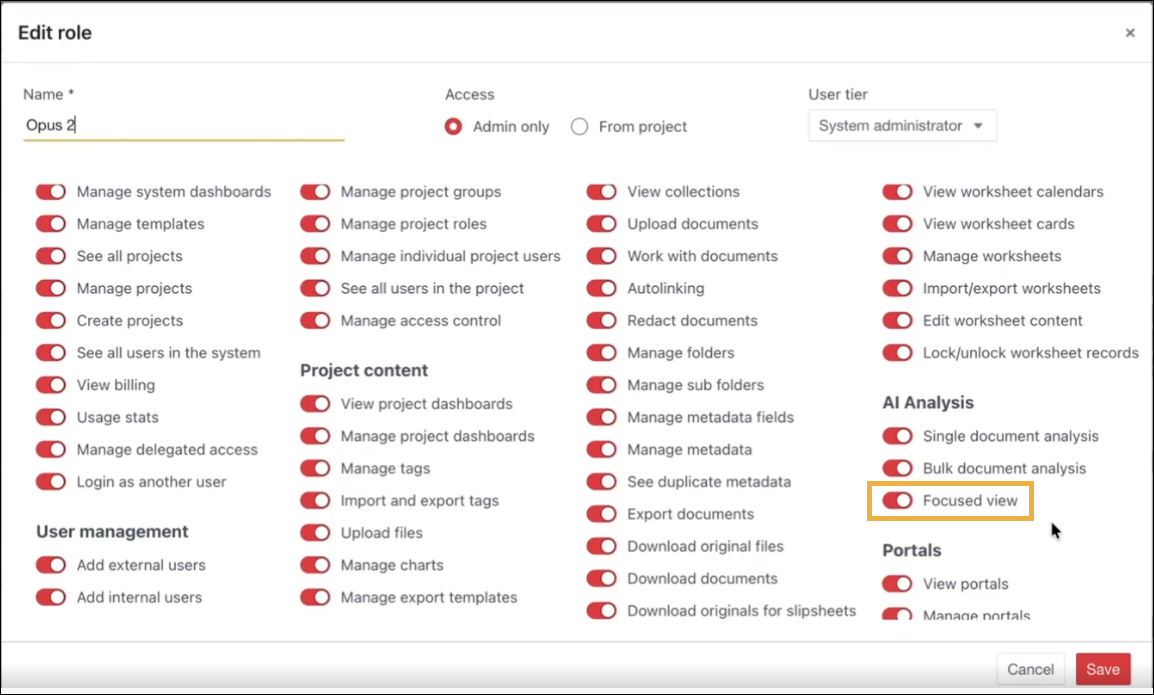 To change access to Focused View at the Project level, do the following:
- Select a project.
- Select the Project drop-down list > Project Settings > Features tab has a Focused View option in it.
- Select Edit to change the setting.