
| Minimum Software Version | 8.14.0 |
| Solution(s) | Cases International ✓ Cases US ✓ Institutions ✓ |
Explains how to configure a custom file naming format when exporting documents and transcripts from Opus 2 using existing metadata fields.
By default, Opus 2 uses the Document Name field as the file name when exporting documents and transcripts. The naming convention can be changed to a user-defined custom format using existing metadata fields within Opus 2.
Customising the export file naming format
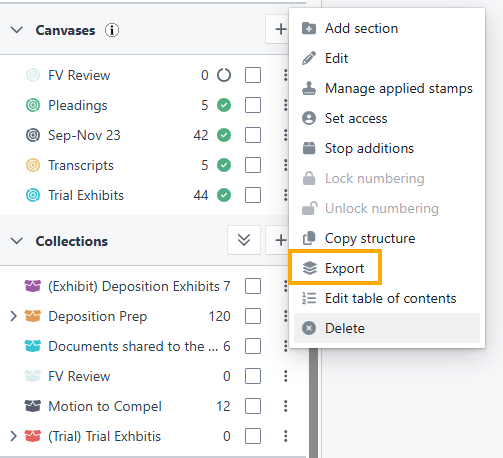
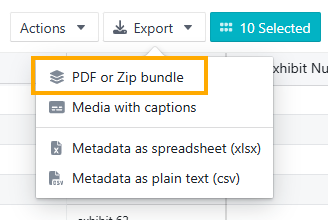
- Click the three-dot icon next to your chosen collection or, if exporting from a folder, use Export in the toolbar.
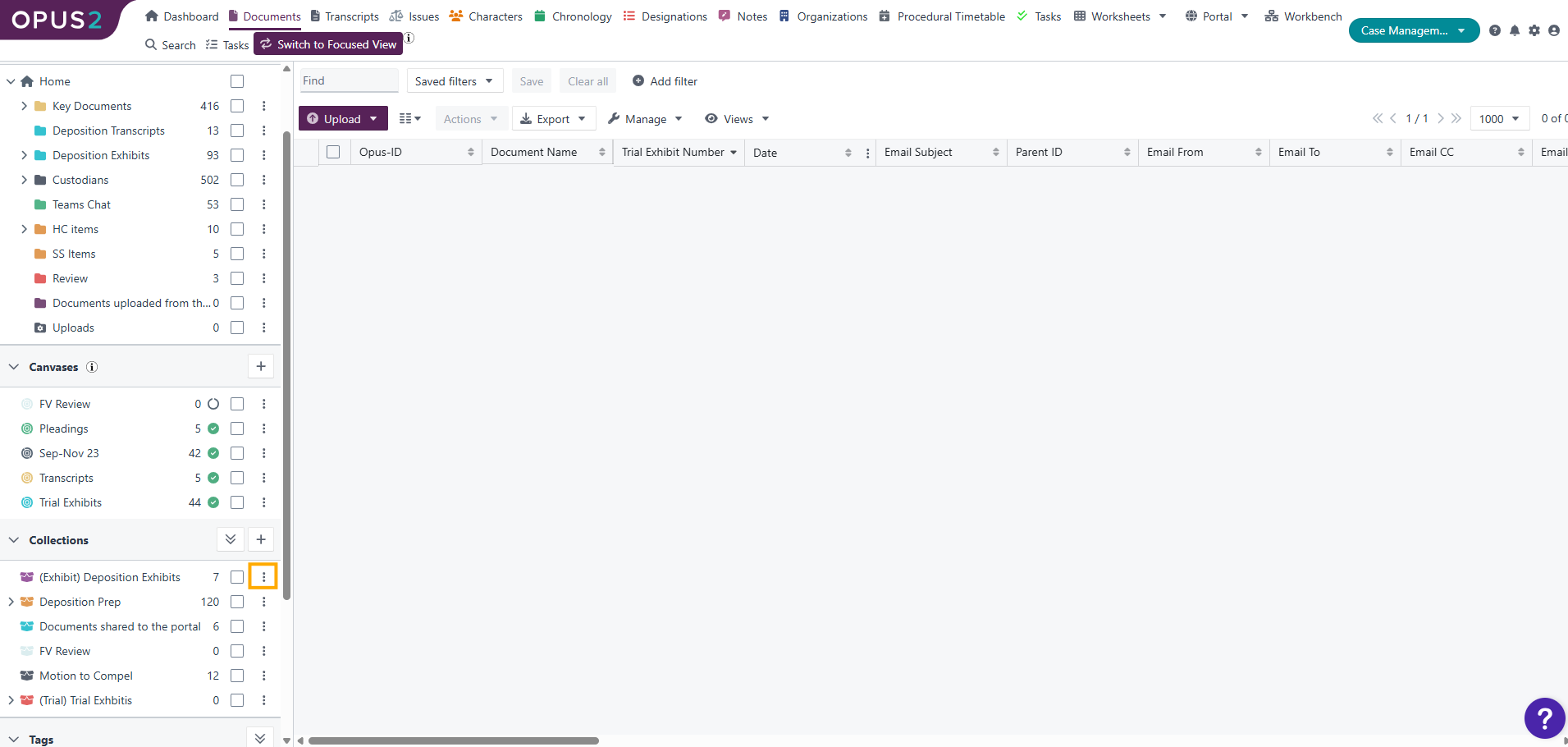
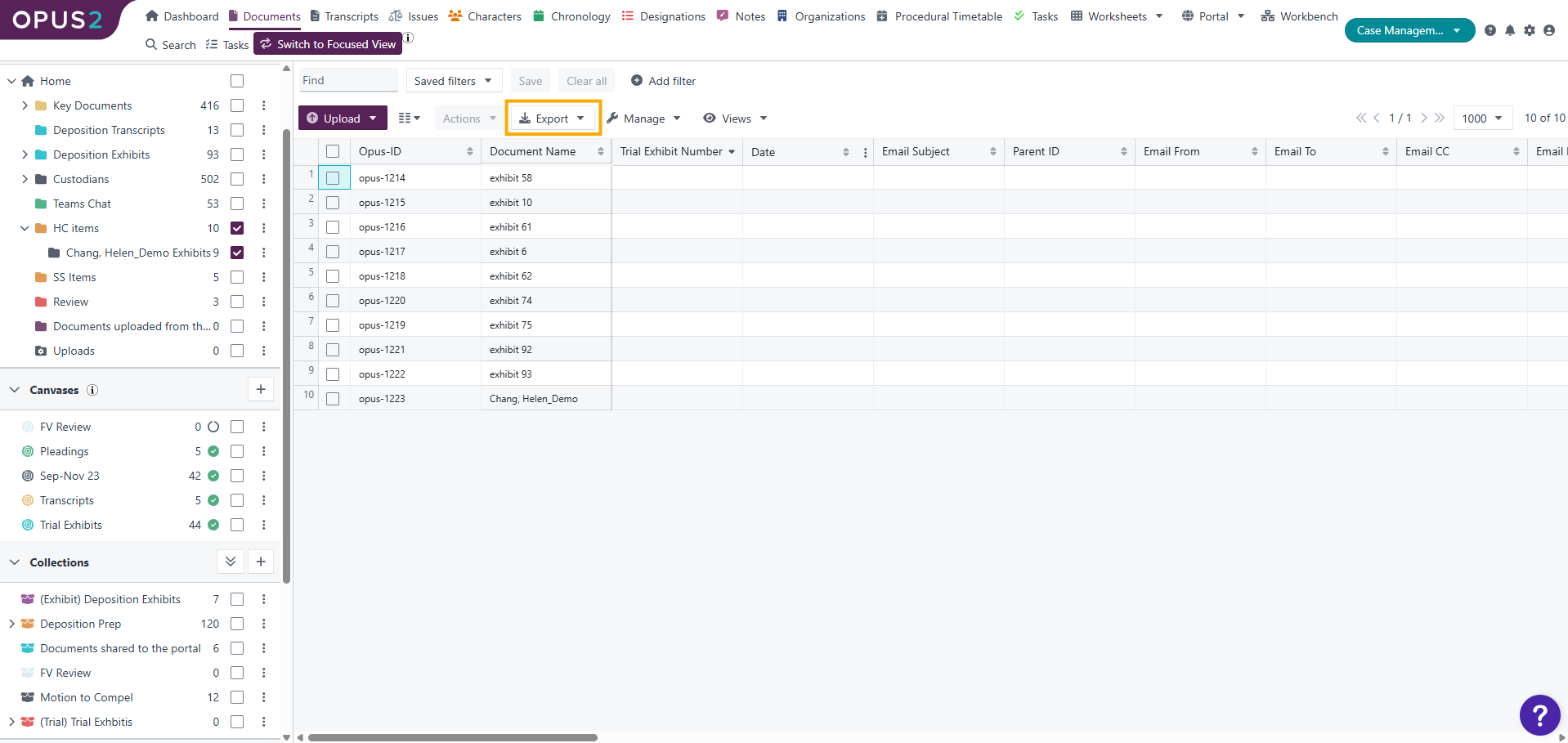
- Choose Export from the Collection menu or PDF or Zip bundle from toolbar.
- From the Export menu, click Zip export settings to reveal additional export settings.
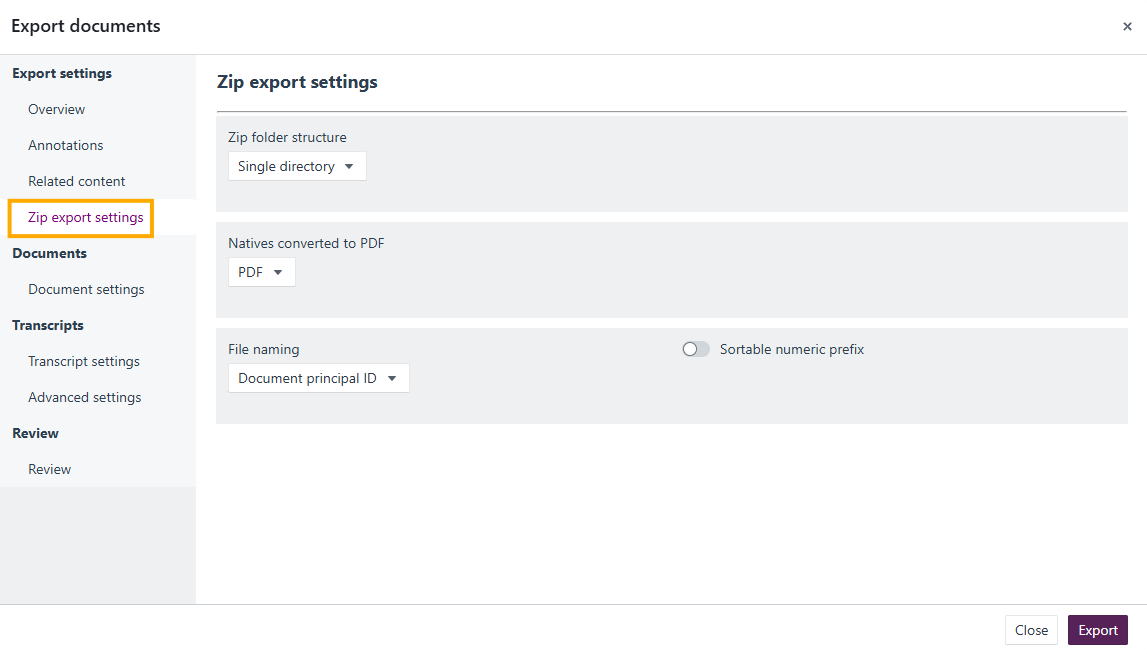
- Select the File Naming dropdown and change the option to Custom Format.
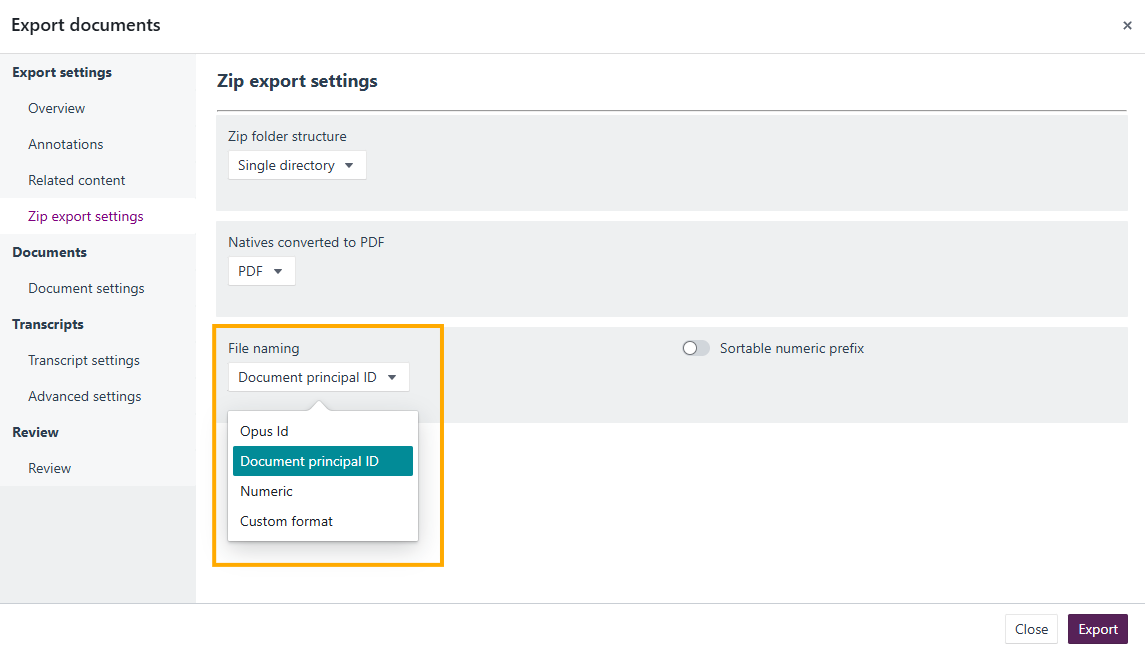
- Select Add custom format, then choose the field(s) and delimiter(s) to be applied to your exported document or transcript names.
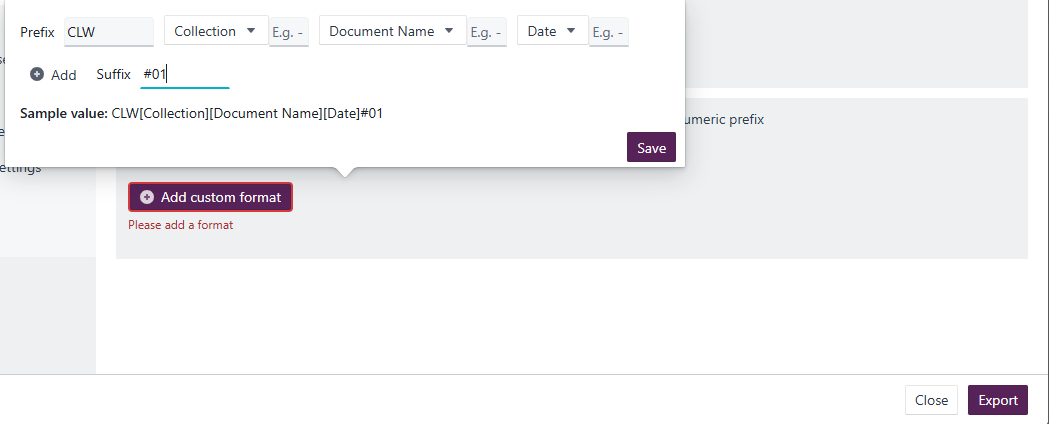
Note: Use the Add option to append additional metadata fields to the name of the documents or transcripts.
- Click Save to save your custom format.
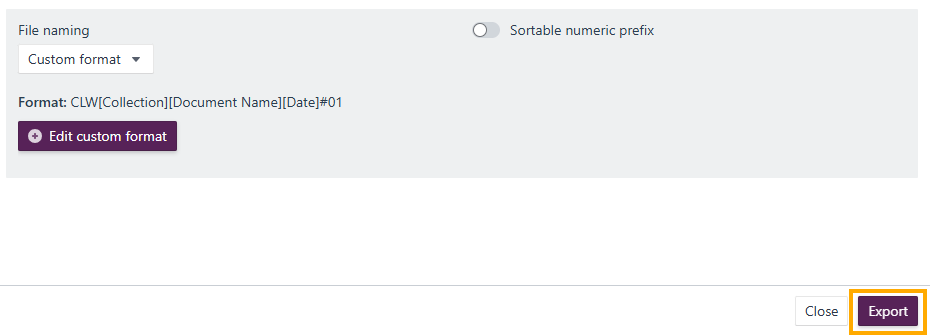
- Click Export to export your documents or transcripts with the custom naming scheme.
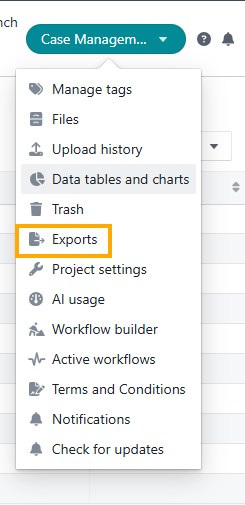
- Once the export has been requested, click the Project button in the top-right corner and choose Exports from the dropdown to view and download your exported documents.
Related links
Related documentation
Opus 2 has help information accessible within the application; click the question mark and then select Documentation in the upper-right area of the platform. You can also access the documentation at: Opus 2 Support.
How to contact us
To contact us about the documentation, or if you have any other questions or issues about Opus 2 solutions, contact Opus 2 Platform Support by emailing Opus 2 Platform Support.