
| Minimum Software Version | 8.18.10 |
| Solution(s) | Hearings ⨉ Cases International ✓ Cases US ✓ Institutions ⨉ Counsel ✓ |
Explains how to use the Find bar in the Documents page to quickly locate documents by searching across document metadata.
The Find bar in the Documents page enables fast, text-based filtering of documents based on their assigned metadata. As users type, the document list dynamically updates to display only those documents whose metadata matches the search term. The Find feature searches only within the documents currently visible in the centre panel.
Note: If the project has been configured with the Configure behaviour for large document sets setting enabled, the Find bar will not be available.
Tips for better results
To improve accuracy and performance, users can first narrow the scope by selecting a specific folder before using the Find bar.
Finding documents using the Find bar
- Navigate to the Documents page.
- Place the cursor in the Find bar at the top of the Documents panel.
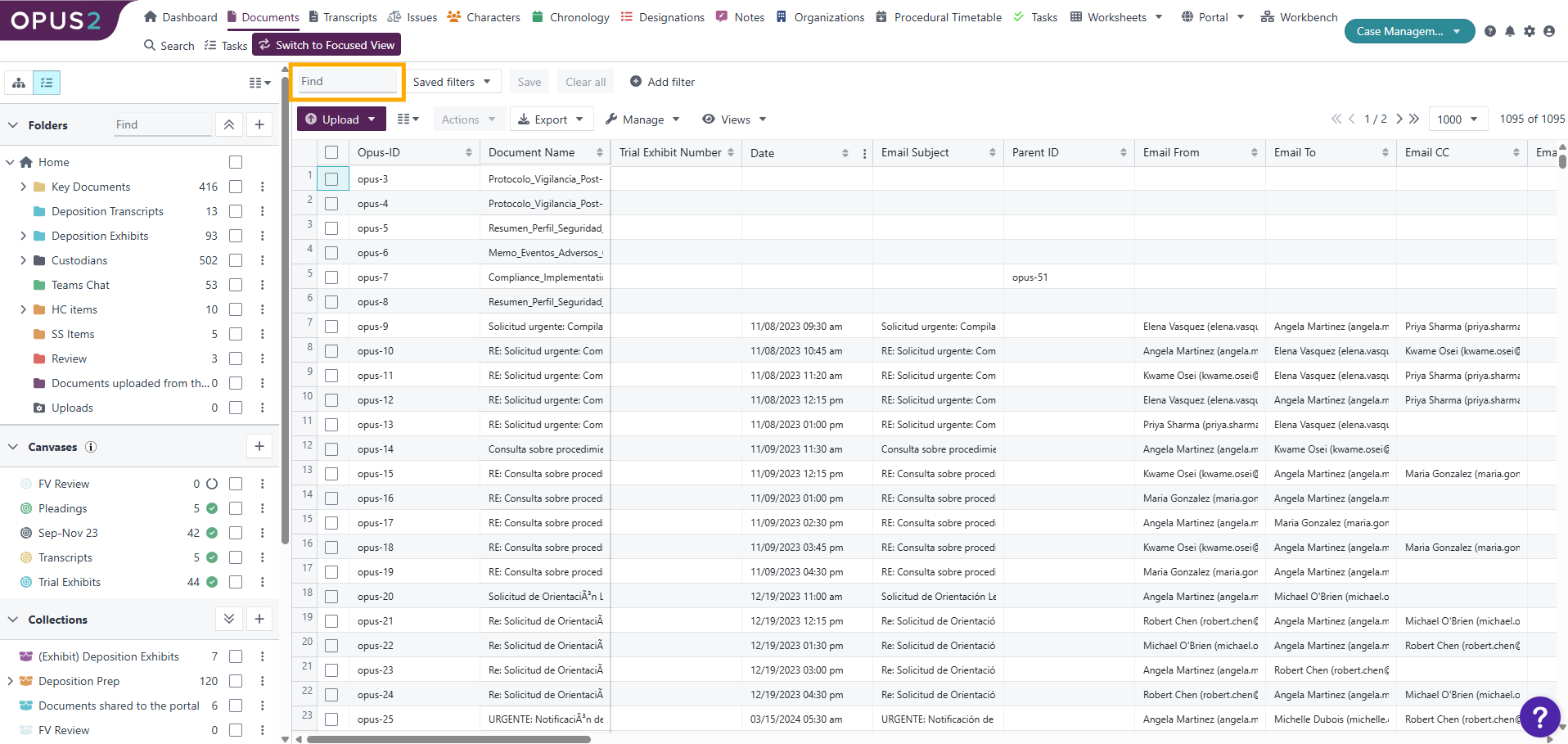
- (Optional) Select a folder to limit the documents displayed in the centre panel.
- Begin typing your search term.
As you type, the document list updates automatically, matching documents against metadata fields such as document titles. Once the desired documents appear, select them as needed.
Examples
- Finding all documents with contract in the title.
- Locating exhibits within a specific folder by searching Exhibit A.
- Narrowing documents to a review set and then searching by keyword.
Related links
Related documentation
Opus 2 has help information accessible within the application; click the question mark and then select Documentation in the upper-right area of the platform. You can also access the documentation at: Opus 2 Support.
How to contact us
To contact us about the documentation, or if you have any other questions or issues about Opus 2 solutions, contact Opus 2 Platform Support by emailing Opus 2 Platform Support.