
| Minimum Software Version | 8.18.10 |
| Solution(s) | Hearings ⨉ Cases International ✓ Cases US ✓ Institutions ⨉ Counsel ✓ |
Explains how to use the Manage pages tool to rearrange, rotate, insert, extract, split, and delete pages within a document in Opus 2.
The Document Actions menu provides tools for managing pages within a selected document, including controls for rearranging, rotating, inserting, extracting, splitting, and deleting pages. Page-level management is handled through the Manage pages dialog, which displays all pages as thumbnails and allows changes to be applied to selected pages efficiently.
Managing document pages
- Navigate to the Documents page.
- Select a document using the tick box in the document table.
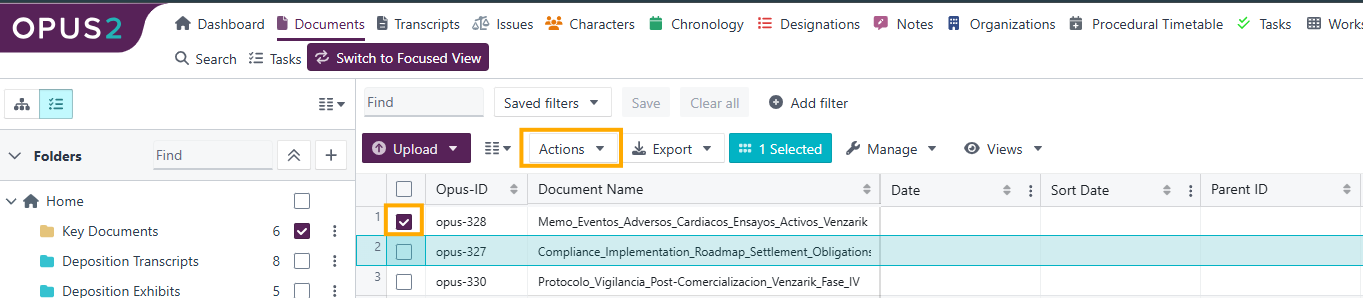
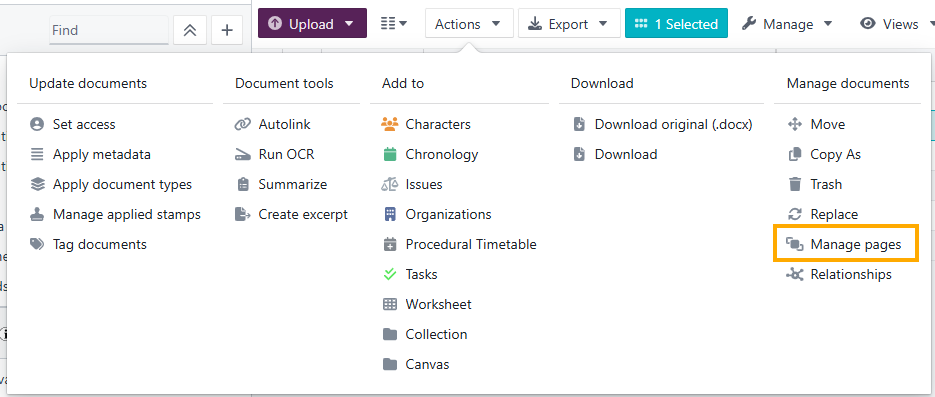
- Select Actions > Manage pages.
- The Manage pages dialog opens, displaying thumbnail previews of all document pages.
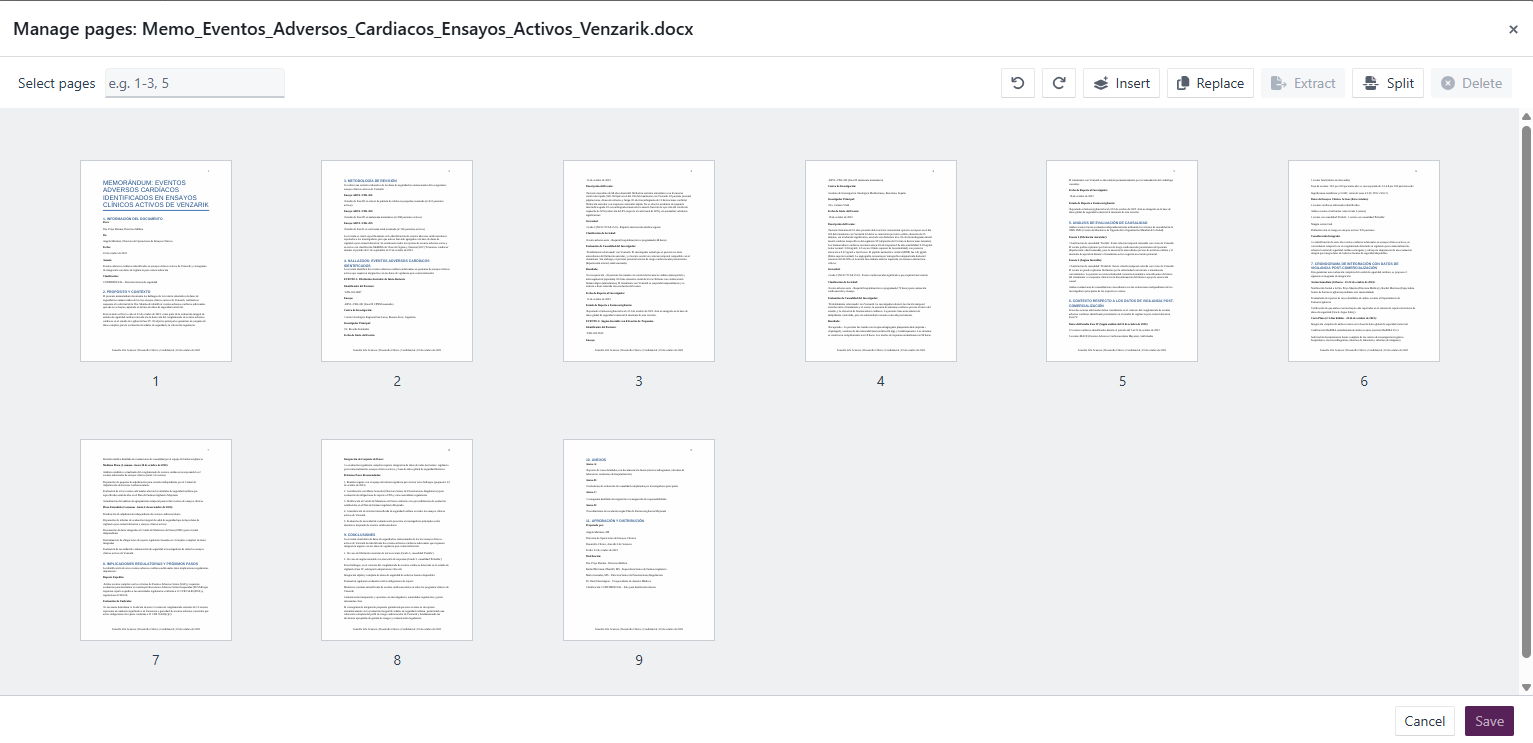
- Select pages by either:
- Entering page numbers or page ranges separated by commas, or
- Selecting individual page thumbnails.
Once pages are selected, the page management options below become available.
Page management options
| Option | Description |
|---|---|
| Page selection by range or number | Enter page ranges or page numbers separated by commas, or select pages by selecting thumbnails. |
| Drag and move pages | Select and drag pages to reorder them within the document. |
| Move to position | Move pages to the beginning, end, or after a specific page. |
| Rotate pages (anti-clockwise) | Rotate selected pages 90° anti-clockwise. |
| Rotate pages (clockwise) | Rotate selected pages 90° clockwise. |
| Insert pages | Insert pages from another document at the beginning, end, or after a specified page. |
| Replace pages | Replace selected pages with pages or page ranges from another document in the project. |
| Extract pages | Create a new document from selected pages and choose a destination folder. Optionally delete extracted pages from the original document. |
| Split document | Split the document into multiple documents at selected pages and specify a folder and name suffix or prefix. |
| Delete pages | Permanently delete the selected pages from the document. |
Example: Extract pages 5–10 from a large PDF into a new document named Exhibit A and save it to the Exhibits folder, deleting those pages from the original document.
Related links
Related documentation
Opus 2 has help information accessible within the application; click the question mark and then select Documentation in the upper-right area of the platform. You can also access the documentation at: Opus 2 Support.
How to contact us
To contact us about the documentation, or if you have any other questions or issues about Opus 2 solutions, contact Opus 2 Platform Support by emailing Opus 2 Platform Support.