
| Minimum Software Version | 8.18.10 |
| Solution(s) | Cases International ✓ Cases US ✓ Institutions ⨉ Counsel ✓ |
Explains how to add and configure the Single Card component in the Portal Builder, including worksheet and card preparation, record selection, and the portal user view.
The Single Card component is designed for highlighting one specific record from a worksheet, such as a key procedural step, important milestone, or summary entry. Instead of displaying multiple records, this component focuses on a single entry and presents it using a predefined card layout configured in the Worksheet Editor.
Preparing the worksheet and card
Before configuring the Single Card component, ensure the following exist in the platform:
- The relevant worksheet has been created in the project.
- At least one card view has been configured in the Worksheet Editor.
Important: A worksheet is required and cards must be created in the Worksheet Editor before they can be selected for display.
Adding a Single Card component
- Open the Portal Builder.
- Add the Single Card component to the desired location on the page.
- Open the Properties tab to configure the component.
Configuring Single Card properties
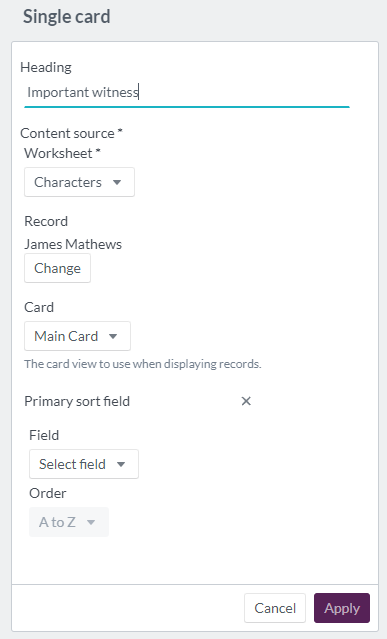
Configure the following options in the Properties tab:
| Option | Description |
|---|---|
| Heading | Header text for the Single Card component (maximum 100 characters). |
| Content source worksheet | Required. Select the worksheet where the record is stored. |
| Record | Choose the specific record to share with portal users. |
| Card | Select the card view used to present the record. |
| Field | Choose a field for primary sorting logic. |
| Order | Set the sort order to A–Z or Z–A. |
Example: Configure a Single Card component titled Next Procedural Step that displays one record using a card designed to show deadlines and responsible parties.
How the Single Card component appears to portal users
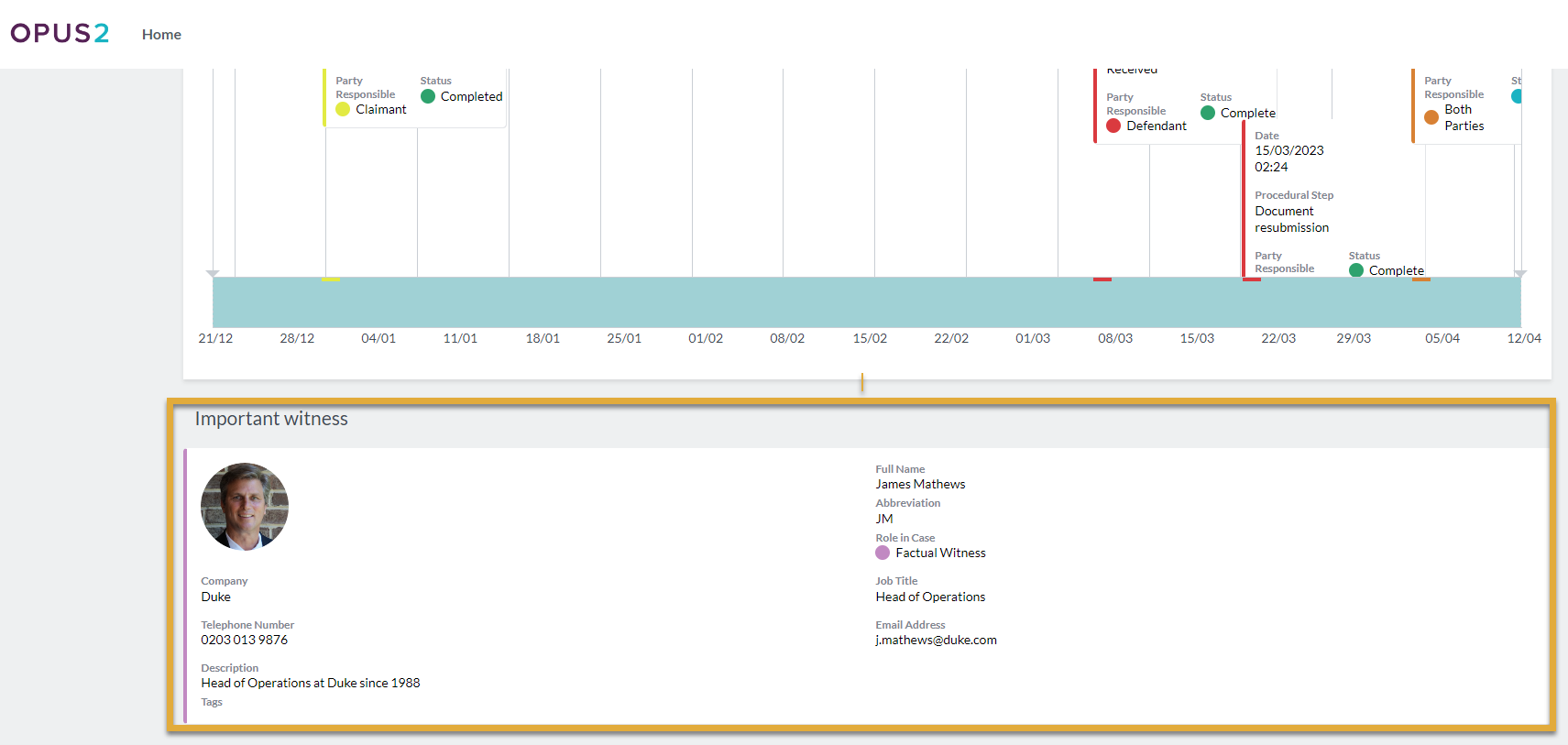
When viewed by portal users, the heading appears at the top of the component, and a single card is displayed beneath it, representing the selected record. The card layout follows the design defined in the Worksheet Editor. Only the chosen record is visible, making this component ideal for emphasis or summary information.
Related links
Related documentation
Opus 2 has help information accessible within the application; click the question mark and then select Documentation in the upper-right area of the platform. You can also access the documentation at: Opus 2 Support.
How to contact us
To contact us about the documentation, or if you have any other questions or issues about Opus 2 solutions, contact Opus 2 Platform Support by emailing Opus 2 Platform Support.