
| Minimum Software Version | 8.17.X Winter25 |
| Solution(s) | Hearings X Cases International ✓ Cases US ✓ Institutions ⨉ Counsel ✓ |
Important: The accuracy, reliability, and usefulness of AI-generated output is directly influenced by the clarity and completeness of the information provided in the prompt. Like a human lawyer, the first draft is never the final version. You will need to follow up on AI output with one or more prompts to further guide, clarify, and refine your requests. Review, verify, and apply professional judgement before relying on AI-generated content.
Following Opus 2's acquisition of Uncover in October 2025, Opus 2 Cases and Uncover's AI technology have been integrated into the Opus 2 platform. This has introduced two views — Detailed View and Focused View — and a suite of AI Assist tools accessible from the Focused View.
Overview
Detailed View is the existing Opus 2 Cases interface. All functionality you depend on remains available and unchanged.
Focused View is a new, streamlined, AI-first view inspired by Uncover, where you can access the first capabilities arising from this integration.
You can switch seamlessly between the two views. Documents surfaced using Matter Assist in the Focused View can be added to collections or worksheets in the Detailed View.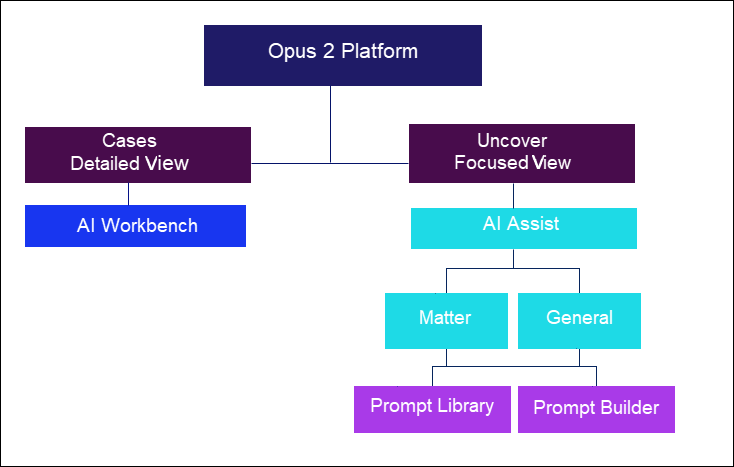
Tip: Any worksheet with a source ID field can receive documents from the Focused View.
AI Assist tools
| Tool | Best used for |
|---|---|
| Matter Assist | Querying all available documents in your Focused View, especially when you do not know which documents hold the answers. You can filter to a subset of documents or select individual documents using the Add/remove documents button for document-specific responses. |
| General Assist | Asking questions unrelated to the legal matter, developing drafts, and understanding industry or domain concepts. |
| Saved conversations | Saving a conversation from any AI Assist tool to return to later. |
| Documents Library | Searching the wider document library, viewing documents, filtering on tags, downloading documents, or adding tags. |
| AI Workbench | Finding and filtering all entities identified in a batch of documents, including summaries, key sentences, characters, organisations, and events, with links to the source documents. Only in Detailed View. |
Note: Both AI Assist tools have access to the Prompt Builder and the Prompt Library. The Prompt Builder guides you through creating prompts; the Prompt Library is a curated collection of pre-built prompts written by legal experts.
Ways to use Matter Assist
Early understanding of the case: In early case assessment, Matter Assist can highlight potential liability, identify key issues, and surface factual gaps across hundreds of pages of documents — without requiring you to know which documents are relevant. Matter Assist scans the entire document corpus, identifies thematic clusters, highlights pivotal events, and produces a structured summary of what the evidence supports, giving you an immediate high-level understanding of the case.
Targeted questions across all documents: Matter Assist can answer targeted questions across all case documents — for example, summarising prior correspondence or synthesising how the evidence supports the facts — delivering a clear, issue-focused response tailored to the query.
Tip: If you want to focus Matter Assist on one or more specific documents, use the Add/remove documents button to select individual documents. This is useful when you already know which documents are relevant and want document-specific AI responses.
Concept and thematic searching: Rather than relying on traditional keyword search, Matter Assist can be used for concept and thematic searching. When asked where in the record a particular fact is evidenced, Matter Assist scans all text across all documents, locates every relevant reference, evaluates significance, and returns a clean, cited answer — streamlining internal workflows and improving turnaround time for client updates.
Pinpointing information in specific documents: Use the Add/remove documents button to select individual documents, then ask Matter Assist to locate critical clauses and passages across pleadings, contracts, expert reports, deposition transcripts, witness statements, and more — for example, indemnity language in a supply agreement or the exact page where a witness contradicts prior testimony.
Removing complexity: Matter Assist can help you understand and contextualise complex documents by providing a plain-English breakdown of their content.
Asking comparative questions: Use Matter Assist to ask targeted questions grounded in specific documents — for example, comparing an expert report to the plaintiff's allegations, or identifying inconsistencies between two witness statements.
Three ways to use General Assist
Developing drafts: General Assist can generate a first draft of internal memos, client updates, pleadings, and other documents based on general legal principles or drafting conventions. All work is created within the secure Opus 2 environment, removing the need to copy sensitive material into external systems or navigate between multiple platforms.
Procedural preparation: For upcoming court conferences or scheduling hearings, General Assist can clarify typical court expectations or generate talking points — without switching between platforms. All notes and drafts are created and stored securely within Opus 2.
Understanding business and industry concepts: Litigation often requires lawyers to quickly grasp non-legal concepts, such as revenue recognition models, financial products, or regulated industry practices. General Assist provides clear explanations of these concepts directly within Opus 2, helping lawyers to better interpret documents and prepare for expert meetings while maintaining firm-approved confidentiality and governance standards.
Related links
Related documentation
Opus 2 has help information accessible within the application; click the question mark and then select Documentation in the upper-right area of the platform. You can also access the documentation at: Opus 2 Support.
How to contact us
To contact us about the documentation, or if you have any other questions or issues about Opus 2 solutions, contact Opus 2 Platform Support by emailing Opus 2 Platform Support.