
| Minimum Software Version | 8.18.10 |
| Solution(s) | Cases International ✓ Cases US ✓ Institutions ⨉ Counsel ✓ |
Explains how to link a transcript to its exhibits using the Autolink tool, including both Reference Format and Exhibit Map methods, and how to remove links if required.
Linking transcripts to exhibits allows users to navigate from transcript references directly to the corresponding exhibit documents. In Opus 2, this can be done automatically or manually depending on the materials provided by the court reporter. Both the transcript and exhibit documents must already be uploaded to the project before links can be created.
If the court reporter supplies a .LEF file, exhibits are uploaded and linked automatically. If no .LEF file is available, links can be created manually using the Autolink tool. Two methods are supported:
- Reference Format – Matches transcript text to document metadata.
- Exhibit Map – Supports multiple or alternate exhibit reference formats.
Using Reference Format
Reference Format uses document metadata fields (such as document name or exhibit number) to find matches in the transcript.
- Navigate to Documents in your project.
- Locate and select the transcript you want to link from.
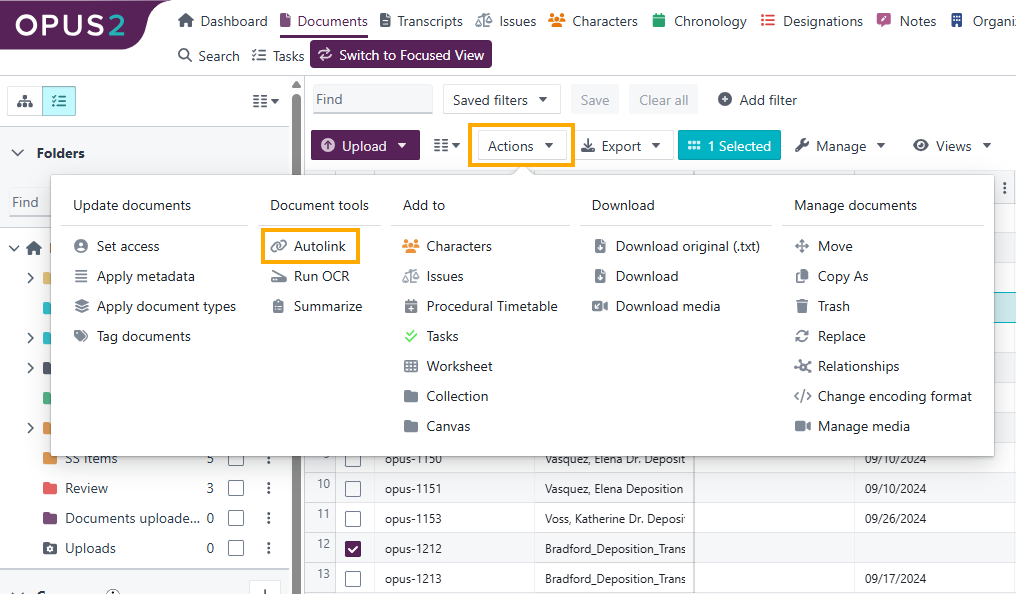
- Select Actions → Autolink.
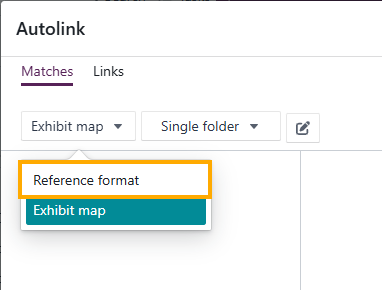
- In the Autolink dialog, open the Exhibit map dropdown and select Reference format.
- Select + Add format to create a reference format. Ensure exhibit files are named exactly as referenced in the transcript (for example, Exhibit 1).
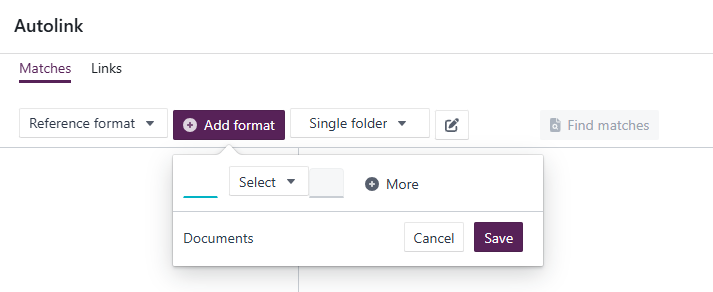
- Select Save.
- In the left-hand column, ensure only the correct reference format is selected.
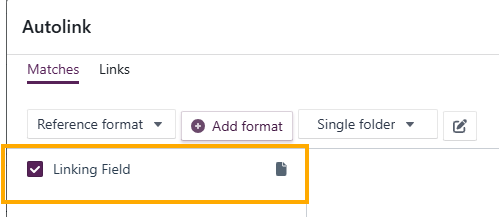
- If transcript references do not match document names exactly (for example, Smith 1 vs Exhibit 1.pdf), update the relevant metadata field (such as Depo Ex No) and match against that field instead.
- Select Single folder in the toolbar, then choose either:
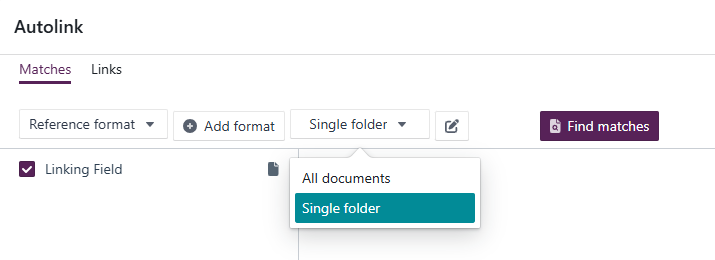
- All documents, or
- Single folder and select the folder containing your exhibits.
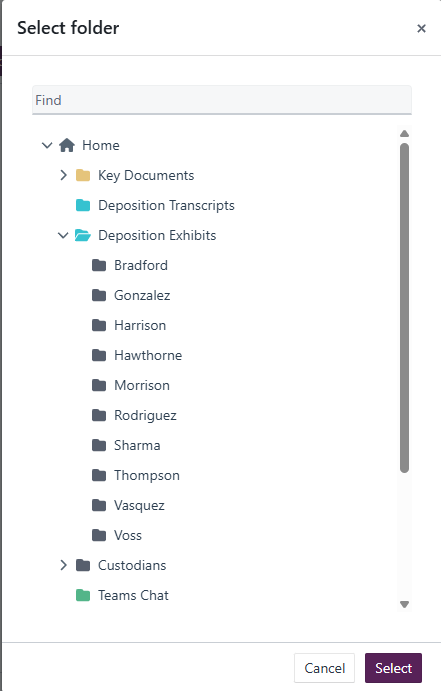
- Select Find matches to view results.
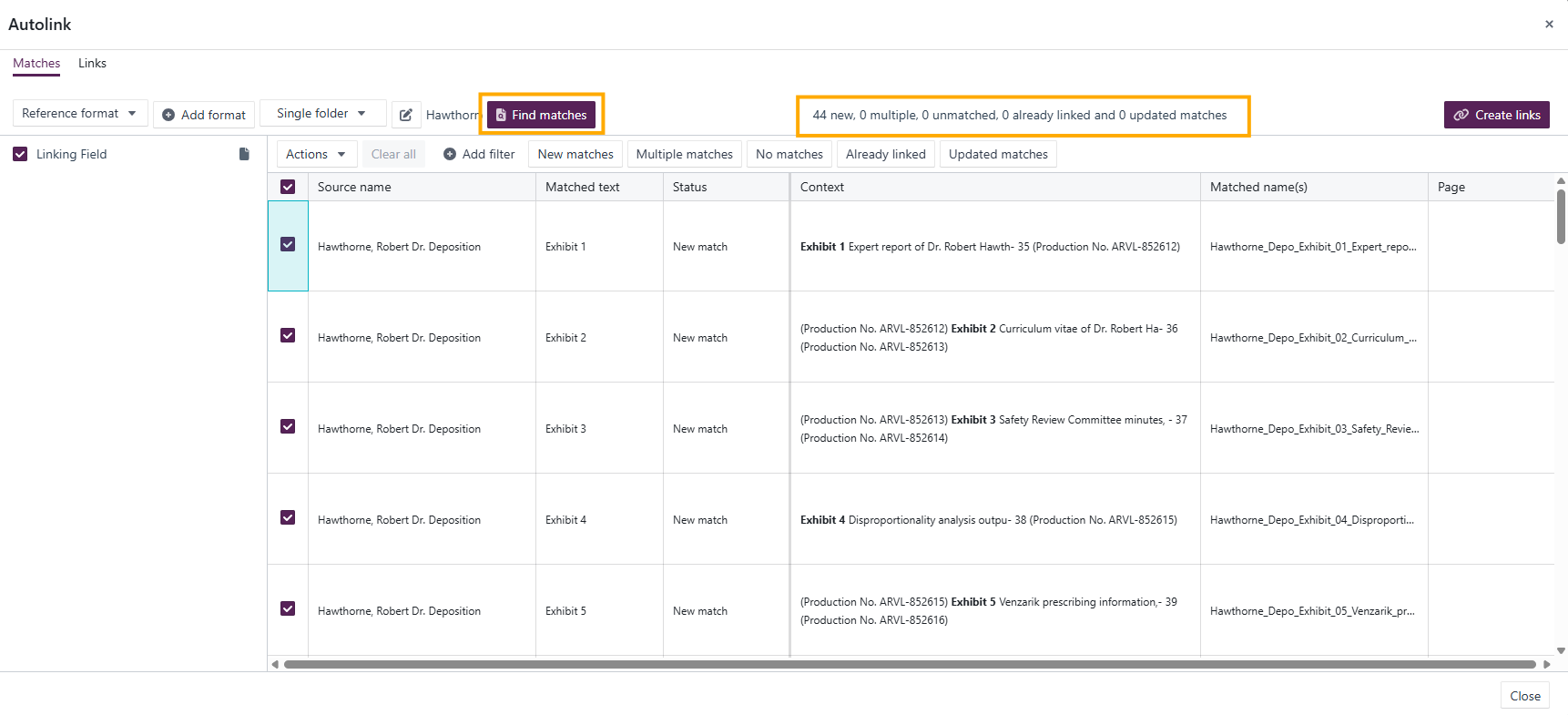
- Review the match categories and select or deselect as follows:
| Category | Action |
|---|---|
| New matches | Select all |
| Multiple matches | Select all |
| No matches | Deselect |
| Already linked | Deselect |
| Updated matches | Select all |
- Select Create links to complete the process.
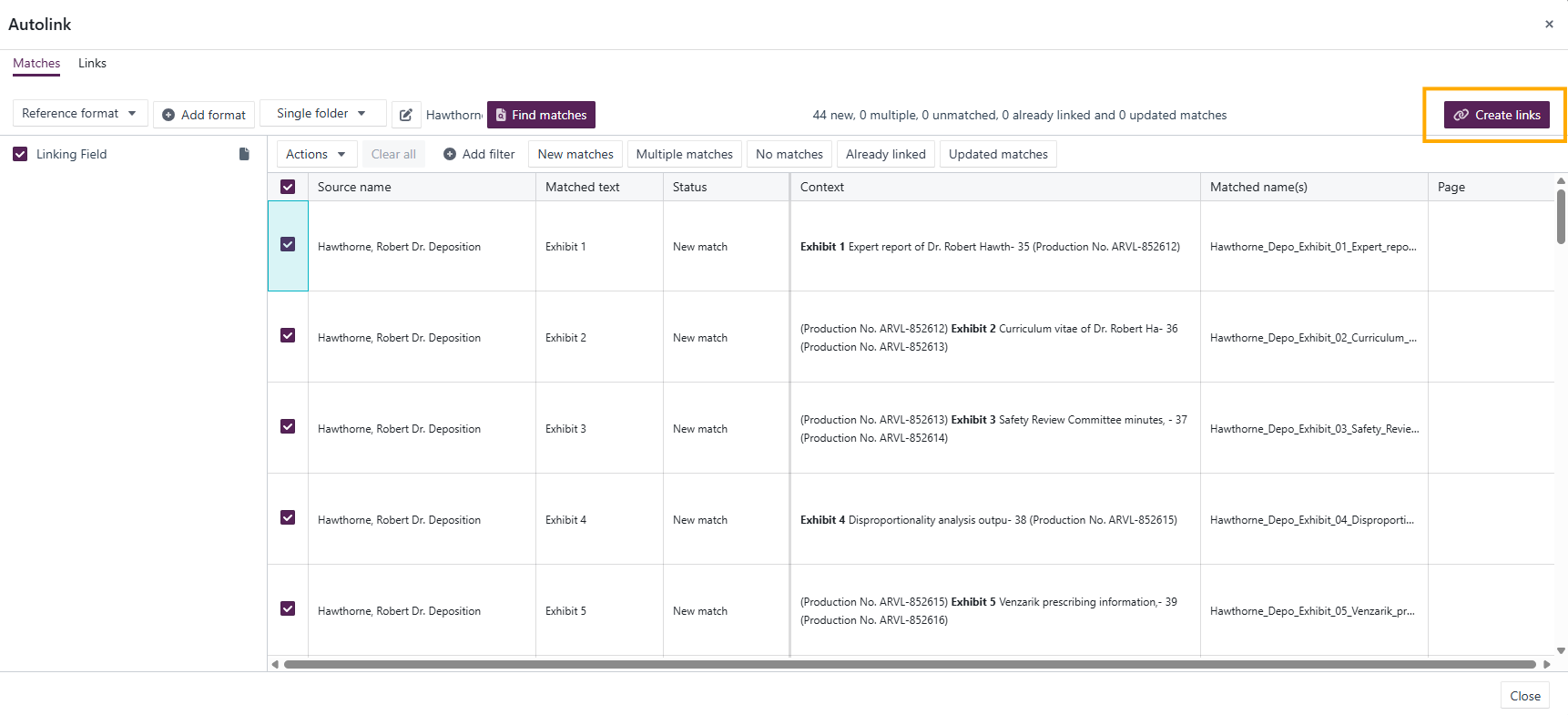
Once created, exhibit names in the transcript viewer become clickable and open a preview of the linked document.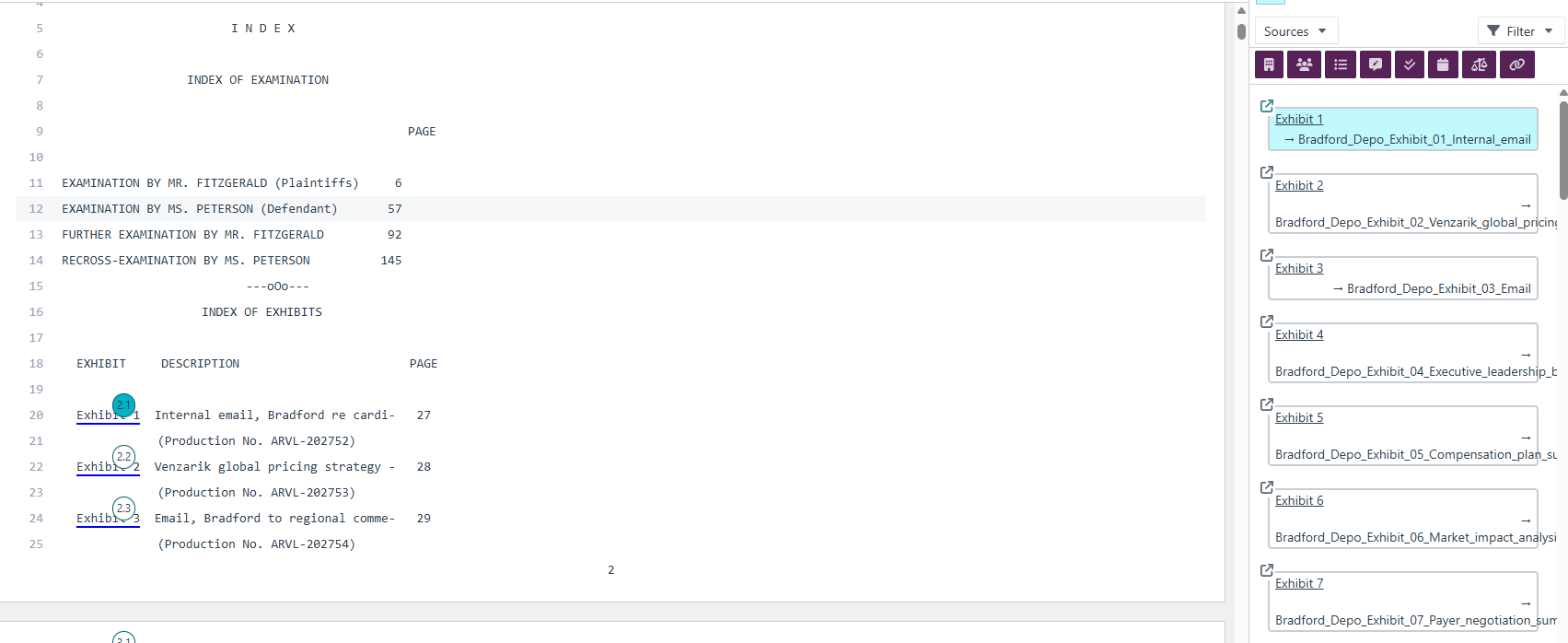
Using Exhibit Map
Exhibit Map is useful when transcripts reference exhibits using multiple formats, or when linking individual documents manually.
- Navigate to Documents.
- Select the transcript to link from.
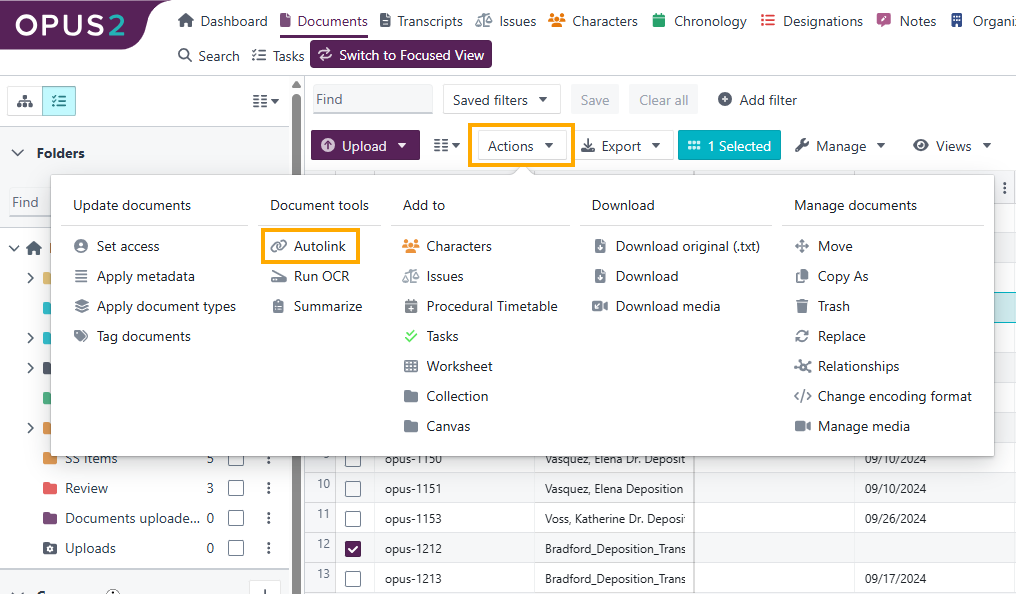
- Select Actions → Autolink.
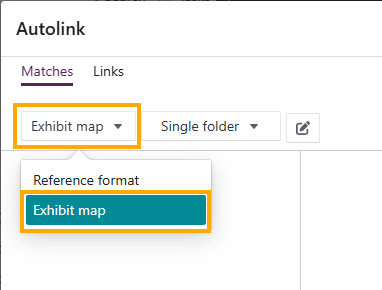
- Ensure Exhibit map is selected (the default option).
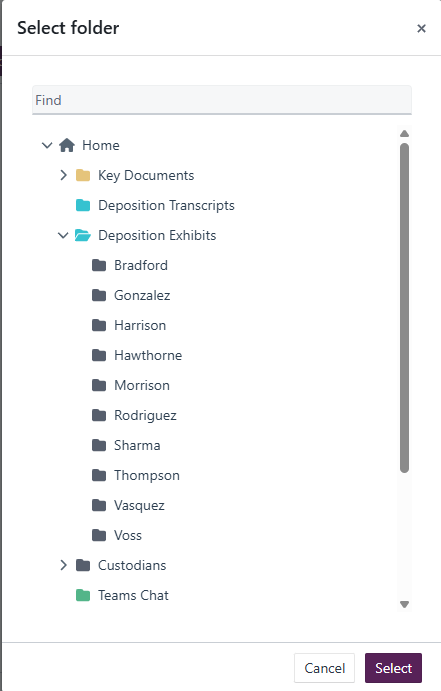
- Select Single folder and choose the folder containing the exhibit documents.
- The documents appear on the left-hand side with default aliases (document name without extension).
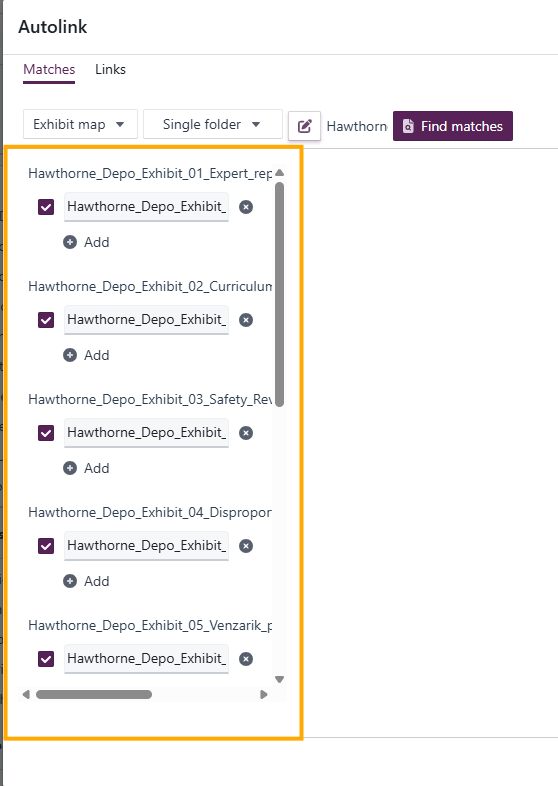
- If an exhibit is referenced differently in the transcript, add alternative aliases using + Add.
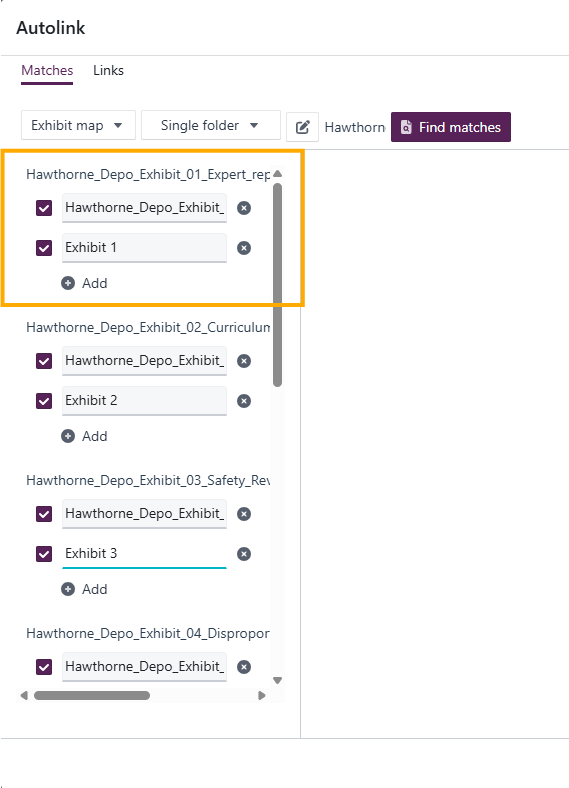
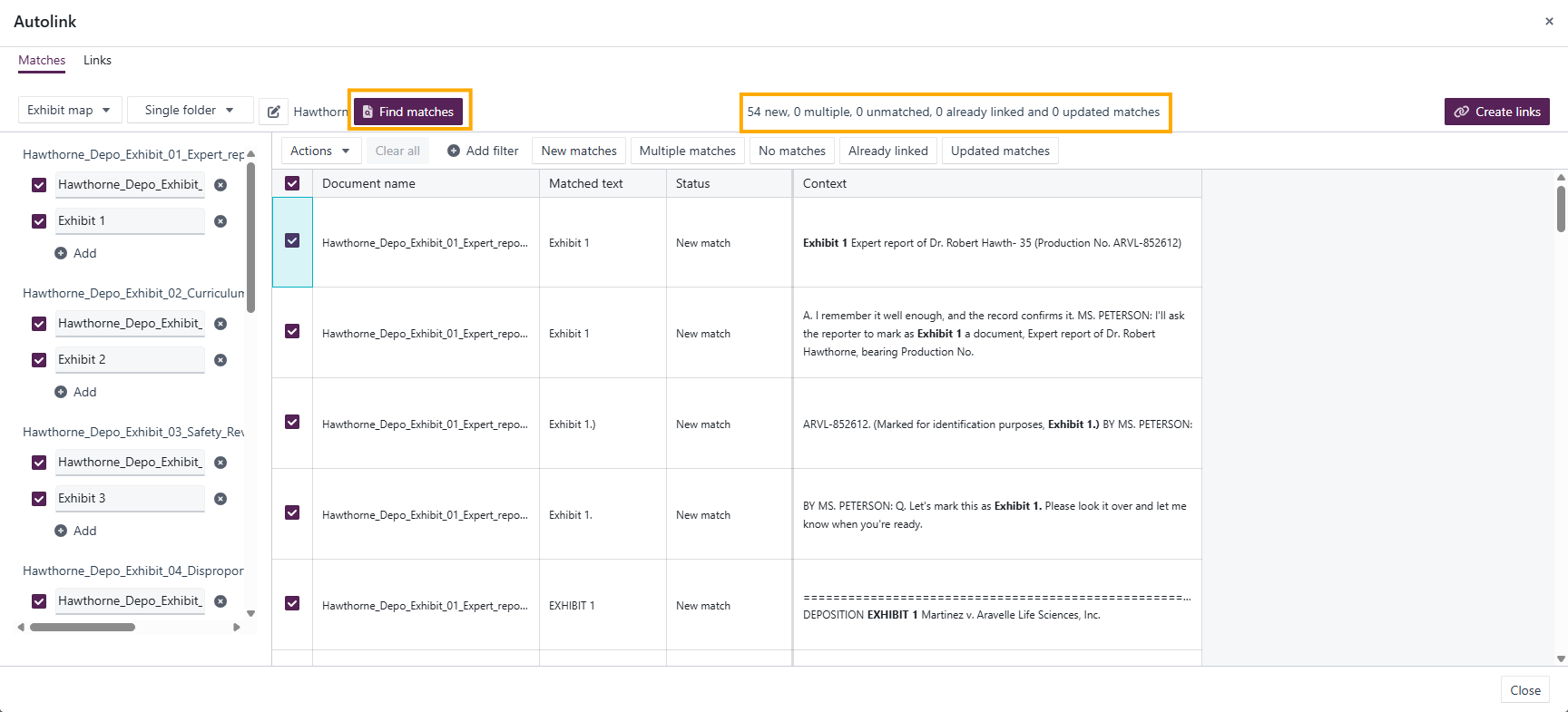
- Select Find matches.
- Review the match categories and select or deselect as follows:
| Category | Action |
|---|---|
| New matches | Select all |
| Multiple matches | Select all |
| No matches | Deselect |
| Already linked | Deselect |
| Updated matches | Select all |
- Select Create links.
Exhibit numbers in the transcript viewer will now open the linked documents.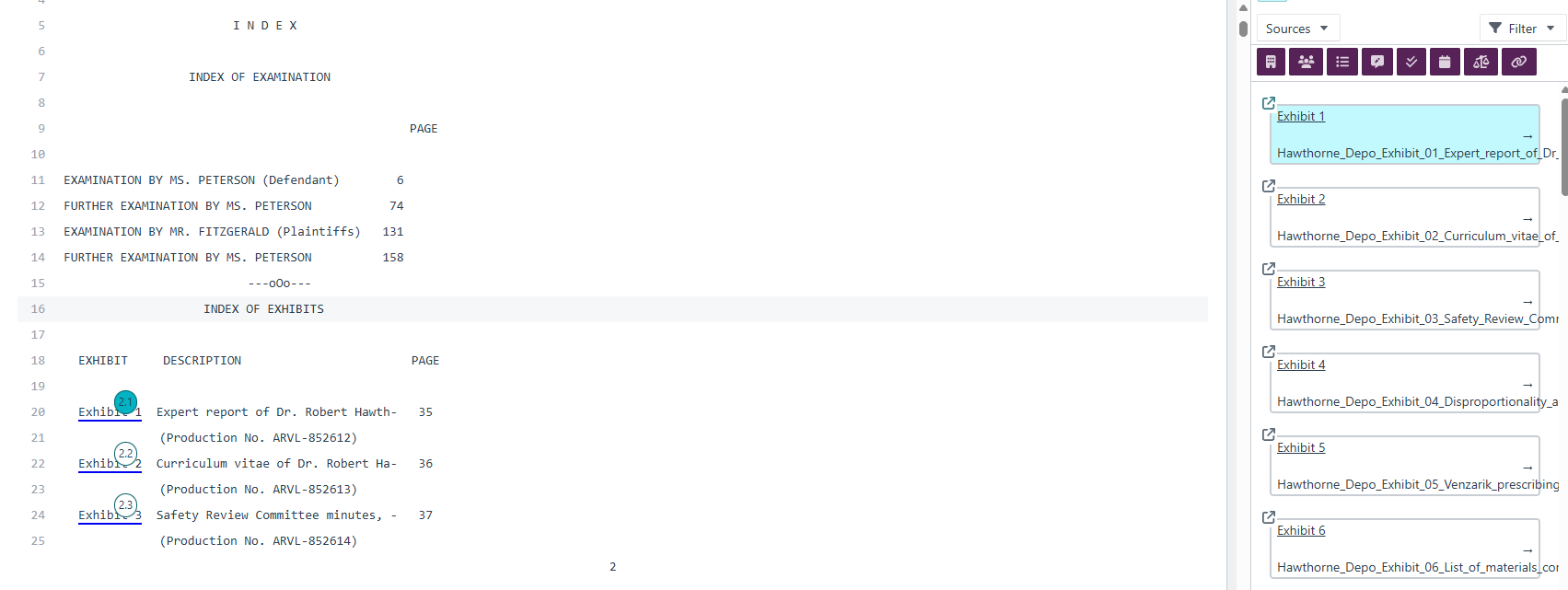
Deleting autolinks
Delete links individually
- Open the transcript in the Transcript Viewer.
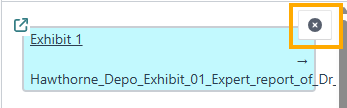
- Select the exhibit link to remove.
- Select the delete option that appears.
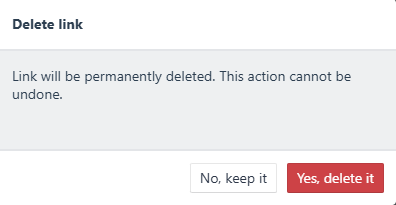
- Confirm by selecting Yes, delete it.
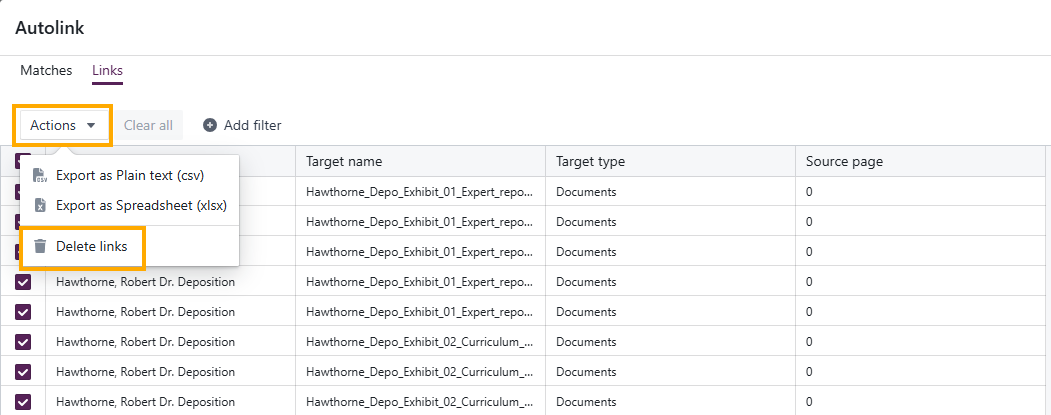
Delete links in bulk
- From Documents, select the transcript.
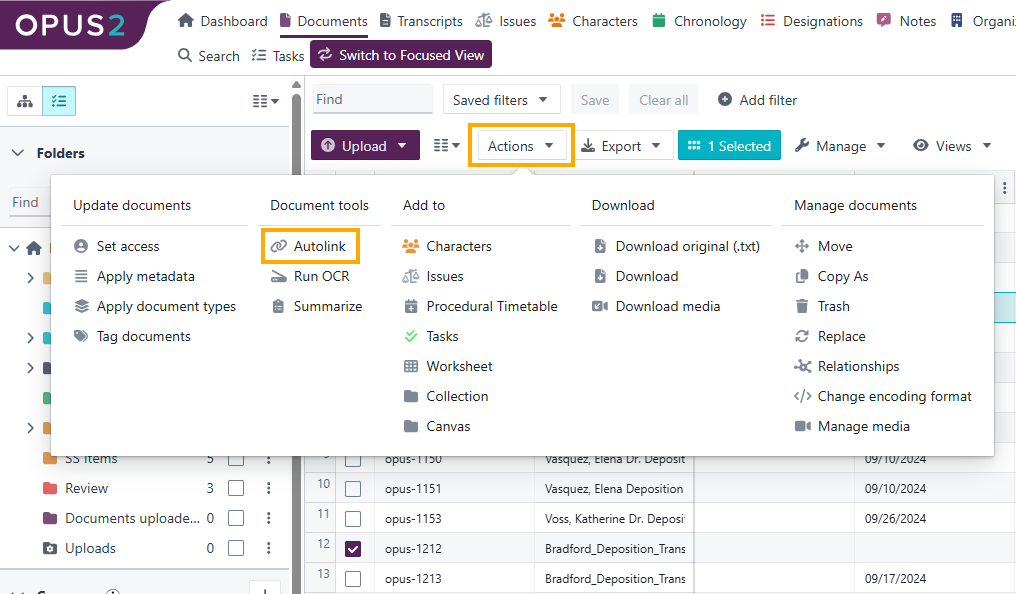
- Select Actions → Autolink.
- Open the Links tab.
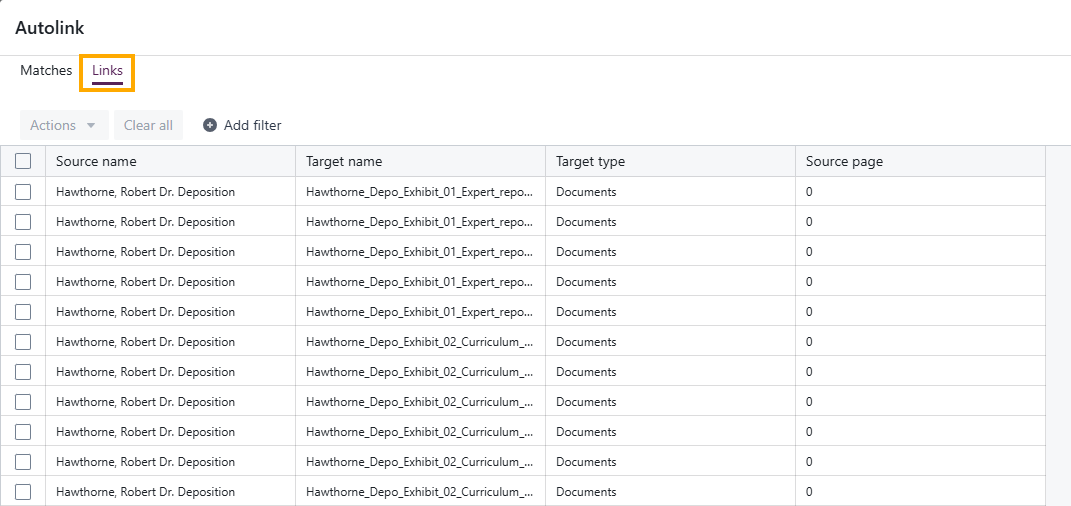
- Select the links to remove.
- Select Actions > Delete links.
Related links
Related documentation
Opus 2 has help information accessible within the application; click the question mark and then select Documentation in the upper-right area of the platform. You can also access the documentation at: Opus 2 Support.
How to contact us
To contact us about the documentation, or if you have any other questions or issues about Opus 2 solutions, contact Opus 2 Platform Support by emailing Opus 2 Platform Support.