
| Minimum Software Version | 8.14.0 |
| Solution(s) | Cases International ✓ Cases US ✓ Institutions ✓ |
Explains how to download documents and original files from Opus 2 individually or in bulk, using the context menu, Actions menu, or Document Viewer.
Opus 2 provides multiple options for downloading documents and original files. Downloading native files is a useful way to obtain documents in their original file formats (such as .docx, .xlsx, and .txt) to save or share with other parties. Downloads are processed immediately and saved to your browser's default download location.
Prerequisites
The following capabilities are required depending on the action being performed:
- Download documents – Required to directly download single or multiple documents that have been processed into PDF format on upload.
- Export documents – Required to access the Export menu.
- Access file manager – Required to access the Files page.
- Download original documents – Required to download original files from the Files page or Documents page.
For more information, refer to the User roles and capabilities article.
Downloading a document
There are three methods to download documents as PDF files.
Method 1: Context menu
- On the Documents page, hover over the document and right-click.
- Select Download, then choose one of the following:
- Download – Downloads the document as a PDF file.
- Download media – Appears when hovering over a media file such as a video or audio file.
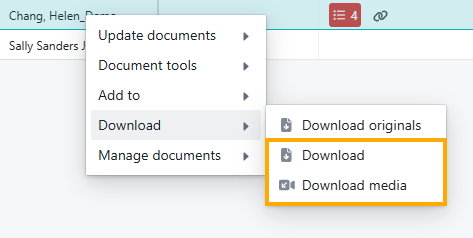
A confirmation message is displayed, and the file is saved to your browser's default download location.
Method 2: Actions menu
- Select one or more documents using the checkboxes.
- Select the Actions menu.
- Select a Download option.
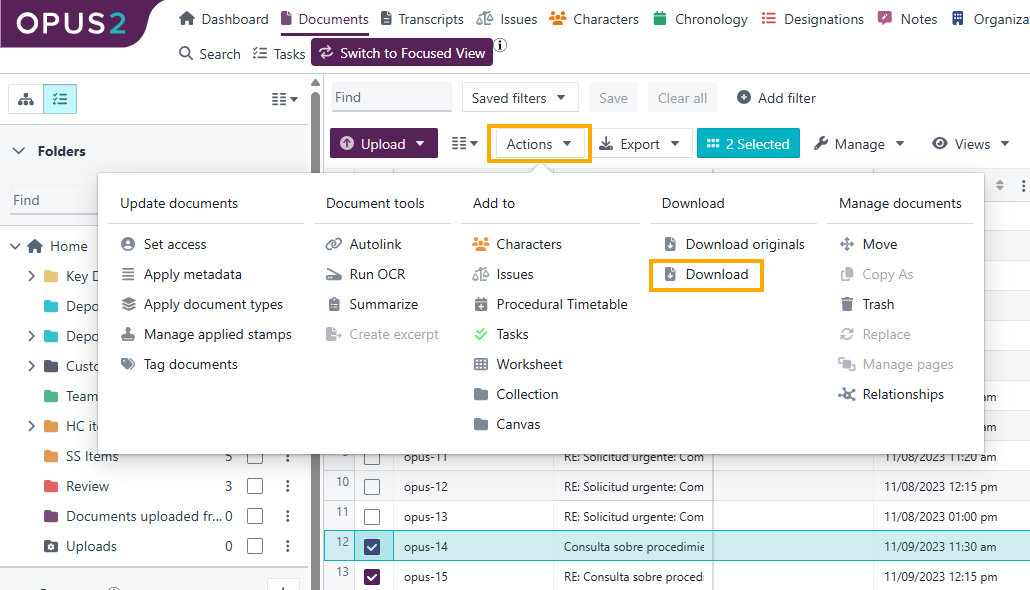
A confirmation message is displayed and the selected documents are downloaded as PDF files to your browser's default download location.
Method 3: Document Viewer
- In the Documents page, select a document by clicking its row.
- With the View tab selected in the Document Viewer, click the download icon above the document preview.
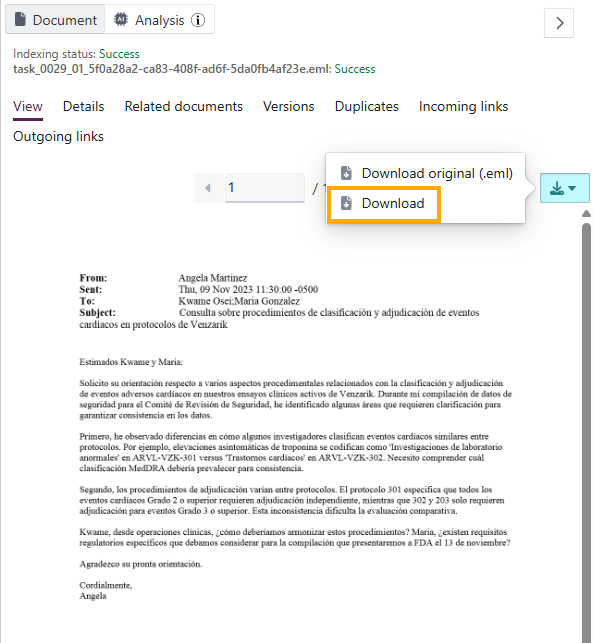
- Select Download.
A confirmation message is displayed and the file is saved to your browser's default download location.
Downloading an original file
Original files can be downloaded from either the Files page or the Documents page.
From the Files page
- In the Files page, select the file(s) using the checkboxes.
- Select Actions > Download, or right-click on the file and select Download.
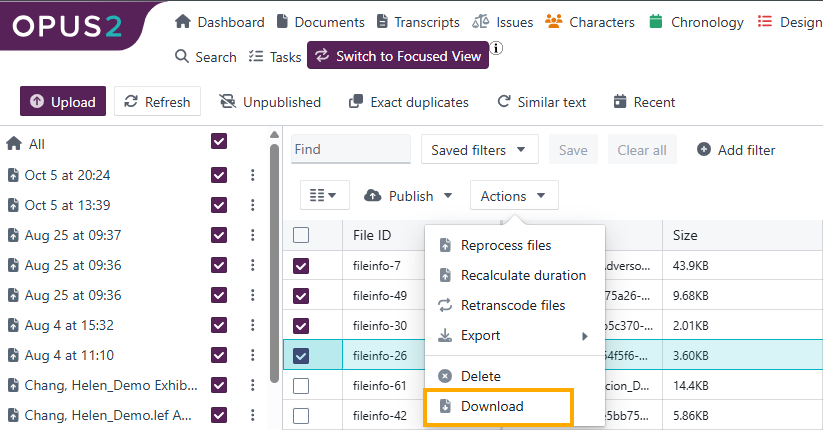
The file is saved in its original format to your browser's default download location.
From the Documents page
There are three methods to download original files from the Documents page.
Method 1: Context menu
- In the Documents page, hover over the document and right-click.
- Select Download, then select Download originals.
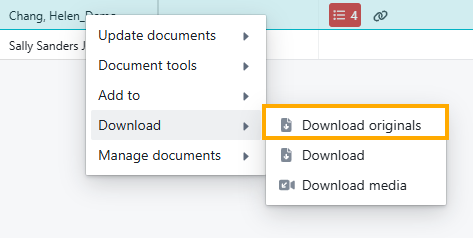
A confirmation message is displayed and the original file is saved to your browser's default download location.
Method 2: Actions menu
- Select one or more files using the checkboxes.
- Click the Actions dropdown menu.
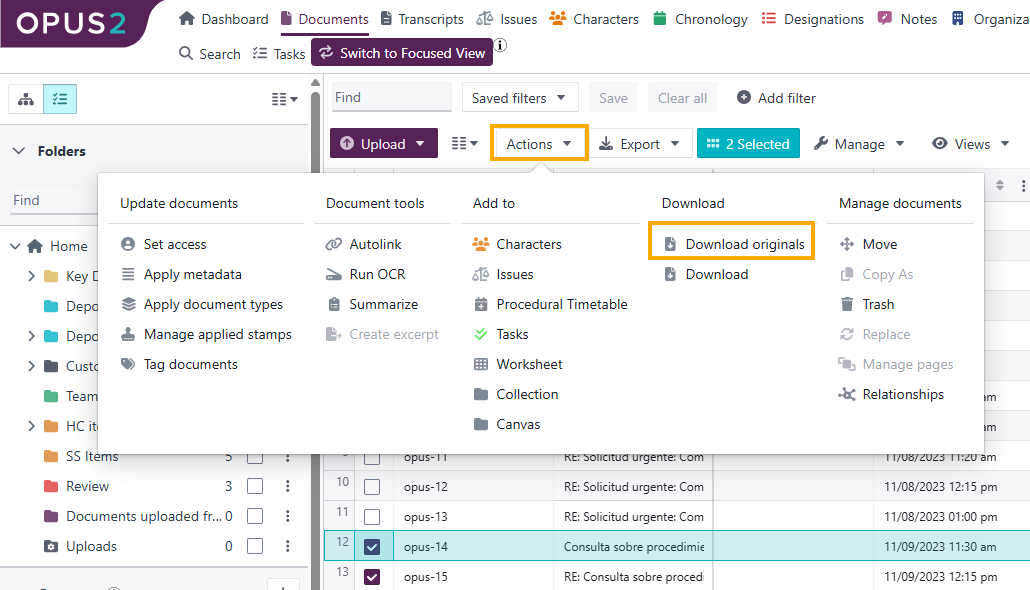
- Select Download originals.
A confirmation message is displayed and the file is saved to your browser's default download location.
Method 3: Document Viewer
- In the Documents page, select a file by clicking its row.
- With the View tab selected in the Document Viewer, click the download icon above the document preview.
- Select Download original.
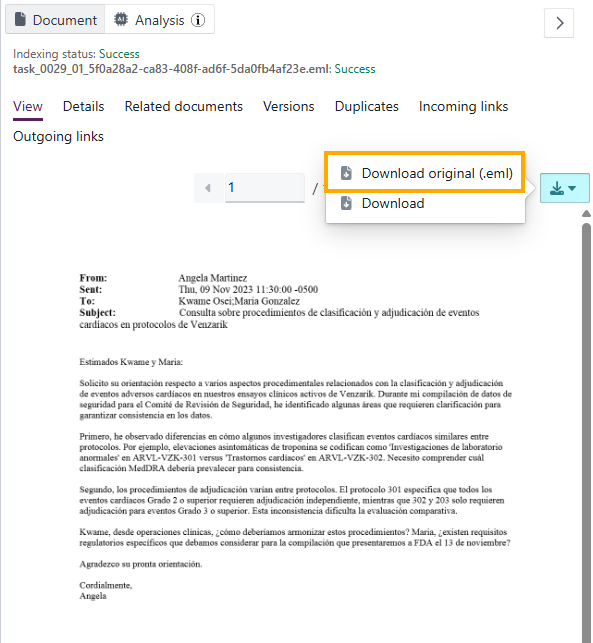
A confirmation message is displayed and the file is saved to your browser's default download location.
For bulk or configured exports — including PDF bundles, annotation settings, and zip exports — see Exporting documents and files.
Related links
Related documentation
Opus 2 has help information accessible within the application; click the question mark and then select Documentation in the upper-right area of the platform. You can also access the documentation at: Opus 2 Support.
How to contact us
To contact us about the documentation, or if you have any other questions or issues about Opus 2 solutions, contact Opus 2 Platform Support by emailing Opus 2 Platform Support.