
| Minimum Software Version | 8.18.10 |
| Solution(s) | Hearings ⨉ Cases International ✓ Cases US ✓ Institutions ⨉ Counsel ✓ |
Explains how to view, filter, edit, and delete notes on documents and transcripts within the Document Viewer, display notes as metadata on the Documents page, and manage notes centrally via the Notes worksheet.
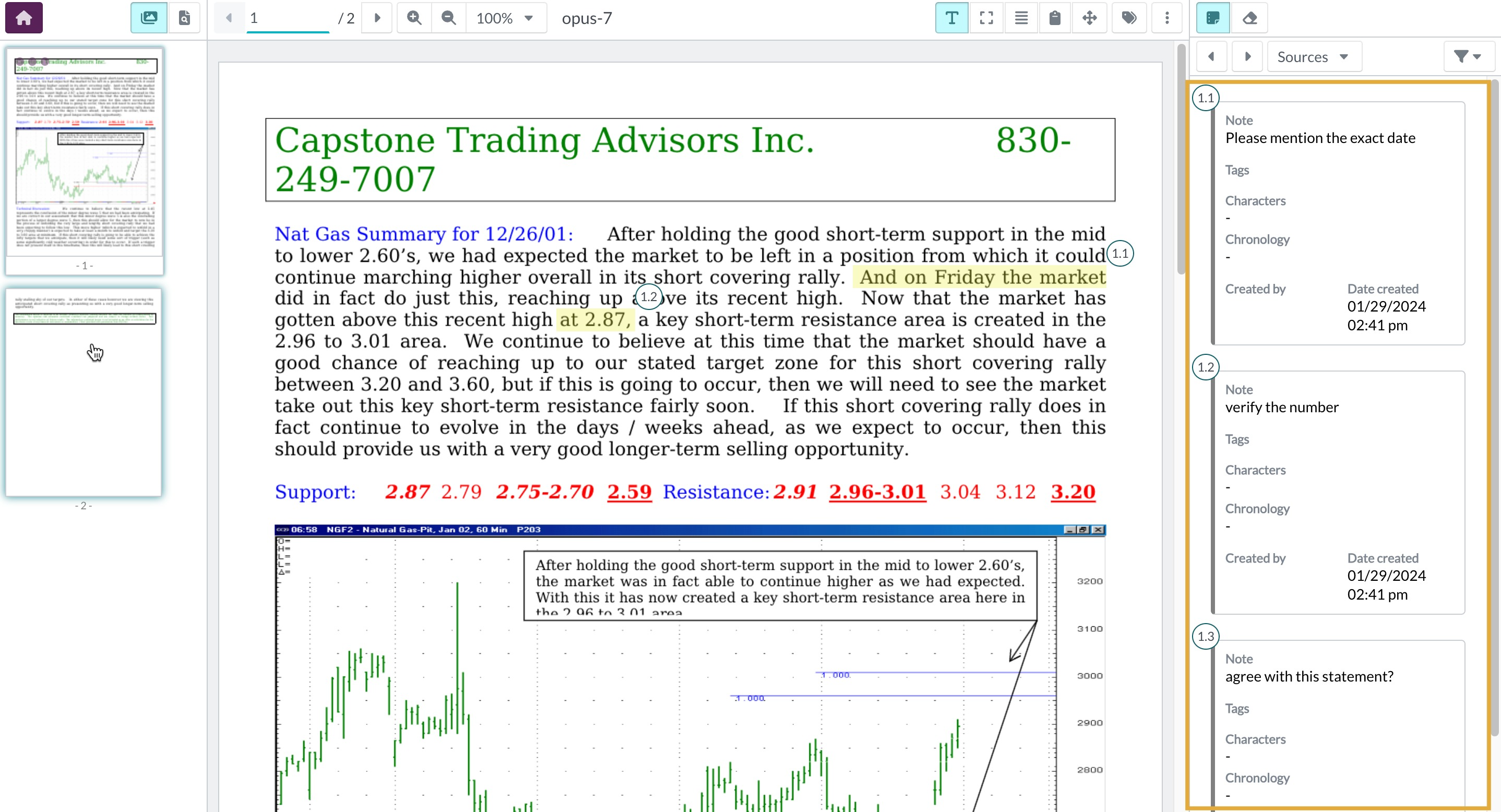
Notes in Opus 2 provide contextual insights and annotations linked directly to documents and transcripts. This article applies to both. Once a document or transcript is opened in the Document Viewer, all associated notes are displayed in the right-hand panel, allowing you to review, filter, and manage them in context. Notes can also be surfaced as metadata on the Documents page and viewed centrally in the Notes worksheet. Any changes made to a note, regardless of where it is edited, are automatically reflected in the original document or transcript.
Viewing notes in the Document Viewer
- Open a document or transcript in the Document Viewer.
- All notes associated with it appear in the right-hand panel.
- Select a note to open the document or transcript at the relevant page and highlight the associated text or region.
Filtering notes in the Document Viewer
- Select the Filter icon in the Notes panel.
- Select + Add filter to add a filter condition.
- Select Notes as the filter type.
- Choose the desired filter condition.
- Repeat to apply multiple filter conditions if required.
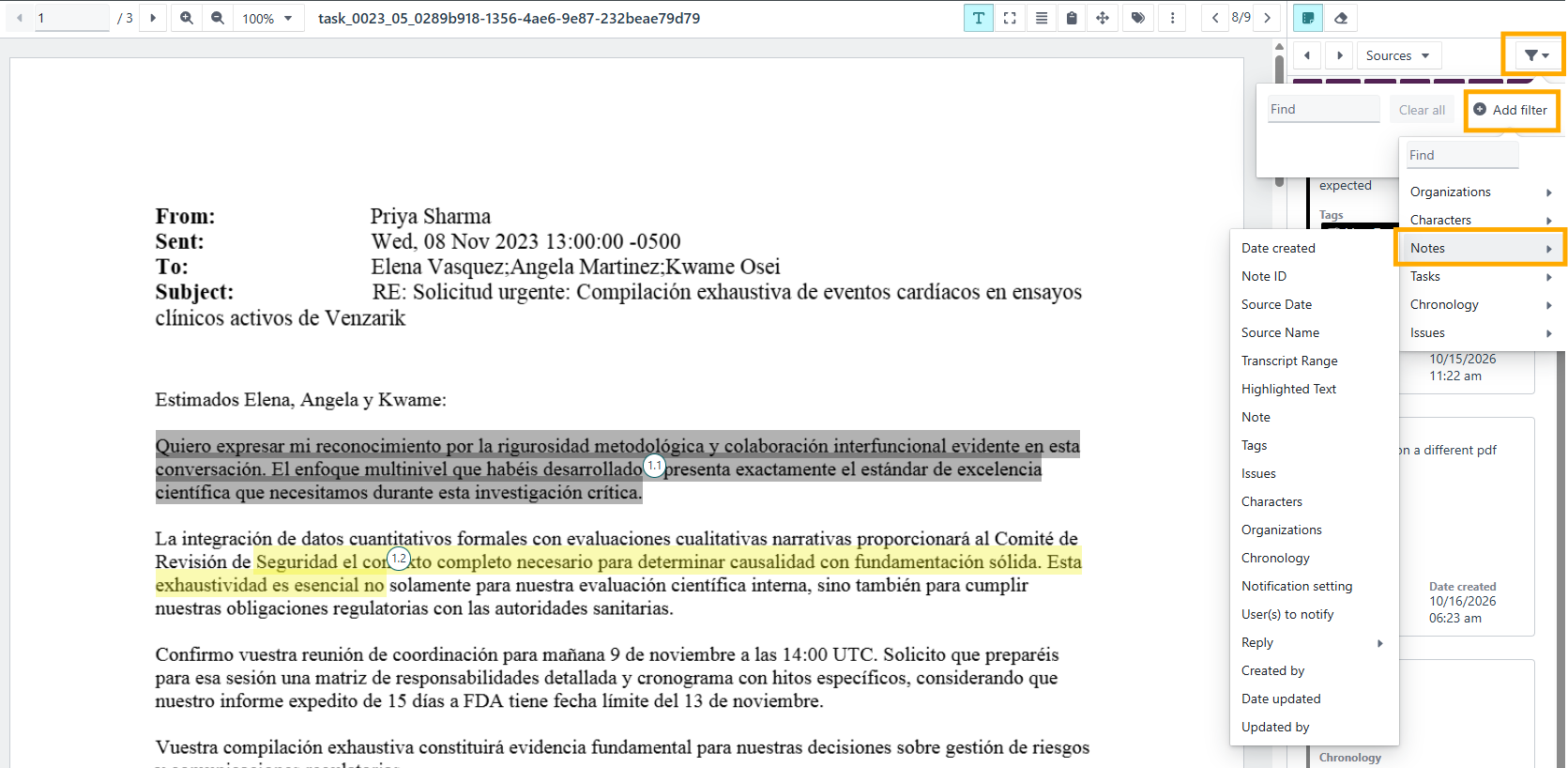
Example: Filter notes to show only those created by a specific user or with a particular tag.
Editing a note from the Document Viewer
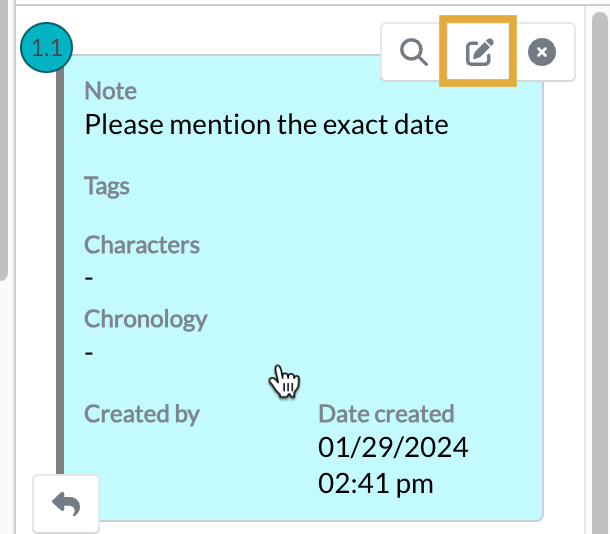
- Select the note in the right-hand panel.
- Select Edit.
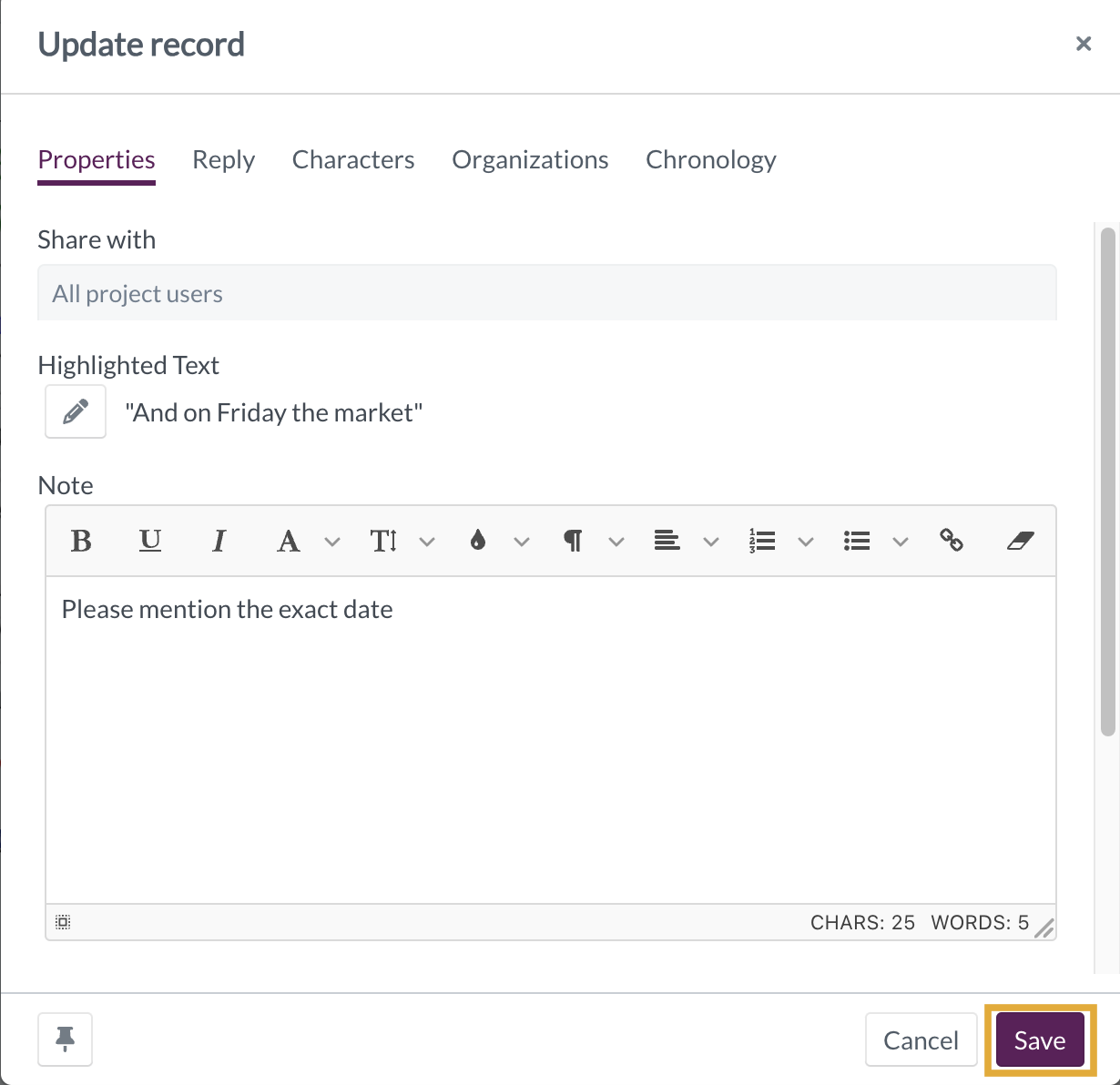
- In the dialog, update the note details.
- Select Save to apply the changes.
Deleting a note from the Document Viewer
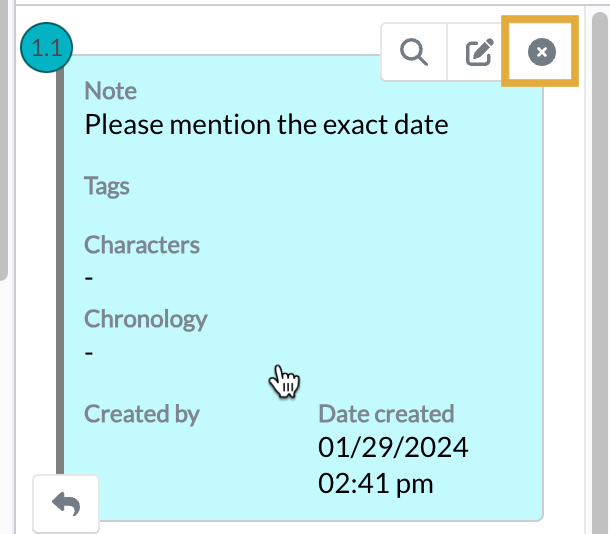
- Select the note.
- Select Delete.
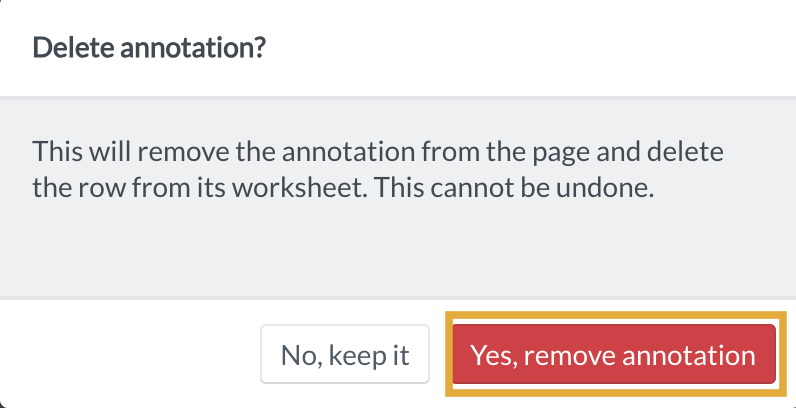
- Confirm by selecting Yes, remove annotation.
Viewing notes as metadata in the Documents page
Notes can be displayed as a metadata column in the Documents table. When enabled, the column shows the number of notes on each document and any tags associated with those notes. Full note content is not displayed in this view.
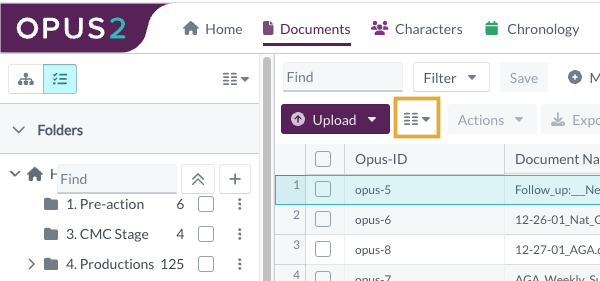
- Navigate to the Documents page.
- Select the Column icon.
- Select Expand, then choose Notes.
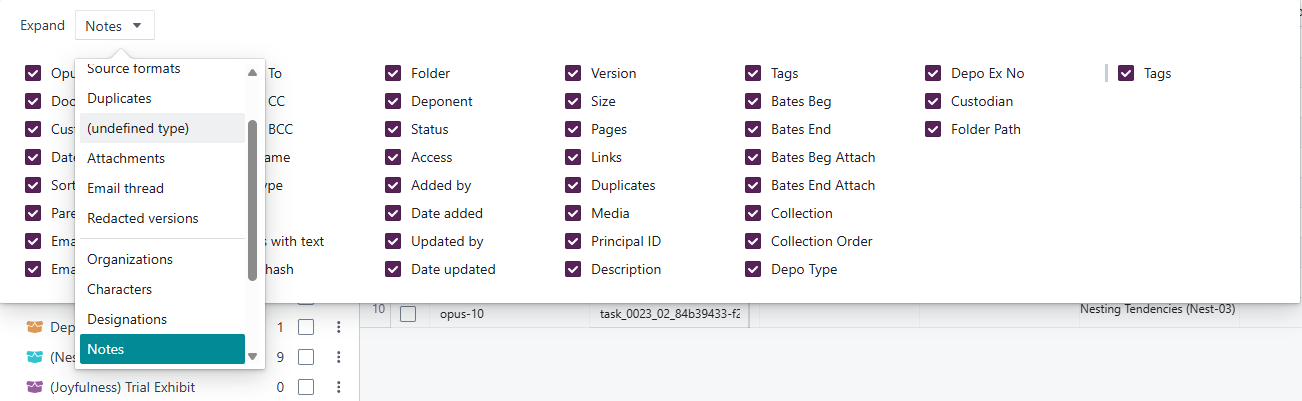
Example: Display the note count and tags alongside document metadata in the Documents table to quickly identify which documents have annotations.
Viewing notes from the Notes worksheet
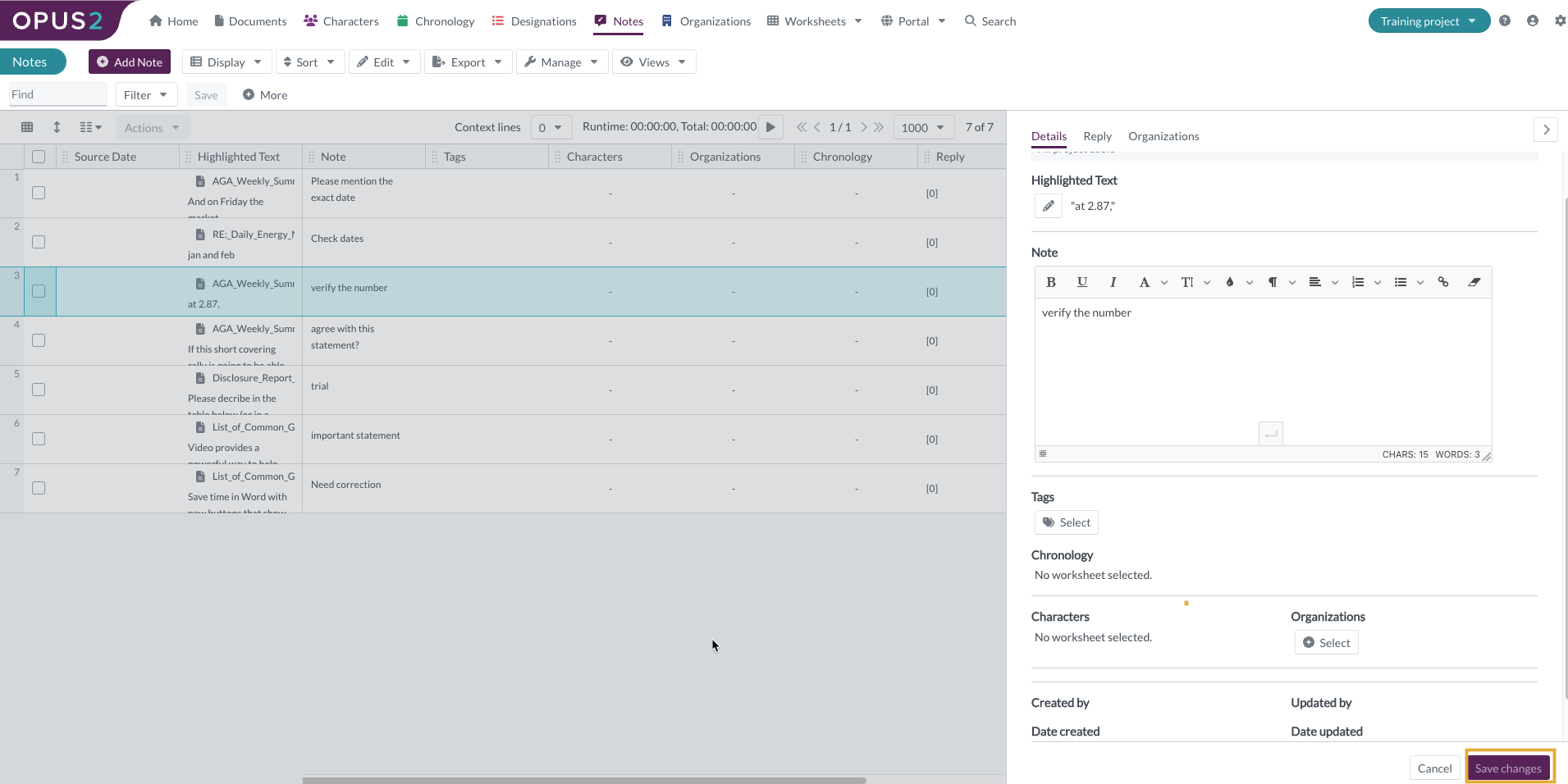
The Notes worksheet provides a centralised, tabular view of all notes created across documents and transcripts. It displays notes alongside highlighted text and related metadata. Notes can be edited or deleted directly from the worksheet, and any changes are automatically reflected in the linked document or transcript.
Note: The Notes worksheet contains both document notes and transcript notes. To tell them apart, filter on the Transcript Range field using the value 1:1:1-1:1:1. All document notes are labelled with this transcript range. Using the reverse filter option keeps only the transcript notes.
Editing a note from the Notes worksheet
- Select the note record in the table. The Details panel opens on the right.
- Select anywhere in the panel to enable editing.
- Update the note details.
- Select Save changes.
Tip: Select the document icon next to the highlighted text to open the source document or transcript at the exact location of the note.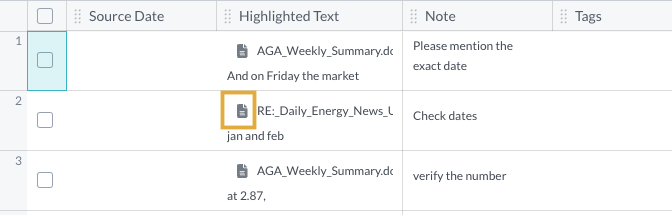
Deleting notes from the Notes worksheet
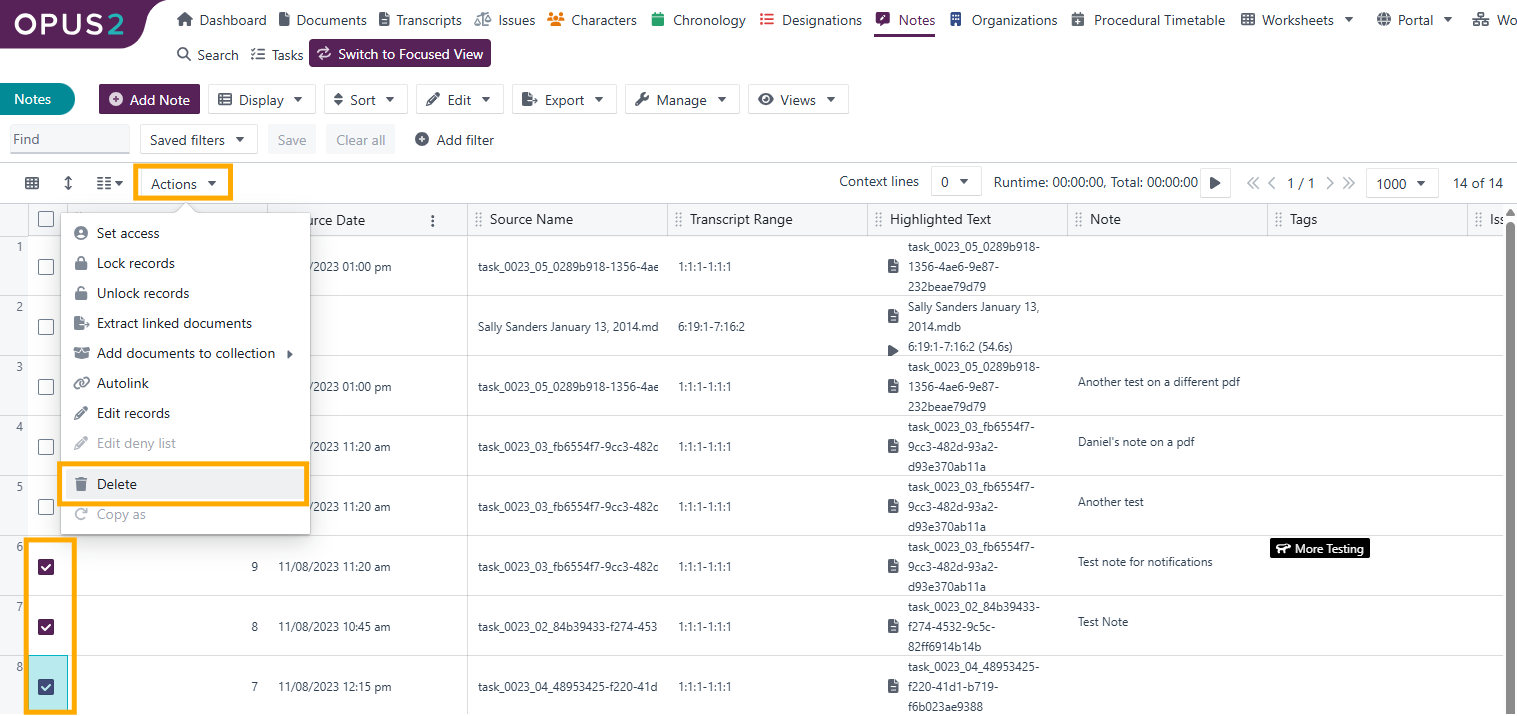
- Select one or more note records using the checkboxes.
- Select Actions.
- Select Delete.
- Confirm by selecting Yes, move to trash.
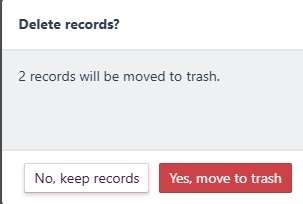
Deleting notes from the Notes worksheet also removes them from the corresponding documents and transcripts.
Filtering notes in the Notes worksheet
- Select + Add filter to add a filter condition.
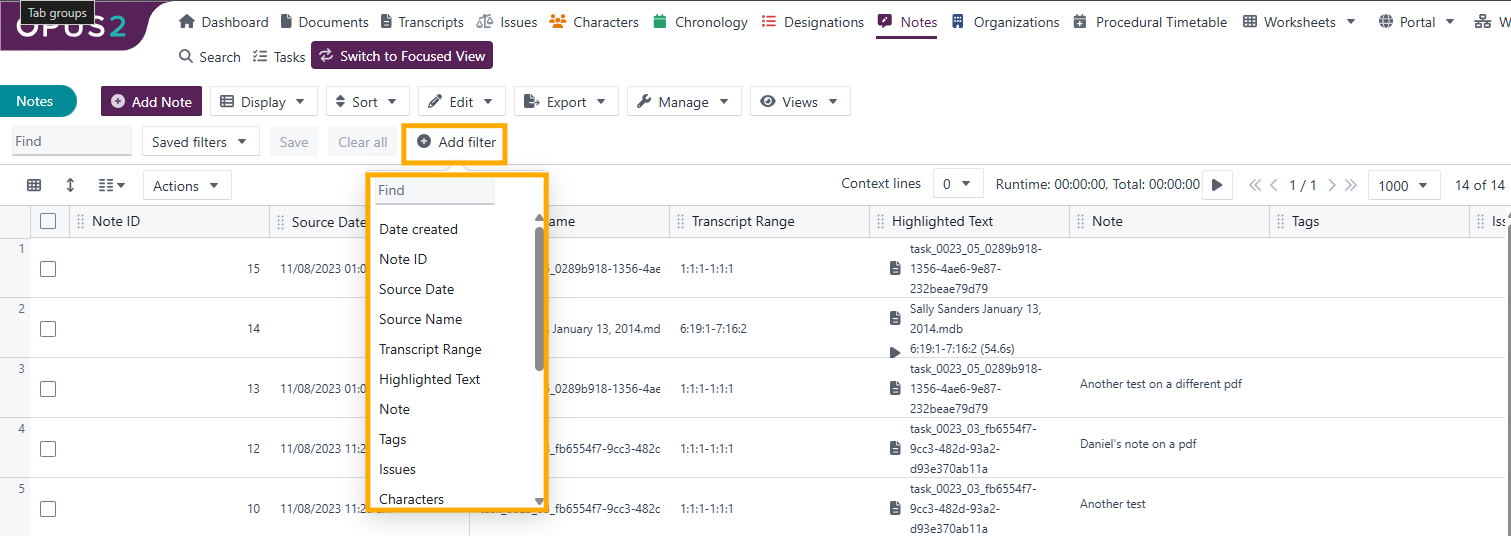
- Choose the filter condition.
- Enter the required filter value.
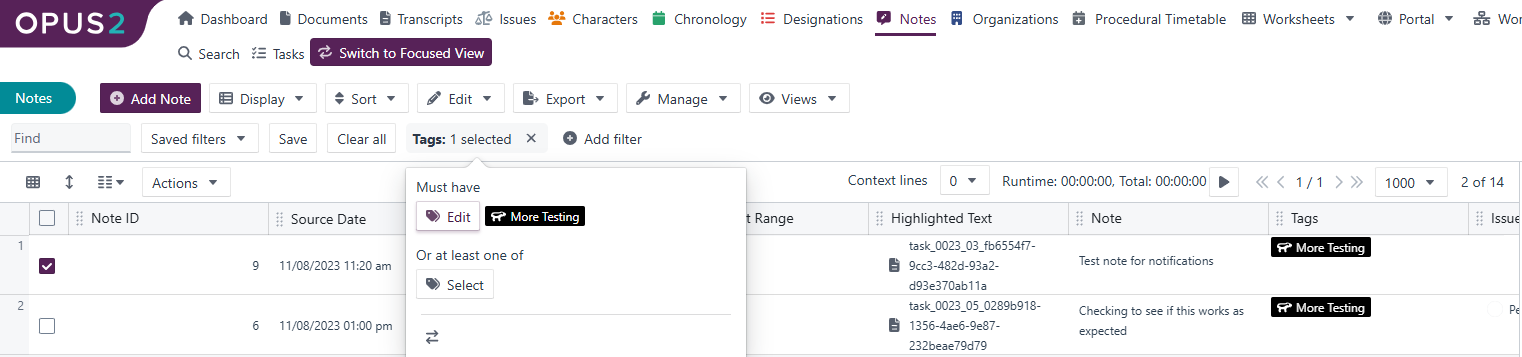
- Repeat to add multiple filters as needed.
Example: Filter notes to display only those created within a certain date range or linked to specific documents.
Related links
- How to add a note on an area of a document
- How to view a document
- Configuring a worksheet for document annotation
Related documentation
Opus 2 has help information accessible within the application; click the question mark and then select Documentation in the upper-right area of the platform. You can also access the documentation at: Opus 2 Support.
How to contact us
To contact us about the documentation, or if you have any other questions or issues about Opus 2 solutions, contact Opus 2 Platform Support by emailing Opus 2 Platform Support.