
| Minimum Software Version | 8.18.10 |
| Solution(s) | Cases International ✓ Cases US ✓ Institutions ⨉ Counsel ✓ |
The Opus 2 Platform allows users to upload individual files or entire folders of documents directly into a project. Uploaded documents can be published immediately to the Documents area or staged for review, depending on user permissions and upload settings. Once uploaded, documents continue to process in the background and are ready for use when processing is complete.
Uploading documents to a project is the primary way to bring source material into Opus 2 for review and analysis. After files are transferred, the platform handles background processing automatically — including unzipping archives, file conversion, and Optical Character Recognition (OCR) — so documents are searchable and ready to work with as soon as processing completes. A green tick in the Status column confirms a document is fully processed and available.
Uploading documents to a project
- Navigate to Documents.
- Select the folder you want to upload documents into.
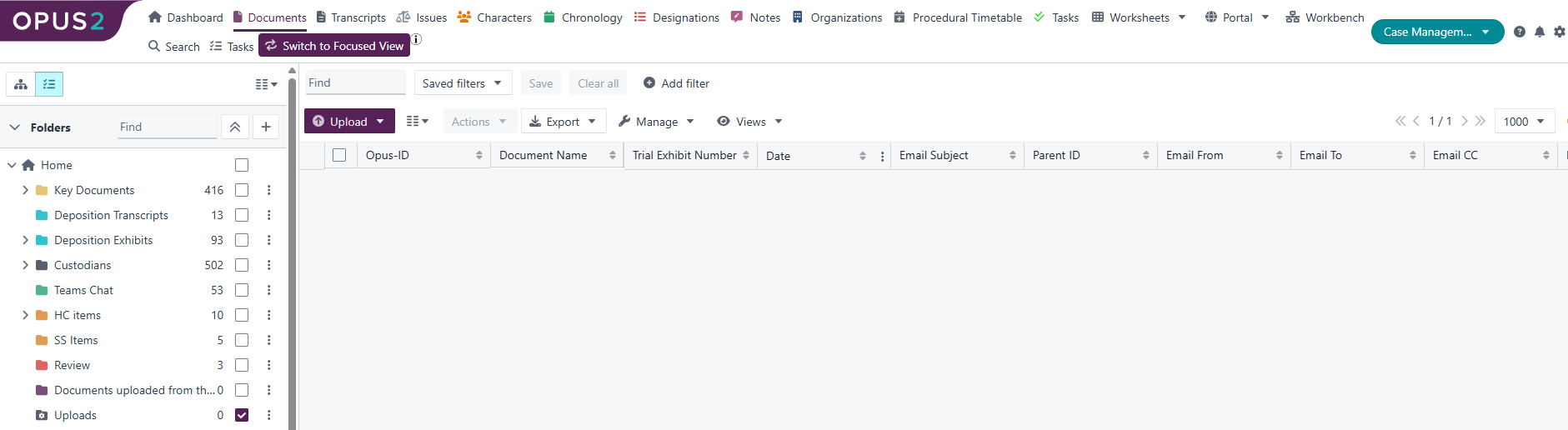
- The folder will be highlighted or ticked, depending on the view.
- Click Upload > Upload document.
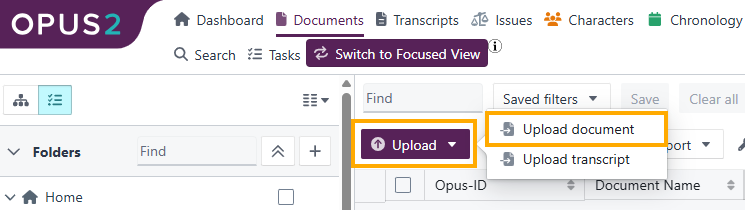
- In the upload dialog, either:
- Drag and drop documents or an entire folder into the dialog
- Click Browse for files to select files from your local machine, network, or external media.
- Review and confirm the upload options (see below), then click Upload.
Upload options
Review and confirm the following settings before uploading.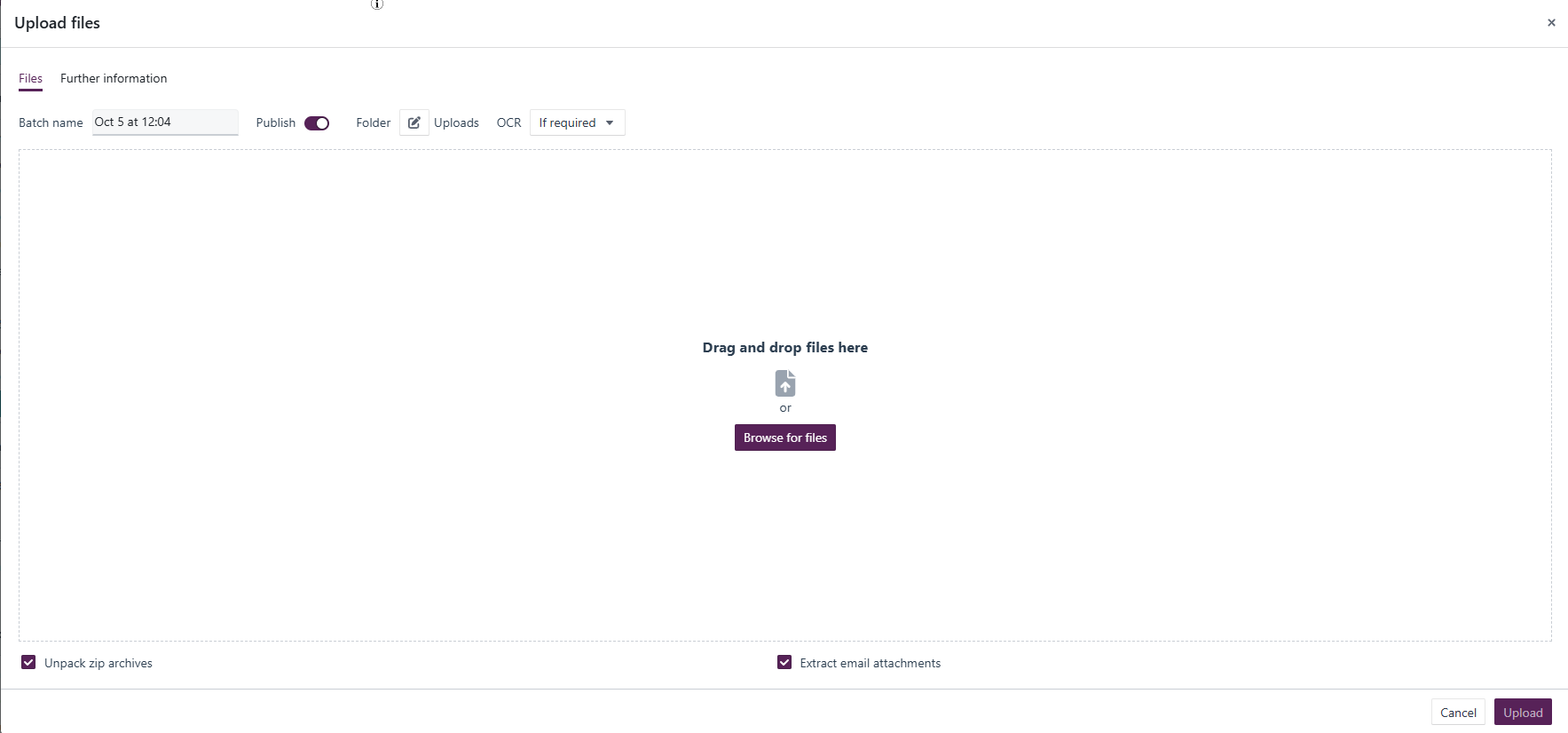
Batch name Leave this as generated with the date and time, or customize.
Publish Leave this selected unless advised otherwise.
- When enabled, documents are added directly to Documents.
- When disabled, documents are sent to the Files page for review before publishing (available to System Administrators only).
Folder Confirm the destination folder. Click the folder icon to change the destination if required.
OCR Choose how Optical Character Recognition (OCR) should be applied during upload:
- None – No OCR processing is performed.
- If required – OCR is applied only when searchable text is not already present in the document. This is the default and recommended setting in most cases.
- Always – OCR is applied regardless of whether searchable text already exists.
Unpack zip archives Leave this selected (recommended).
- Unticking this option uploads
.zipfiles as compressed archives. - Archives can later be unzipped from the Documents page.
- Leaving this enabled improves performance when uploading mixed file types.
Extract email attachments Leave this selected (recommended).
- When enabled, attachments are automatically extracted from email files (such as
.emland.msg) and uploaded as separate documents alongside the email. - Unticking this option uploads email files without extracting their attachments.
After upload
- The upload dialog closes once files are transferred.
- Documents continue to be processed in the background (unzipping, converting, OCR).
- A document is ready to view once a green tick appears in the Status column.
Related links
Related documentation
Opus 2 has help information accessible within the application; click the question mark and then select Documentation in the upper-right area of the platform. You can also access the documentation at: Opus 2 Support.
How to contact us
To contact us about the documentation, or if you have any other questions or issues about Opus 2 solutions, contact Opus 2 Platform Support by emailing Opus 2 Platform Support.