
| Minimum Software Version | 8.14.3 |
| Solution(s) | Hearings ⨉ Cases International ✓ Cases US ✓ Institutions ✓ Counsel ✓ Focused View⨉ |
Explains how to generate AI summaries of transcripts in Opus 2, including the five summary types and reference display options.
Opus 2 AI Analysis can perform automatic summarisation of transcripts. Transcript summary provides a text-based summary of a single transcript based solely on the transcript text itself — no additional contextual information is added. Summarisation can be performed from the Documents page or from within the Transcript Viewer.
Summarising a transcript
- On the AI Analysis tab of the Details panel or Transcript Viewer, select Transcript summary.
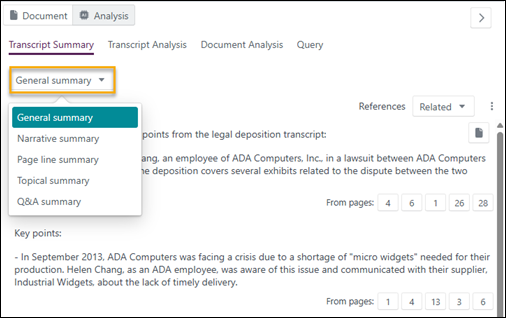
- Select a summary type from the dropdown:
- General – A 600-word summary of the transcript.
- Narrative – A concise summary in a story-like format.
- Page line – A detailed overview of the transcript.
- Topical – Groups related information together by theme.
- Q&A – Presents the deposition in a question-and-answer structure.
- Select a reference display from the References dropdown:
- None – Displays only the AI results without any references.
- Related – Identifies sections of the source transcript that match the language of the AI result, showing relevance to the result.
- Sources – Requests the AI tool to validate the result, providing fewer, more focused sections as evidence.
- All – Combines both Related and Sources references for a comprehensive set of supporting citations.
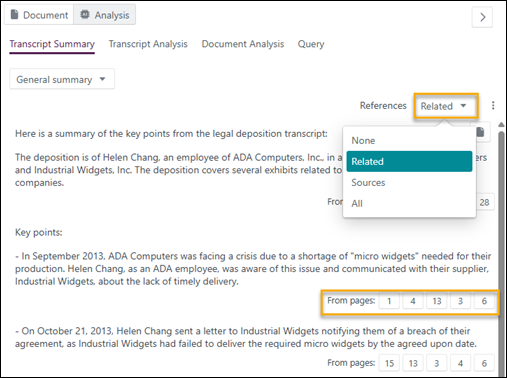
When Related references are shown, hover over a page link to see the relevancy percentage. This score shows how closely a specific section of text in the transcript matches the AI-generated paragraph, based on meaning and context. A higher percentage (for example, 80%) indicates a strong match. There may be several matches within a single transcript, and since each page may contain multiple sections, you may see multiple relevancy scores for different parts of the same page. This helps pinpoint the most relevant sections more accurately.
When Sources references are shown, hover over a page link to see a section of the text.
While in the Transcript Viewer, select Transcript summary to navigate directly to that section in the transcript with the source passages highlighted.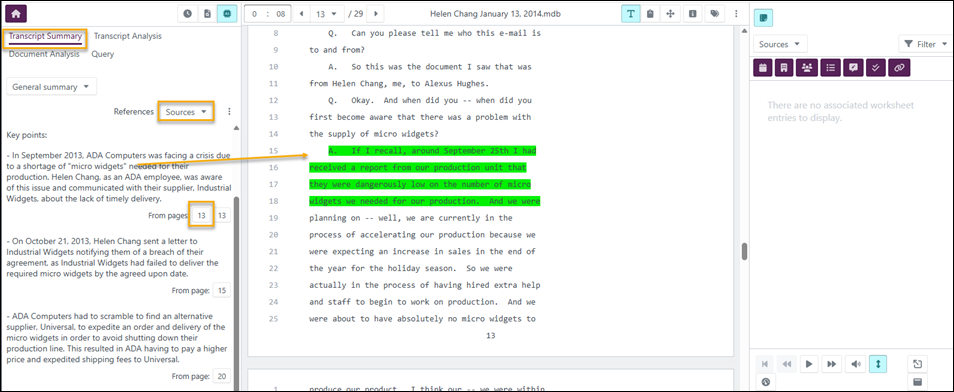
Summary types
General summary
Provides a summary of the complete transcript in approximately 600 words. Results are returned as a selection of highlighted points or topics, with relevant page numbers listed below each topic. Selecting a page number displays the references in a pop-out. Selecting a page number from the Transcript Viewer opens the transcript at that page with the relevant text highlighted.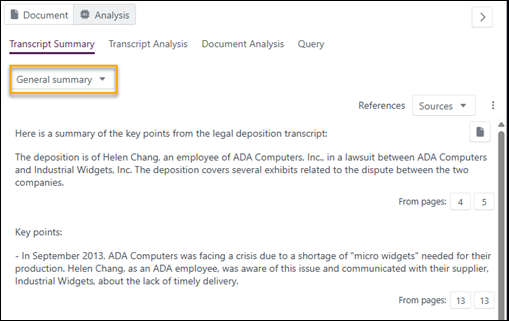
Narrative summary
A concise summary in a cohesive, story-like format, weaving together key points and events from the testimony. It connects facts and testimonies into an account that can be read as an overall narrative of the relevant events. Results are returned as a selection of points or events, with relevant page numbers listed below each point. Selecting a page number displays the references in a pop-out. Selecting a page number from the Transcript Viewer opens the transcript at that page with the relevant text highlighted.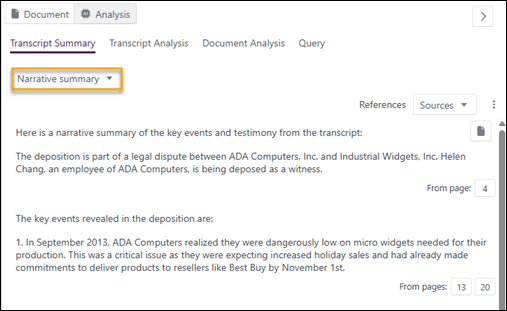
Page line summary
A detailed, in-depth overview of the transcript citing relevant page and line numbers, allowing users to quickly locate relevant statements or events. Results are returned as individual brief paragraphs with relevant page numbers listed below each paragraph. Selecting a page number displays the references in a pop-out. Selecting a page number from the Transcript Viewer opens the transcript at that page with the relevant text highlighted.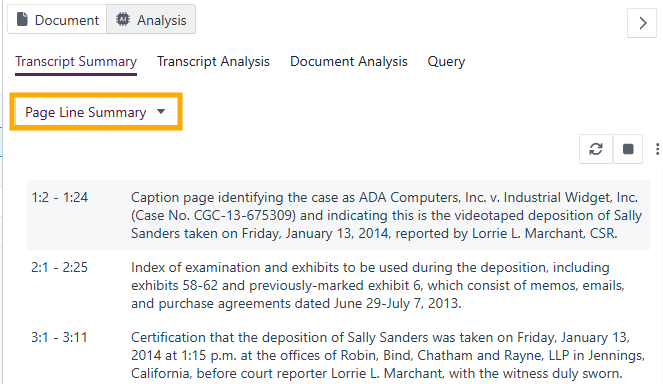
Topical summary
Clusters deposition testimony into distinct topics or themes relevant to the litigation, making it easier to see all relevant information about specific issues in a case. Results are returned as paragraphs covering individual topics, each with a brief summary and explanation. Relevant page numbers are listed below each paragraph. Selecting a page number displays the references in a pop-out. Selecting a page number from the Transcript Viewer opens the transcript at that page with the relevant text highlighted.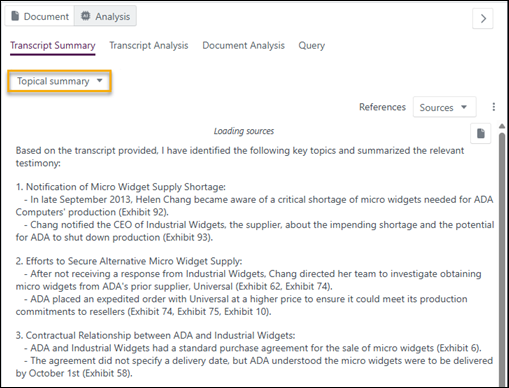
Q&A summary
Presents the deposition in a simple question and answer structure, mirroring the flow of the original transcript. This allows users to analyse witness testimony within the context of the questioning. Results are returned as brief question and answer pairs, with relevant page numbers listed below each pair. Selecting a page number displays the references in a pop-out. Selecting a page number from the Transcript Viewer opens the transcript at that page with the relevant text highlighted.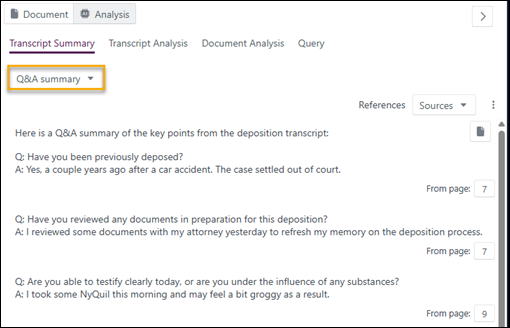
Related links
Related documentation
Opus 2 has help information accessible within the application; click the question mark and then select Documentation in the upper-right area of the platform. You can also access the documentation at: Opus 2 Support.
How to contact us
To contact us about the documentation, or if you have any other questions or issues about Opus 2 solutions, contact Opus 2 Platform Support by emailing Opus 2 Platform Support.