
| Minimum Software Version | 8.16.0 |
| Solution(s) | Cases International ✓ Cases US ✓ Institutions ⨉ Counsel ⨉ |
Explains how to run queries against a single document using AI Analysis, including tips for writing effective queries, interpreting relevancy scores, and saving query outputs.
The document query feature in AI Analysis lets users query the contents of the document they are working on. Queries can be run from the Query tab in the AI Analysis tool or from the left-hand navigation panel in the Document Viewer. The whole document is sent for analysis along with the query, and queries contribute to the word usage count.
Tip: When running a query, the whole document is sent for analysis along with the query. Single document queries add to the word usage count (full document text, question, and if enabled, also the history).Running a query
- Select the desired document and open it in the Document Viewer.
- Select Analysis.
- Select the Query tab.
- Type a question relating to the selected document and submit it.
If your query does not return the expected results, clear the query history and rephrase the query.
Query examples
- Generate a list of events, in chronological order, that relate to [topic].
- Summarise the witness's opinion on [topic].
- Prepare a list of potential defences to the allegations in this document.
- Generate a list of key themes, issues, or topics mentioned in this document.
- Identify what this document says about [topic].
- Identify the testimony the witness gave about [topic].
Tips for writing effective queries
Use commands rather than questions: Frame your query as an instruction rather than a question. Example: Generate a list of people mentioned in this document.
Be specific: The more detailed your query, the more relevant the answer will be. Example: How many times was Mrs Smith injured by her husband?
Use key terms: Including important words or phrases from the document helps focus the answer. Example: List the people involved in international anti-doping agencies.
Give context: Adding background information makes your query clearer. Example: Several cases have been brought against ADA Computers in the last 10 years. List the complainants.
Keep it simple: Clear, direct requests work best. Example: List the events related to defamation.
Build on previous prompts: Submit several prompts in sequence to progressively refine the results. For example, start with Generate a list of people mentioned in this document, then follow up with Provide more details about [person's] involvement or Based on the document, who was the principal person involved from this list and why.
Interpreting results
Each answer is shown with a source relevancy score as a percentage. Selecting the relevancy score moves the reference document to the relevant page with the text extract highlighted.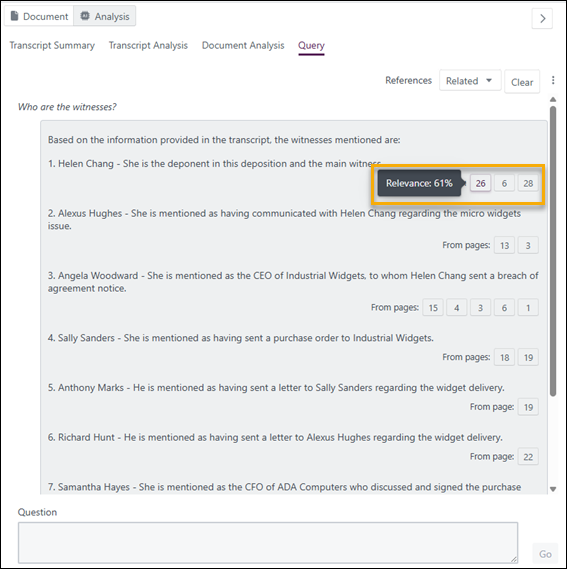
The relevancy score shows how closely a specific section of text in the document matches the AI-generated response, based on meaning and context. A higher percentage (for example, 80%) indicates a strong match. There may be several matches within a single document, and since each page may contain multiple sections, you may see multiple relevancy scores for different parts of the same page. This helps pinpoint the most relevant sections more accurately.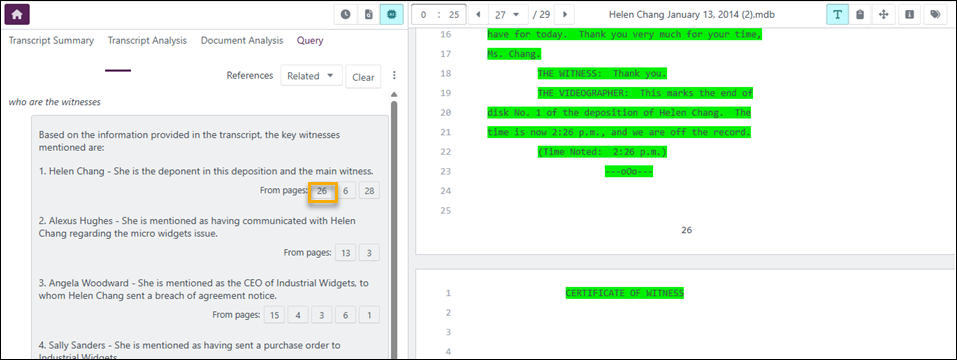
When Sources references are selected, hover over a page link to see a section of the text.
To clear the chat history, select Clear.
Saving queries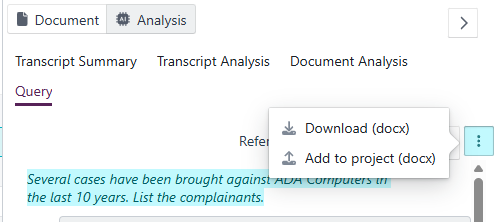
Save to a Word document: Select the three-dot kebab menu in the top-right corner and select Download (docx). The prompts and responses are saved to a .docx file (without sources) in the download location specified in your browser settings.
Save to the project: Select the three-dot kebab menu and select Add to project (docx). A message confirms the file has been sent for processing. A document named chat.docx is generated and published to the Uploads folder.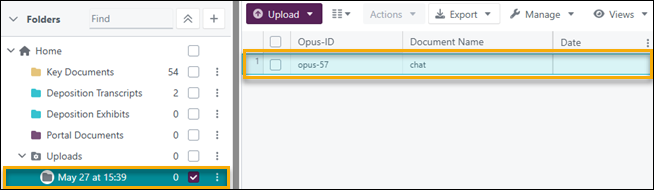
Related links
Related documentation
Opus 2 has help information accessible within the application; click the question mark and then select Documentation in the upper-right area of the platform. You can also access the documentation at: Opus 2 Support.
How to contact us
To contact us about the documentation, or if you have any other questions or issues about Opus 2 solutions, contact Opus 2 Platform Support by emailing Opus 2 Platform Support.