
| Minimum Software Version | 8.14.0 |
| Solution(s) | Cases International ✓ Cases US ✓ Institutions ✓ |
Explains the options available for exporting documents and files from Opus 2, including batch exports, metadata exports, and downloading original files.
Opus 2 provides multiple options for exporting documents and files, making it straightforward to share content with other parties. Users can export processed PDF documents in bulk, download original source files, or export metadata as a spreadsheet or plain text file, depending on their permissions.
Prerequisites
The following capabilities are required depending on the action being performed:
- Download documents – Required to directly download single or multiple documents that have been processed into PDF format on upload.
- Export documents – Required to access the Export menu.
- Access file manager – Required to access the Files page.
- Download original documents – Required to download original files from the Files page or Documents page.
For more information, refer to the User roles and capabilities article.
Exporting documents in a batch
- In the Documents tab, select the documents to export using the checkboxes.
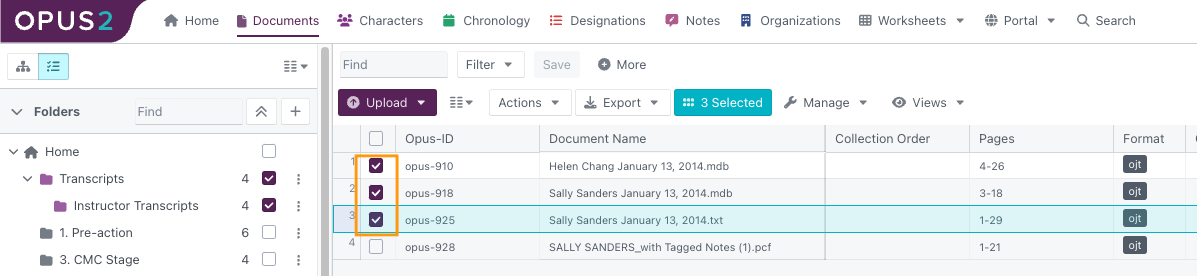
- Select the Export menu.
- Select PDF or zip bundle.

- The Export dialog opens. Give your export a name.
- Configure the export using the tabs in the left-hand panel (described below), then click Export.
Note: The tabs available depend on the content being exported. For example, transcript settings are only displayed if transcripts are included in the selection.
Export dialog tabs
| Section | Tab | Description |
|---|---|---|
| Export settings | Overview | Top-level options for the entire export, including export name, format, and whether a table of contents or cover page should be included. |
| Export settings | Annotations | Options for which annotations to include and how they should appear in the export. |
| Export settings | Related content | Options to include related content alongside the selected documents, such as documents in the same family or documents linked from the selected items. |
| Export settings | Zip export settings | Available when a zip format is selected in the Overview tab. Contains options for file naming, folder structure, and whether to retain subfolders or export to a single folder. |
| Documents | Document settings | Settings specific to the documents being exported, such as stamps to include. These settings do not apply to transcript files. |
| Transcripts | Transcript settings | Settings specific to any transcript files being exported, such as inclusion of timestamps and word index. These settings do not apply to non-transcript files. |
| Transcripts | Advanced settings | Detailed settings for transcript files, including layout and annotation appearance. |
| Review | Review | Displays all configured settings for review before the export is triggered. Export templates can be saved here to avoid reselecting the same options for repeat exports. |
Generating and accessing exports
Once an export is requested, a confirmation message is displayed and you will receive an email when the export is ready.
To access completed exports:
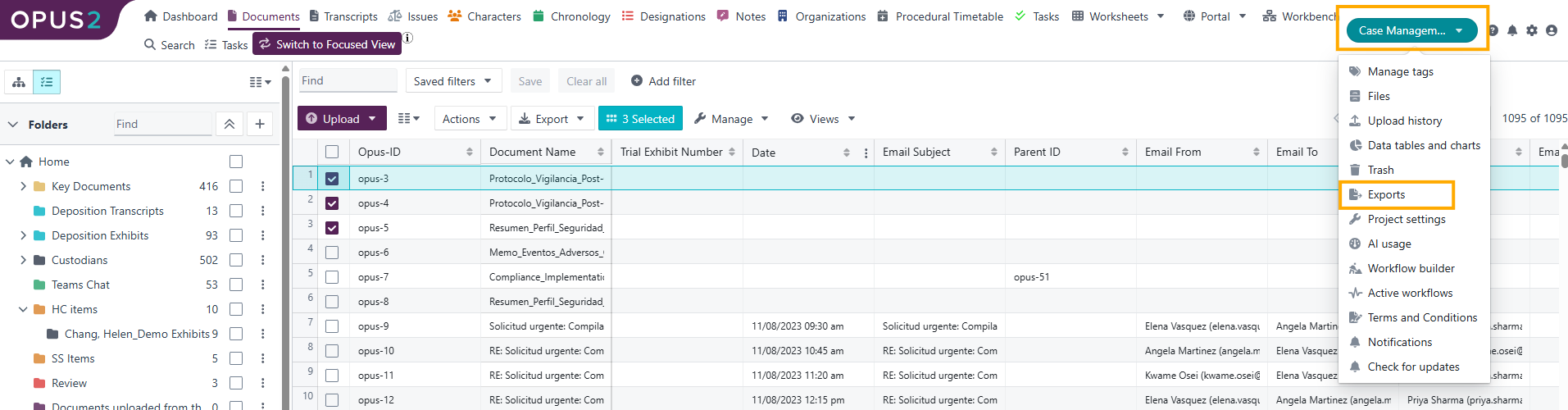
- Select the Project button in the top-right corner of the platform.
- Choose Exports from the dropdown menu.
The Exports page displays a filterable list of all generated exports available for download. Each export shows its current status in the Export progress column. Completed exports appear with a Download export button; click it to download the file to your browser's default download location.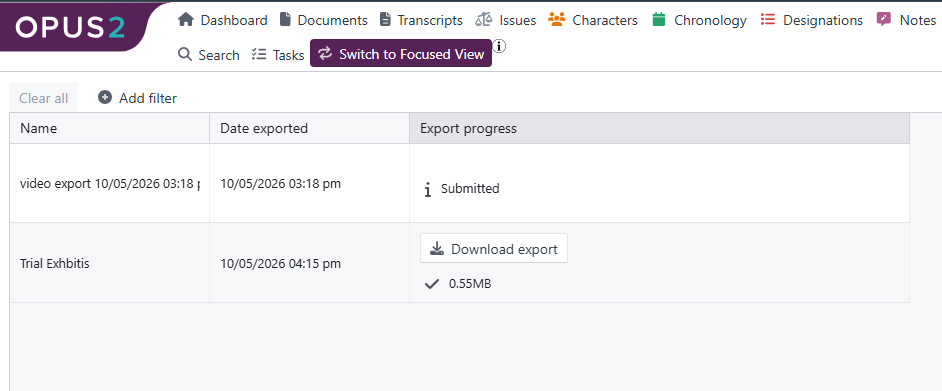
Export progress status definitions
| Status | Description |
|---|---|
| Export requested | The initial stage when the export request has been submitted. |
| Analysing export | The export is determining what data it needs to retrieve. The progress bar increments as this step proceeds. |
| Creating export | The export is being generated. The progress bar increments as this step proceeds. |
| Download export | The export has completed and is ready to download. Click the download button to save the file. |
| Export error | An error has occurred during the export process. |
Exporting metadata from the Files page
The Files page allows you to export file metadata as a spreadsheet or plain text file. This is distinct from downloading the documents themselves — it exports the metadata associated with the files, not the file content.
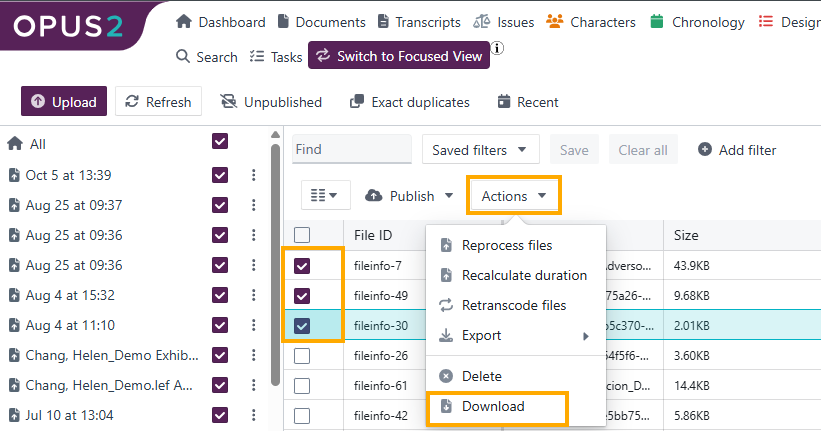
- In the Files page, select one or more files using the checkboxes.
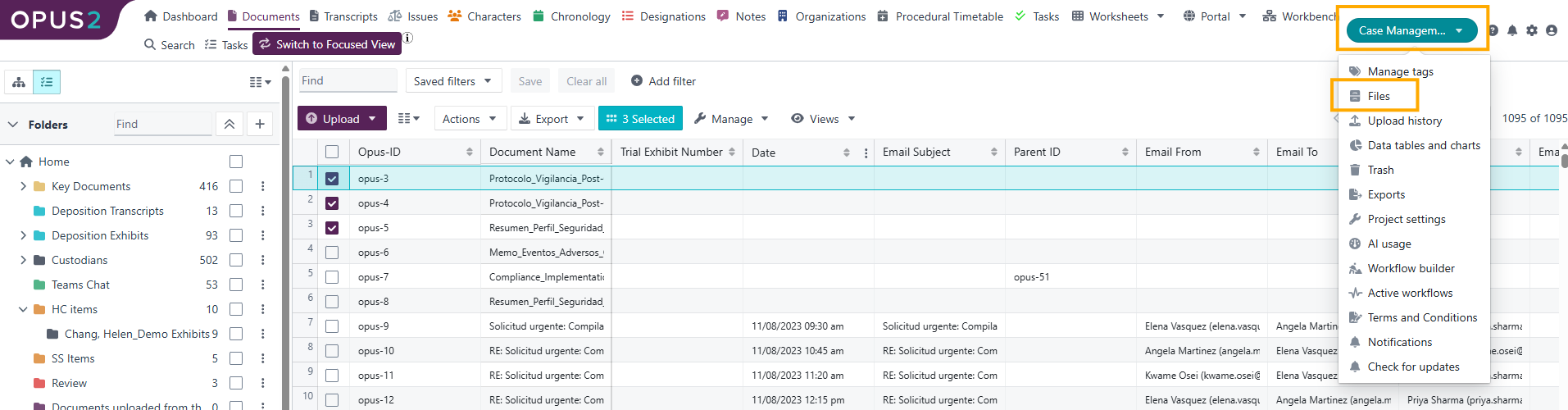
- Select Actions > Export, then choose from:
- Export as spreadsheet (.xlsx) – Exports file metadata to an Excel file.
- Export as plain text (.csv) – Exports file metadata to a CSV file.
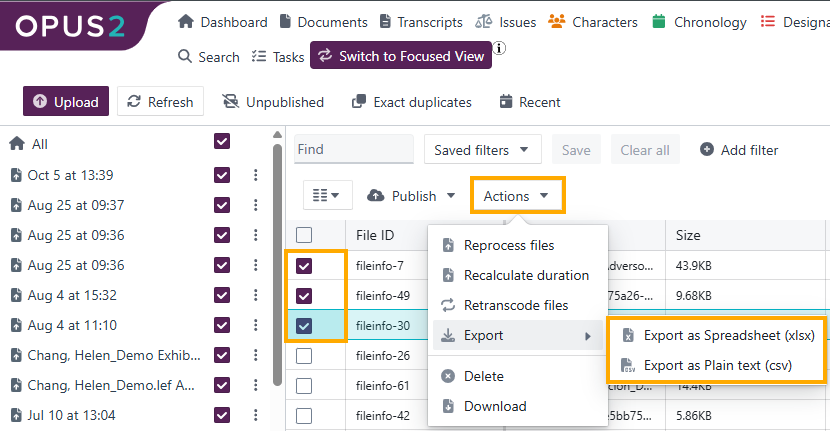
The exported file can be opened in Microsoft Excel or a similar application.
Downloading original files
To download the original source file for a single document on the Documents page, hover over it, right-click, and select Download.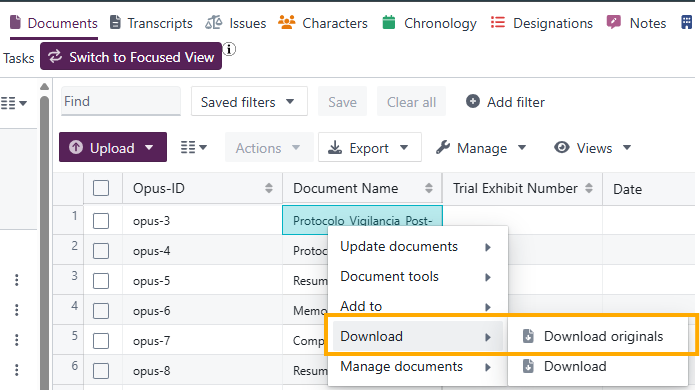 Alternatively, select the Download original button in the View tab of the Document viewer pane.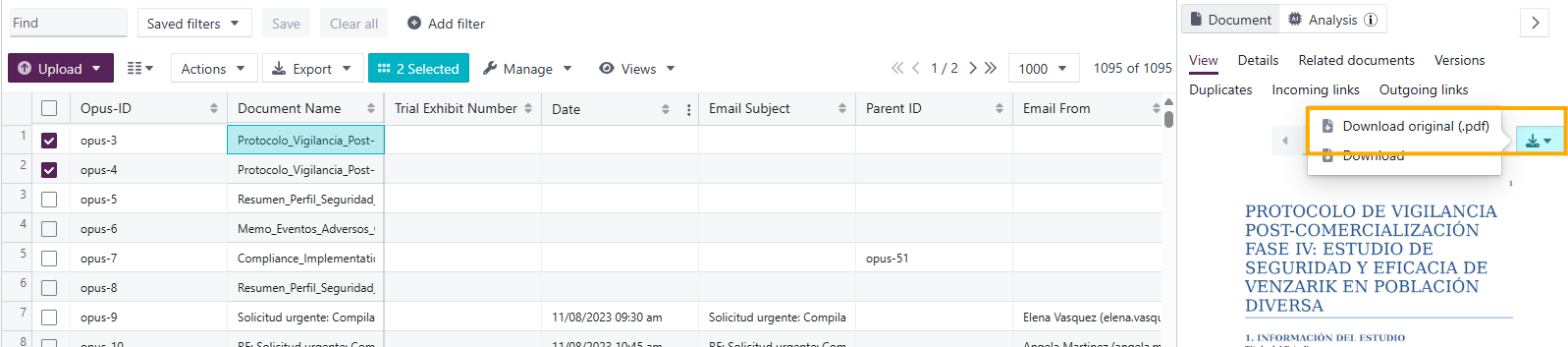
To download original files for multiple documents from the Files or Documents page, select the checkboxes for the relevant files and choose Actions > Download.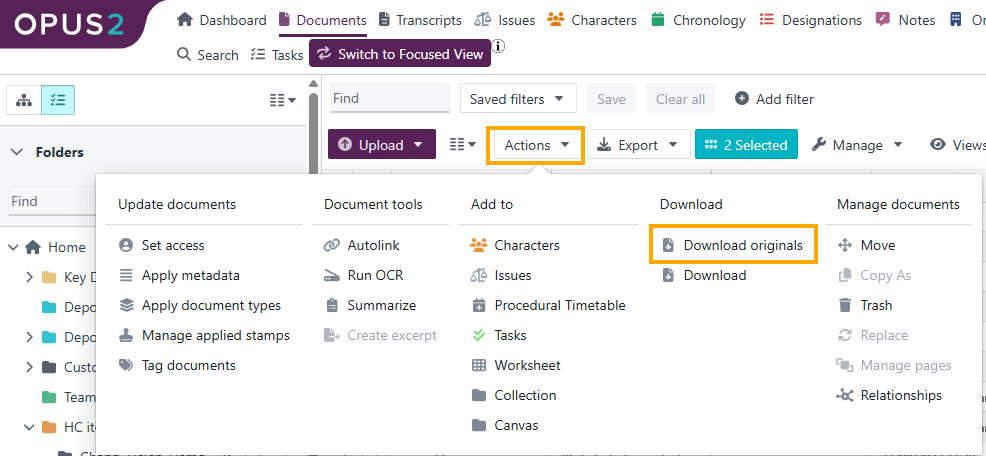
Related links
Related documentation
Opus 2 has help information accessible within the application; click the question mark and then select Documentation in the upper-right area of the platform. You can also access the documentation at: Opus 2 Support.
How to contact us
To contact us about the documentation, or if you have any other questions or issues about Opus 2 solutions, contact Opus 2 Platform Support by emailing Opus 2 Platform Support.