
| Minimum Software Version | 8.14.3 |
| Solution(s) | Hearings ⨉ Cases International ✓ Cases US ✓ Institutions ✓ Counsel ✓ Focused View⨉ |
Explains what a canvas is, how to create and manage canvases, add documents, monitor analysis, and collaborate with other users.
A canvas is a group of documents temporarily brought together so that Opus 2's AI tools can work on them. Canvases are used for two purposes: batch AI analysis of documents before you are ready to review them, and defining a specific document set for AI Workbench entity extraction.
Canvases support two AI features:
- AI Analysis – Adding documents or transcripts to a canvas performs a batch analysis in advance. When you are ready to use AI Analysis, the documents are already processed and you do not have to wait.
- AI Workbench – Defines the specific document set to be analysed by AI Workbench. Only the documents in the chosen canvas section are analysed and have entities extracted (characters, organisations, events).
Note: You do not need to add a document to a canvas to perform AI analysis on it. The AI Analysis tool can be accessed directly from any document in your project. Canvases allow you to process larger sets of documents in advance of when you need them.
Prerequisites
To use AI Workbench, the feature must be enabled by Opus 2 Platform Support.
Creating a canvas
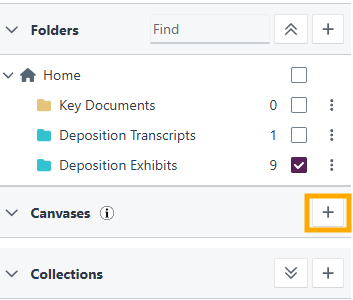
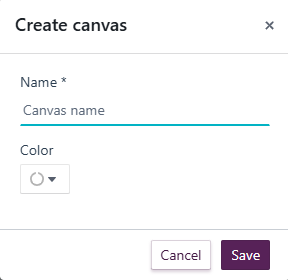
- In the Documents page, select the + symbol next to Canvases in the sidebar.
- Provide a name and optionally select a colour for the canvas.
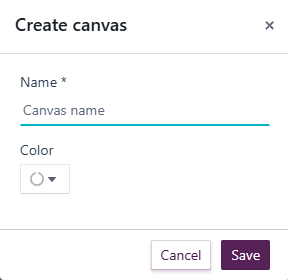
- Select Save.
To edit or delete a canvas, use the three-dot kebab menu alongside the canvas name.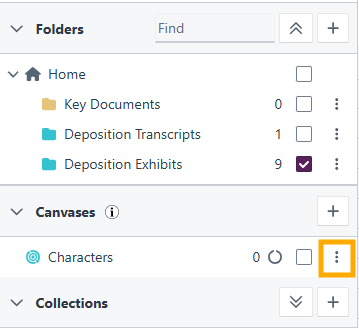
Adding sections within a canvas
Canvases can be subdivided into sections to organise documents within them.
- Right-click or select the three-dot kebab menu next to the canvas and select Add section.
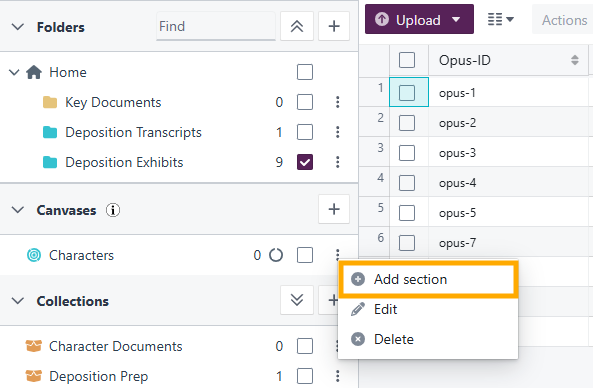
- Enter a name for the section and optionally select a colour.
Adding documents to a canvas or canvas section
Method 1: Drag and drop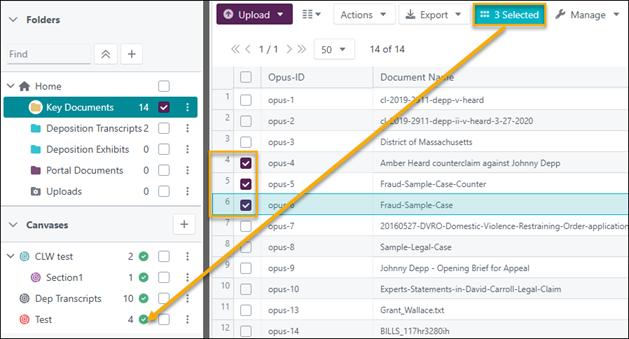
- Select the documents to be added using the checkboxes alongside them.
- Drag the selection counter over to the chosen canvas or canvas section.
Method 2: Actions menu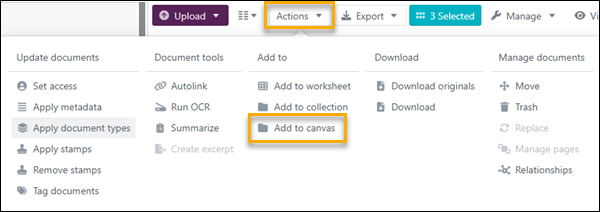
- Select the documents to be added using the checkboxes alongside them.
- Select the Actions dropdown and select Add to canvas.
Automated analysis of canvas documents
Once documents are added to a canvas, analysis begins automatically. Canvas status is indicated by the circle icon:
| Status | Meaning |
|---|---|
| Grey circle | The canvas is empty. |
| Orange semi-circle | Documents are being analysed. |
| Green circle with tick | All documents in the canvas are ready. |
Select the orange or green circle to see details of the canvas analysis. Select Close when finished.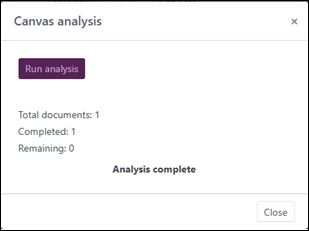
Tip: Due to AWS Bedrock processing limitations, analysing a large number of documents can take several hours (approximately 6–7 hours for 50 documents). We recommend populating canvases so that documents can be analysed overnight. In the meantime, you can still access individual documents from the canvas and perform single document analysis on them.
Note: You cannot re-analyse a document. If analysis is interrupted or becomes stuck, select the orange circle and then select Run analysis to try again.
It is recommended that users wait 15–20 minutes for entity extraction (characters, organisations, events) to complete on canvas documents before reviewing extracted entities from a single document that is part of the same canvas.
Adding and removing documents from a canvas after analysis
After a canvas has been analysed, additional documents can be added, and they will be analysed automatically. If changes are made to an original document and it is added to the canvas again, the updated version is reflected in AI Workbench entity extraction.
To remove a document from a canvas:
- Select the canvas to see the list of documents.
- Select the document to be removed.
- Select Actions > Remove from canvas.
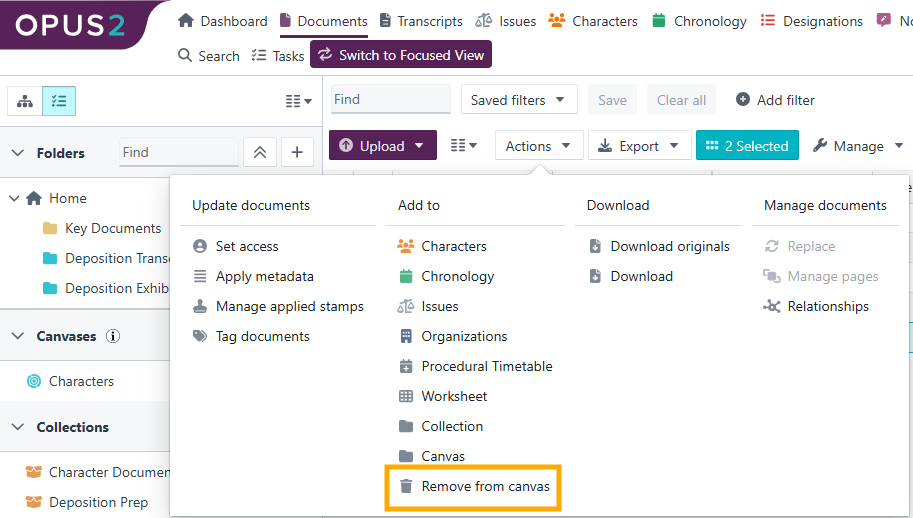
Entities corresponding to the removed document will no longer appear in AI Workbench.
Working together on a canvas
More than one user can work on a canvas in AI Workbench simultaneously. Actions such as categorising, merging, unmerging, or adding items to worksheets are visible to all users. You may need to press F5 to refresh your browser after a minute or two to see the latest changes.
If a colleague has already worked on the same canvas, you may see entities already categorised as relevant or irrelevant. Similarly, entities added to a worksheet by a colleague using Single Document Analysis appear in AI Workbench marked as already added to the worksheet.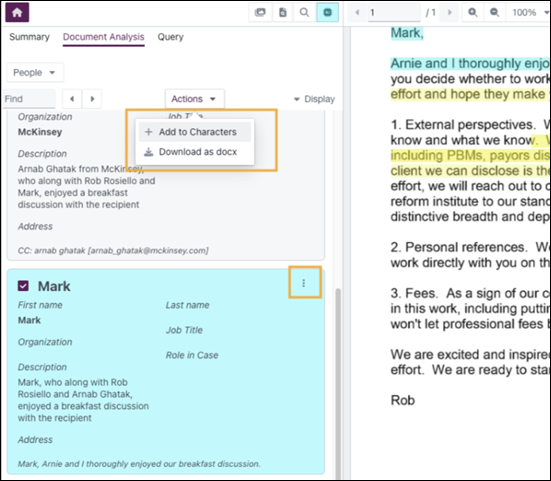
Related links
Related documentation
Opus 2 has help information accessible within the application; click the question mark and then select Documentation in the upper-right area of the platform. You can also access the documentation at: Opus 2 Support.
How to contact us
To contact us about the documentation, or if you have any other questions or issues about Opus 2 solutions, contact Opus 2 Platform Support by emailing Opus 2 Platform Support.