
| Minimum Software Version | 8.18.10 |
| Solution(s) | Hearings ⨉ Cases International ✓ Cases US ✓ Institutions ✓ Counsel ✓ Focused View⨉ |
Explains how to export worksheet data to an Excel spreadsheet, with options to export all data or only selected columns and records.
Worksheets in Opus 2 can be exported to an Excel spreadsheet for offline review, sharing, or reporting. Users can export the full worksheet or refine the output by selecting specific columns or records before exporting.
All worksheets share the same export functionality. Filtering and column selection allow you to control exactly what is included in the exported spreadsheet, ensuring the output contains only the most relevant information.
Exporting a worksheet to Excel
- Navigate to the worksheet you want to export.

- Refine the data before exporting:
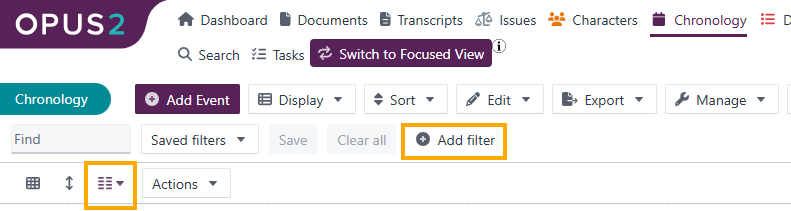
- Use the field selector icon to show or hide specific columns.
- Use + Add filter to limit which records are displayed.
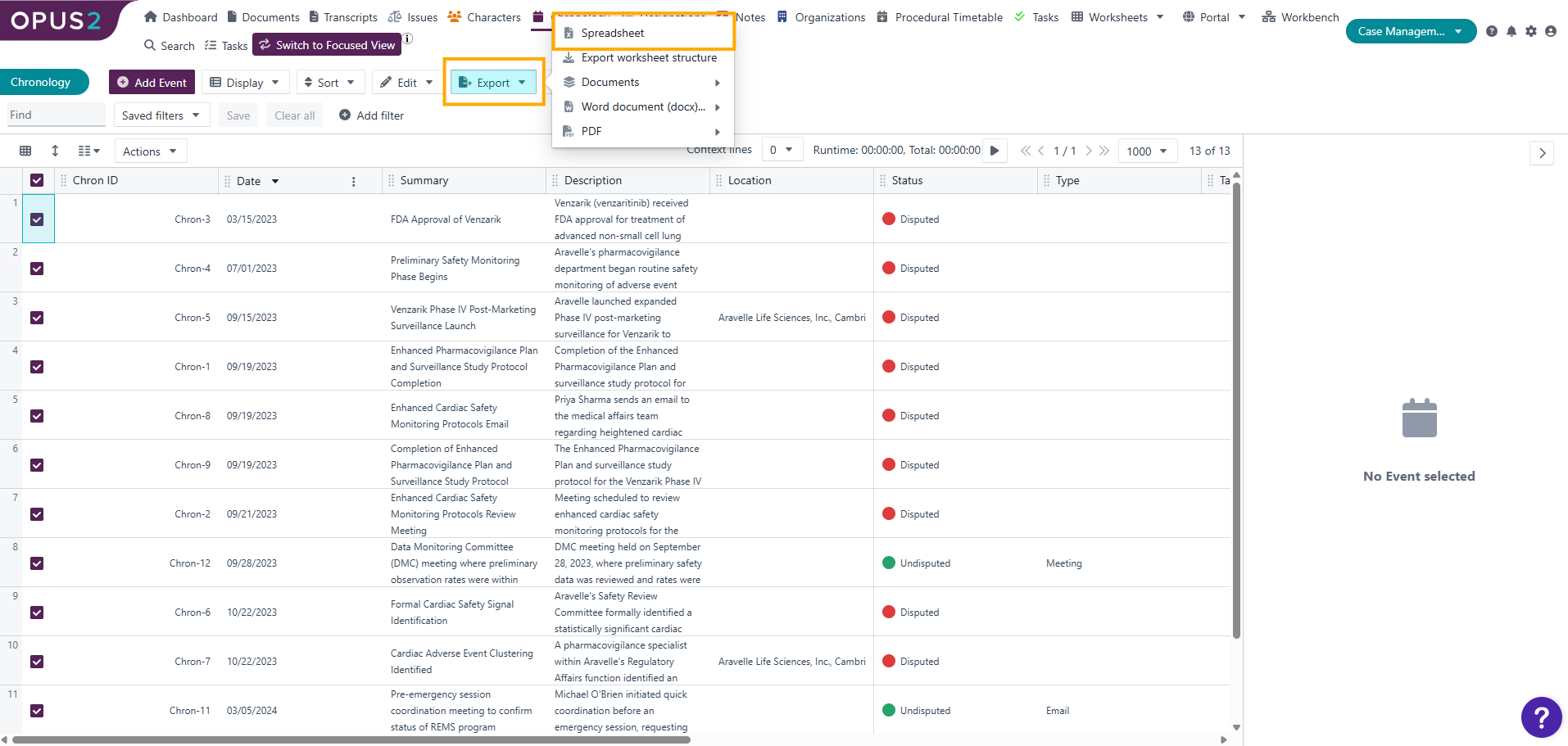
- Select Export → Spreadsheet.
- In the export dialog, set Content to Currently visible columns if you only want to export the filtered or selected data.
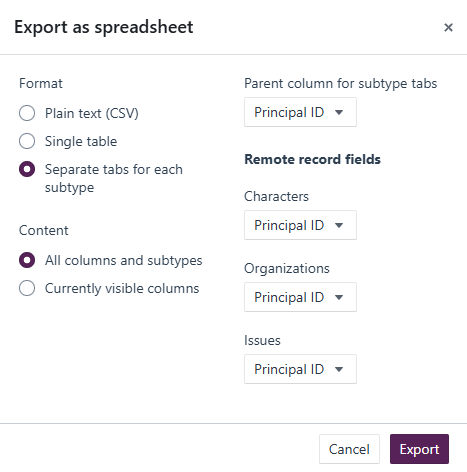
- Click Export to download the spreadsheet.
Related links
Related documentation
Opus 2 has help information accessible within the application; click the question mark and then select Documentation in the upper-right area of the platform. You can also access the documentation at: Opus 2 Support.
How to contact us
To contact us about the documentation, or if you have any other questions or issues about Opus 2 solutions, contact Opus 2 Platform Support by emailing Opus 2 Platform Support.