
| Minimum Software Version | 8.15.0 |
| Solution(s) | Cases International ✓ Cases US ✓ Institutions ✓ Counsel ✓ |
The Search Query Builder is an interactive tool that allows users to construct search queries using drag-and-drop components. It is particularly useful for users who are new to advanced search syntax, as it simplifies the creation of complex queries.
As a query is built in the Builder, the corresponding syntax updates in real time in the search bar. This makes the Builder a useful learning tool for understanding modifiers, boolean operators, grouping, and field searches in the Lucene query language.
Users can also input and edit syntax directly in the search bar while the Query Builder is enabled, with the Builder providing a visual representation of the query as it is constructed.
To open the Query Builder, use the Query Builder toggle next to the search bar.
Adding a term
- With the Builder enabled, select the Add term button, or drag from Add term, to add a new component to the Builder.

Each term component includes the following options:
- Field dropdown: Pre-populated with the Text field by default. Select a different metadata field to perform a field search.
- Operator dropdown: Specify whether the term should exist, must exist, or must not exist.
- Text input field: Enter a single term or phrase.
- Modifier dropdown: Configure Fuzzy or Boost on a single term, or Proximity or Boost on a phrase.
- Delete button: Appears on hover.
When users add additional rules or logic groups to the Builder, users can select the AND or OR boolean operator between each component. OR is added by default.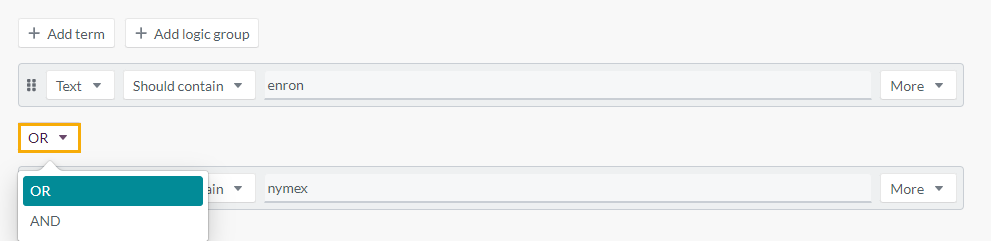
New and/or existing rules can be reordered and moved into or out of logic groups by clicking and dragging the textured grips on each component.
Adding a logic group
- With the Builder enabled, select Add logic group, or drag from Add logic group, to add a new group component to the Builder.

A new logic group is empty by default. You can drag terms and logic groups into, reorder within, or drag out of logic groups using the textured grips on each component.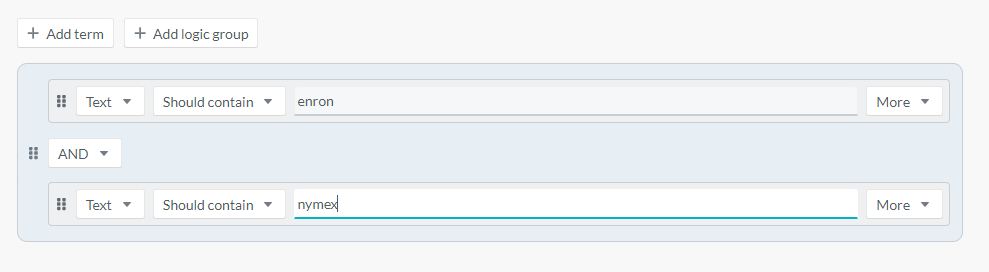
To create more complex queries, groups can be nested within one another. Nested groups are highlighted in contrasting colours within the logic group for visibility.
Note: Deleting a group also deletes everything inside it.
Field searches using the Builder
Depending on the field selected on a term component, the component updates to display the relevant input fields:
- Text fields: Standard operators (should have, must have, must not have) and a text input field.
- Tag, choice, and user fields: Standard operators (should have, must have, must not have) and choice, tag, or user pickers.
- Date fields: Date operators (on, after, before, between) and date picker(s).
- Number fields: Number operators (equal to, not equal to, greater than, greater than or equal to, less than, less than or equal to) and a number entry field.
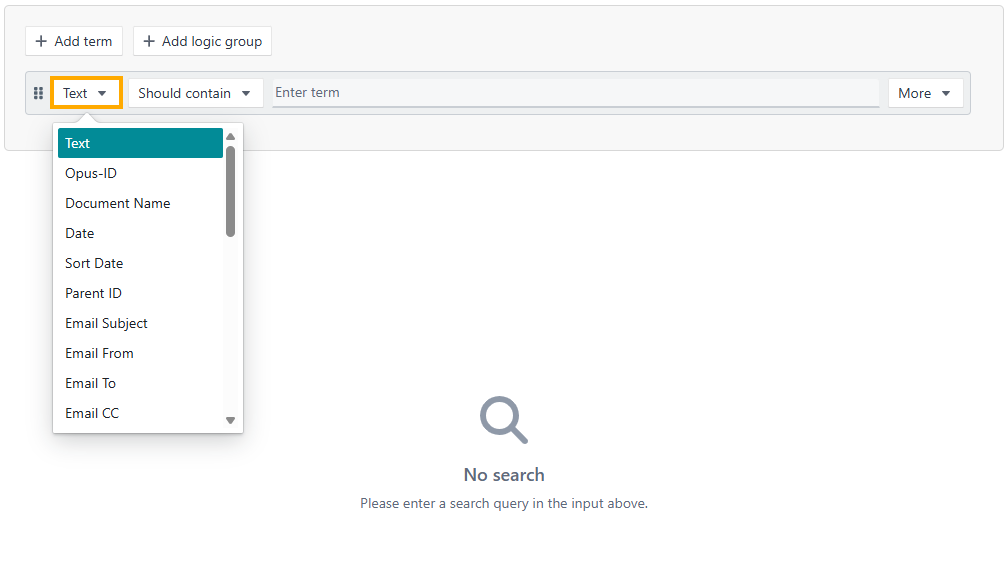
Modifier dropdown
A More dropdown selector appears on the right side of a term component when any text field is selected. The following modifiers are available, depending on whether the entry is a single term or a phrase: 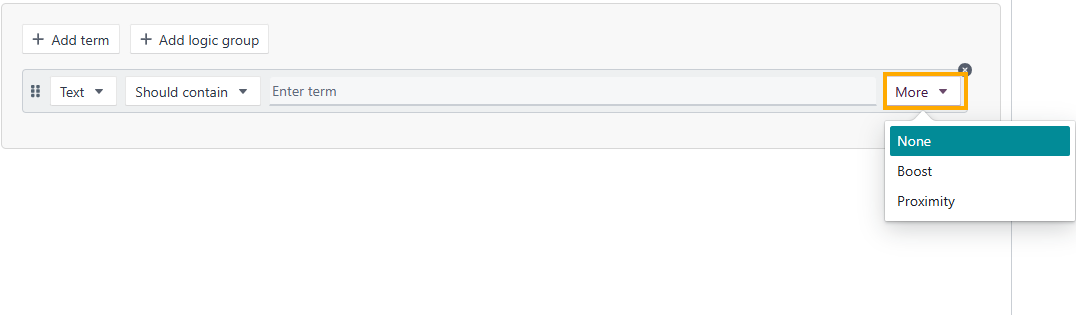
- Fuzzy: For single terms only. Select a fuzziness of 1 or 2.
- Proximity: For phrases only. Enter any positive integer.
- Boost: For single terms and phrases. Enter any positive integer.
Note: Wildcard is not available in the modifier dropdown. However, the wildcard symbols can be added directly to single terms in the Query Builder — use?for a single-character wildcard or*for a multi-character wildcard.
Related links
Related documentation
Opus 2 has help information accessible from within the application; accessible by clicking the question mark and then selecting Documentation in the upper right area of the platform application. You can also access the documentation at: Opus 2 Support.
How to contact us
To contact us about the documentation, or if you have any other questions or issues about Opus 2 solutions, contact Opus 2 Platform Support by emailing Opus 2 Platform Support.