
| Minimum Software Version | 10.34.1 |
| Solution(s) | Hearings ⨉ Cases International ✓ Cases US ✓ Institutions ✓ Counsel ✓ Focused View⨉ |
Control which users and groups can open the documents in a collection, and whether they can follow links back to the source version of each document.
Collections have their own access control list (ACL). You can use it to restrict a collection to named users and groups, so that other people on the project cannot open its documents. This article explains how to set access on a collection, what the two "Access defined by" options do, and how to stop Focused View users generating insights from restricted documents.
Why collection access matters
Collections group documents without moving them. A document in a collection is a collection version of a source document held in a folder, such as a deposition exhibit or a transcript.
Collections often hold material only part of the team should see, such as deposition preparation documents. Setting access on the collection lets you restrict that material without changing the access on the folders where the source documents live.
Access on a collection applies to every document in it. When you save, Opus 2 confirms how many collection documents were updated.
Restricting a collection does not, on its own, stop Focused View users from generating insights from the restricted documents. To prevent this, disable Focused View for the relevant role in Role Permissions.
A collection that you cannot access shows a crossed-eye icon next to its document count in the Collections panel. If you can see a document's row but cannot open it, the row shows the Opus-ID followed by "(not available)", with no document name or other details.
Set access on a collection
Important: When you apply access to a collection, make sure you add yourself to the list of users, or to a group you belong to. If you don't, you will be locked out of the collection once you save.
- Go to Documents.
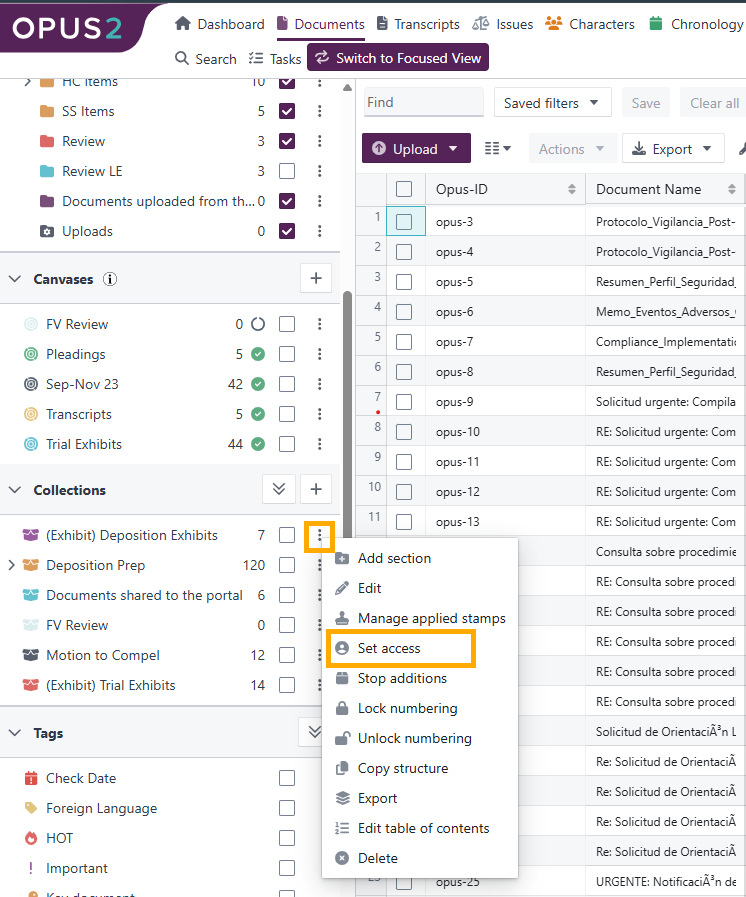
- In the left-hand panel, find the Collections section. The number beside each collection shows how many documents it contains.
- Select the three-dot menu next to the collection, then select Set access.
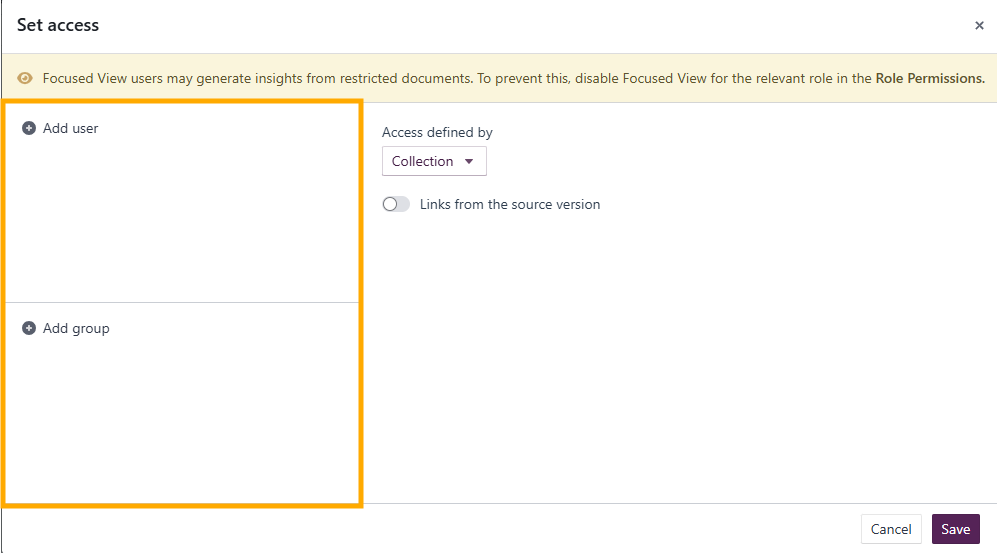
- In the Set access window, add the people who need access:
- Select Add user and choose each user.
- Select Add group and choose each group.
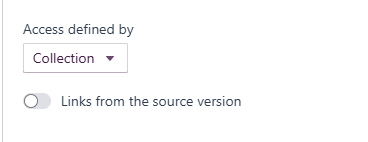
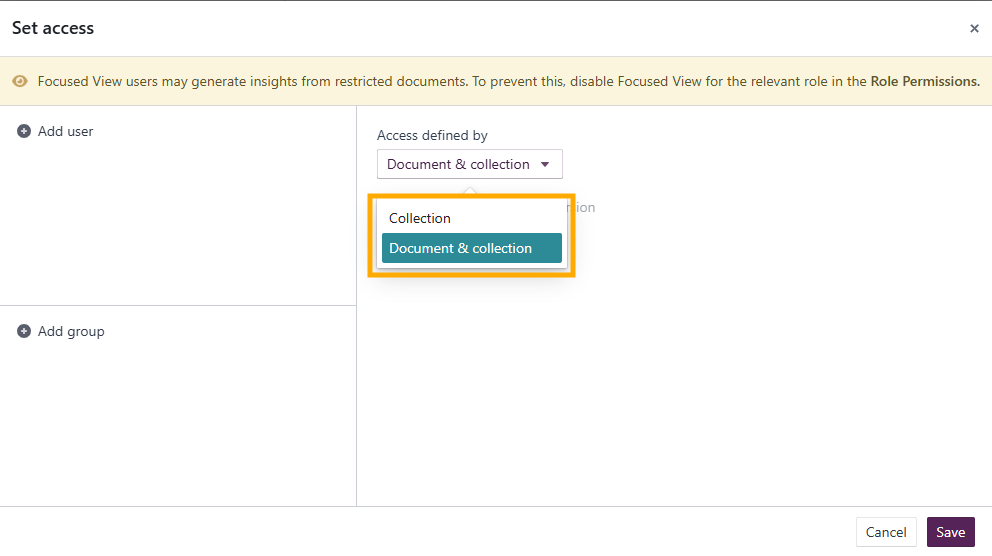
- Under Access defined by, choose how access is controlled:
- Collection: access is controlled by the collection's list of users and groups only. You can also turn on Links from the source version to let users who have access to the collection version follow links from the source version.
- Document & collection: Access settings from the source version continue to apply alongside the collection’s settings. Links from the source version are greyed out with this option.
- Collection: access is controlled by the collection's list of users and groups only. You can also turn on Links from the source version to let users who have access to the collection version follow links from the source version.
- Select Save.
Opus 2 displays two confirmations: "Access set on [n] collection documents" and "[n] collection updated".
Note: The Set access window displays a warning that Focused View users may generate insights from restricted documents. To prevent this, disable Focused View for the relevant role in Role Permissions.
Remove a user or group
- Select the three-dot menu next to the collection, then select Set access.
- Hover over the user or group, then select the remove icon at the end of the row.
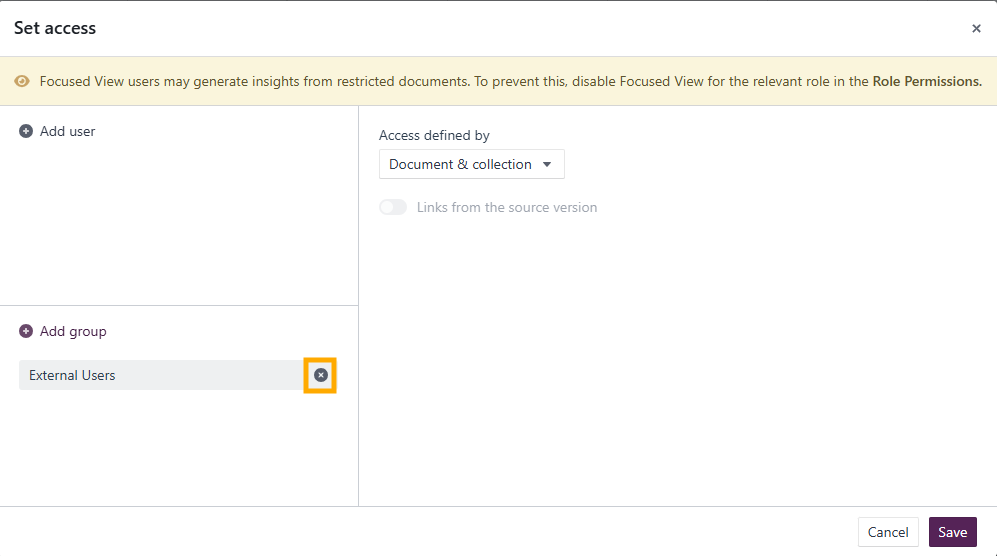
- Select Save.
Examples
Restrict deposition preparation to the litigation team
A collection named Deposition Prep holds seven documents, including exhibits and a transcript. To limit it to two named users:
- Open Set access on the Deposition Prep collection.
- Add both users.
- Leave Access defined by set as Collection.
- Turn on Links from the source version if both users also need to follow links from the source documents.
- Select Save.
All seven documents now follow the collection's access list.
Related links
Related documentation
Opus 2 has help information accessible within the application; click the question mark and then select Documentation in the upper-right area of the platform. You can also access the documentation at: Opus 2 Support.
How to contact us
To contact us about the documentation, or if you have any other questions or issues about Opus 2 solutions, contact Opus 2 Platform Support by emailing Opus 2 Platform Support.