
| Minimum Software Version | 8.18.10 |
| Solution(s) | Hearings ⨉ Cases International ✓ Cases US ✓ Institutions ⨉ Counsel ✓ |
This article explains worksheet fields, including how to add, edit, and delete fields, as well as the available worksheet field types and their configuration options.
Worksheet fields represent the columns displayed within a worksheet table. Similar to metadata fields used in the Documents tab, worksheet fields define the structure and content of worksheet records.
Each field stores a specific type of information, such as:
- Names
- Dates
- Numeric values
- Documents
- Tags
- Links
- User assignments
Worksheets support a wide range of field types, many of which include configurable properties to support different workflows and reporting requirements.
Administrators can configure worksheet fields to:
- Control data entry
- Define available choices
- Enable linking to documents or folders
- Store dates, currency, and numerical information
- Create structured relationships between records
Add Worksheet Fields
To add a worksheet field:
- Navigate to the desired worksheet
- Click the Edit dropdown
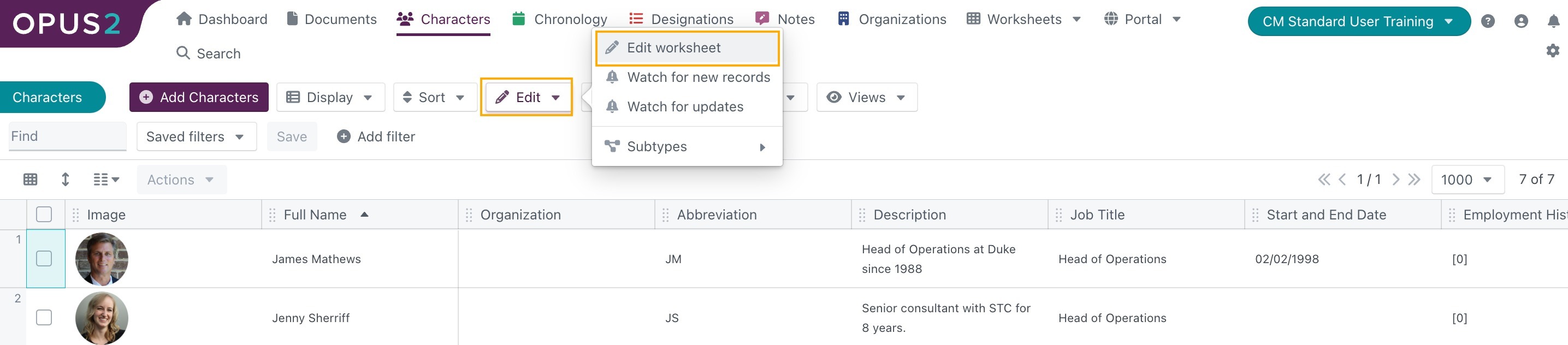
- Select Edit worksheet
The Edit worksheet dialog box appears.
- Navigate to the Fields tab
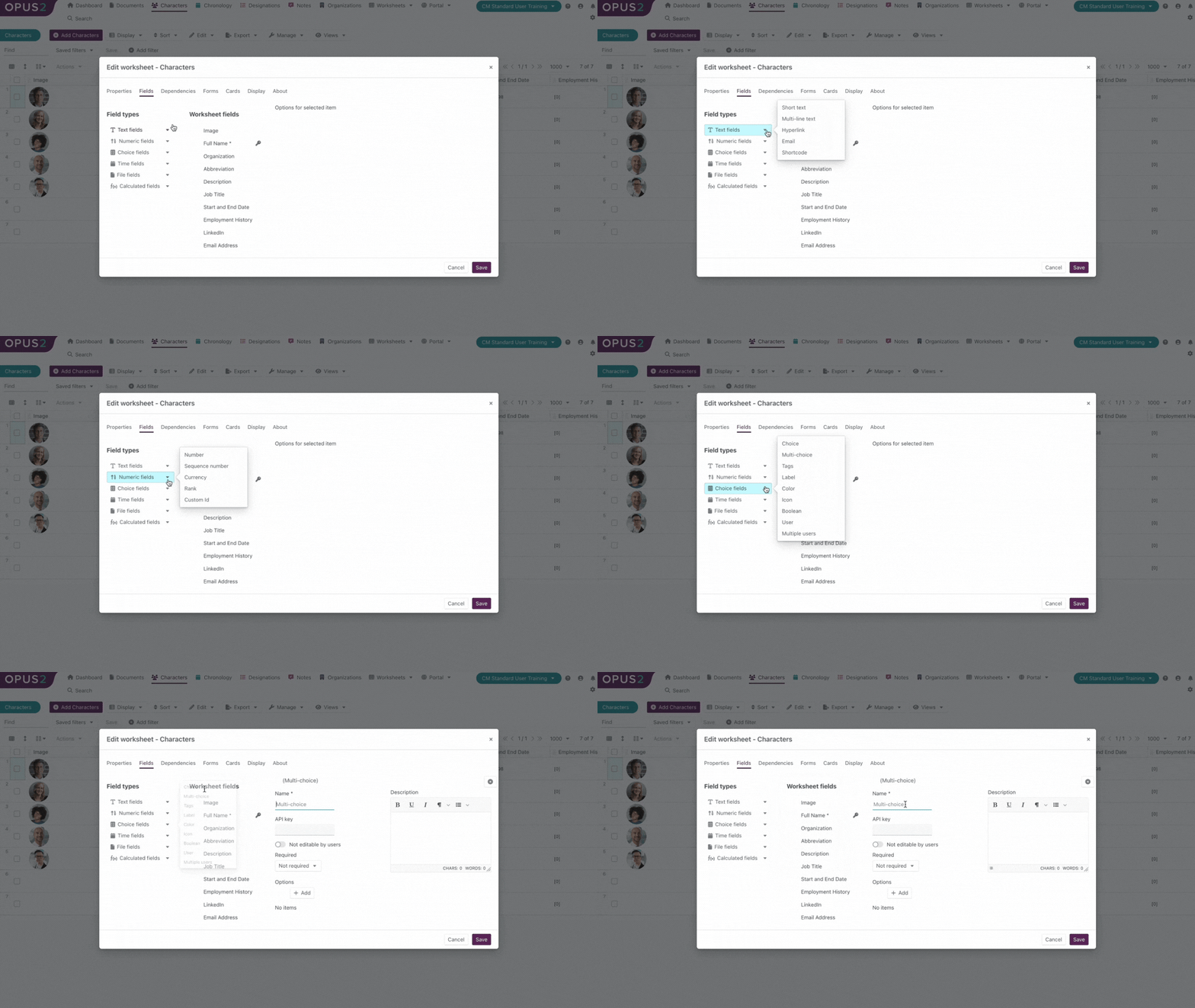
- Under Field types, select the desired field type from the dropdown menu
- Complete the field configuration form displayed on the right-hand side
Reorder Fields
To move a field:
- Hover to the left of the field name until the ellipsis appears
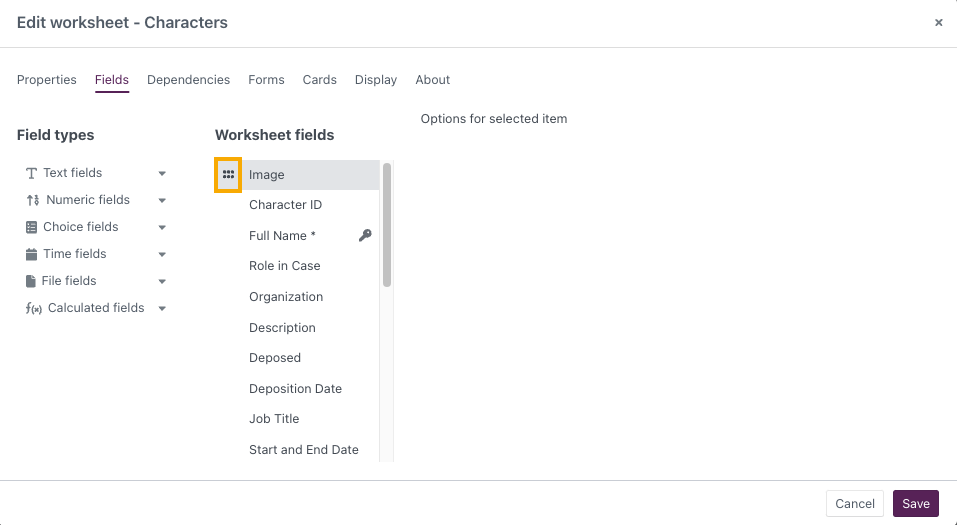
- Click and drag the field up or down the list
- Click Save
The new field will appear in the worksheet table in the selected position.
A user adds a Date field called “Review Deadline” to track document review due dates.
Edit Worksheet Fields
To edit an existing worksheet field:
- Navigate to the desired worksheet
- Click Edit and select Edit worksheet
- Open the Fields tab
- Select the field to edit
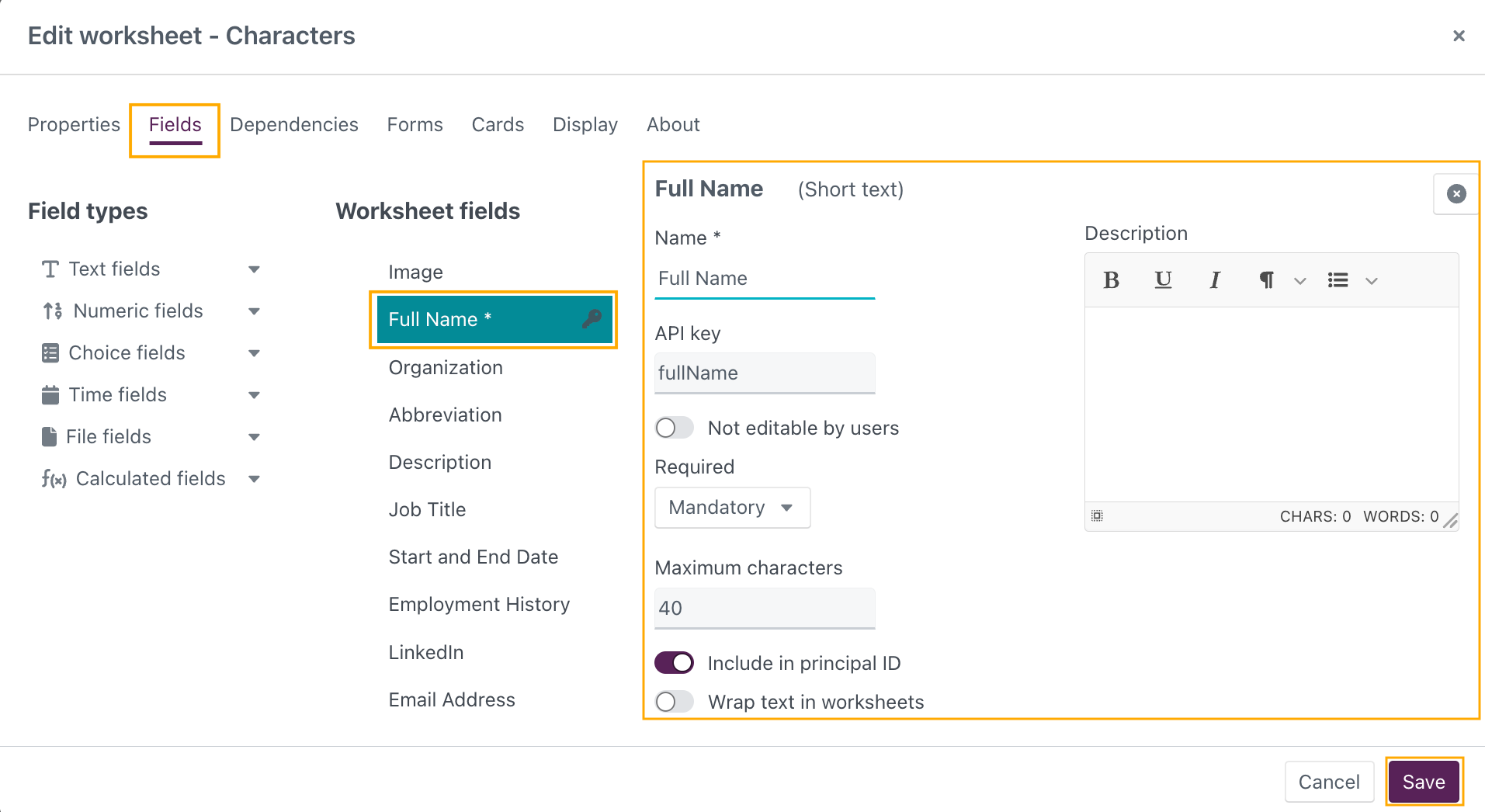
The field settings display on the right-hand side.
- Update the field configuration as required
- Click Save
An administrator changes the maximum character limit of a Short text field from 40 to 80 characters.
Delete Worksheet Fields
To delete a worksheet field:
- Navigate to the desired worksheet
- Click Edit and select Edit worksheet
- Open the Fields tab
- Select the field to delete
- Click the X icon in the top-right corner of the field settings
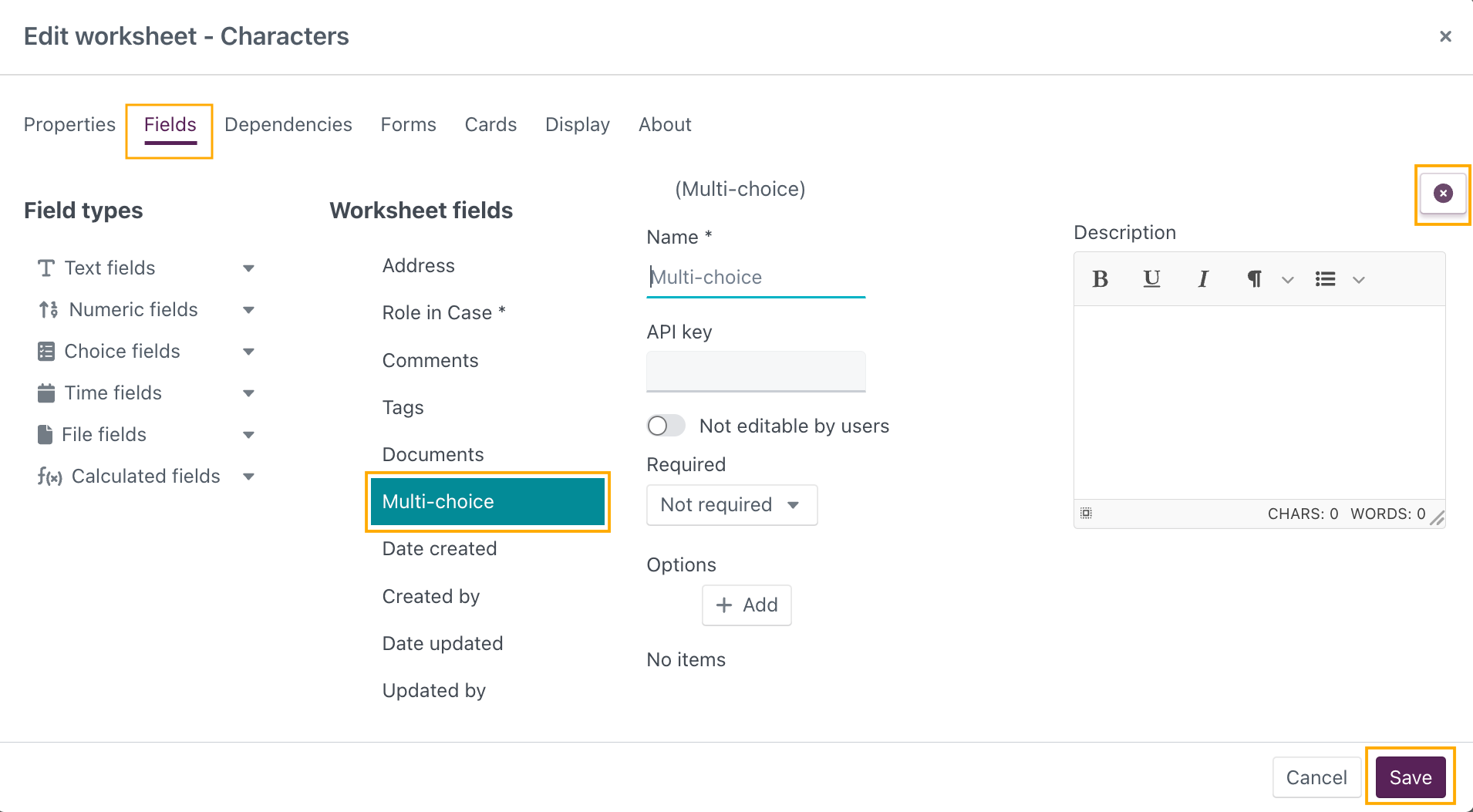
- Click Save
Deleting a worksheet field removes that column and its associated data from the worksheet.
Worksheet Field Types
| Field Type | Description | Key Features / Options |
|---|---|---|
| Short Text | Used for short alphanumeric values | Default 40-character limit, configurable length, optional initial value |
| Multi-line | Used for longer text entries | Rich text support, configurable editor size and character limit |
| Hyperlink | Used for external links | Optional base path restriction, display text option |
| Used for email addresses | Validation support, optional mailto functionality | |
| Shortcode | Used for short alphanumeric identifiers | Optional prefix support, no character limit |
| Number | Used for numeric values | Supports min/max limits, charting compatibility |
| Sequence Number | Automatically numbers records | Auto-generated values, optional prefix |
| Currency | Used for monetary values | Single or multi-currency support, charting compatibility |
| Rank | Used for drag-and-drop record ordering | Automatically updates sort order values |
| Custom ID | Used for custom identifiers | User-defined record identification |
| Choice | Used for selecting a single option | Colors, default value, external lists, empty selections |
| Multi-choice | Used for selecting multiple options | Multiple selections allowed |
| Tags | Used for project tag management | Restrict by tag branch or allow all tags |
| Label | Used for flexible value entry | Users can create new values dynamically |
| Color | Used for assigning colors | Hexadecimal or RGBA color picker |
| Icon | Used for assigning graphic icons | Select from native icon library |
| Boolean | Used for true/false values | Displays as tick or cross |
| User | Used to assign one user | Project user selection |
| Multiple Users | Used to assign multiple users | Multi-user selection |
| Date | Used for dates or date ranges | Partial dates, timezones, ranges, current date initialization |
| Time | Used for time values | 24-hour and AM/PM formats |
| Images | Used for image uploads | 4MB max size, cropping options |
| Document | Links to a single project document | Direct document reference |
| Multiple Documents | Links to multiple project documents | Multi-document reference |
| Text in a Document | Extracts excerpts from documents | Annotation support, bookmarks, transcript support |
| Folder | Links to a single folder | Direct folder access |
| Multiple Folders | Links to multiple folders | Multi-folder reference |
| Collection | Links to a project collection | Collection reference |
| Derived Field | Pulls metadata from linked documents | Auto-populated, read-only |