
| Minimum Software Version | 8.18.10 |
| Solution(s) | Hearings ⨉ Cases International ✓ Cases US ✓ Institutions ⨉ Counsel ✓ |
Each Opus 2 user account includes an associated Account Profile where personal information, notification settings, and user preferences can be viewed and edited. Profile information can be shared with other Opus 2 users, helping teams collaborate more effectively, while preferences allow users to control how the system responds to certain actions.
Users access their account profile directly from the user menu in the top‑right corner of the platform.
Editing the User Profile
- Click the User Account icon in the top‑right corner of the window.

- Select Profile from the dropdown menu.
- Navigate to the Profile tab in the top toolbar.
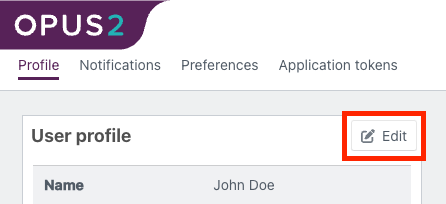
- Select Edit on the User Profile preview.
- In the dialog box:
- Enter or update the profile information to be shared with other Opus 2 users
- Optionally add a profile picture by dragging and dropping an image or clicking the field to browse your files
- Click Save to apply the changes.
Example:
Update your job title and add a profile photo so colleagues can easily identify your role within the project.
User Notifications
Account‑level notifications are managed from the Account area and control how users are informed about system and project activity (for example, task assignments or updates).
User Preferences
Managing Preferences
- Open your Account Profile.
- Navigate to the User Preferences tab.
- Click Edit.
- Adjust the available preference settings to control how the system responds to specific actions.
- Save your changes.
Preferences allow users to tailor their Opus 2 experience according to their personal working style.
Example:
Adjust notification preferences to reduce email alerts while retaining in‑platform notifications.