
| Minimum Software Version | 8.18.10 |
| Solution(s) | Hearings ⨉ Cases International ✓ Cases US ✓ Institutions ✓ Counsel ✓ Focused View⨉ |
Replace an existing document or transcript with an updated version while keeping its place in your project.
This article explains how to replace an existing document or transcript in Opus 2 with an updated version. Replacing a file keeps its position in the project, and for documents it also keeps the work already carried out on the original, including notes, designations, and links to worksheets or characters.
Opus 2 transfers this work to the replacement file, but it cannot always map it one-to-one. After replacing a file, review the transferred work for any changes in the document that the system could not carry across exactly, such as changes to page numbers.
When to replace a document or transcript
Replacing documents
Opus 2 allows individual document files to be replaced with an updated version while preserving any work carried out on the original, such as links and notes. The original file is retained under the Versions tab of the document.
The replace function is intended for documents where the content is largely the same as the original, with only minor changes such as redactions, highlights, or trial exhibit numbers. Existing links and notes are transferred to the replacement file, so the two documents must be closely aligned for that content to map onto the correct locations.
Note: The Replace function is only available when a single document is selected. It is not available when multiple documents are selected on the Documents page.
Replacing transcripts
Opus 2 allows you to upload a transcript in one format and later replace it with a different format. This is useful when an updated transcript becomes available, such as a corrected version or a different supported transcript format.
Replacing a transcript maintains continuity within the project while allowing the updated content to be used. You can upload associated media files during the replacement or add them later.
Note: The replacement transcript must be in an accepted transcript format. If it is not, Opus 2 no longer recognises the file as a transcript. For the formats Opus 2 accepts, see Uploading transcripts.
Steps
Replace a document
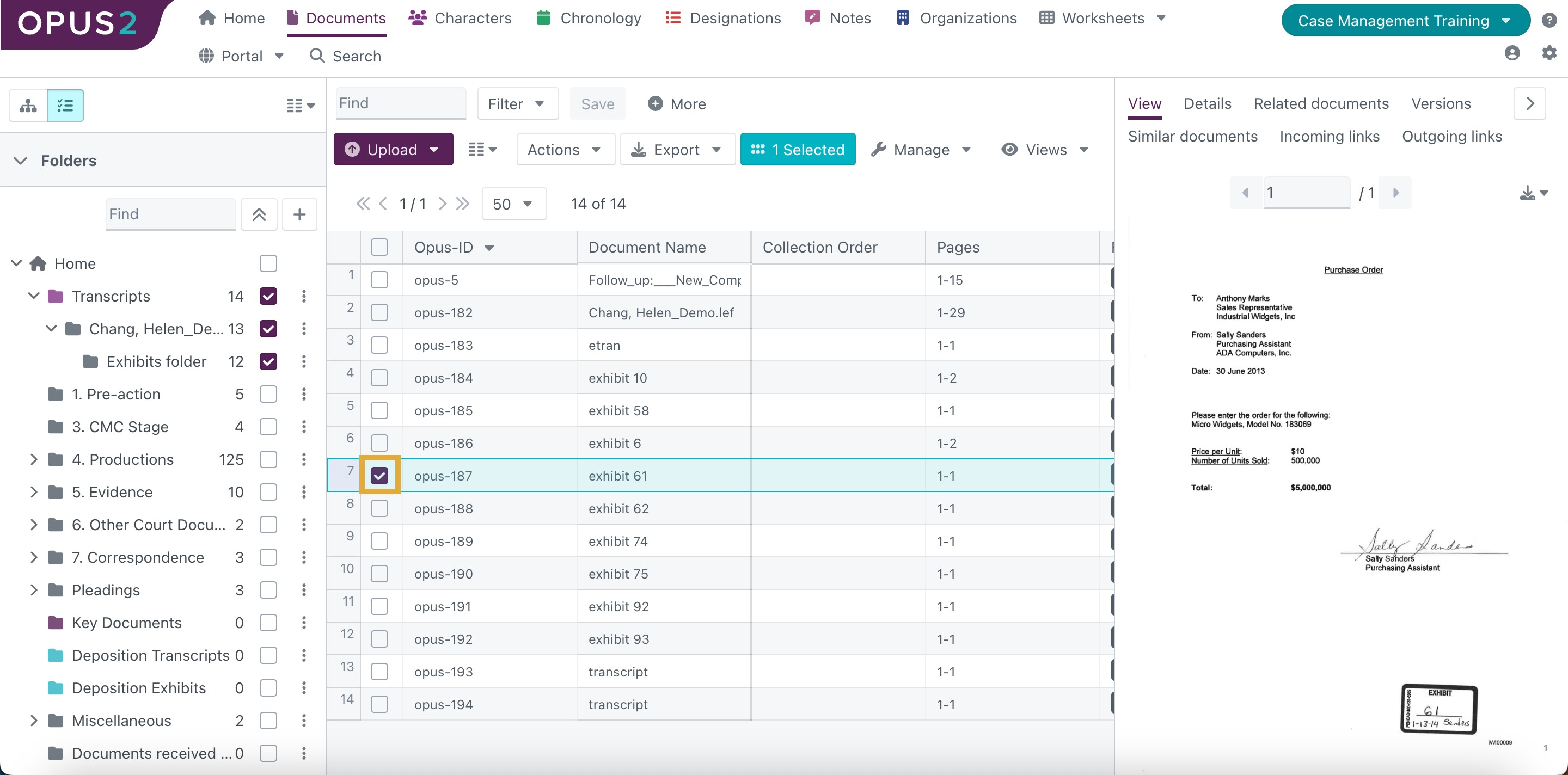
- Go to the Documents tab and select the document you want to replace using the tick-box. Select only one document at a time.
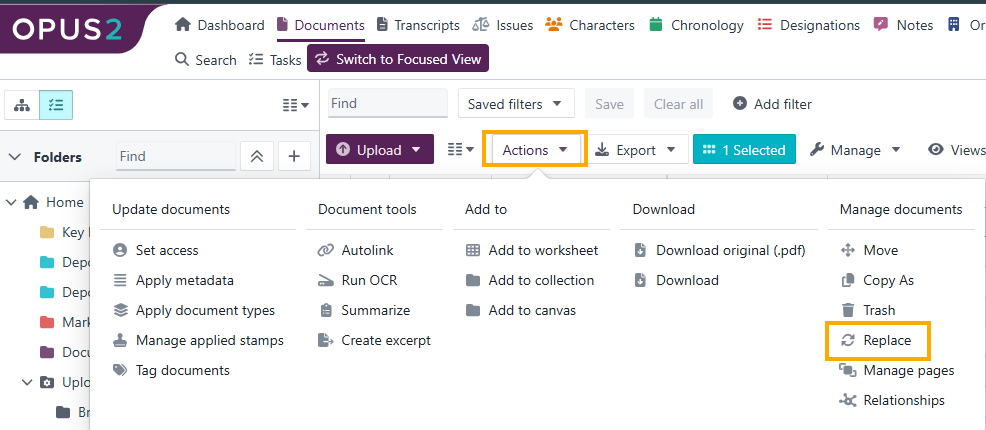
- Click the Actions dropdown menu, then click Replace.
- In the dialog box, browse for the replacement file or drag and drop it in.
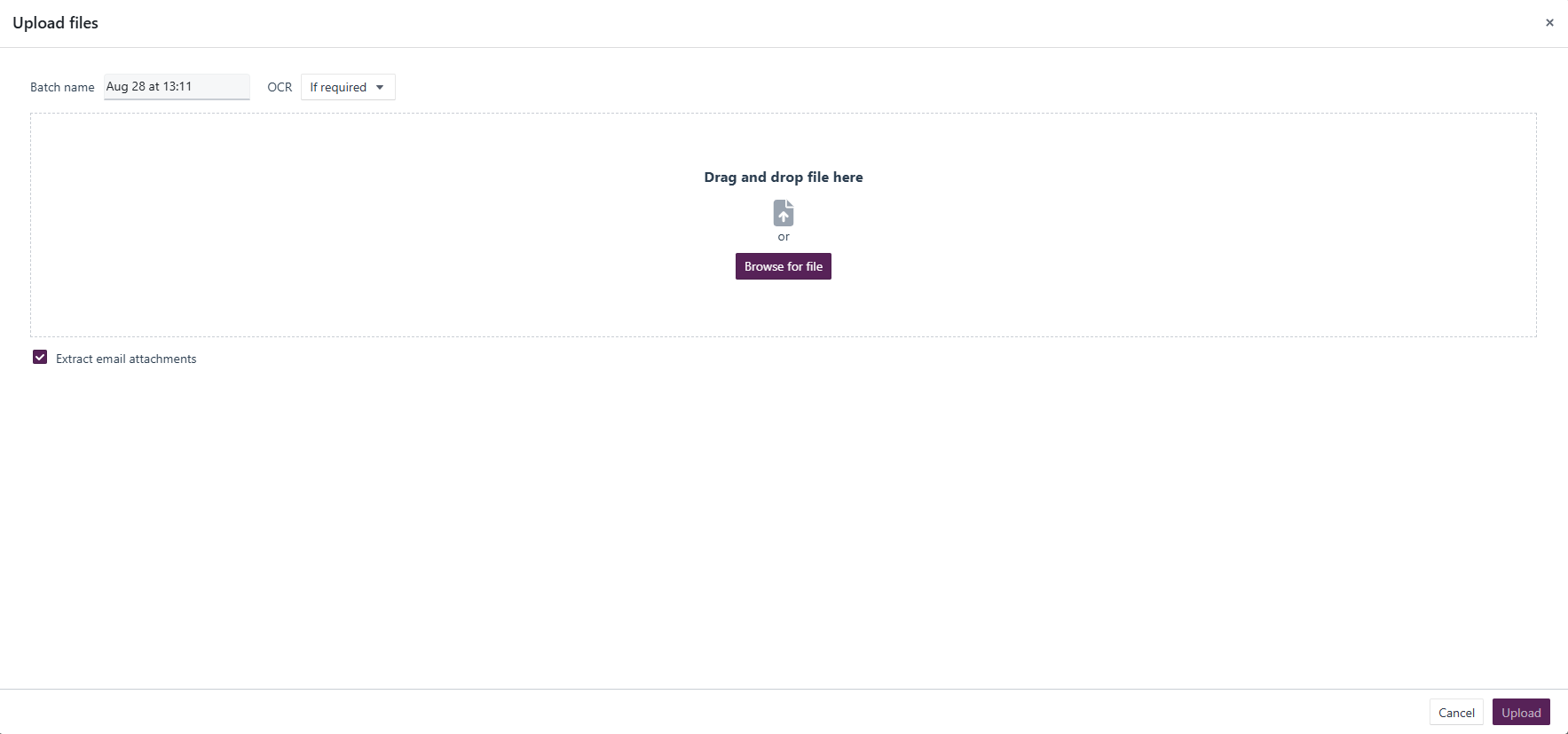
- Click Upload to complete the replacement.
The selected document is replaced with the uploaded file. Any links and notes from the original document are transferred to the replacement. The original file remains accessible under the Versions tab of the document.
Note: The file takes a moment to process. Refresh the page if the updated document version is not immediately visible.
Replace a transcript
- Go to the Documents or Transcript page within your project.
- Select the transcript you want to replace.
- Click the Actions dropdown menu, then click Replace.
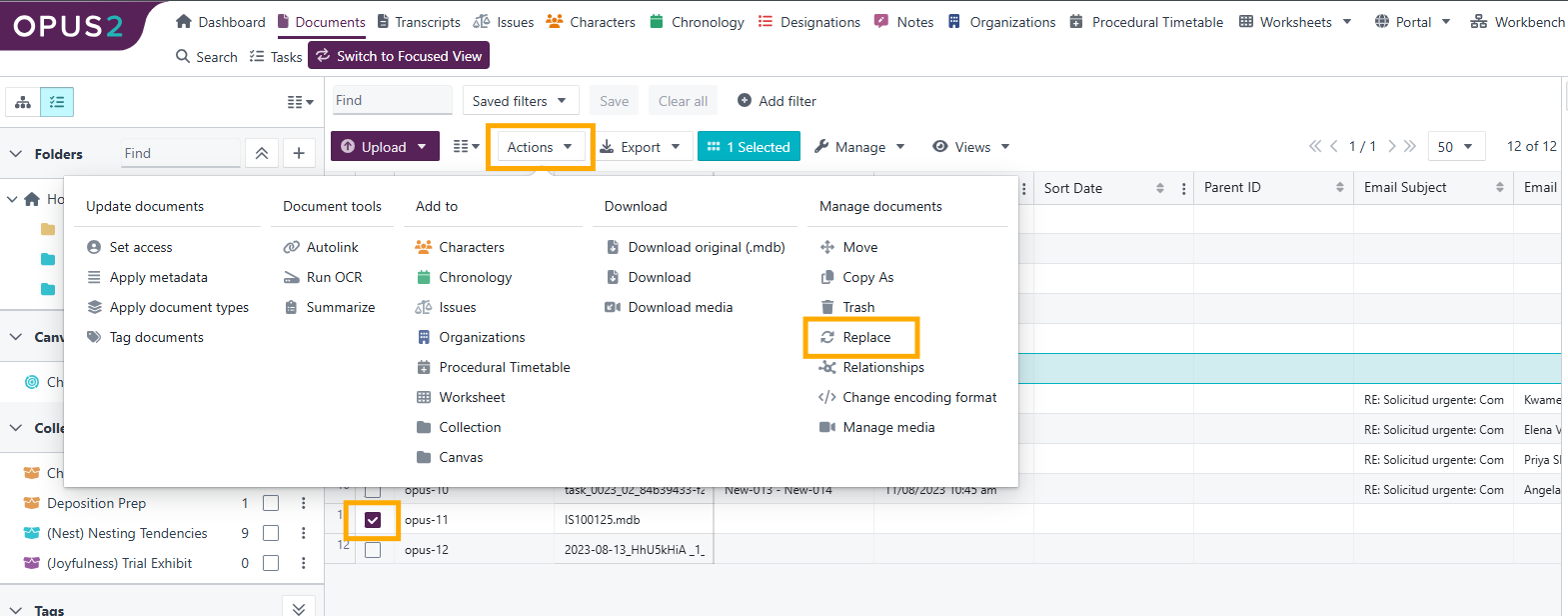
- The Upload transcript dialog opens.
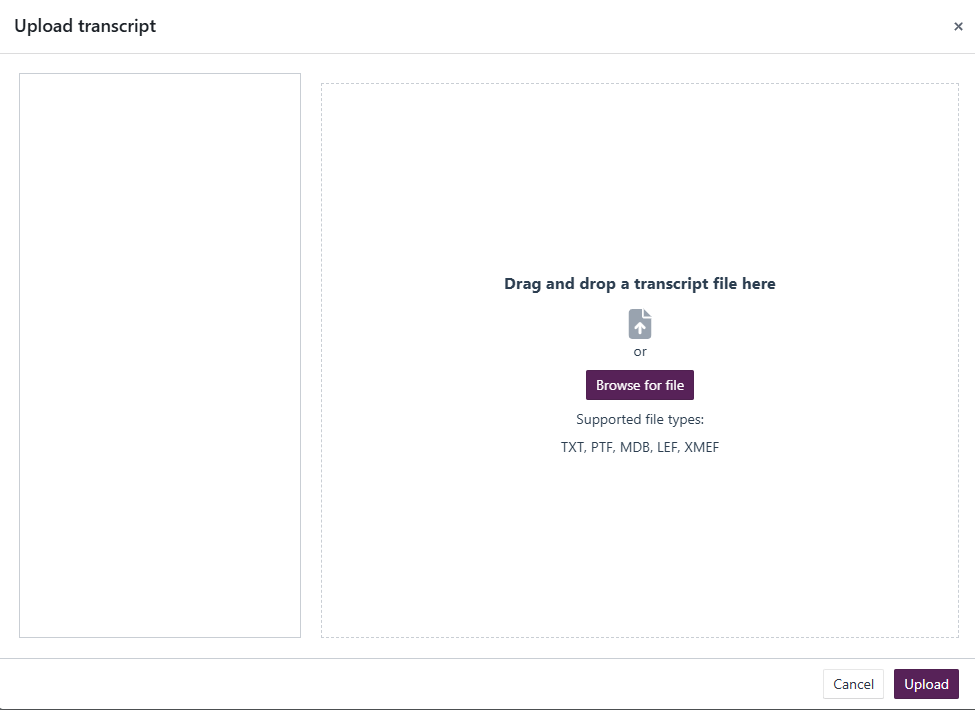
- Drag and drop the new version of the transcript into the dialog. Make sure it is in an accepted transcript format.
- If you have associated media files, either drag and drop them at this stage or upload them later.
- Click Upload to complete the replacement.
The transcript is replaced with the newly uploaded version.
Examples
Replace a preliminary transcript with a final version
When the transcription provider sends the final, corrected transcript, replace the preliminary transcript file with it. The transcript keeps its position in the project and uses the final content.
Related links
- Uploading transcripts
- How to Upload and Synchronize a Media File to a Transcript
- How to Bulk Replace Documents
- How to Upload Documents
Related documentation
Opus 2 has help information accessible within the application; click the question mark and then select Documentation in the upper-right area of the platform. You can also access the documentation at: Opus 2 Support.
How to contact us
To contact us about the documentation, or if you have any other questions or issues about Opus 2 solutions, contact Opus 2 Platform Support by emailing Opus 2 Platform Support.