
| Minimum Software Version | 8.16.3 |
| Solution(s) | Cases International ✓ Cases US ✓ Institutions ✓ Counsel ✓ |
You can add documents to a collection in four ways in Opus 2 Platform.
There are several ways to add documents to a collection in Opus 2 Platform. You can select documents on the Documents page, drag and drop them, add linked documents from a worksheet, or add a document from the Document Viewer.
Choosing a method
| Method | Use it to |
|---|---|
| Method 1: Select documents on the Documents page | Add selected documents using the Actions menu. |
| Method 2: Drag and drop on the Documents page | Add selected documents by dragging them to a collection. |
| Method 3: Add linked documents from a worksheet | Add the documents linked to selected worksheet records. |
| Method 4: Add a document from the Document Viewer | Add the document you have open. |
Method 1: Select documents on the Documents page
- Go to the Documents page.
- Select the documents you want to add to the collection or collection section.
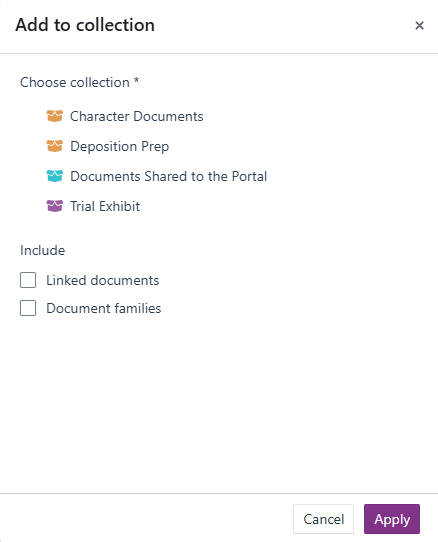
- Select Actions, then select Add to collection.
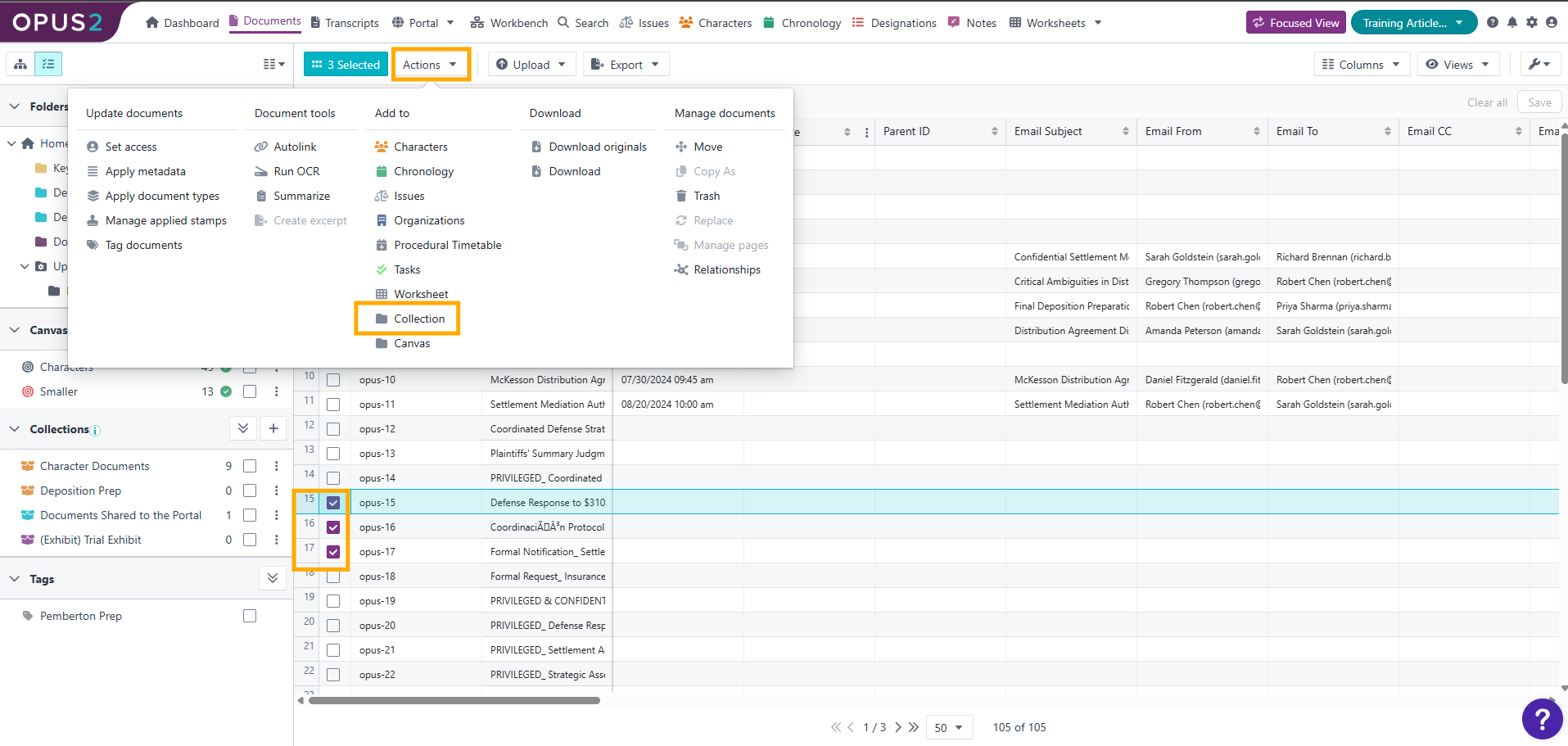
- Select the destination collection.
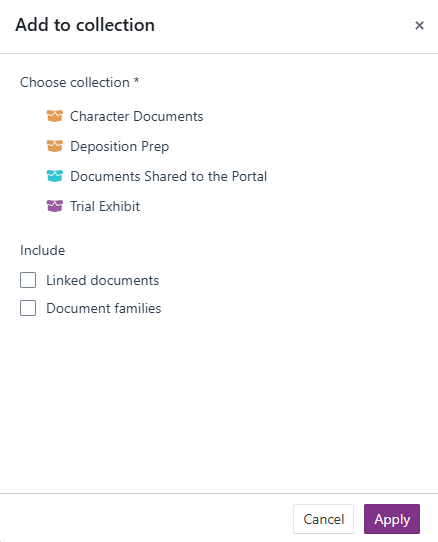
- Optionally, select Include linked documents if you also want to add the documents linked to the selected documents.
- Optionally, select Document families if you want to add the other members of each document family to the collection.
- Select Apply.
The documents are added to the collection you chose.
Method 2: Drag and drop on the Documents page
- Go to the Documents page.
- Select the documents you want to add to the collection or collection section.
- Drag the selected documents button (shown in turquoise) to the collection you want.
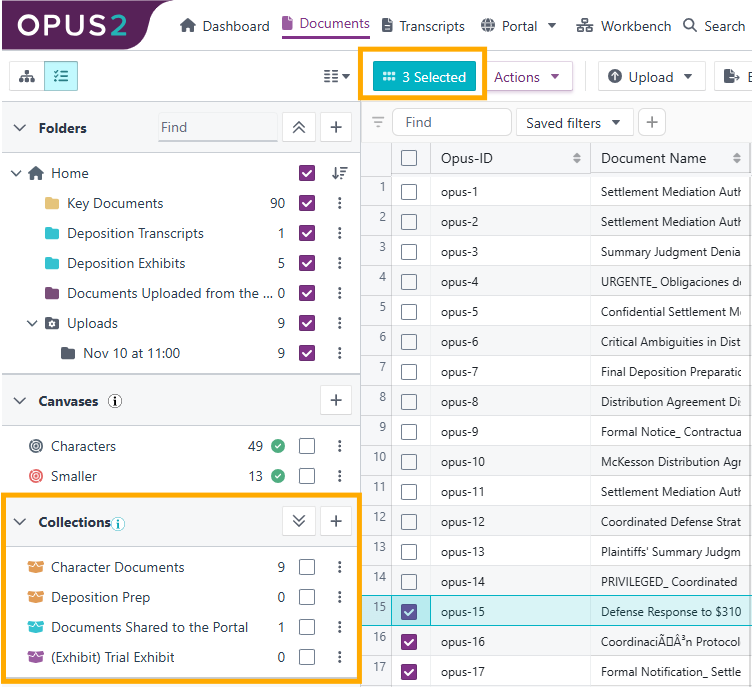
The documents are added to the collection you chose.
Method 3: Add linked documents from a worksheet
- Go to the worksheet you want to use, for example, Chronology.
- Use the checkboxes to select the event records whose linked documents you want to add to the collection.
- Select Actions, then select Add documents to collection.
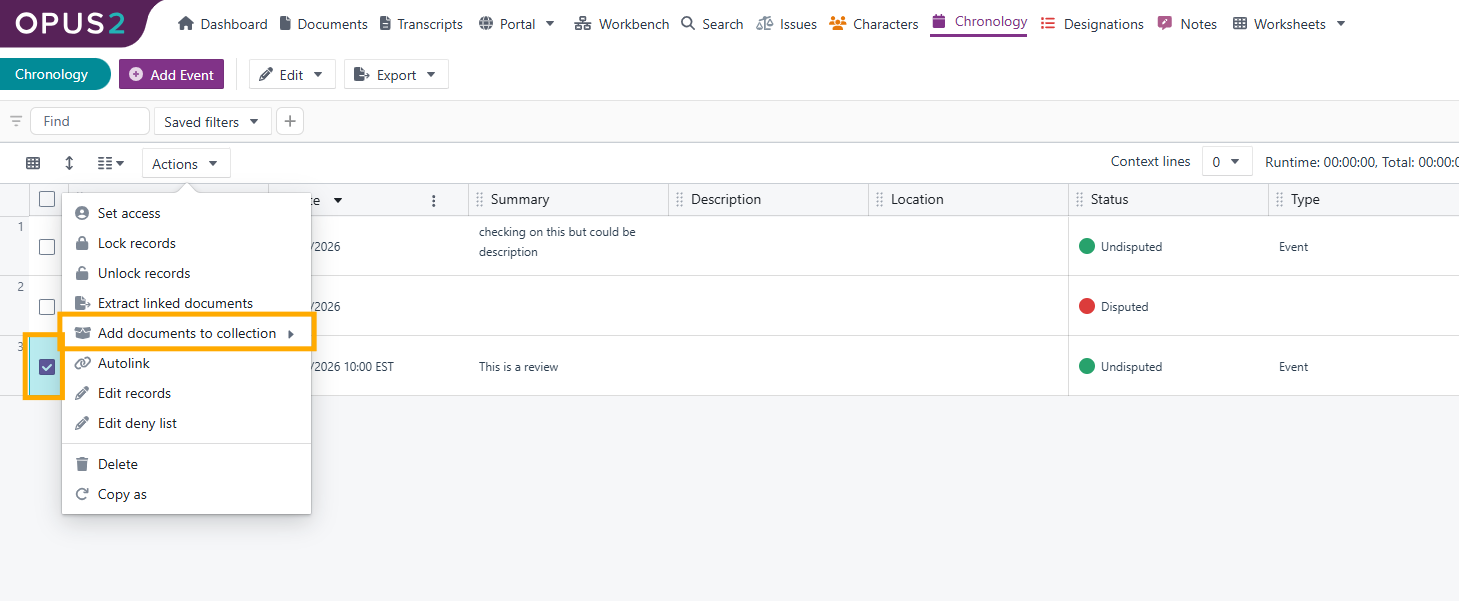
- Select the document type field you want to add documents from, for example, Highlighted Text or Sources.
- Select the collection to add the linked documents to.
- Select Apply.
A message appears saying "Added N documents to collection". The documents linked to the selected records are added to the collection you chose.
Method 4: Add a document from the Document Viewer
- Open a document in the Document Viewer.
- Select the kebab menu (three dots), then select Actions, then select Add to collection.
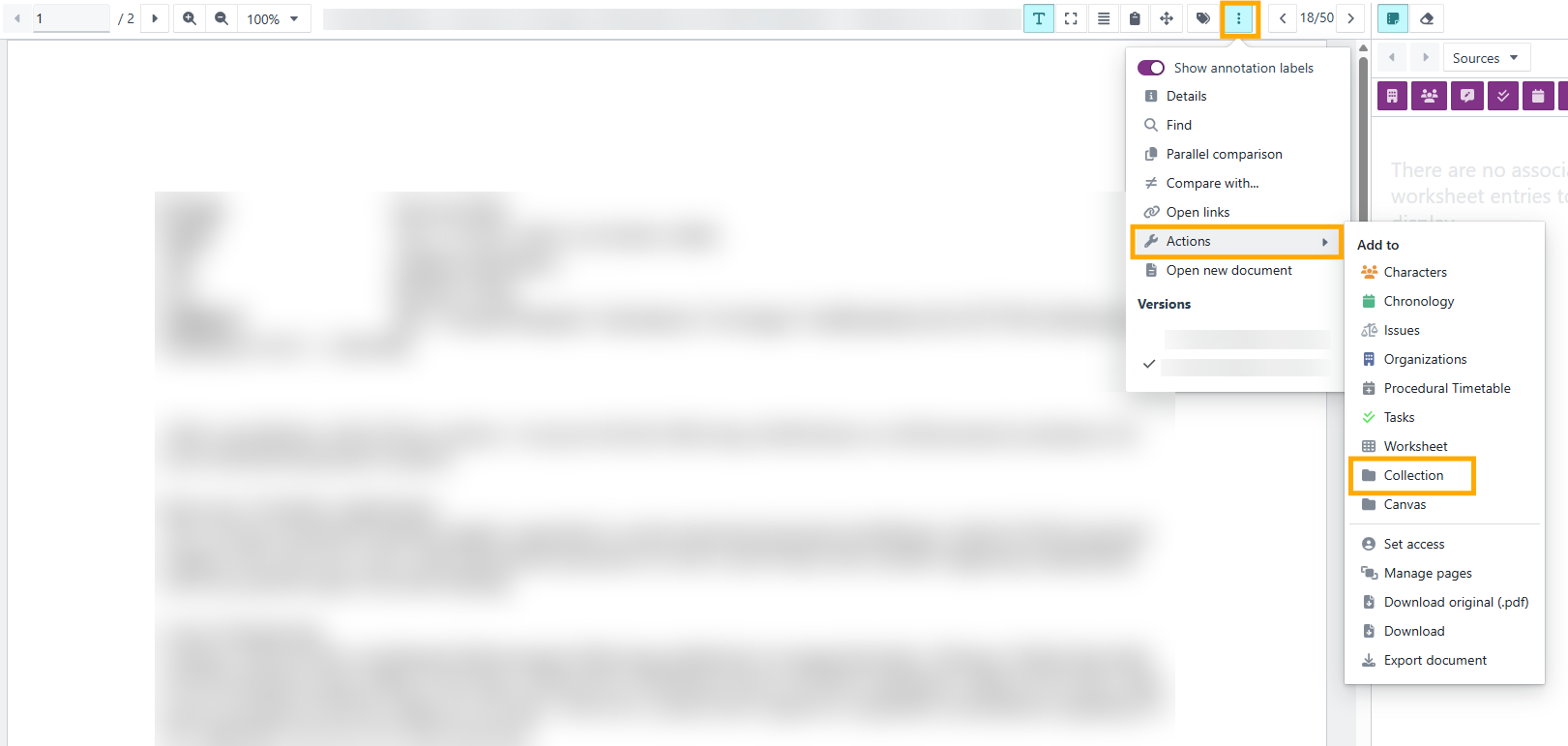
The document is added to the collection you chose.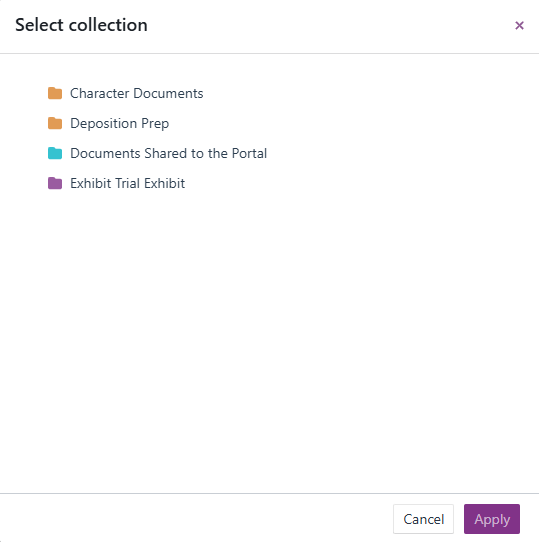
Related links
Related documentation
Opus 2 has help information accessible within the application; click the question mark and then select Documentation in the upper-right area of the platform. You can also access the documentation at: Opus 2 Support.
How to contact us
To contact us about the documentation, or if you have any other questions or issues about Opus 2 solutions, contact Opus 2 Platform Support by emailing Opus 2 Platform Support.