
| Minimum Software Version | 8.18.10 |
| Solution(s) | Hearings ⨉ Cases International ✓ Cases US ✓ Institutions ✓ Counsel ✓ Focused View⨉ |
Automatically create hyperlinks between documents by identifying and matching reference IDs within document content.
The Autolink tool in Opus 2 automatically creates hyperlinks between documents where references to other document IDs appear in the text. It scans selected source documents for reference patterns and links them to matching documents within the same project, improving navigation and context during document review.
How autolinking works
The Autolink tool searches selected documents for references that match one or more predefined reference formats. These formats define the exact patterns the system looks for — including punctuation, brackets, and the type of document metadata used (for example, {Opus-ID} or [Document ID]).
For autolinking to work, the reference ID must exist in the source document and match a reference format you have defined. Only references that match the defined format and selected scope will be linked. No links are created outside of these parameters.
Best practice: Before running Autolink, create a dedicated linking field for your documents. This ensures references are consistent and uniquely identifiable across the project, which improves the accuracy of automatically generated links.
Creating autolinks
- Navigate to Documents.
- Tick the checkbox beside each source document that contains references.
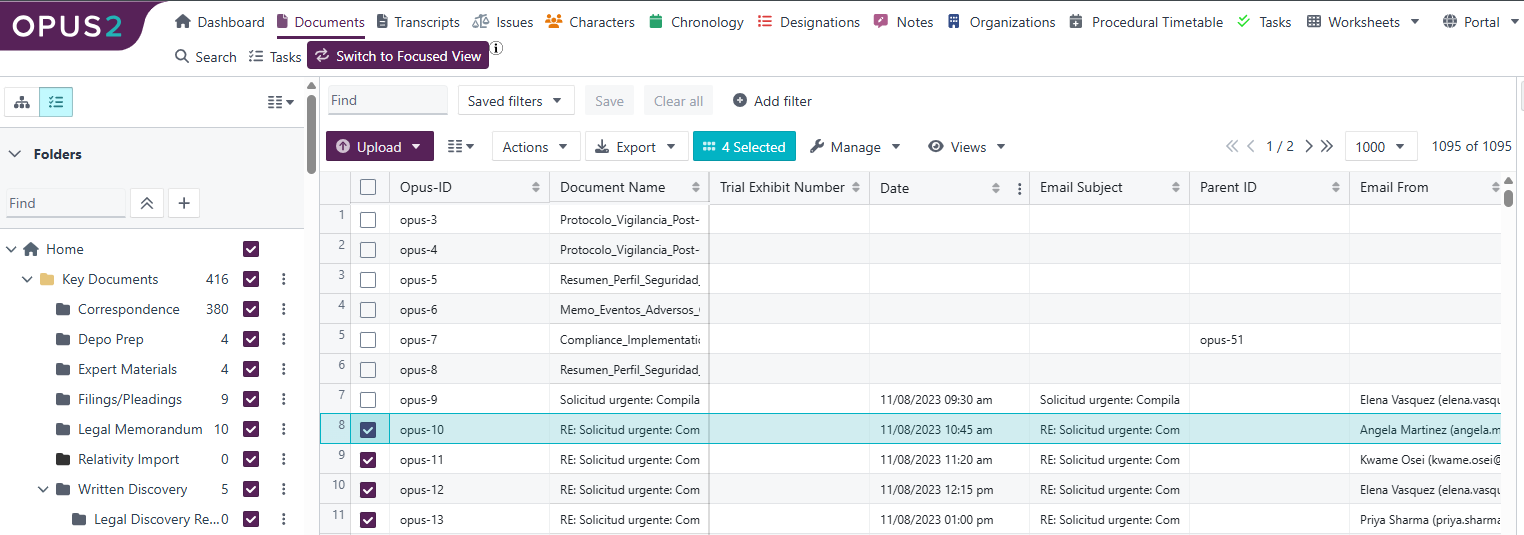
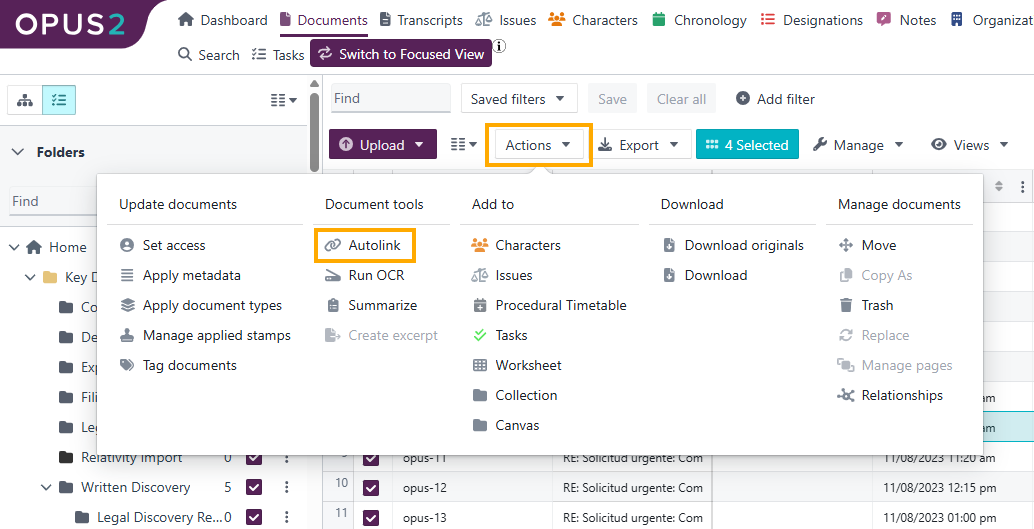
- Click Actions → Autolink. The Autolink dialog opens.
- Define or confirm the reference format:
- Click Add format to recreate the reference structure found in the source document.
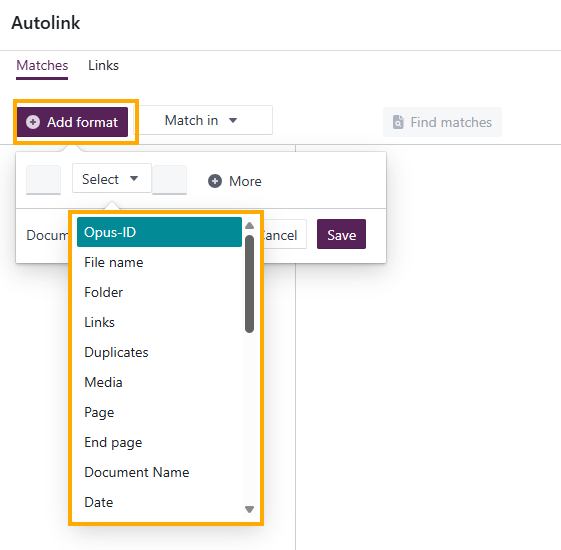
- Include any necessary punctuation or brackets.
- Select the document metadata category referenced (for example, Document ID).
- Use + More to add additional metadata elements or free-text components to the format.
- Click Add format to recreate the reference structure found in the source document.
- Under Match in, choose the scope for matching:
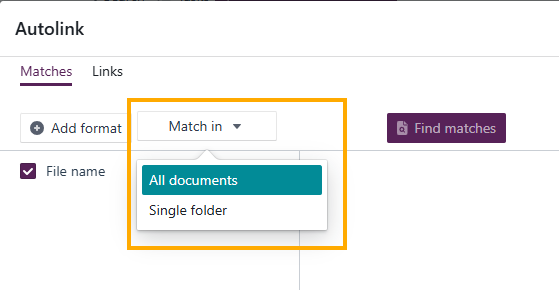
- All documents – matches against every document in the project.
- Single folder – recommended for large projects where document locations are known. Use the edit button to select your folder.
- Click Find matches. The results are displayed in a table.
- Select New matches to view only newly identified links.
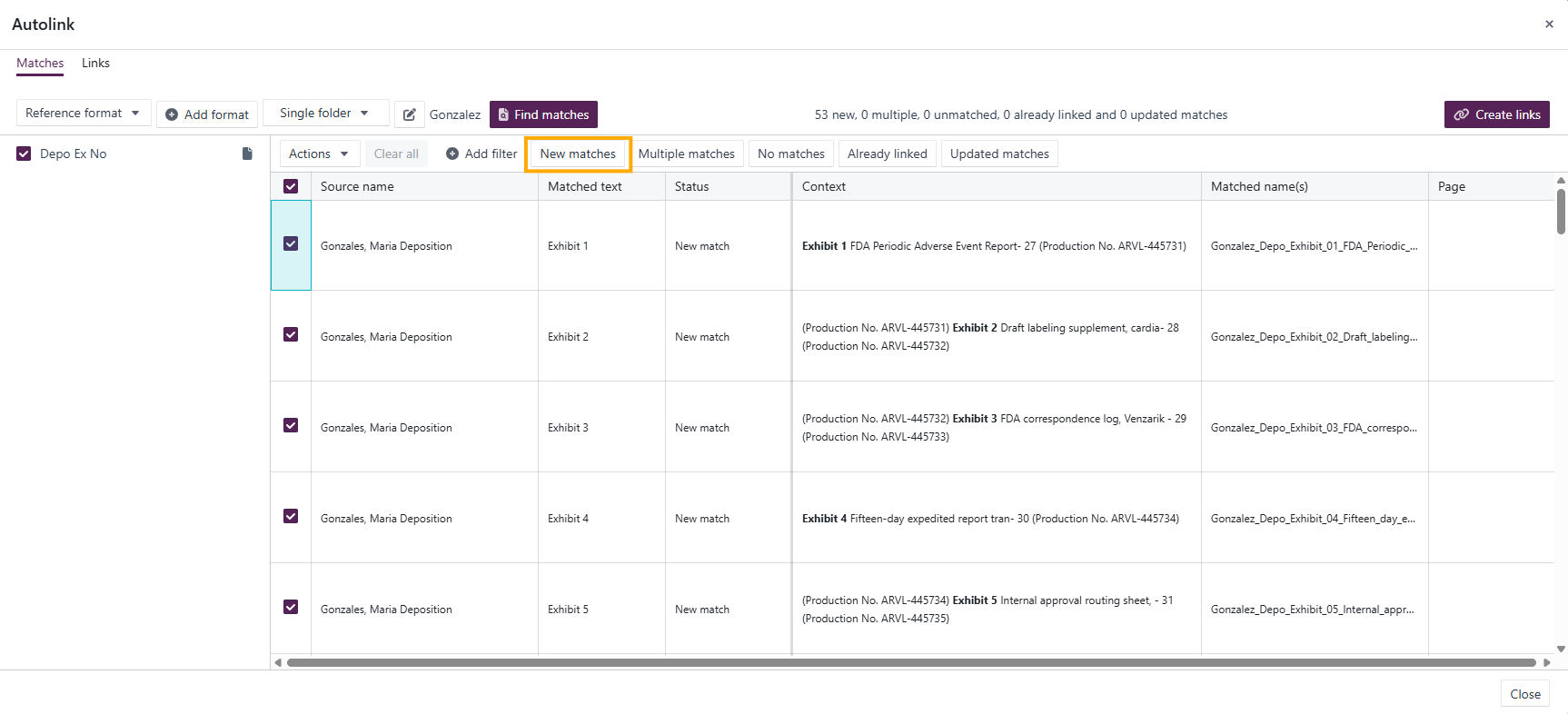
- Use the tick boxes to select or deselect specific matches.
- Click Create links to generate the hyperlinks.
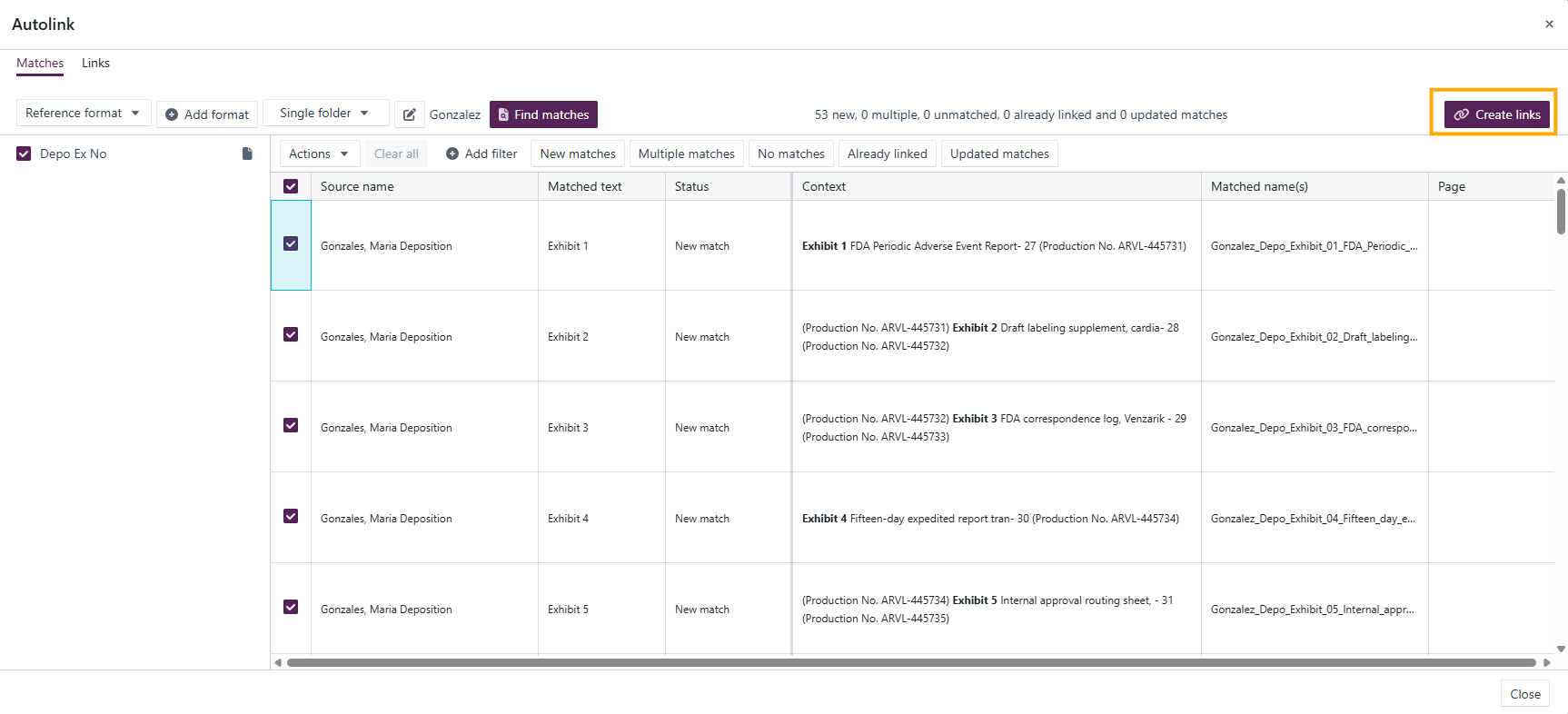
Viewing autolinked documents
Once links are created, they can be viewed in several locations:
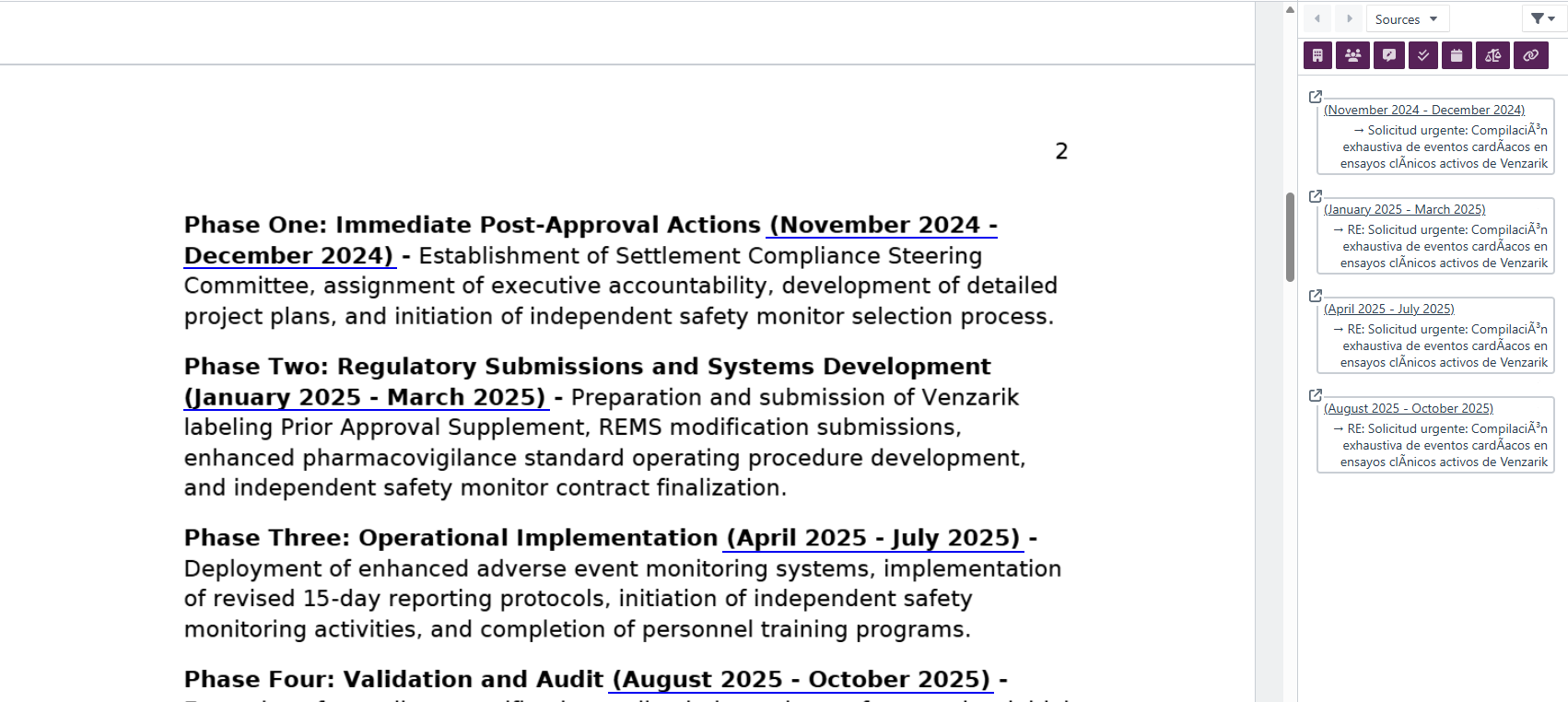 Within the document viewer – references appear underlined in the document text.
- Documents Details panel:
- Outgoing links show where the selected document links to.
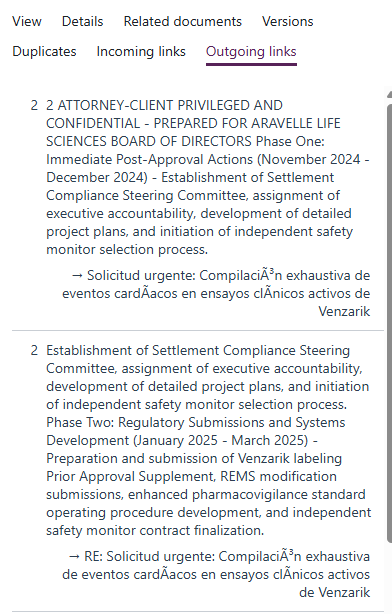
- Incoming links show which documents link to the selected document.
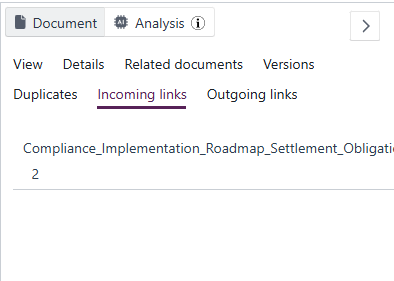
- Outgoing links show where the selected document links to.
- Events Details panel – displays incoming and outgoing links related to source documents.
Selecting a linked reference opens the linked document and, where applicable, navigates to the specified page number automatically.
Related links
Related documentation
Opus 2 has help information accessible within the application; click the question mark and then select Documentation in the upper-right area of the platform. You can also access the documentation at: Opus 2 Support.
How to contact us
To contact us about the documentation, or if you have any other questions or issues about Opus 2 solutions, contact Opus 2 Platform Support by emailing Opus 2 Platform Support.