
| Minimum Software Version | 8.18.10 |
| Solution(s) | Cases International ✓ Cases US ✓ Institutions ⨉ Counsel ✓ |
Explains how to add and configure the Documents component in the Portal Builder, including folder preparation, visible columns, sorting, filtering, and the portal user document view.
The Documents component presents documents stored in a specific platform folder in a list-based layout. It is ideal when portal users need to browse, search, and review documents without requiring more advanced interaction such as uploads or subfolder management. Administrators control which folder is displayed, which metadata fields are visible, and how the document list is sorted and filtered.
Preparing a folder in the platform
Before configuring the Documents component, ensure the folder containing the documents has already been created in the platform and confirmed as a selectable option.
Important: Only folders that already exist in the platform can be selected for display.
Adding a Documents component
- Open the Portal Builder.
- Add the Documents component to the desired location on the page.
- Open the Properties tab to configure the component.
Configuring Documents properties
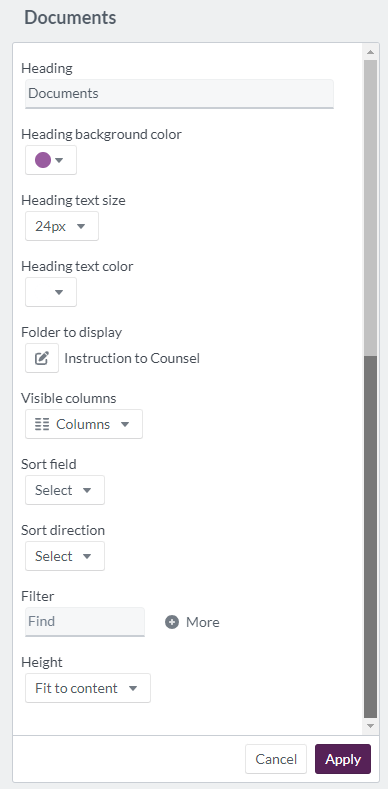
Configure the following options in the Properties tab:
| Option | Description |
|---|---|
| Heading | Header text for the Documents component (maximum 100 characters). |
| Heading background colour | Select a colour using the colour wheel, hexadecimal, or RGB code. |
| Heading text size | Set the heading text size between 12px and 72px. |
| Heading text colour | Choose a colour using the colour wheel, hexadecimal, or RGB code. |
| Folder to display | Select the folder whose documents will be shared (must already exist in the platform). |
| Visible columns | Select the metadata fields to display as columns in the portal. All metadata columns are available for selection. Column widths can be adjusted as needed — the default size is 200px. If adjustment is required, a width between 50px and 400px is recommended. The value must be typed manually; to clear it, delete the number from the field. |
| Sort field | Choose either date created or date updated. |
| Sort direction | Select none, ascending, or descending. |
| Filter | Add filter conditions based on selected metadata fields. |
| Height | Set the display area to fit to content, at least half a page, or at least a full page. |
Example: Configure a Documents component titled Key Documents showing document name, date updated, and document type, sorted by most recently updated.
How the Documents component appears to portal users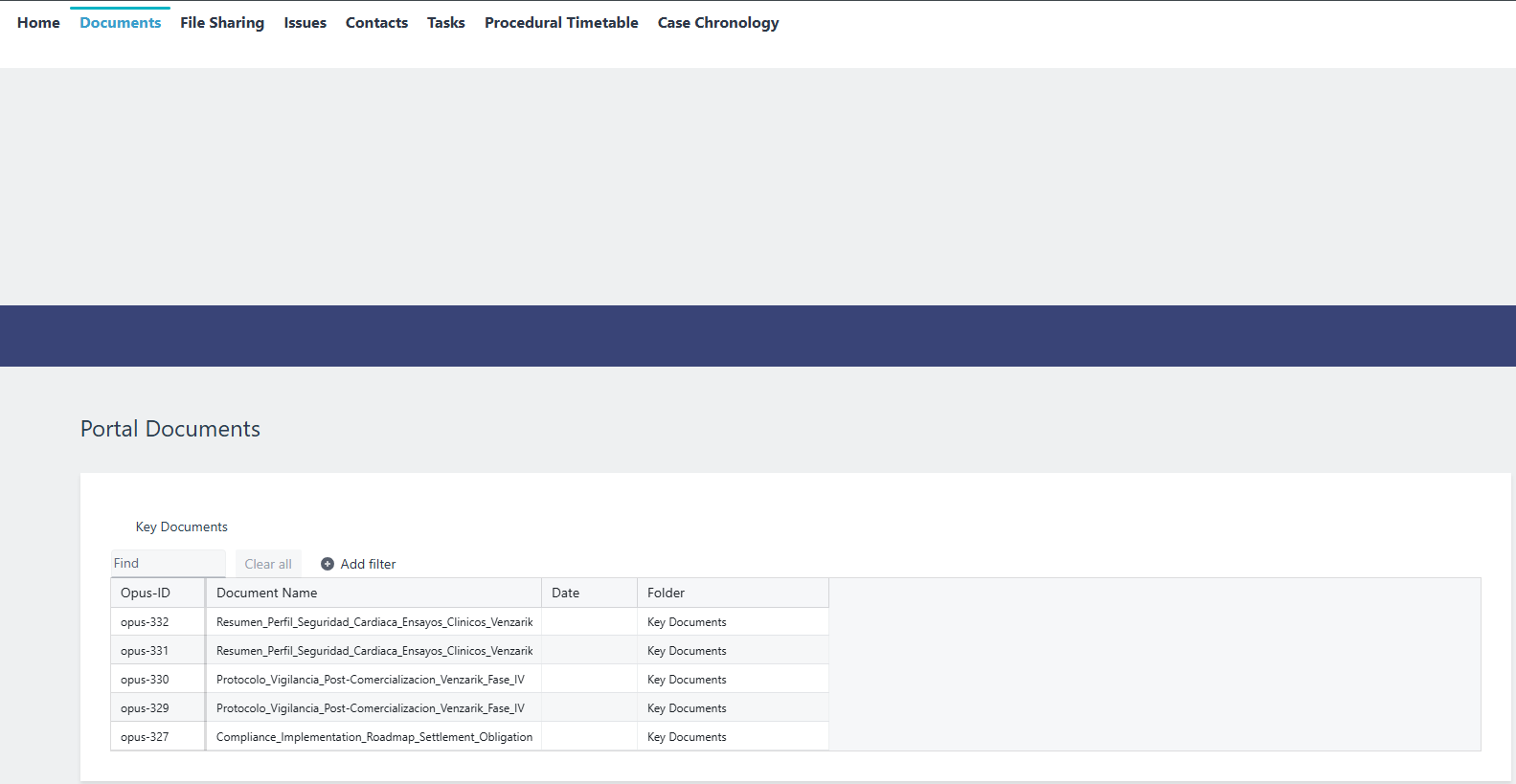
When viewed by portal users, the heading appears at the top of the component and documents are listed beneath it. Only the selected metadata columns are visible, and the sorting and filtering rules determine document order and visibility.
Related links
Related documentation
Opus 2 has help information accessible within the application; click the question mark and then select Documentation in the upper-right area of the platform. You can also access the documentation at: Opus 2 Support.
How to contact us
To contact us about the documentation, or if you have any other questions or issues about Opus 2 solutions, contact Opus 2 Platform Support by emailing Opus 2 Platform Support.