
| Minimum Software Version | 8.18.10 |
| Solution(s) | Hearings ⨉ Cases International ✓ Cases US ✓ Institutions ⨉ Counsel ✓ |
You can create a team and add or remove its users at any time from the System Admin area.
Teams group users who frequently work together, so you can manage access and permissions across projects more easily. This article explains how to create a team and how to add users to or remove users from it. Changes to team membership take effect immediately. To give a team access to projects, see Adding teams to projects.
Why create teams
Instead of adding users to projects individually, you can create a team once and give the whole group access in a single action. This improves efficiency, reduces administrative effort, and gives all team members consistent access.
You can update a team at any time by adding or removing users. The changes apply automatically across the projects the team is assigned to.
Creating a team
- Select the cog icon to open the System Admin page.

- Select the Teams tab.
- Select Add in the toolbar.
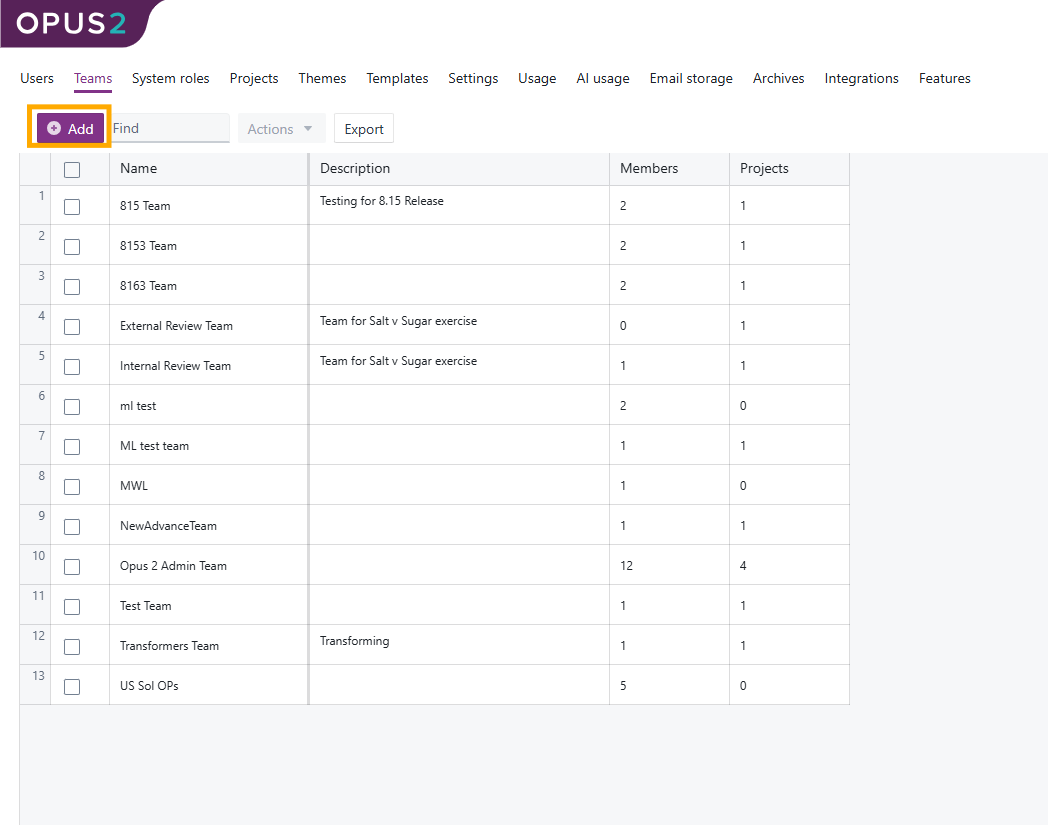
- In the dialog box:
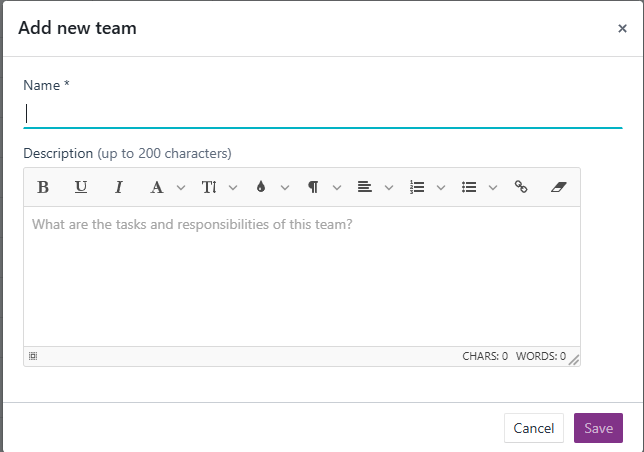
- Enter a Team Name.
- Enter a Description, for example, the team's roles, tasks, or responsibilities.
- Select Save to create the team.
Adding users to a team
You can add users from the Actions menu or from the side panel.
Using the Actions menu
- Select the cog icon to open the System Admin page.
- Select the Teams tab.
- Select the checkbox in the leftmost column next to the team you want to manage.
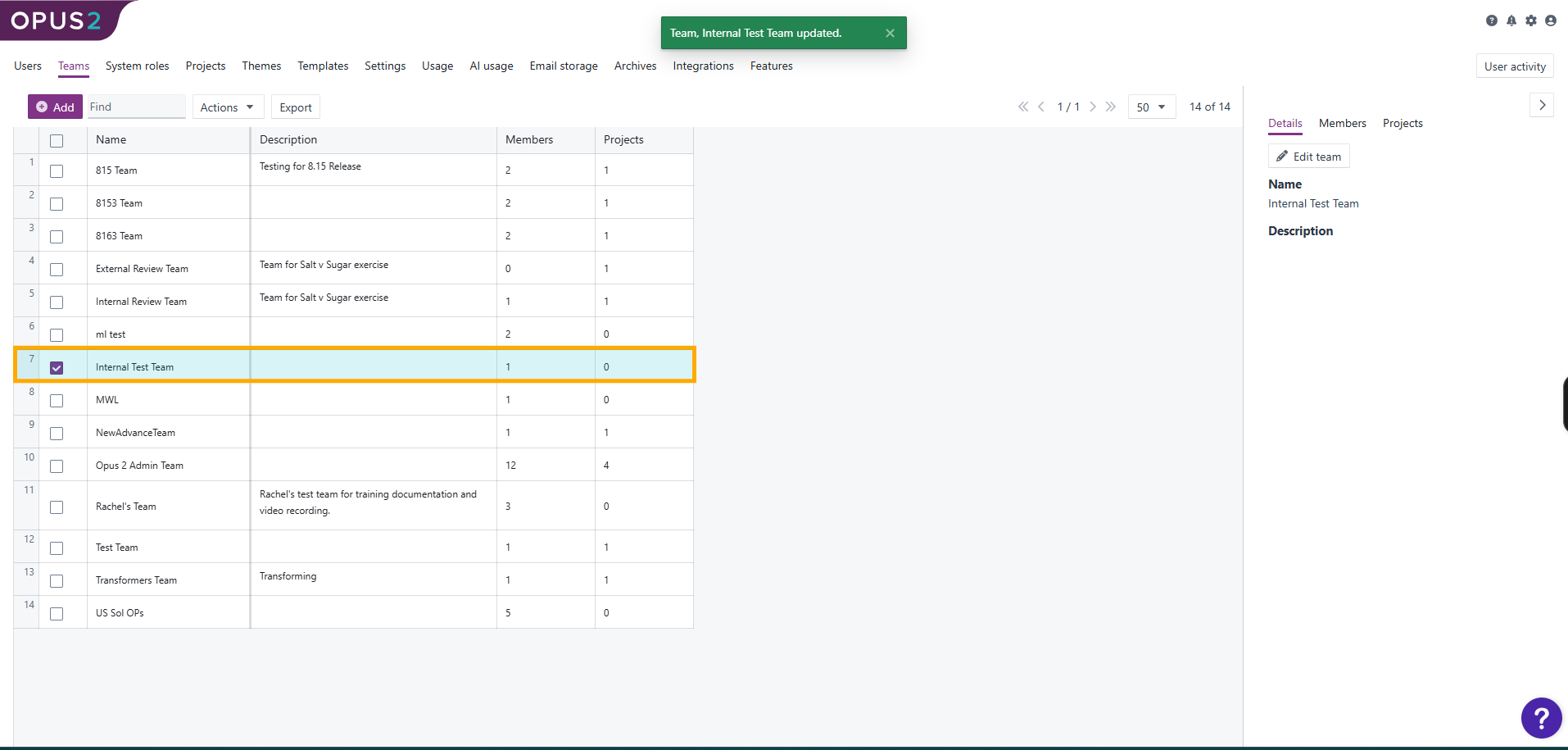
- In the toolbar, select Actions, then select Add users to teams.
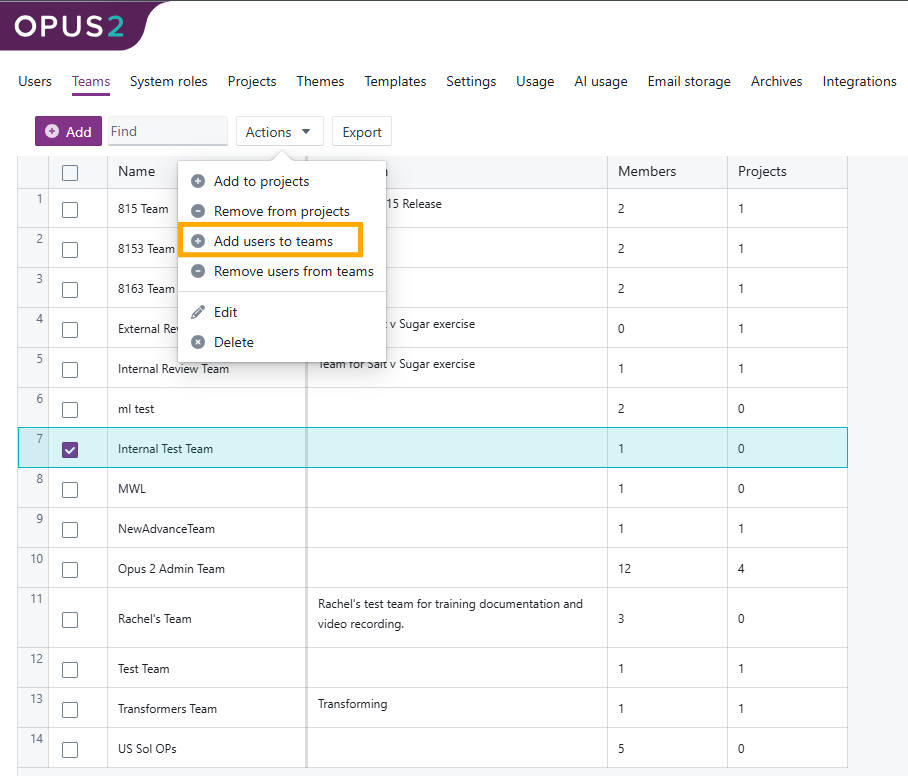
- In the Select user dialog, which shows the selected team at the top:
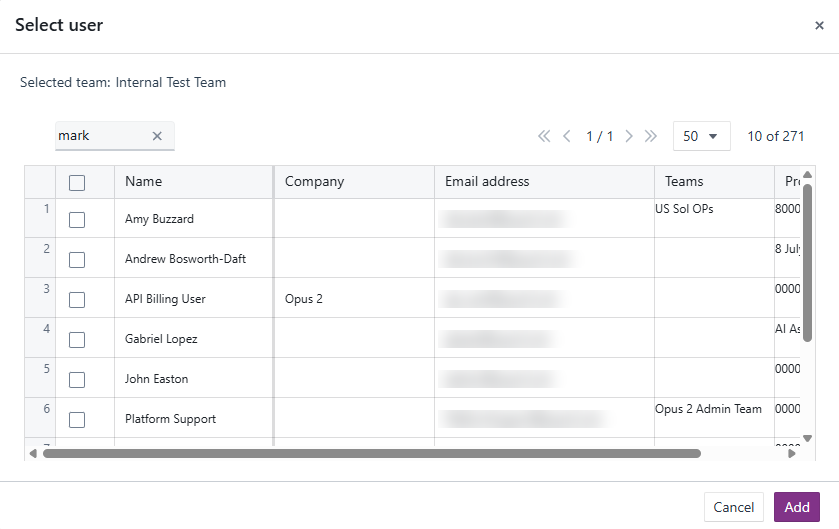
- Use Find to search for the users you want to add.
- Select each user using the checkbox in the leftmost column. The dialog lists each user's name, company, email address, and teams, and splits long lists into pages.
- Select Add in the lower-right corner of the dialog.
Using the side panel
- On the Teams tab, highlight the team row in the table.
- In the side panel on the right, select the Members tab.
- Select Add users.
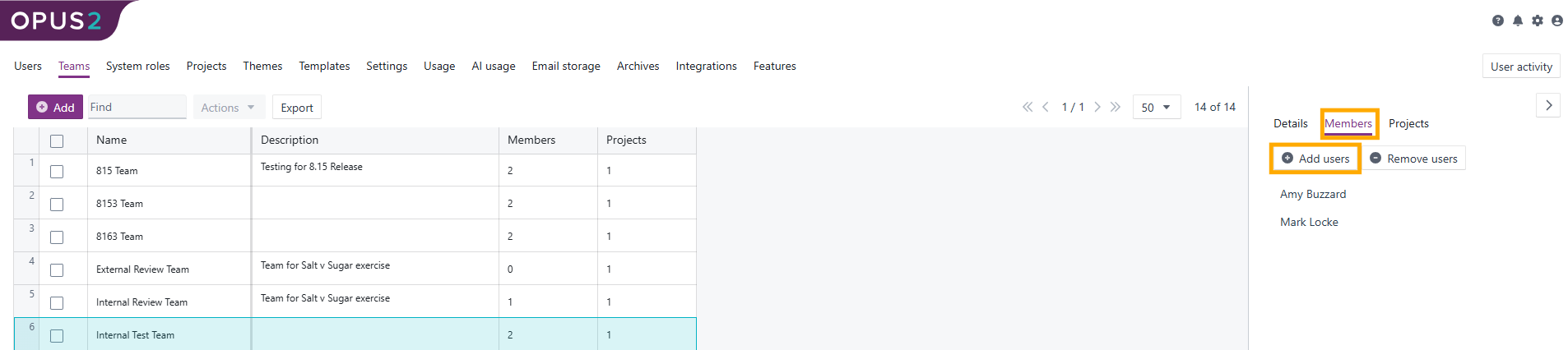
- In the Select user dialog, select the users you want to add, then select Add.
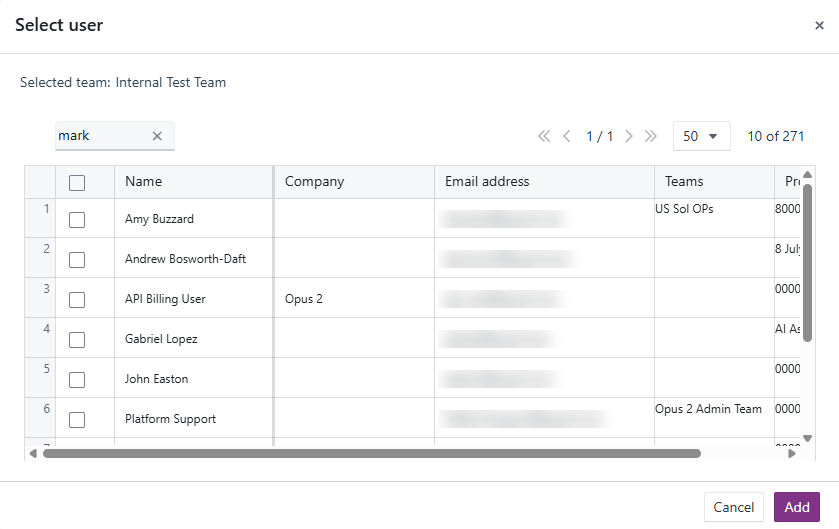
The selected users are added to the team immediately. The Members tab of the side panel lists the team's members, so you can use it to check the result.
Example: Add several litigation support users to a Trial Team so you can give them project access together instead of individually.
Removing users from a team
You can remove users from the Actions menu or from the side panel.
Using the Actions menu
- Select the cog icon to open the System Admin page.
- Select the Teams tab.
- Select the checkbox in the leftmost column next to the team you want to manage.
- In the toolbar, select Actions, then select Remove users from teams.
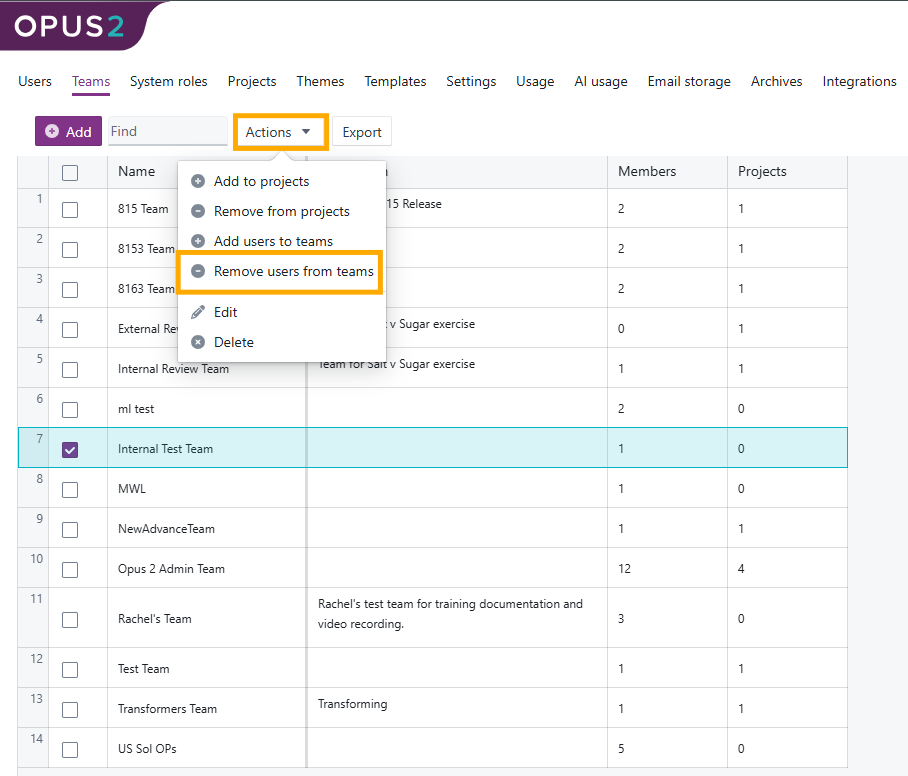
- In the dialog window, select one or more users using the checkboxes in the leftmost column.
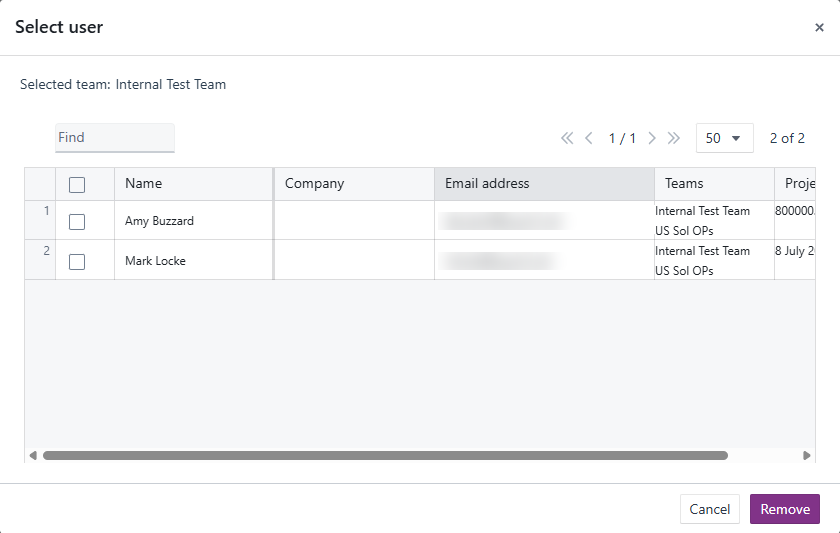
- Select Remove in the lower-right corner of the dialog.
Using the side panel
- On the Teams tab, highlight the team row in the table.
- In the side panel on the right, select the Members tab.
- Select Remove users.
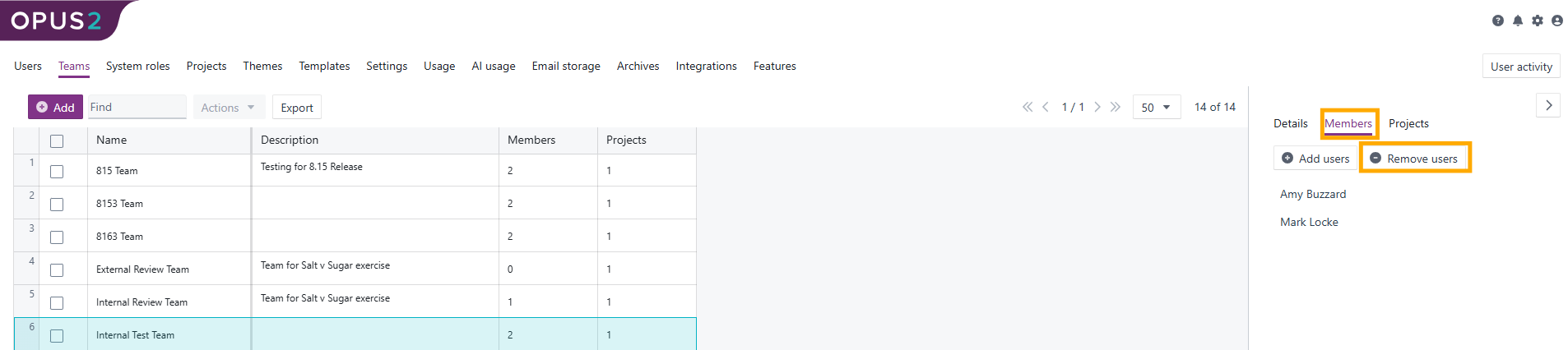
- In the dialog window, select the users you want to remove, then select Remove.
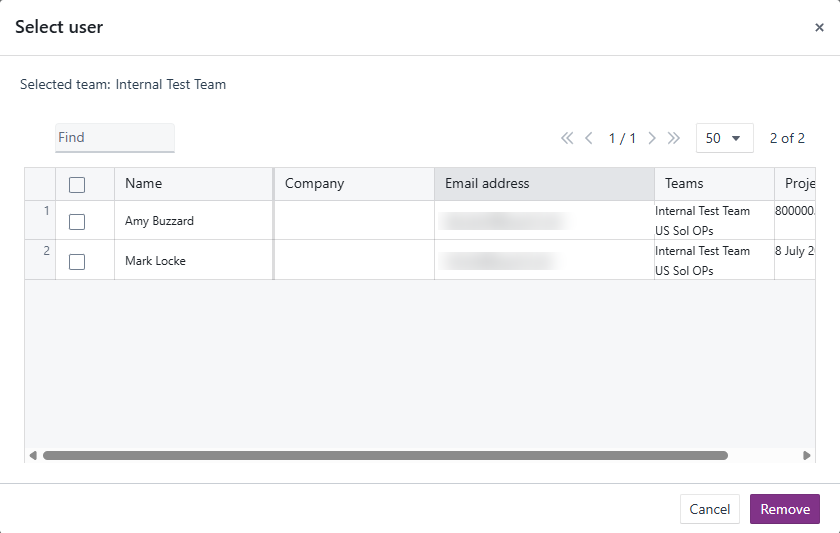
The selected users are removed from the team immediately.
Related links
Related documentation
Opus 2 has help information accessible within the application; click the question mark and then select Documentation in the upper-right area of the platform. You can also access the documentation at: Opus 2 Support.
How to contact us
To contact us about the documentation, or if you have any other questions or issues about Opus 2 solutions, contact Opus 2 Platform Support by emailing Opus 2 Platform Support.