
| Minimum Software Version | 8.18.10 |
| Solution(s) | Cases International ✓ Cases US ✓ Institutions ⨉ Counsel ✓ |
Explains how to create a designation on a transcript by selecting transcript text in the Transcript Viewer and completing the Designation details.
Designations allow users to formally mark and categorise specific segments of transcript text for use in analysis, objections, and downstream review. A designation is created directly within the Transcript Viewer and remains visually highlighted in the transcript, with associated details displayed alongside it.
Once created, designations are also available in the Designations worksheet, where they can be reviewed and managed across the project.
Accessing the Transcript Viewer
- Navigate to Documents within your project.
- Click the row of the required transcript.
- In the Details panel, click the preview image of the transcript. The Transcript Viewer opens.

Creating a designation
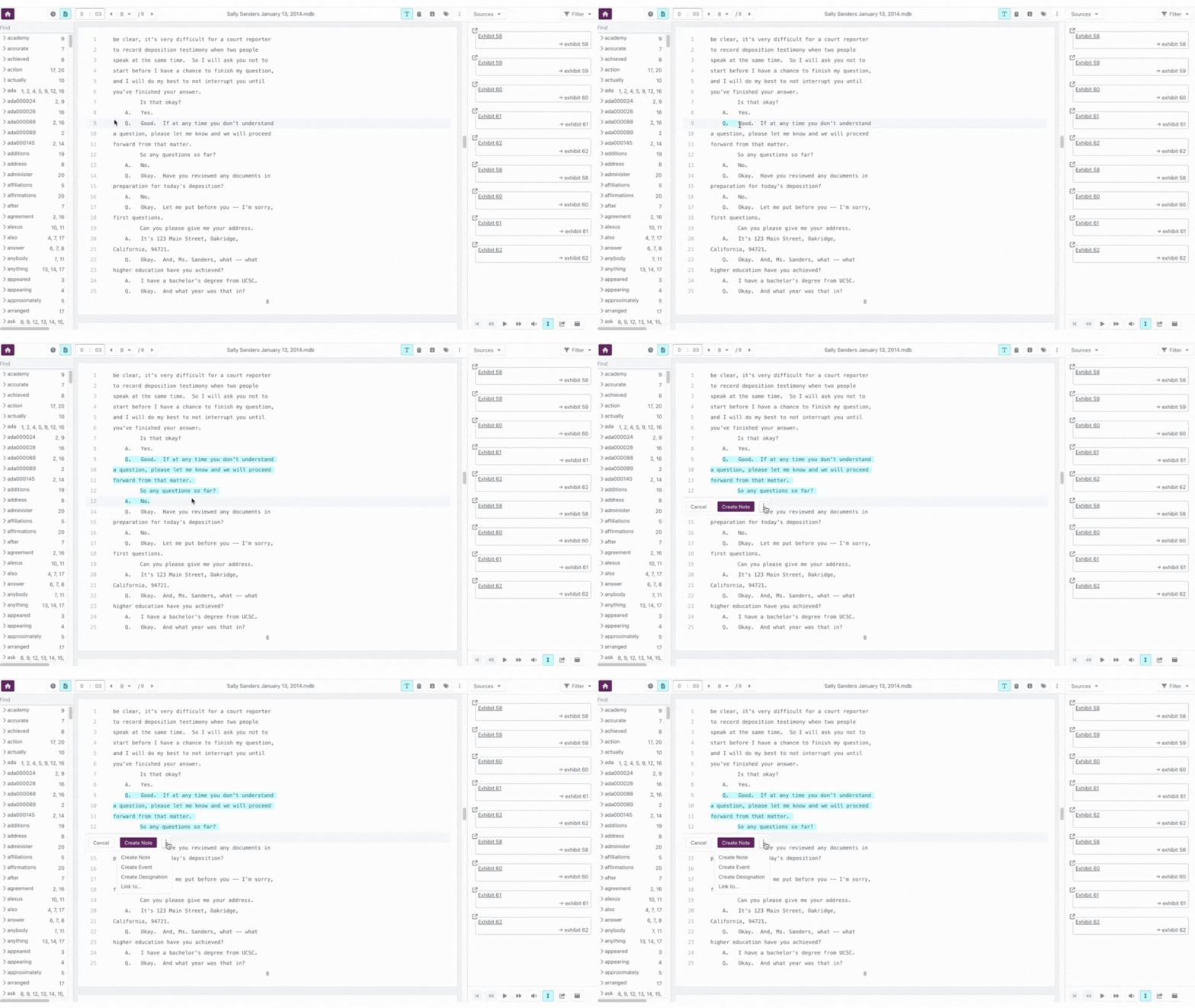
- In the Transcript Viewer, click and drag across the section of text you want to designate.
- Release the mouse button. The selected text is highlighted, and the annotation options appear.
- Click the three‑dot (more options) icon to view additional options.
- Select Create Designation. The Add Designation dialogue opens.
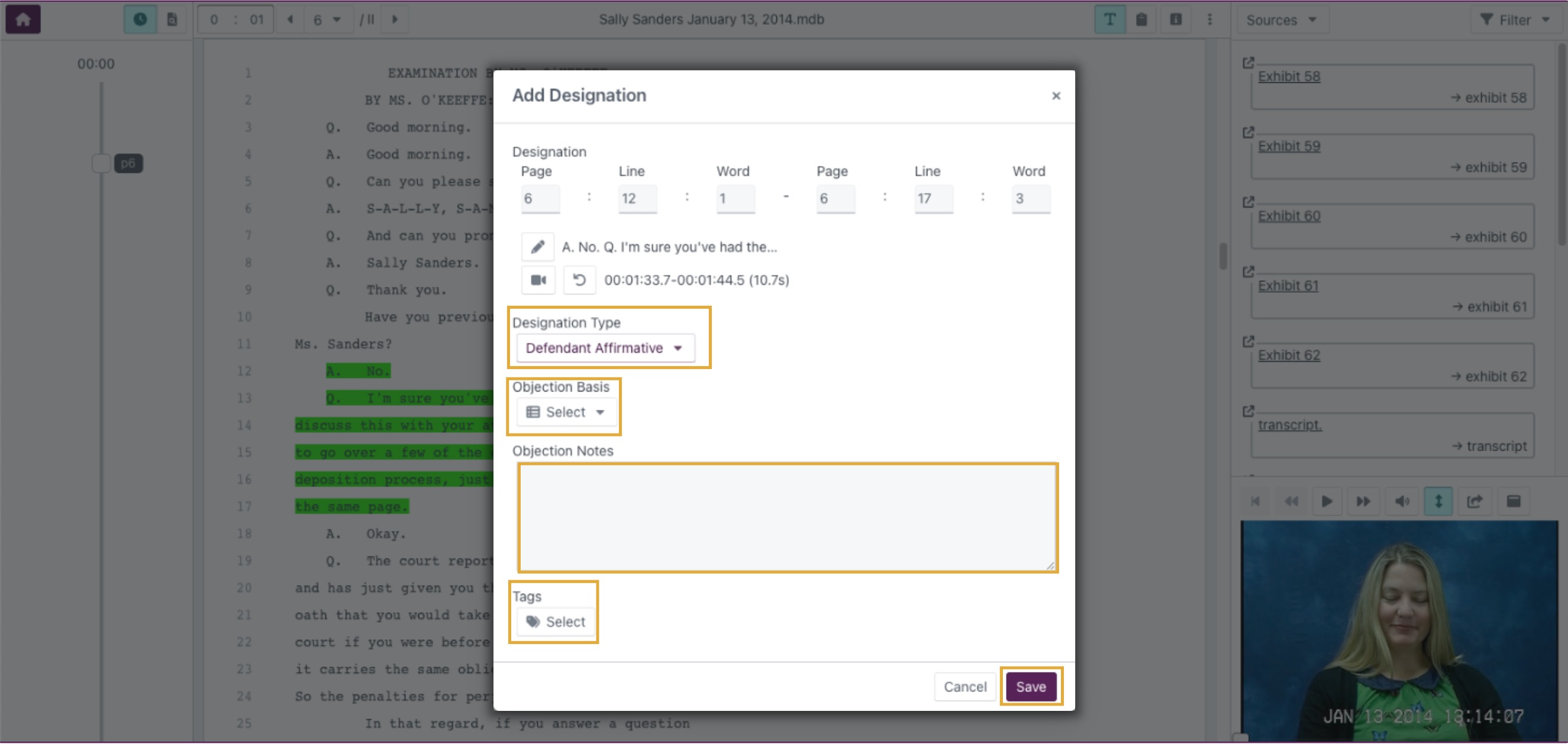
Completing the Add Designation dialogue
- Choose the appropriate Designation type.
- Select an Objection basis if applicable.
- Add any Objection notes or Tags as required.
- (Optional) Adjust the selection range by:
- Editing the Page, Line, or Word numbers, or
- Clicking the media icon and using the video playback slider to refine timing.
- Click Save to complete the designation.
After saving:
- The designated text remains highlighted in the transcript.
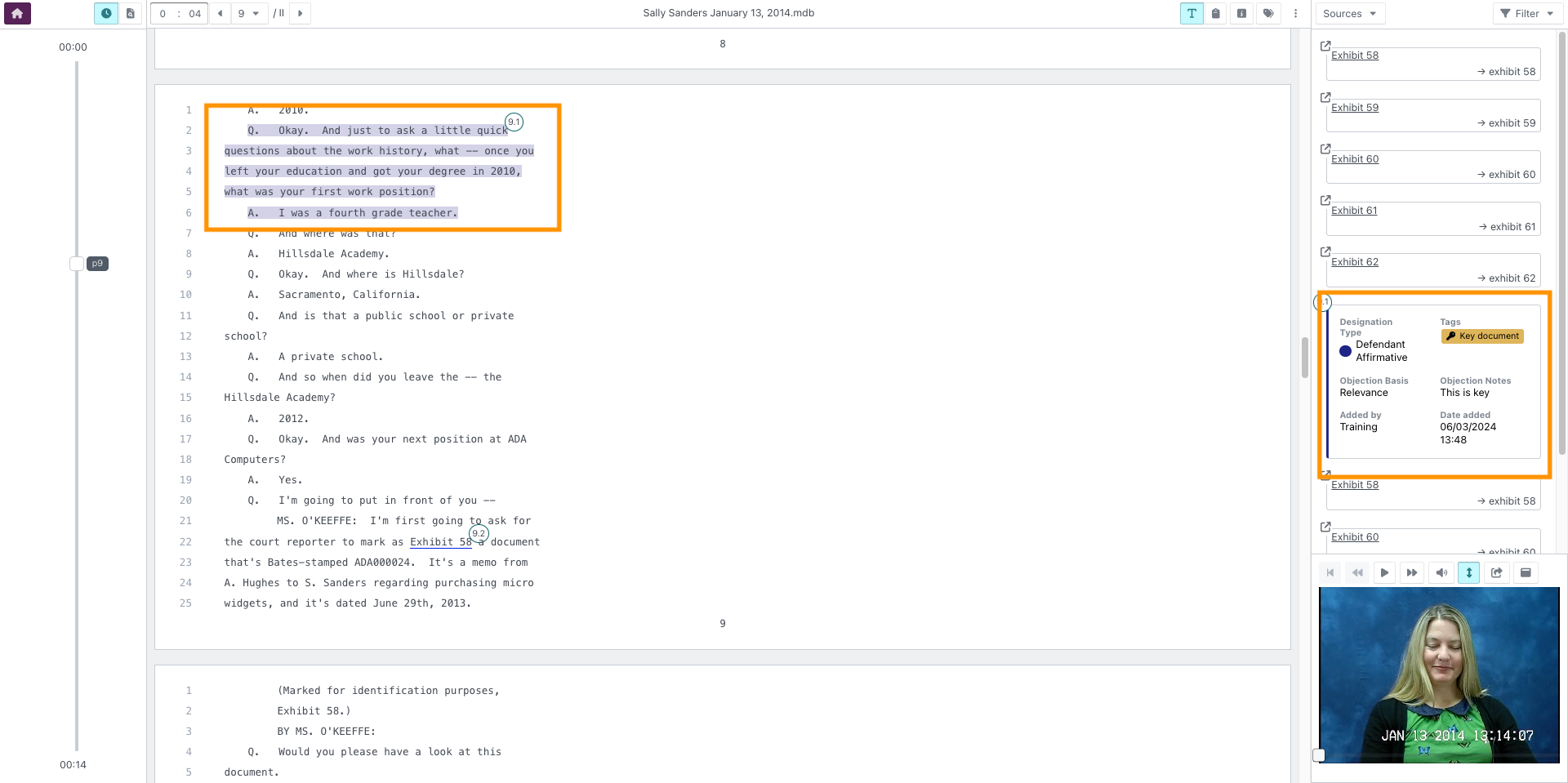
- The designation details appear in the right‑hand margin.
- The designation is added to the Designations worksheet.
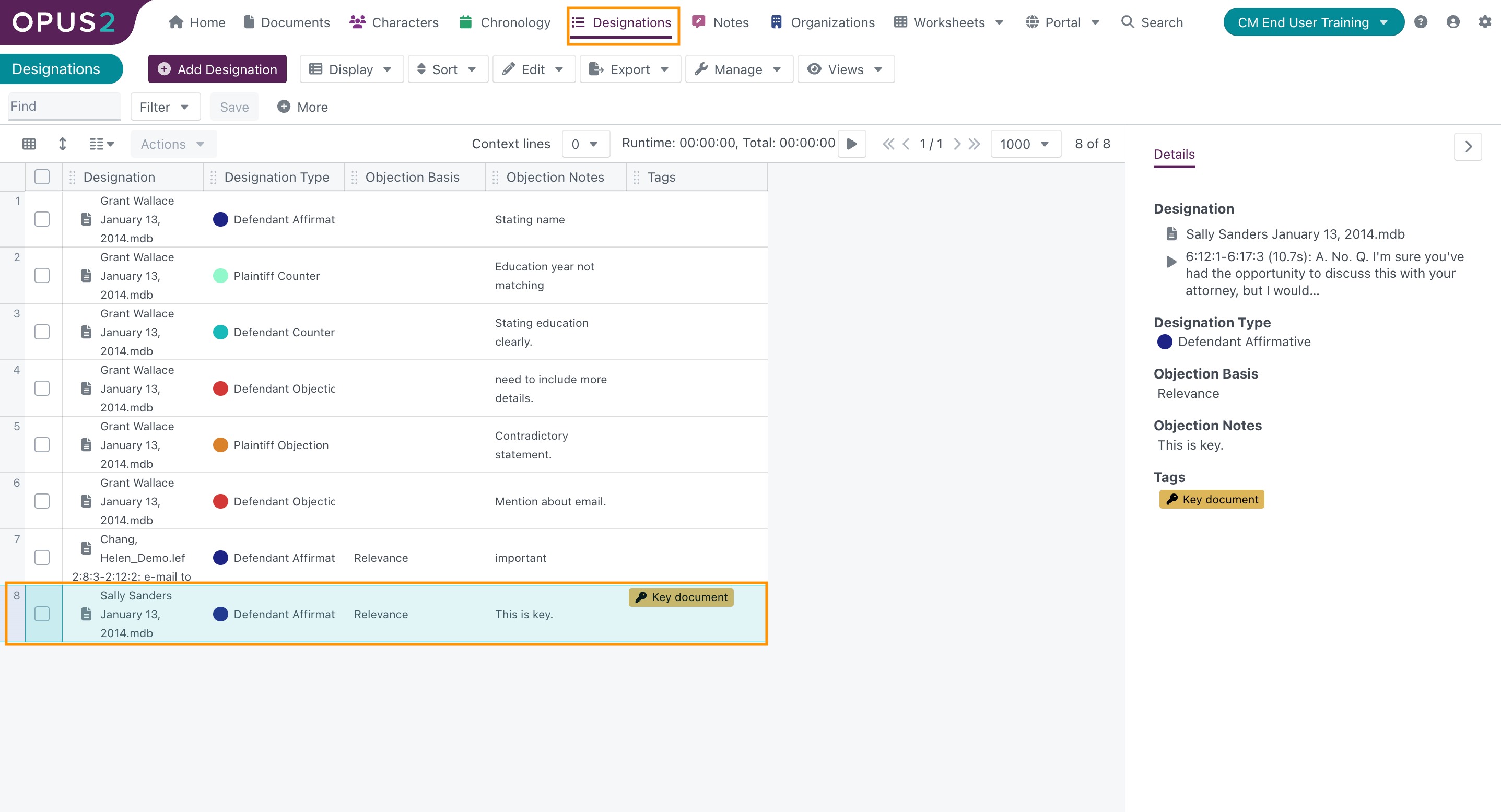
Use designations to clearly identify and categorise critical transcript segments. Review ranges before saving to ensure precision, especially when syncing transcript text with video playback.