
| Minimum Software Version | 8.18.10 |
| Solution(s) | Hearings ⨉ Cases International ✓ Cases US ✓ Institutions ⨉ Counsel ✓ |
The platform supports secure authentication methods outside of Single Sign-On (SSO), giving administrators flexibility in how users access the system. These methods include:
- Direct Authentication with User Credentials: Users log in using a username and password.
- Two-Factor Authentication (2FA/MFA): Adds an additional security layer by requiring a one-time verification code from an authenticator application.
MFA enhances account security by requiring something the user knows (password) and something the user has (authentication app). When enabled, users must complete additional steps during setup to configure their authentication method before accessing the platform.
Create a User with Multi-Factor Authentication
Open System Admin
- Click the System Cog icon to access the System Admin page.

- Click the System Cog icon to access the System Admin page.
Navigate to Users
- Select the Users tab near the top left.
Add a New User
- Click Add to open the Add New User dialog box.
Select Authentication Method
- Choose Password as the authentication method.
- The MFA option is enabled by default.
- Toggle it off if MFA is not required.
Enter User Details
- Input the following:
- Username
- Role
- Email Address
- Input the following:
Save the User
- Click Save to create the user account with MFA enabled.
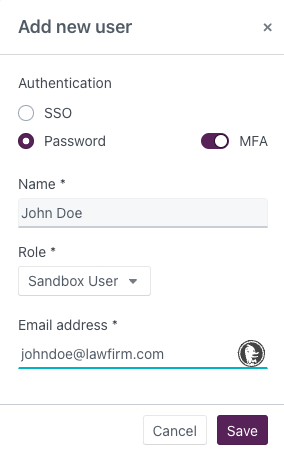
- Click Save to create the user account with MFA enabled.
End User Setup
After the user is created, the following steps occur:
Email Notifications
The user will receive two emails:- Notification that their account has been created
- A setup link to:
- Verify their email
- Create a password
- Configure MFA (if enabled)
Note: The setup link expires after 24 hours.
Accept Usage Policy
- The user must review and accept the platform usage policy.
Configure MFA (if required)
- Follow instructions to link an authenticator app (e.g., Google Authenticator, FreeOTP).
- Scan the provided QR code to complete setup.
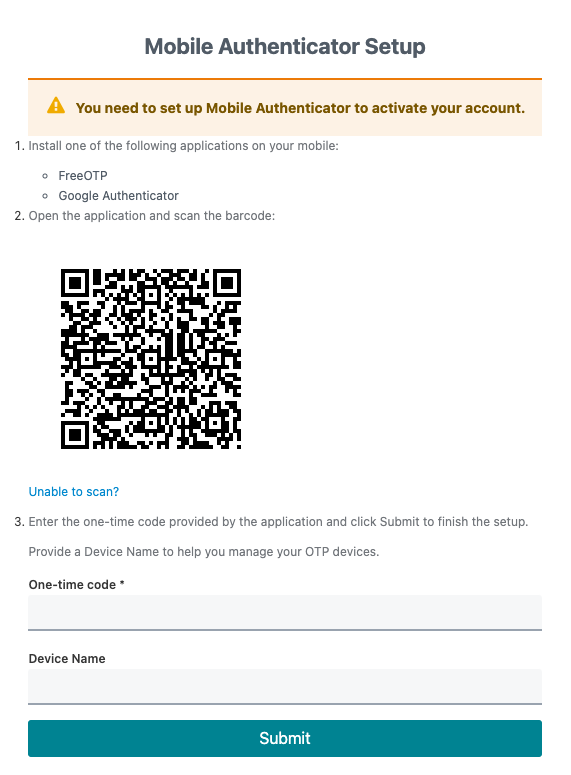
Create Password
- The user sets their password for future logins.
Verify Email Address
- A verification email is sent.
- The user must click the link to confirm their email.
Log In
- The user can now log in using their email address and password (and MFA code, if enabled).
Change A User Authentication
You can switch a user between Password and SSO login, but only if they have already logged in to the platform at least once.
If the user has logged in:
- Select the user.
- Click Actions.
- Click Set login method.
- Select the login method you want (Password or SSO).
If the user has not yet logged in: You can’t change their login method. Delete the user, then add them again with the correct login method.