
| Minimum Software Version | 9.65.0 |
| Solution(s) | Hearings ⨉ Cases International ✓ Cases US ✓ Institutions ⨉ Counsel ✓ |
Explains how to export one or more selected documents from a collection in the Opus 2 Documents module, including choosing an export format and configuring annotation and document settings before triggering the export.
The export feature allows you to share or archive documents from a collection in a range of formats, including PDF or zip bundles and metadata spreadsheets. When you select individual documents rather than an entire collection, Opus 2 performs a partial collection export. In this mode, some options — such as table of contents and single PDF format — are unavailable and will be greyed out.
Exporting a partial collection
- Navigate to the Documents tab using the top navigation bar.
- In the left-hand panel, select the collection you want to export from under Collections.
- In the document list, tick the checkbox next to each document you want to include. The toolbar updates to show the number of selected items (for example, 1 Selected).
- Click Export in the toolbar, then select one of the available formats from the dropdown:
- PDF or zip bundle – Packages the selected documents as individual PDF files within a zip archive. Even a single file is exported as a zip.
- Metadata as spreadsheet (.xlsx) – Exports document metadata to an Excel file. Only viewable metadata fields will be exported.
- Metadata as plain text (.csv) – Exports document metadata to a CSV file. Only viewable metadata fields will be exported.
- Archive (zip) – Exports the source files in a zip archive.
Note: Table of contents and single PDF format are not available for partial collection exports.
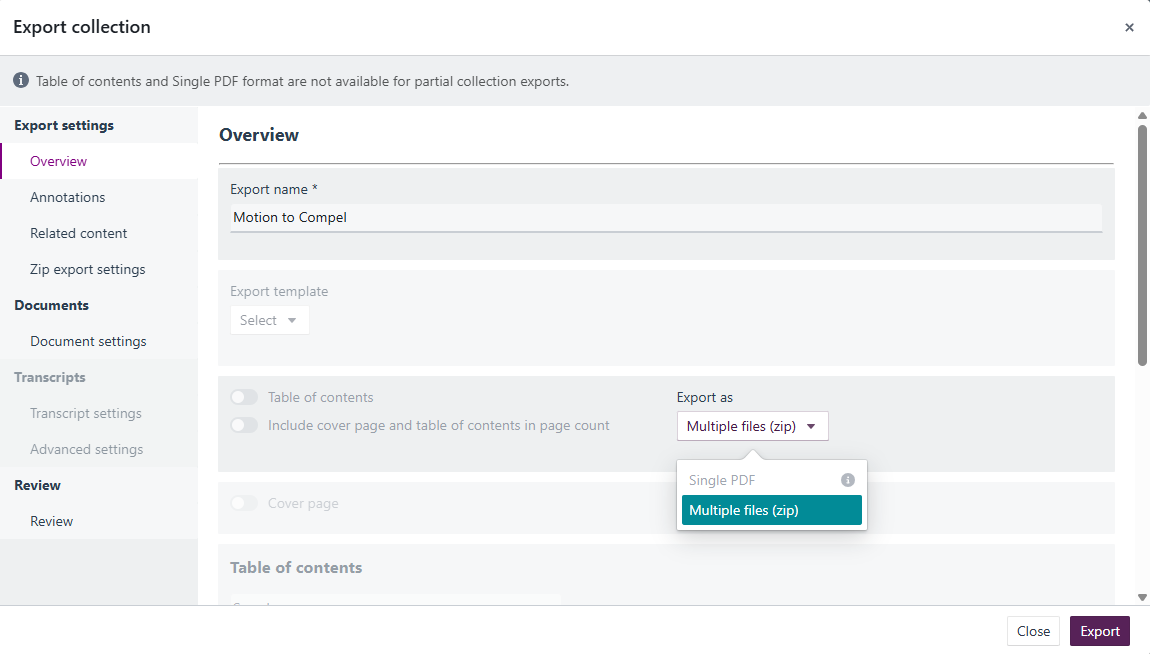
- The Export collection dialog opens. On the Overview tab:
- Choose whether to export as Multiple files (zip) using the Export as dropdown.
- Optionally select an Export template from the dropdown.
- Confirm or edit the Export name (pre-filled with the collection name).
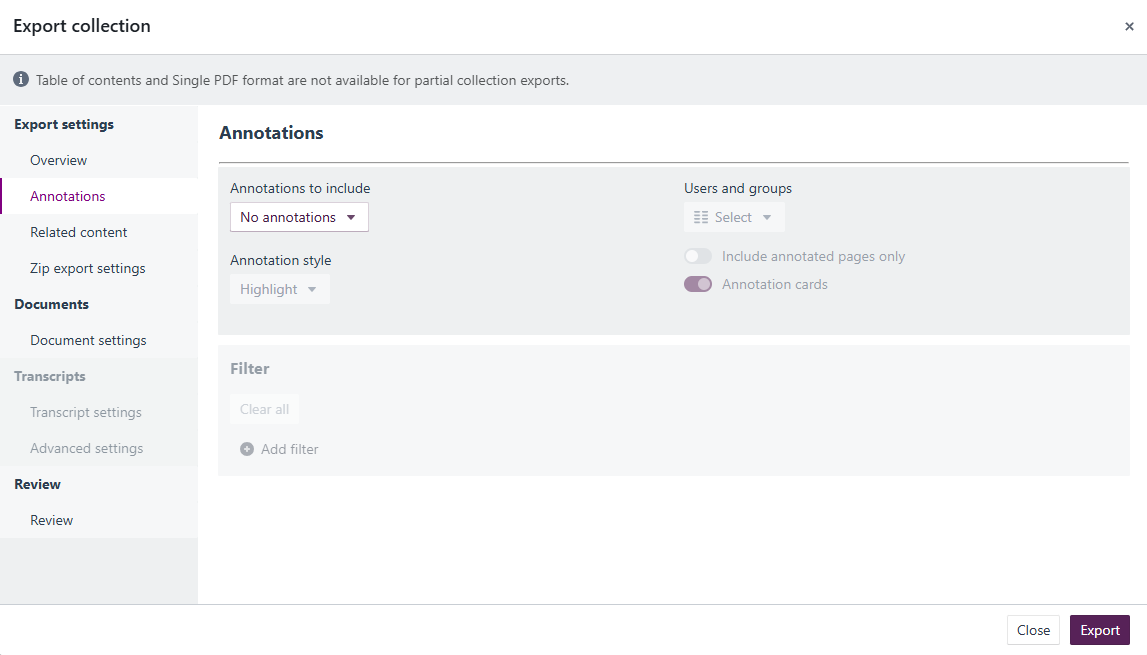
- Select Annotations in the left-hand settings panel to configure which annotations to include:
- Use the Annotations to include dropdown to choose one of:
- No annotations – Exports documents without any annotation overlays.
- All annotations – Includes every annotation from all users.
- Selected authors – Includes only annotations from specific users or groups.
- If selecting All annotations or Selected authors, use the Users and groups picker to filter by contributor.
- Toggle Include annotated pages only and Annotation cards as required.
- Click Add filter to apply one or more filters, or Clear all to remove existing filters.
- Use the Annotations to include dropdown to choose one of:
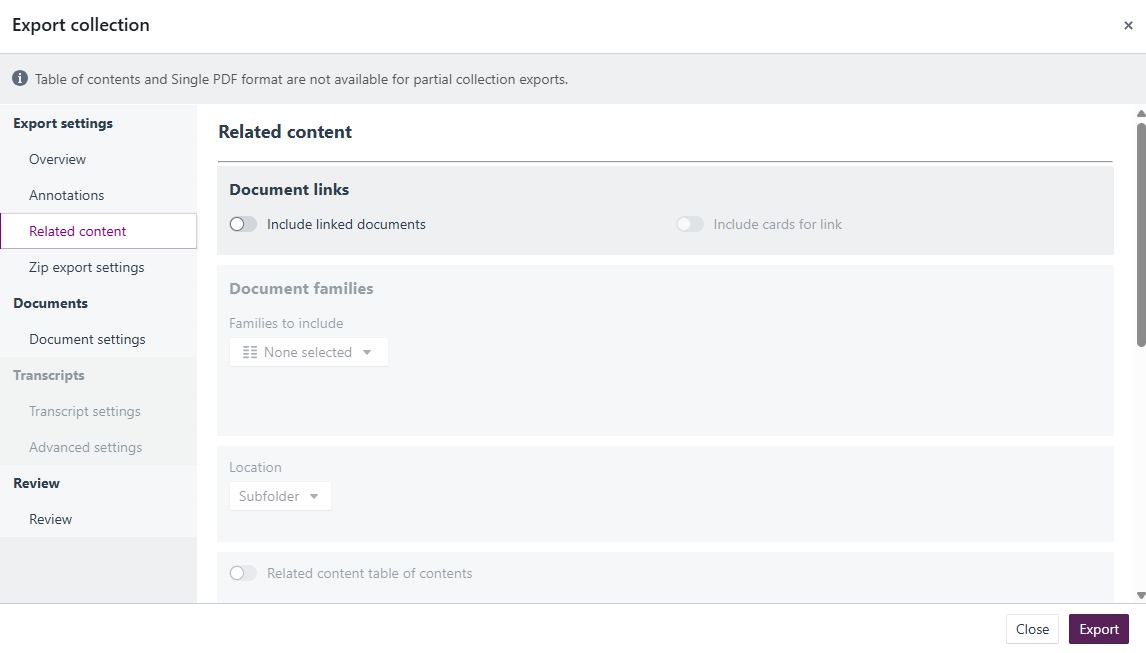
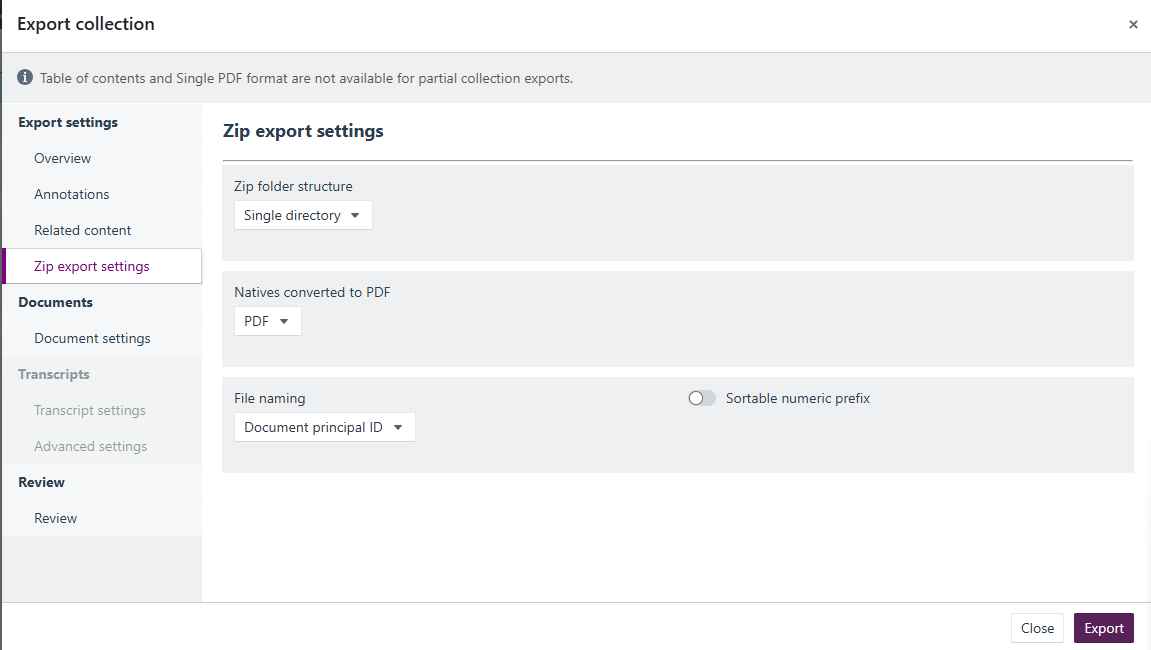
- Optionally review the Related content, Zip export settings, Document settings, Transcript settings, and Advanced settings panels to adjust further options.
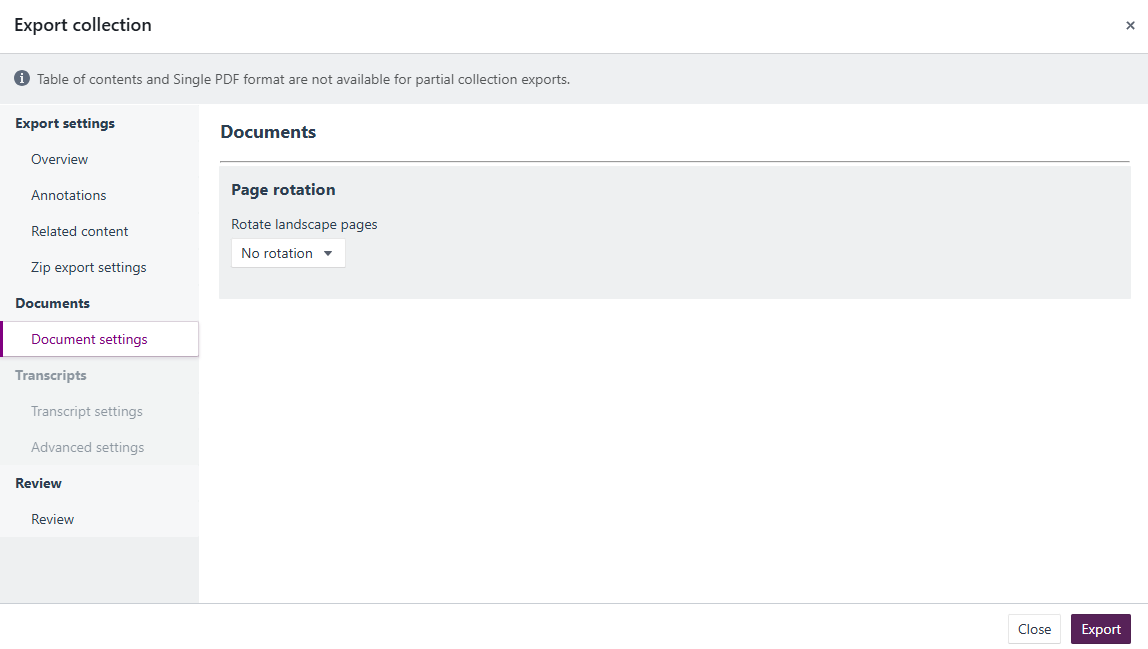
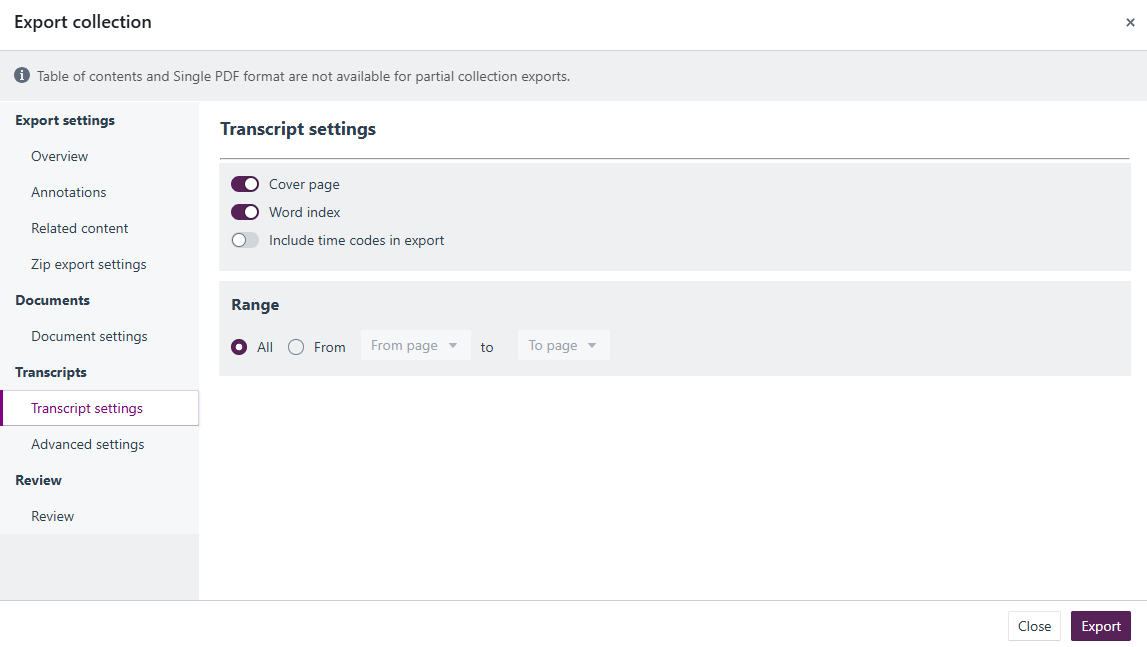
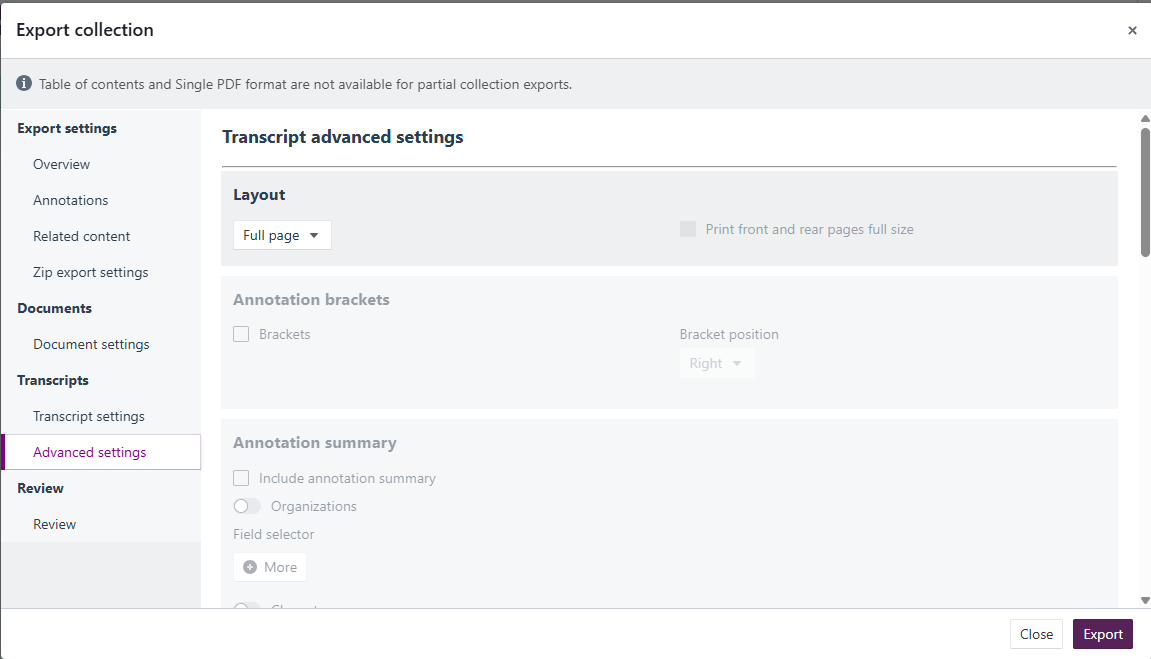
- Select Review in the left-hand panel to confirm your settings. If you want to save this export configuration as a template, add a name and select Save template.
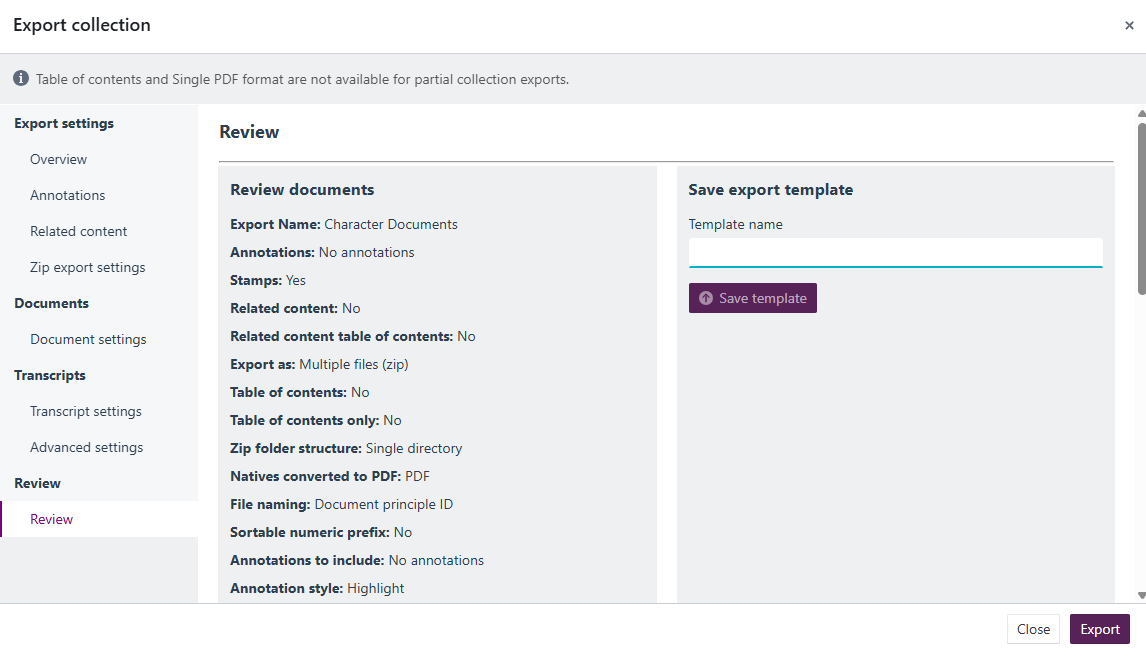
- Click Export. A confirmation banner appears at the top of the screen confirming the export has been requested and will be made available for download once processed.
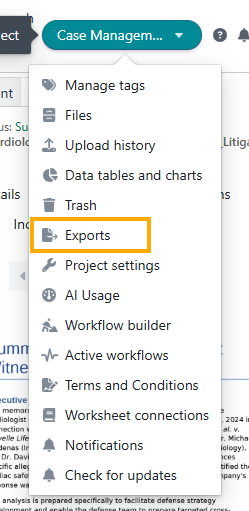
- To download the completed export, open the project settings menu in the upper-right corner of the platform and select Exports. Your export will appear here once processing is complete.
Related links
- Document collections
- Exporting trial exhibit bundles (collections)
- Using collections to build your bundle
- Customising a table of contents for an e-bundle using collections
Related documentation
Opus 2 has help information accessible within the application; click the question mark and then select Documentation in the upper-right area of the platform. You can also access the documentation at: Opus 2 Support.
How to contact us
To contact us about the documentation, or if you have any other questions or issues about Opus 2 solutions, contact Opus 2 Platform Support by emailing Opus 2 Platform Support.