
| Minimum Software Version | 8.18.10 |
| Solution(s) | Hearings ⨉ Cases International ✓ Cases US ✓ Institutions ⨉ Counsel ✓ |
Notes in Opus 2 provide contextual insights and annotations linked directly to documents and transcripts. Once a document is opened in the Document Viewer, all notes associated with that document are displayed in the right‑hand panel, allowing users to review, filter, and manage them in context.
Notes can also be surfaced as metadata on the Documents page and viewed centrally in the Notes worksheet, ensuring flexibility in how users access and manage annotations. Any changes made to a note—regardless of where it is edited—are automatically reflected in the original document.
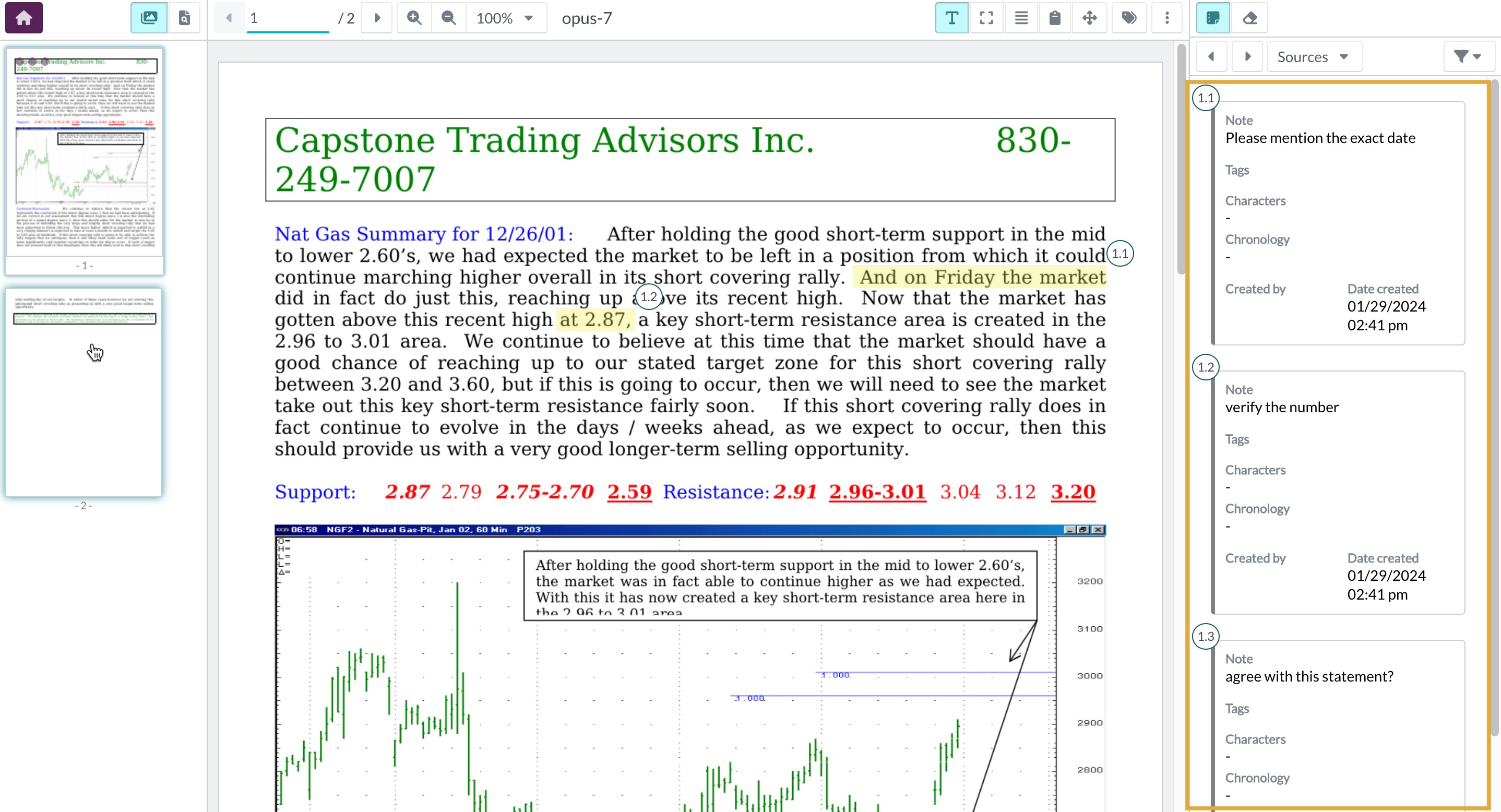
View Notes in the Document Viewer
- Open a document in the Document Viewer.
- All notes associated with the document appear in the right‑hand panel.
- Clicking a note opens the document at the relevant page and highlights the associated text or region.
Filter Notes in the Document Viewer
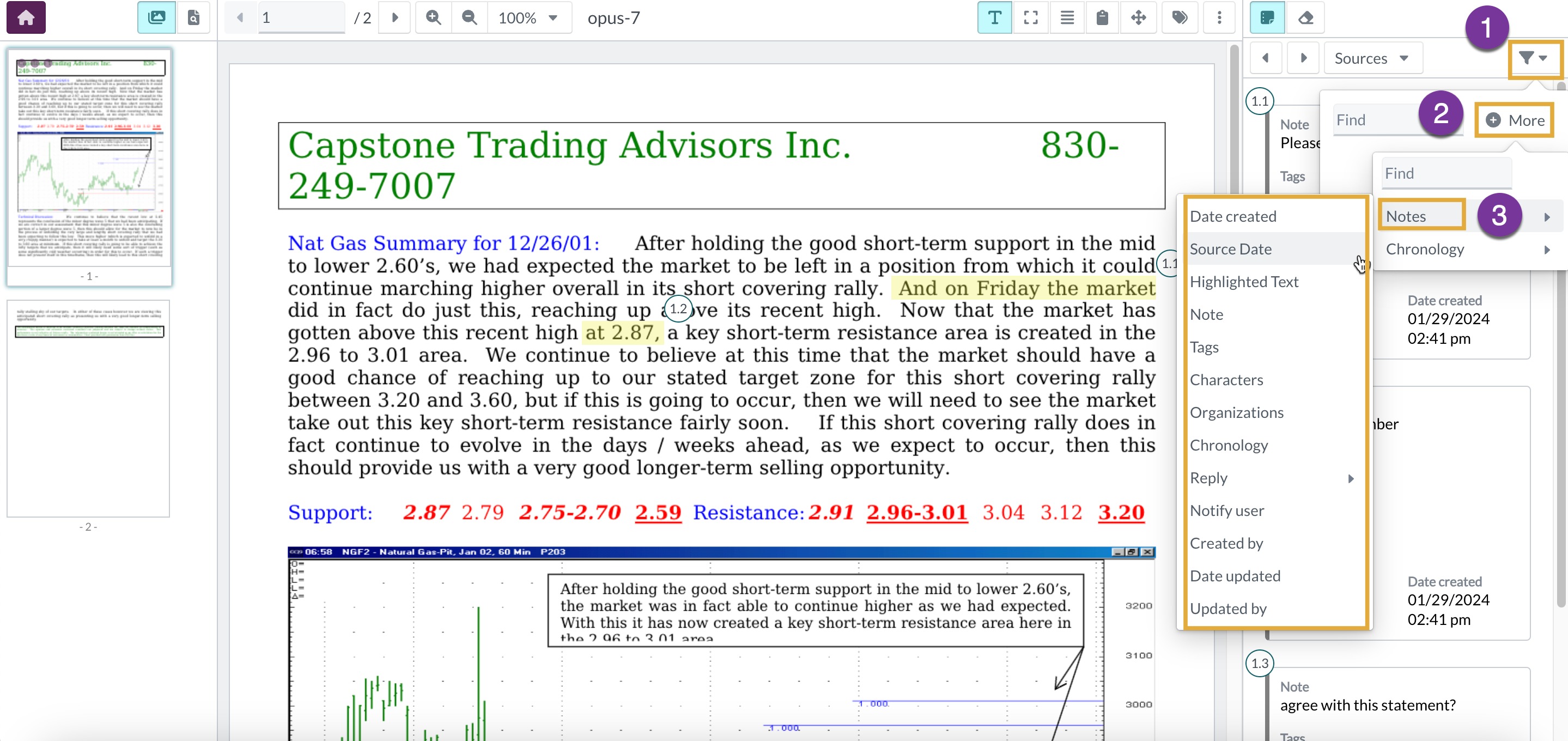
- Click the Filter icon in the Notes panel.
- Click + More to add a filter condition.
- Select Notes as the filter type.
- Choose the desired filter condition.
- Repeat these steps to apply multiple filter conditions if required.
Example:
Filter notes to show only those created by a specific user or with a particular tag.
Edit a Note from the Document Viewer
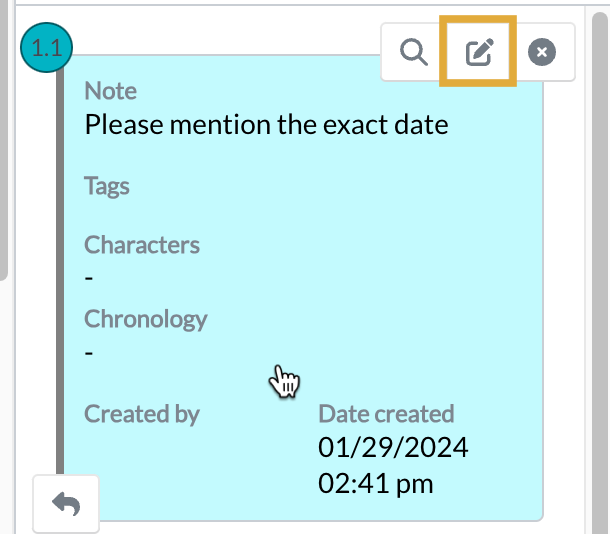
- Click on the note in the right‑hand panel.
- Select the Edit button.
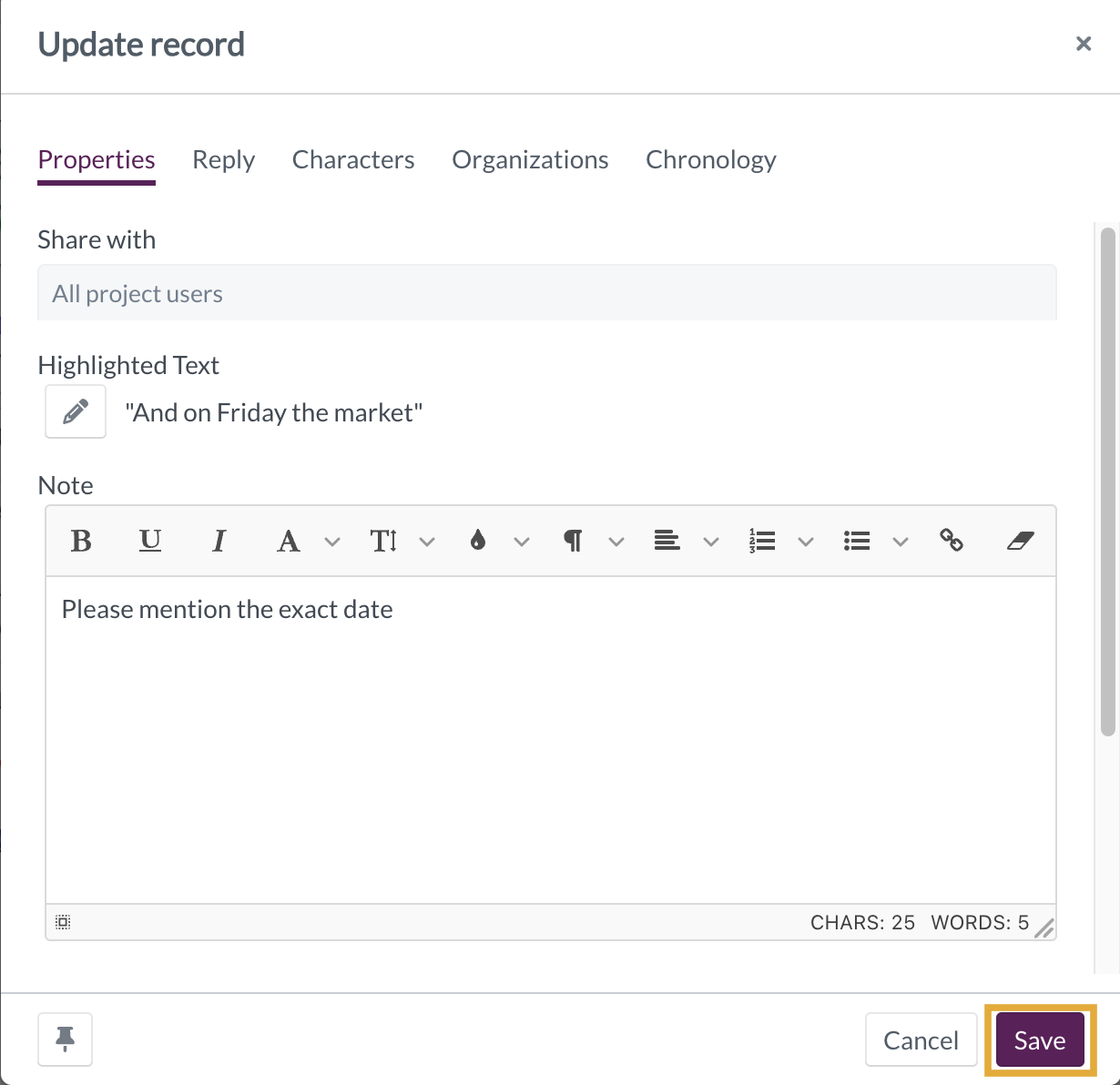
- In the dialog box, update the note details.
- Click Save to apply the changes.
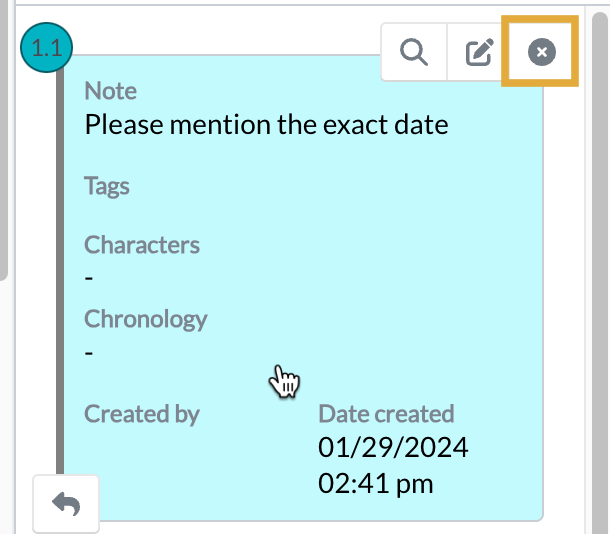
Delete a Note from the Document Viewer
- Click on the note.
- Select the Delete button.
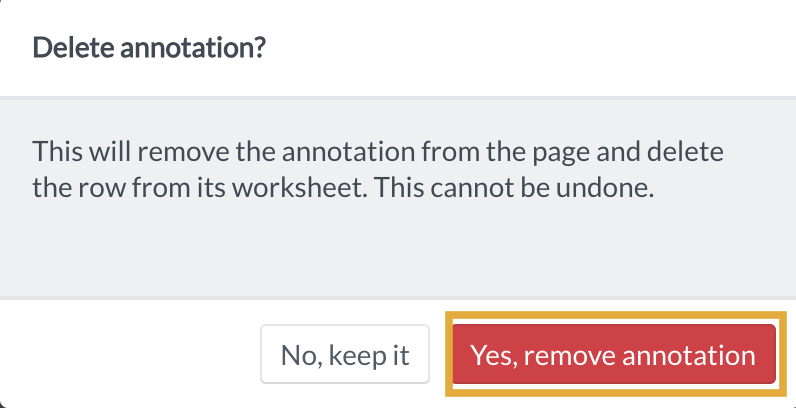
- Confirm by clicking Yes, remove annotation.
View Notes as Metadata in the Documents Page
Notes can be displayed as metadata fields in the Documents table.
Steps
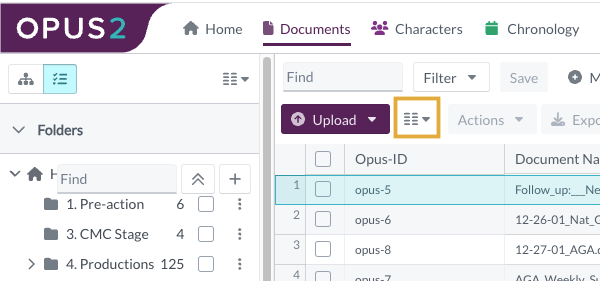
- Navigate to the Documents page.
- Click the Column icon.
- Select Expand, then choose Notes.
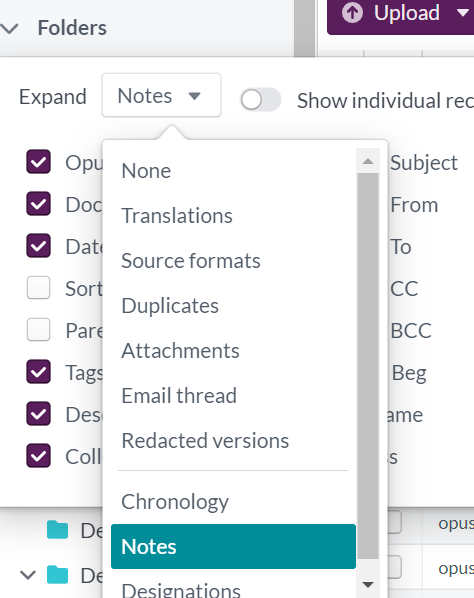
- Select the fields from the Notes worksheet you want to display.
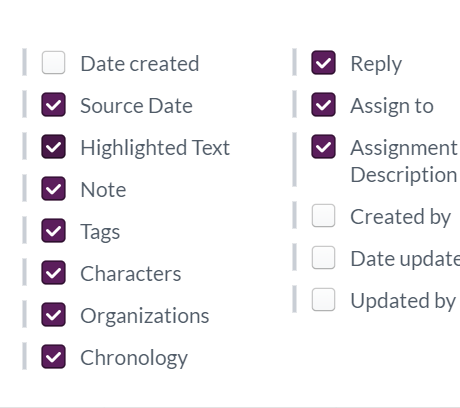
Example:
Display note text or note author directly alongside document metadata in the Documents table.
View Notes from the Notes Worksheet
The Notes worksheet provides a centralized, tabular view of all notes created across documents.
- Displays notes alongside highlighted text and related metadata
- Notes can be edited or deleted directly from the worksheet
- Any changes are automatically reflected in the linked document
Edit a Note from the Notes Worksheet
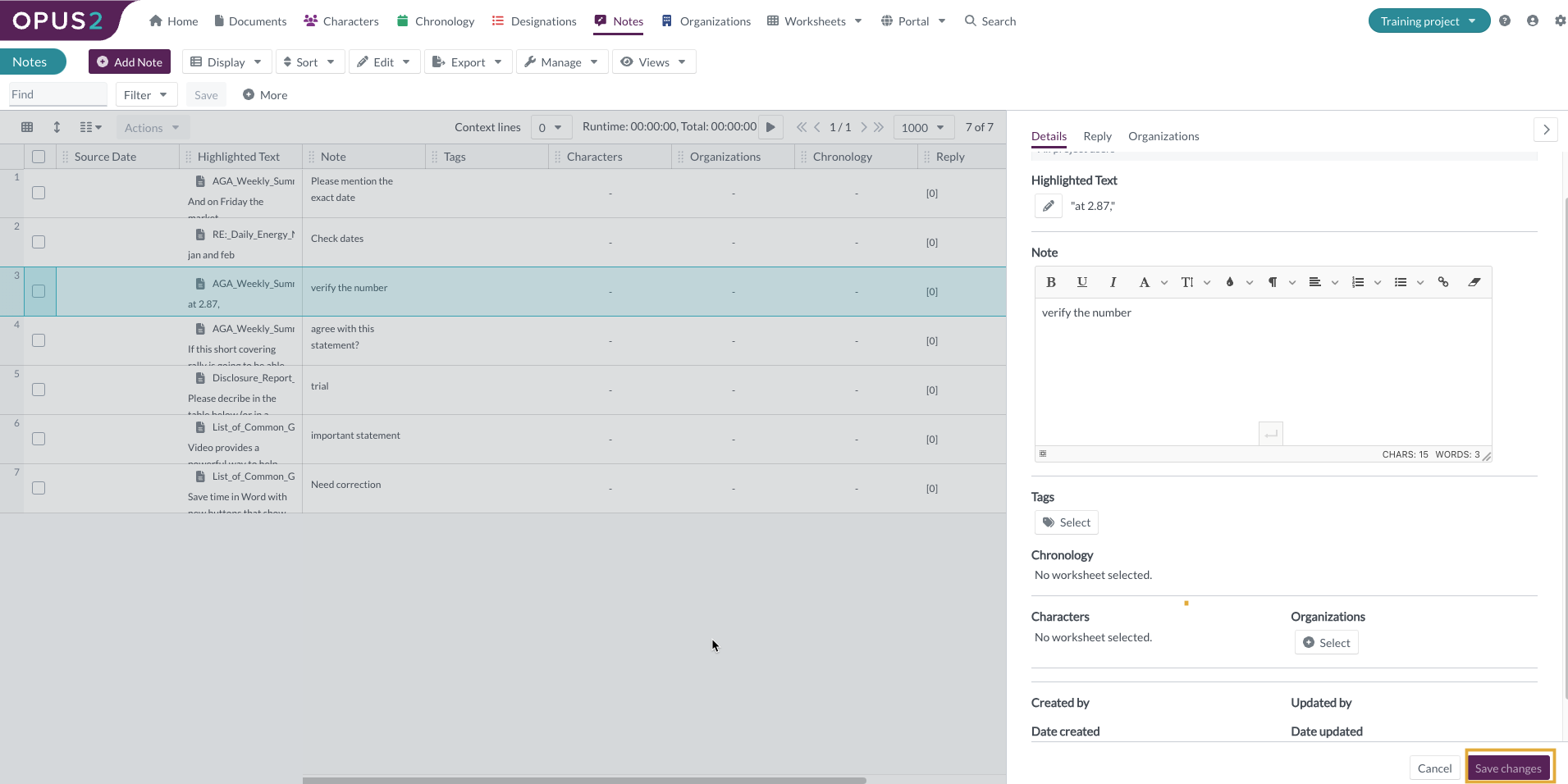
- Click the note record in the table.
- The Details panel opens on the right.
- Click anywhere in the panel to enable editing.
- Update the note details.
- Click Save changes.
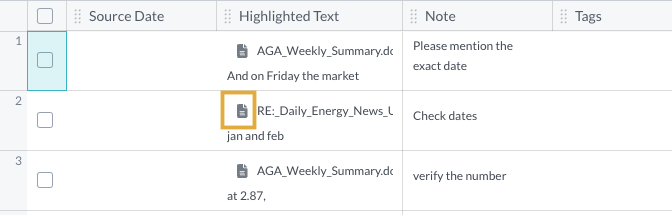
Tip:
Click the document icon next to the highlighted text to open the source document at the exact location of the note.
Delete Notes from the Notes Worksheet
- Select one or more note records (rows).
- Click the Actions button.
- Select Delete.
- Confirm by clicking Yes, move to trash.
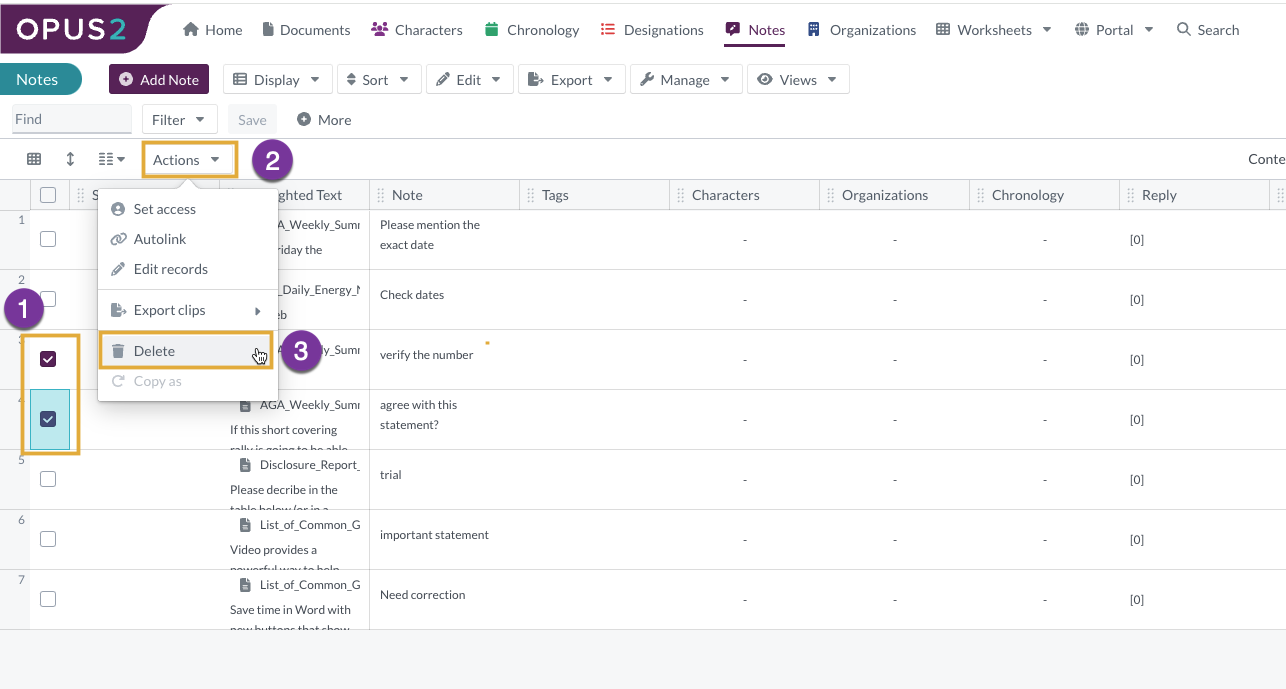
Deleting notes from the Notes worksheet also removes them from the corresponding documents.
Filter Notes in the Notes Worksheet
- Click + More to add a filter condition.
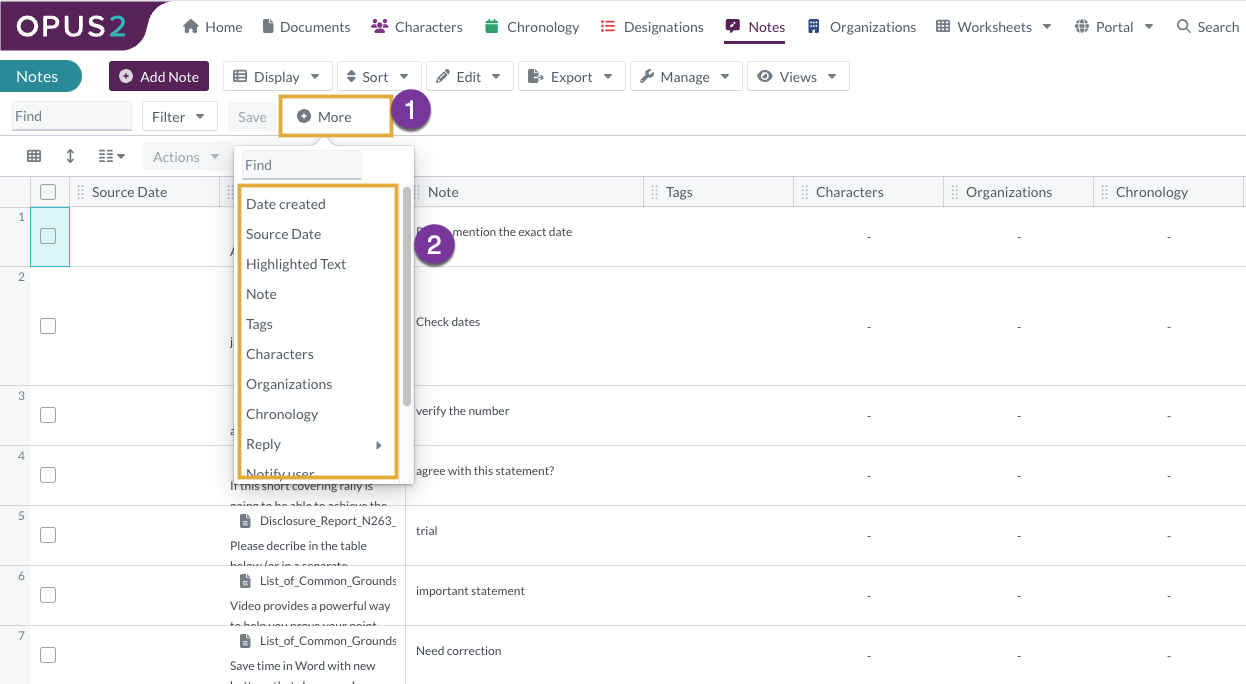
- Choose the filter condition.
- Enter the required filter value.
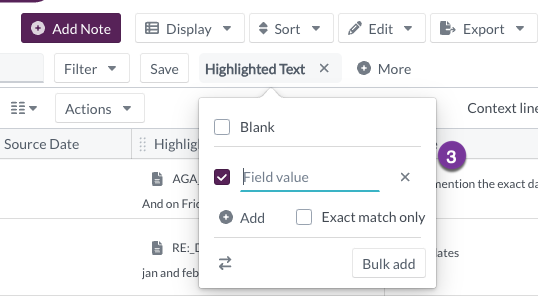
- Repeat to add multiple filters as needed.
Example:
Filter notes to display only those created within a certain date range or linked to specific documents.