
| Minimum Software Version | 8.18.10 |
| Solution(s) | Hearings ⨉ Cases International ✓ Cases US ✓ Institutions ⨉ Counsel ✓ |
This article explains how to upload PCF (Portable Case Format) transcripts into Opus 2, including how annotations and tags contained in the PCF file can be imported and mapped within the system.
PCF (Portable Case Format) files contain transcript text, annotations, and tags, but do not include exhibits or video files. Uploading a PCF file allows users to bring annotated transcript content into Opus 2 while preserving key notes and work product created outside the platform.
The upload process for PCF files is similar to uploading other transcript formats, with additional options for note import and mapping, ensuring that annotations are placed into the appropriate worksheets and fields within Opus 2.
Uploading a PCF Transcript
- Navigate to Documents within your project.
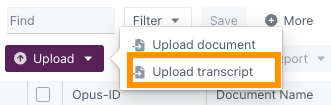
- Click Upload and select Upload transcript.
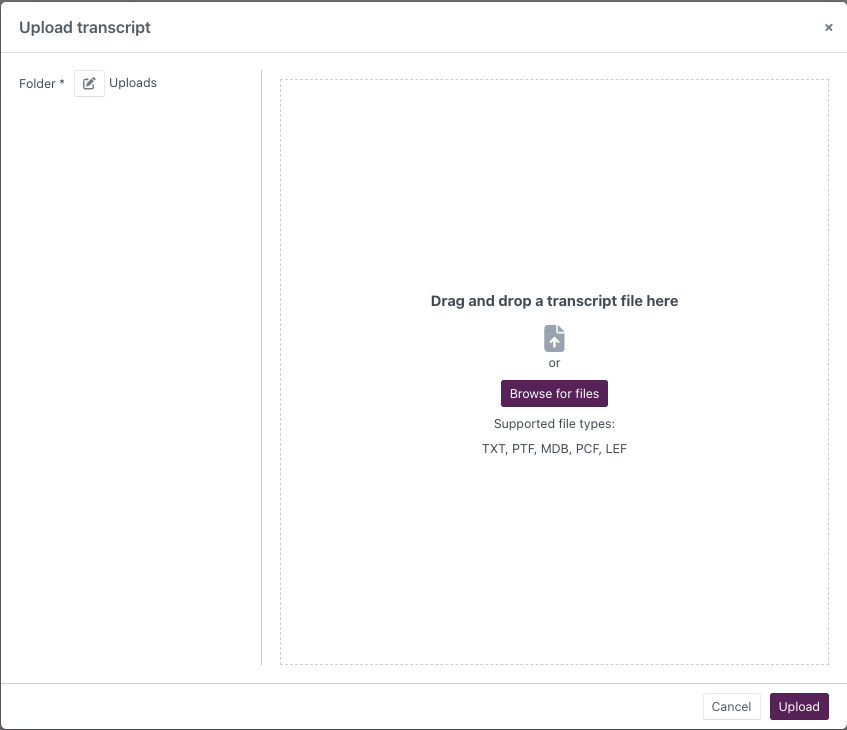
- Drag and drop the PCF file, or click Browse for files to select it from your computer.
- In the upload dialog, click the Folder icon and select the destination folder.
Configure Upload Options
- Once the PCF file is selected, complete any required fields on the left‑hand side of the dialog.
- Use the Import notes toggle (bottom‑left) if you want to import annotations from the PCF file.
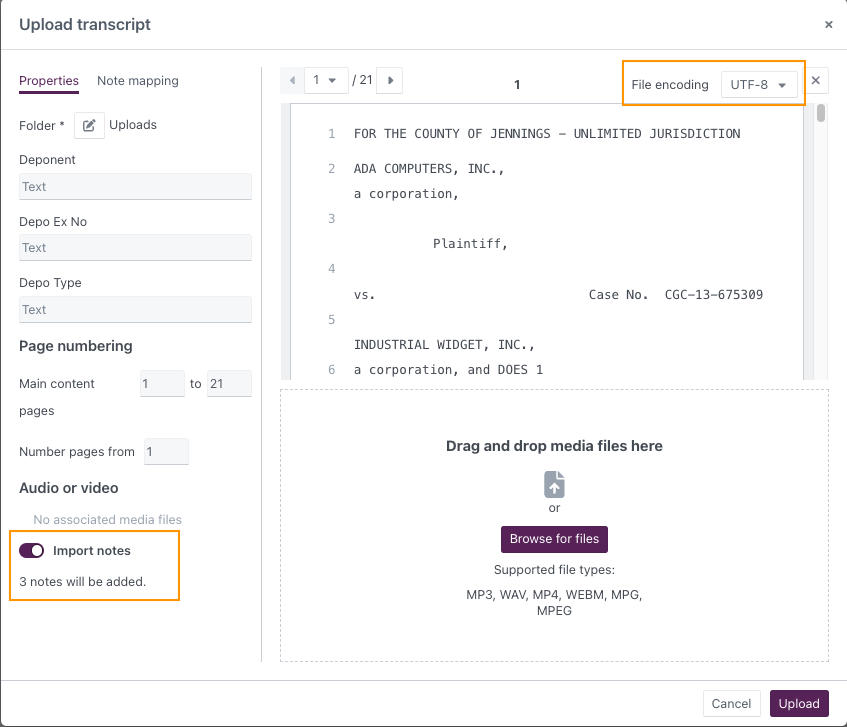
- Select the appropriate File encoding from the dropdown in the top‑right corner.
Note Mapping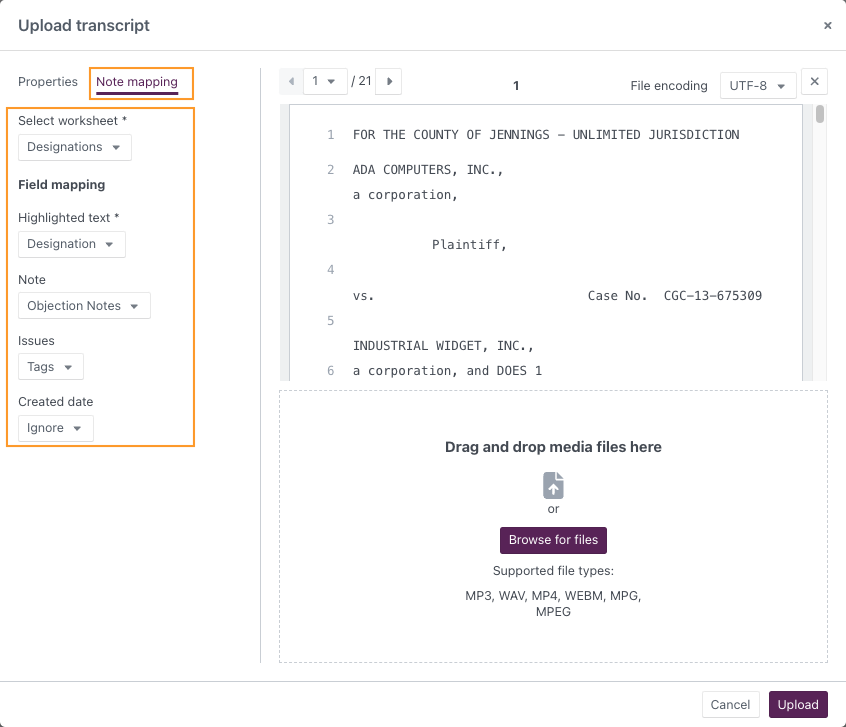
- Navigate to the Note mapping tab.
- Use the left‑hand dropdowns to configure how imported notes are mapped. Typical settings include:
Selected Worksheet
- The worksheet where imported notes will be stored (usually Designations).
Highlighted Text
- Text field used for transcript excerpts (usually Designation).
Note
- Long‑text field for annotation content (usually Objection Notes).
Issues
- Tag fields for categorisation (usually Tags).
Created Date
- Date/time fields in the selected worksheet.
- The system Date added field automatically uses the upload date/time.
Upload Media (Optional)
- If there are associated media files, drag and drop them into the dialog or browse to upload them at this stage (they can also be added later).
Complete the Upload
- Click Upload to process the PCF file.
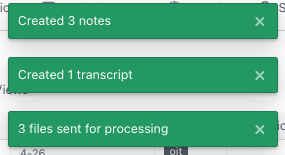
- Green confirmation notifications will appear, and the transcript will be added to the Documents table.
Viewing Imported PCF Content
- When opened in the Transcript Viewer, imported notes appear in the right‑hand margin.
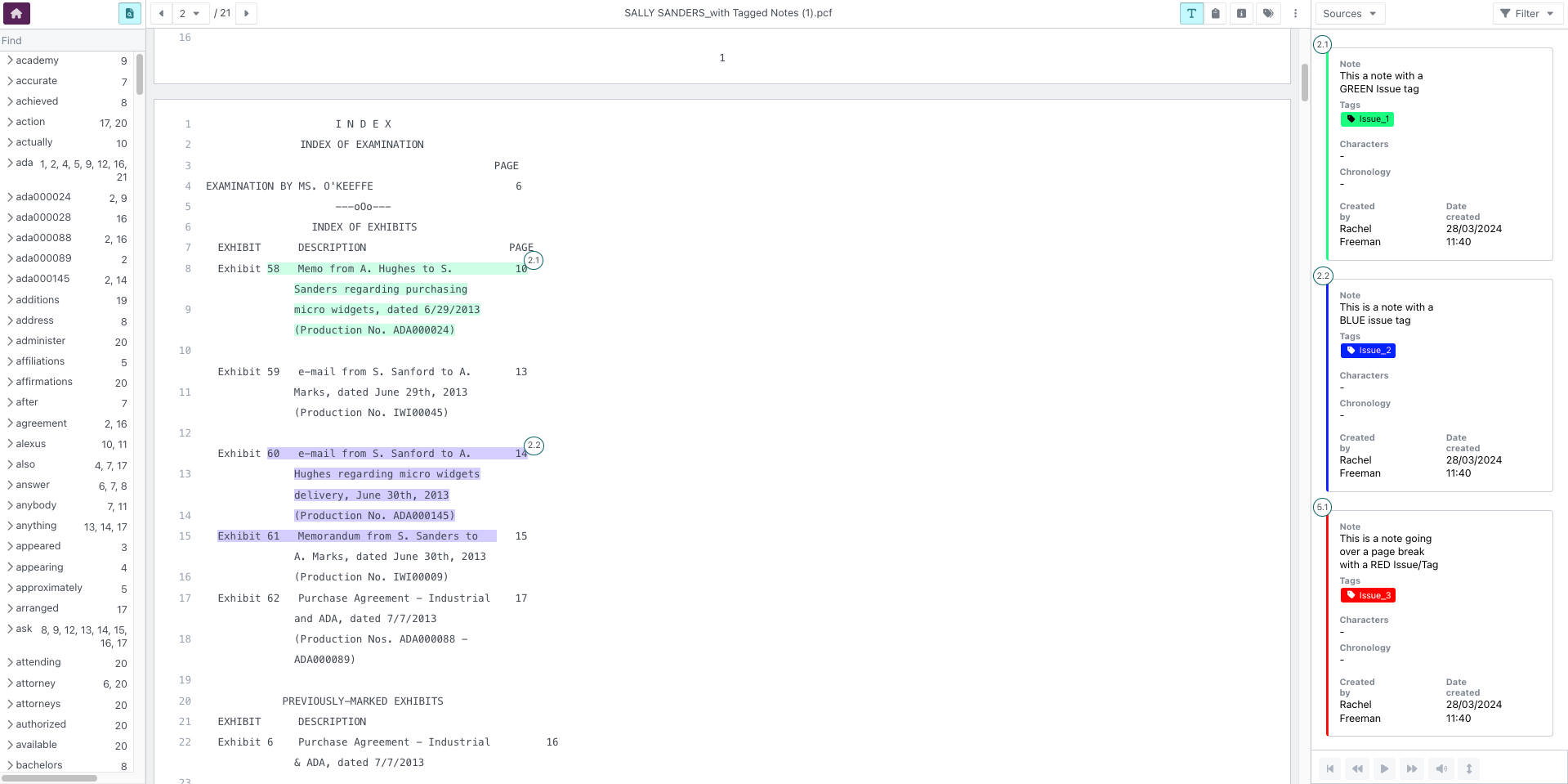
- The corresponding transcript text is automatically highlighted to reflect the original annotations.
Example:
Upload a PCF transcript containing objections and issue tags, mapping them into the Designations worksheet so reviewers can continue analysis seamlessly in Opus 2.
Related links
Use PCF uploads to bring existing transcript annotations and tags into Opus 2, ensuring valuable prior work product is preserved and ready for continued analysis within the platform.