
| Minimum Software Version | 8.18.10 |
| Solution(s) | Cases International ✓ Cases US ✓ Institutions ⨉ Counsel ✓ |
This article explains how to use the Search Query Builder to create advanced search queries in Opus 2. The builder converts your selections into valid search syntax automatically, making it easier to construct complex searches without typing Lucene Query Language directly.
What is the Search Query Builder?
The Search Query Builder provides a visual way to build advanced search queries in Opus 2. Rather than typing Lucene Query Language directly into the search bar, users can apply search syntax through buttons, dropdowns, and logic groups.
The builder converts selections into valid search syntax automatically, reducing the risk of syntax errors. This is especially useful when searching across different fields, applying Boolean logic, or using modifiers such as proximity searching, fuzzy searching, and boosting.
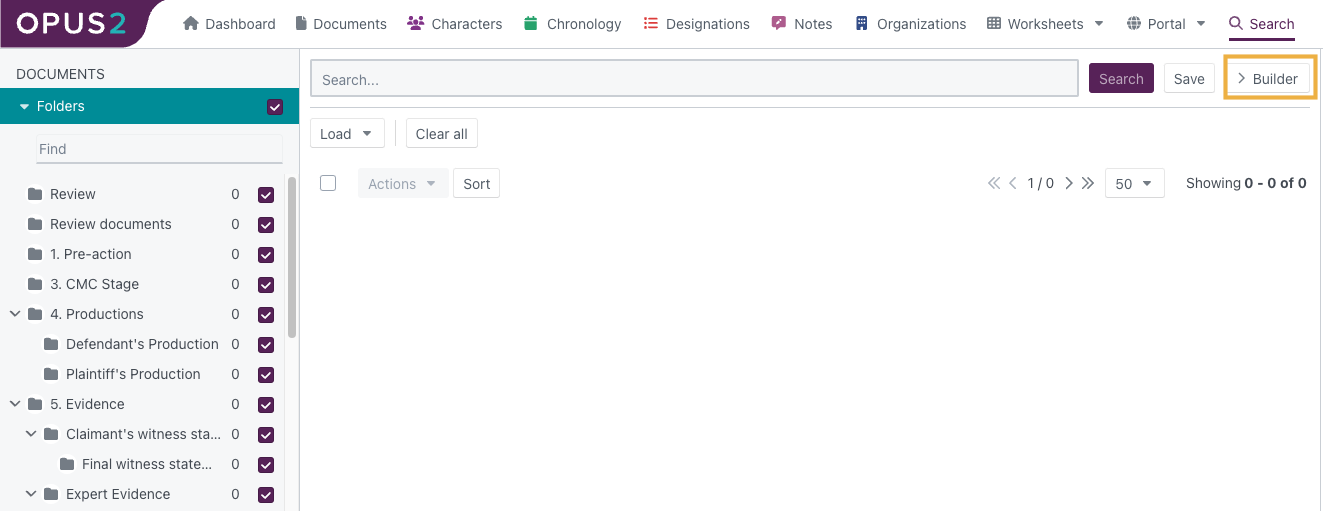
Enable the Search Query Builder by clicking the Builder icon located to the right of the Search and Save buttons.
Adding a term
- Click the Builder icon to enable the Search Query Builder.
- Click, or click and drag, Add term to create a new search term box.

- Enter the word, phrase, or sentence you want to search for.
- Anything entered is treated as a single term.
- Phrases and sentences are automatically wrapped in quotation marks in the generated syntax.
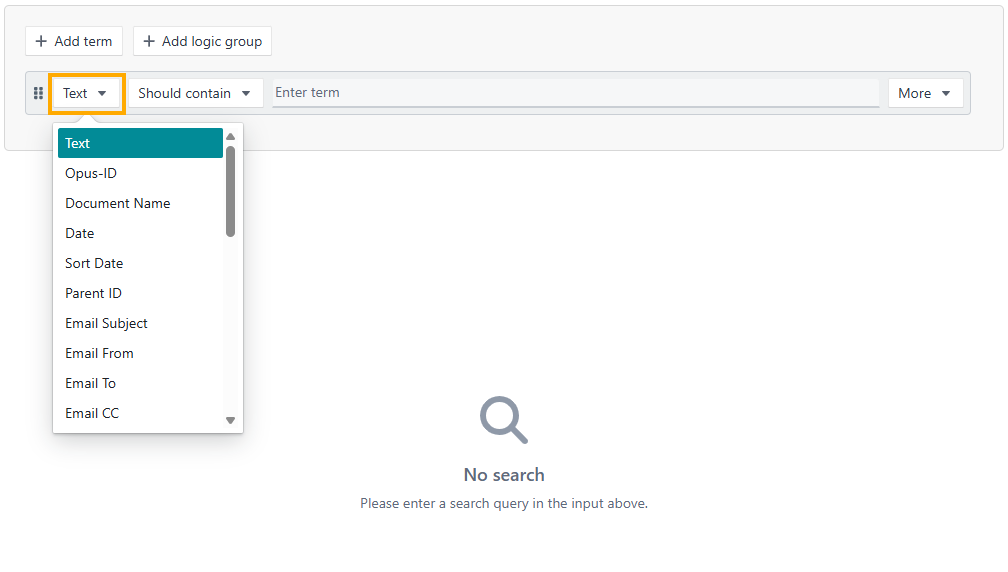
- Use the first dropdown to select the field to search (for example, Text, Date, Document ID, or Tags).
- Use the second dropdown to define how the term is applied:
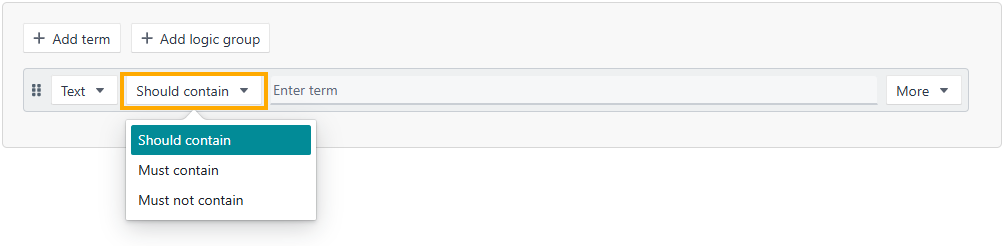
- Should contain
- Must contain
- Must not contain
- Optionally, open the More dropdown to apply a modifier (see Applying modifiers below).
Applying modifiers
Depending on the term and selected field, the following modifiers may be available:
Fuzzy — for single terms only. Allows for misspellings or slight variations. Select a fuzziness of 1 or 2, accounting for one or two character differences.
Proximity — for phrases containing two or more words. Defines how close words must appear to each other in the text.
Boost — for single terms or phrases when multiple terms are present. Increases the relevance of a term by assigning it a higher importance value.
Adding additional terms
- Click or drag Add term to create another term box.
- Use the Boolean operator dropdown between terms to select:
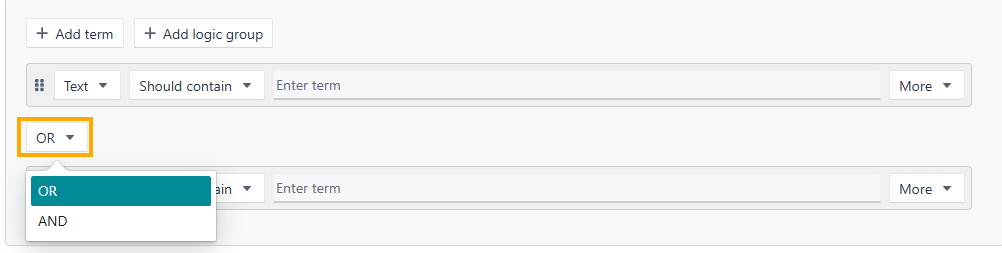
- AND — both terms must exist
- OR — either term may exist
- Repeat as needed to build multi-term queries.
Adding logic groups
Logic groups visually represent grouped logic (similar to parentheses in search syntax) and control the order in which terms are evaluated.
- Click or drag Add logic group to create an empty group.
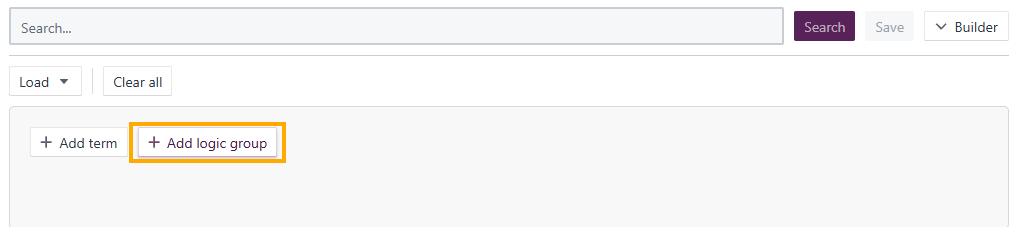
- Add terms by dragging them into the group or creating them directly inside it.
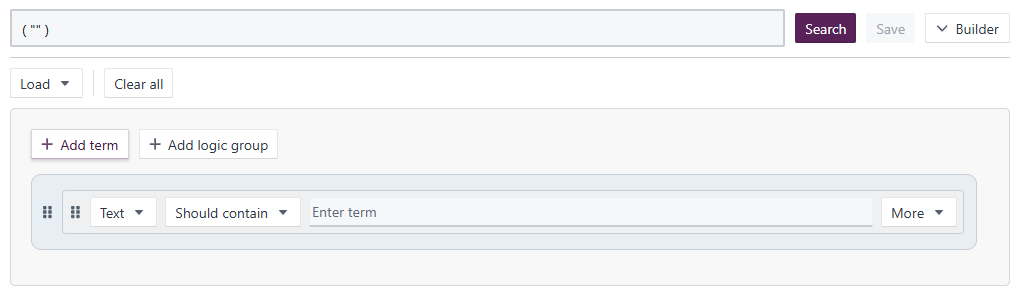
- Add additional terms or groups as needed.
- Use AND or OR to connect logic groups to other terms or groups.
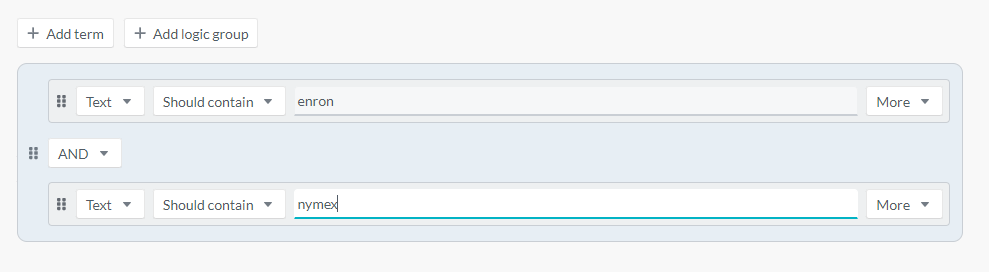
- Drag terms using the six-dot handle to reposition them within or outside groups.
Logic groups are evaluated first, then combined with other conditions to produce the final search results.
Examples
Combining text conditions with a tag
A logic group containing Enron AND Nymex, combined with a tag condition such as Key document, returns documents that either meet both text conditions or contain the specified tag.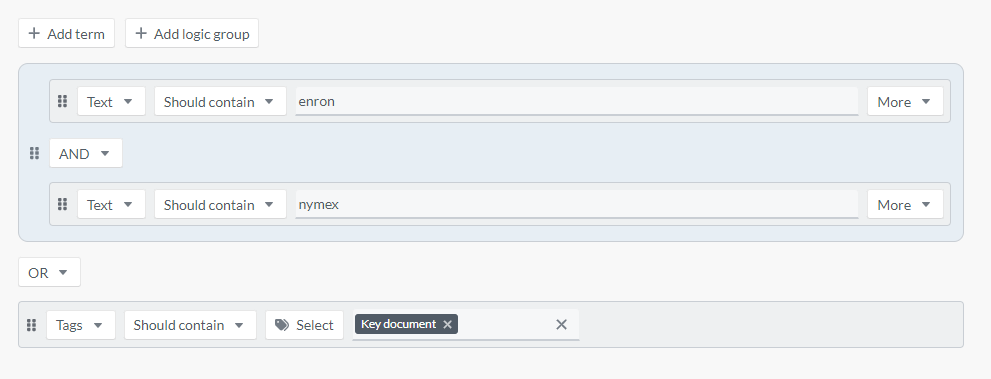
Boosting a key term
Boosting a key term within a multi-term search increases the ranking of documents where that term appears more frequently.
Related Links
Use the Search Query Builder to construct precise and repeatable searches without manually typing syntax. This is especially helpful for building complex queries and sharing search strategies with case teams.
Related documentation
Opus 2 has help information accessible from within the application; accessible by clicking the question mark and then selecting Documentation in the upper right area of the platform application. You can also access the documentation at: Opus 2 Support.
How to contact us
To contact us about the documentation, or if you have any other questions or issues about Opus 2 solutions, contact Opus 2 Platform Support by emailing Opus 2 Platform Support.