
| Minimum Software Version | 10.1.0 |
| Solution(s) | Hearings ⨉ Cases International ✓ Cases US ✓ Institutions ⨉ Counsel ✓ |
Opus 2 allows individual document files to be replaced with an updated version while preserving any work carried out on the original, such as links and notes. The original file is retained under the Versions tab of the document.
The replace function is intended for documents where the content is largely the same as the original, with only minor changes such as redactions, highlights, or trial exhibit numbers. Because existing work — including links and notes — is transferred to the replacement file, it is important that the documents are closely aligned to ensure that transferred content maps correctly onto the right locations.
Note: the Replace function is only available when a single document is selected. It is not available when multiple documents are selected on the Documents page.
Steps to replace a Document
- Go to the Documents tab and select the document you want to replace using the tick-box. Select only one document at a time.
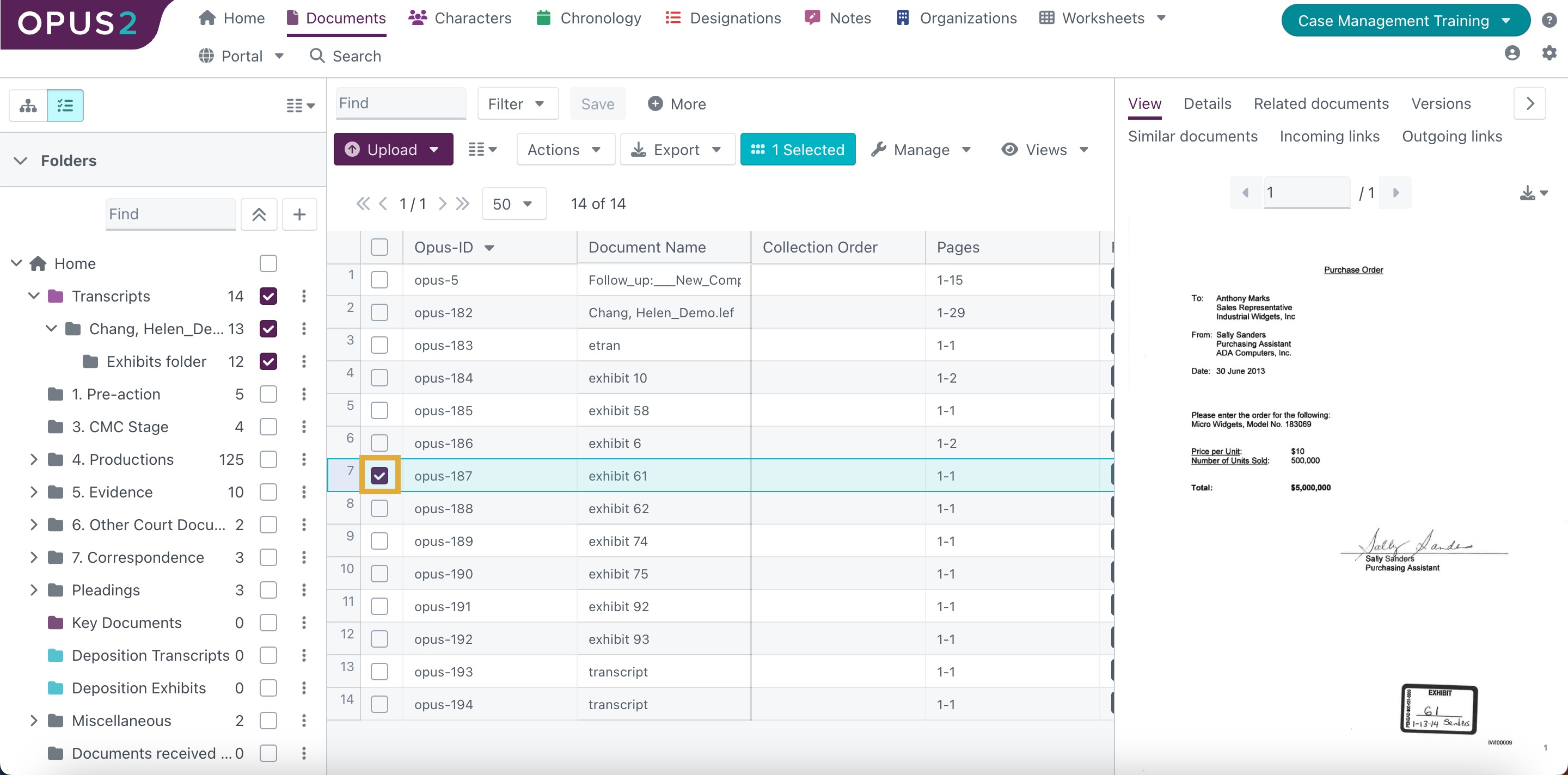
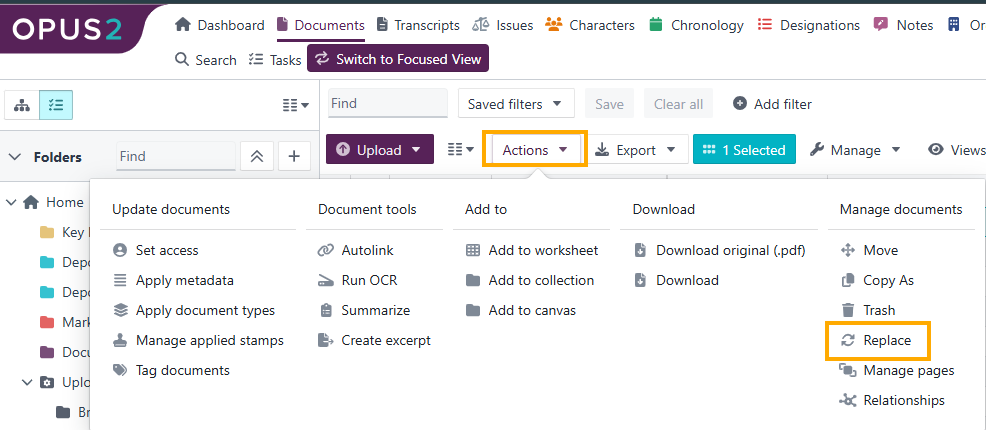
- Click the Actions dropdown menu and click Replace.
- In the dialog box, browse for the replacement file or drag and drop it in.
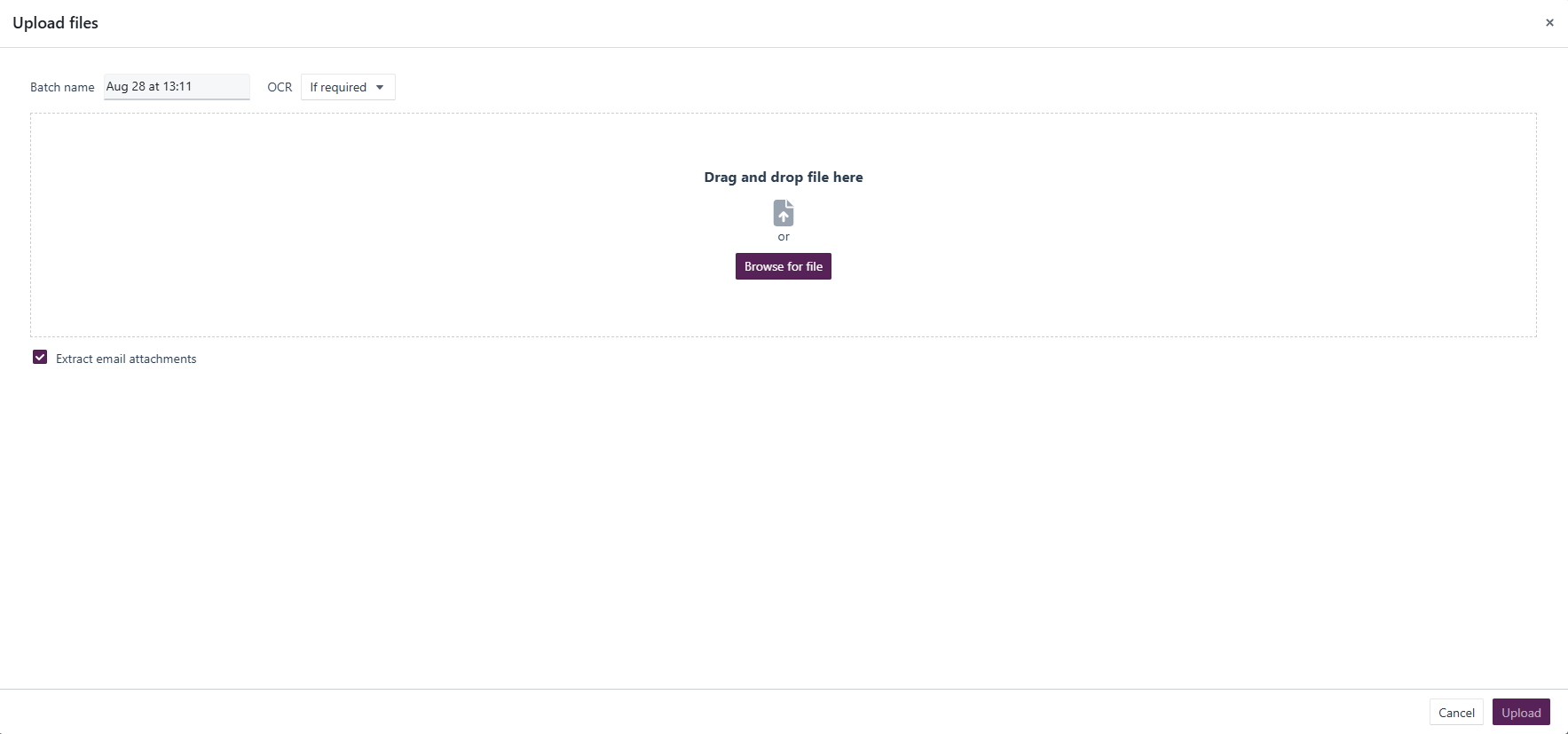
- Click Upload to complete the replacement.
The selected document is replaced with the uploaded file. Any links and notes from the original document are automatically transferred to the replacement.
Note: the file will take a moment to process. Refresh the page if the updated document version is not immediately visible.
The original file remains accessible under the Versions tab of the document.