
| Minimum Software Version | 8.18.10 |
| Solution(s) | Hearings ⨉ Cases International ✓ Cases US ✓ Institutions ⨉ Counsel ✓ |
This article explains how to replace an existing transcript in Opus 2 with a new version in a different format while retaining the transcript’s position within the project.
Opus 2 allows users to upload a transcript in one format and later replace it with a different format if required. This is useful when an updated transcript becomes available (for example, a corrected version or a different supported transcript format).
Replacing a transcript ensures continuity within the project while allowing updated content to be used. Associated media files can also be uploaded during the replacement process or added later.
How to Replace a Transcript
- Navigate to the Documents page within your project.
- Locate and select the transcript you wish to replace.
- Open the Actions menu.
- Hover over Tools and select Replace.
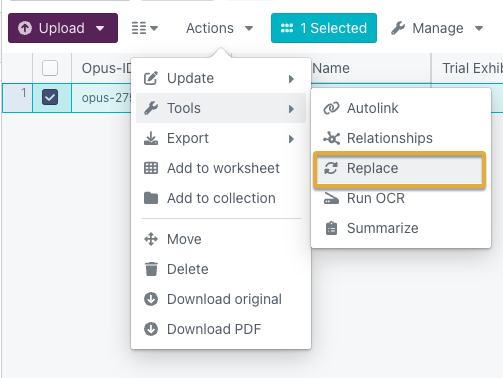
Upload the Replacement Transcript
- The Upload transcript dialog opens.
- Drag and drop the new version of the transcript into the dialog.
- If you have associated media files, you can:
- Drag and drop them at this stage, or
- Upload them later if preferred.
Complete the Replacement
- Click Upload to complete the process.
- The transcript is replaced with the newly uploaded version.
Example:
Replace a preliminary transcript file with a final, corrected version once it is received from the transcription provider.
Use the transcript replacement feature whenever updated transcript versions become available to ensure your project reflects the most accurate and complete record of proceedings.