
| Minimum Software Version | Spring26 |
| Solution(s) | Hearings ⨉ Cases International ✓ Cases US ✓ Institutions ⨉ Counsel ✓ |
The Stamps feature allows for the creation and application of bespoke stamps. Stamps are configurable collections of document metadata that can be positioned and styled to comply with US and UK legal workflows.
You can add or remove one stamp at a time.
Applying a stamp
- In the Documents page, select a document.
- Select Action > Manage applied stamps or alternatively, right click on the document, select Update documents > Manage applied stamps.
The Applied stamps dialog opens. Your document may or may not have some stamps applied to it already.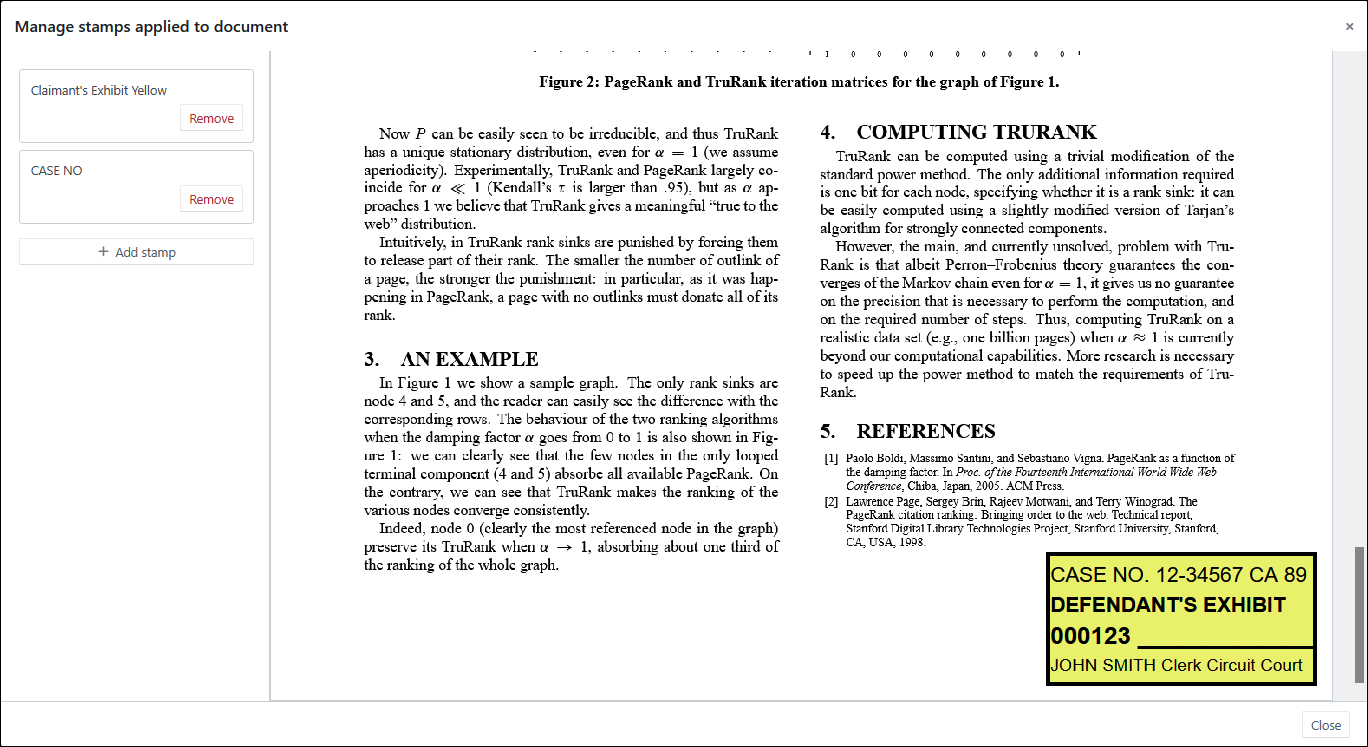
- Scroll down to the page of the document where you want to apply the stamp.
- Select Add stamp.
- Select a stamp from the dropdown list and then select Add.
The preview shows you the position of the stamps on your document.
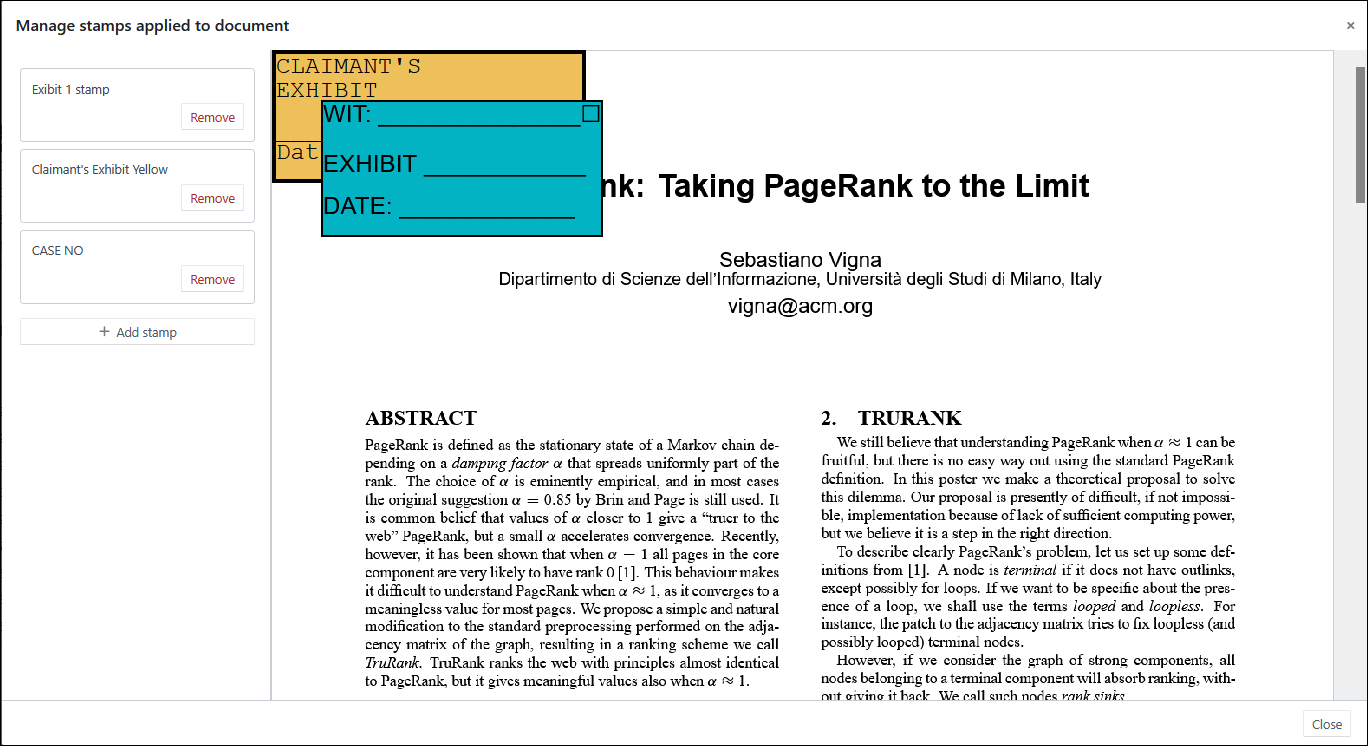
- If you are see an overlap in the preview, either remove the stamp by selecting Remove or go back to the Layout tab in the Create stamp dialog and adjust the position of the stamp on the document and save it.
- Select Close.
Removing a stamp
- In the Documents page, select a document.
- Select Action > Manage applied stamps or alternatively, right click on the document, select Update documents > Manage applied stamps.
The Applied stamps dialog opens.
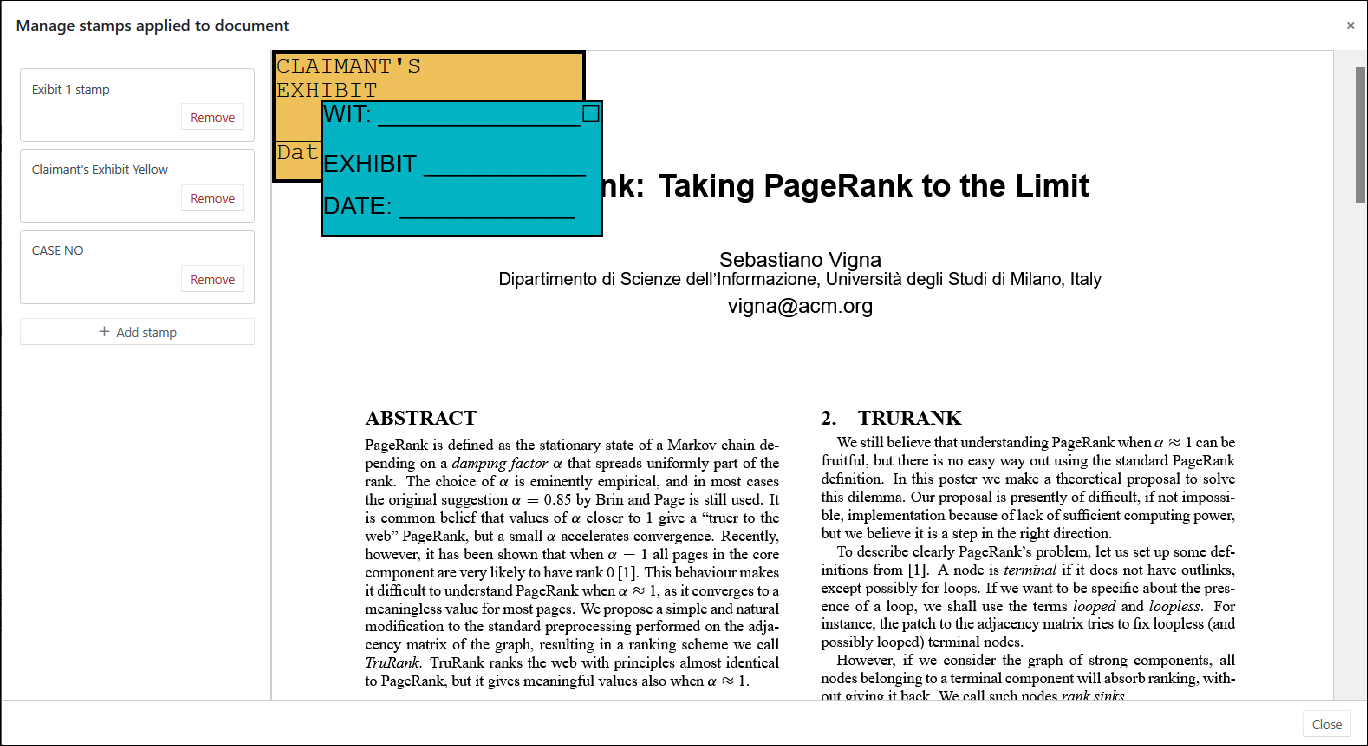
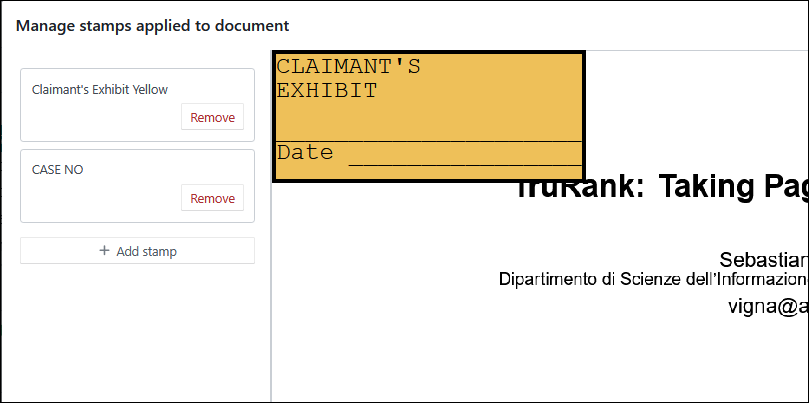
- Select Remove for the stamp you wish to remove.
The stamp is removed from the document.
Related articles