
| Minimum Software Version | 8.18.10 |
| Solution(s) | Cases International ✓ Cases US ✓ Institutions ⨉ Counsel ✓ |
This article explains how to archive a project in Opus 2, manage existing archives, and restore a project from a snapshot. It also covers how to download archives for offline storage.
Why archive a project?
Project archiving is designed as a safeguard to preserve critical project data at a specific moment in time. When a project is archived, a snapshot is created that captures the project exactly as it existed at that point.
Archived projects are not visible in the system dashboard or project directory and cannot be accessed by standard users. Only system administrators can view, download, upload, or restore archived projects from the System Admin area.
Archiving is especially useful before major project updates, migrations, or deletions.
How to create an archive
Step 1: Open the project
- Open the project from either the System Dashboard or the Project Directory.
- Click the project name dropdown.
- Select Project settings.

Step 2: Navigate to project actions
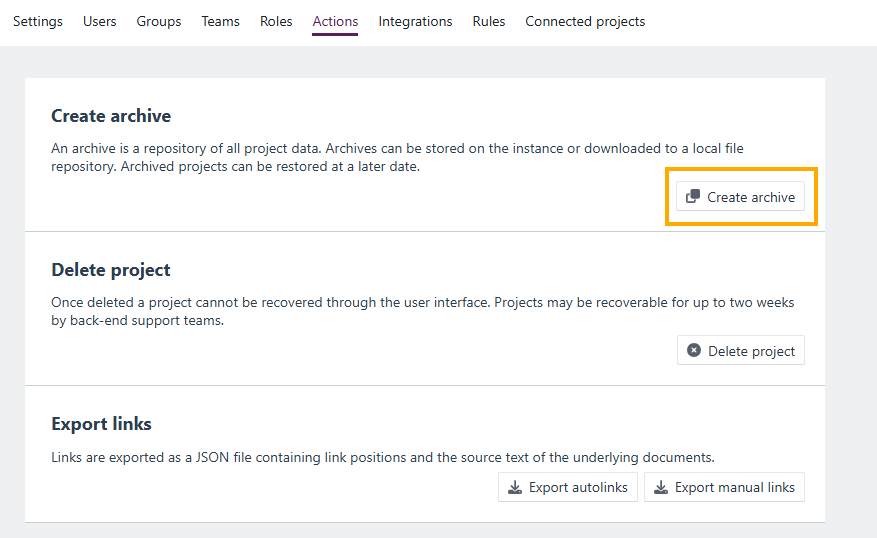
- From the top toolbar, navigate to the Actions tab.

- Select Create archive.
Step 3: Complete the archive details
In the Create archive dialog window: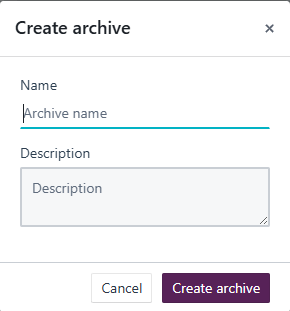
- Enter a unique archive name.
- Provide a description that includes relevant context, such as the reason for archiving, significant milestones, or the date and project phase.
- Click Create archive.
Example
Archive name: Pre-Discovery Snapshot
Description: Project state prior to discovery document upload – April 2026
Managing archived projects
View archived projects
- Click the gear icon in the top-right corner of the platform to open the System Admin area.
- Navigate to the Archives tab.

- Review all archived projects listed in the table.
Download an archive
To download archives for offline storage:
- Select one or more archived projects using the checkbox in the leftmost column.
- Click Actions > Download from the toolbar.
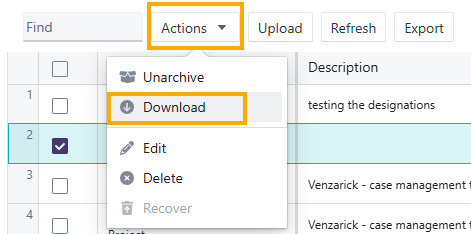
- The archive downloads as a
.zipfile.
Example: Download an archived project to store a compliance snapshot offline.
Upload or restore an archive
From the Archives tab:
- Use the Upload button to upload a previously exported archive.
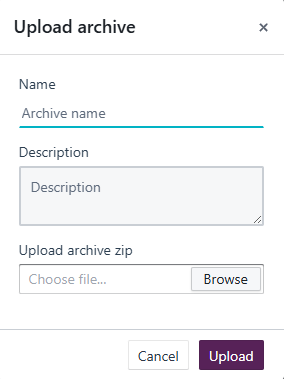
- Use the Actions dropdown to Unarchive a project to the archived snapshot.
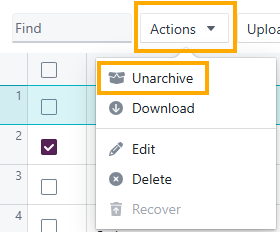
Restoring a project returns it to the exact state captured at the time of archiving.
Related links
- Project settings
- User roles and capabilities
- How to restore your project when uploading archives larger than 50GB
Related documentation
Opus 2 has help information accessible from within the application; accessible by clicking the question mark and then selecting Documentation in the upper right area of the platform application. You can also access the documentation at: Opus 2 Support.
How to contact us
To contact us about the documentation, or if you have any other questions or issues about Opus 2 solutions, contact Opus 2 Platform Support by emailing Opus 2 Platform Support.