
| Minimum Software Version | 8.18.10 |
| Solution(s) | Hearings ⨉ Cases International ✓ Cases US ✓ Institutions ⨉ Counsel ✓ |
Explains how to create document families using metadata import, including how to establish relationships between documents such as translations, attachments, duplicates, email threads, and custom relationship types.
Document families allow related documents to be grouped using a defined relationship type. While relationships can be created manually through the Relationships dialog, they can also be created in bulk using a metadata import. This method is particularly useful when large numbers of relationships need to be established or when relationship data is already available in a spreadsheet.
Metadata import is the recommended approach for creating document families at scale — for example, when document families have been identified before content is loaded into Opus 2, or when existing relationship data is held in a spreadsheet. The relationship is created by importing metadata that references the related document using the relevant relationship field.
Common relationship types include: Translation, Attachment, Duplicate, Email Thread, Custodian Copy, and custom relationship types.
Creating document families via metadata import
Step 1: Identify the documents
- Navigate to the appropriate project.
- Locate the documents to be grouped into a family.
- Using the checkboxes, select all documents to be included.
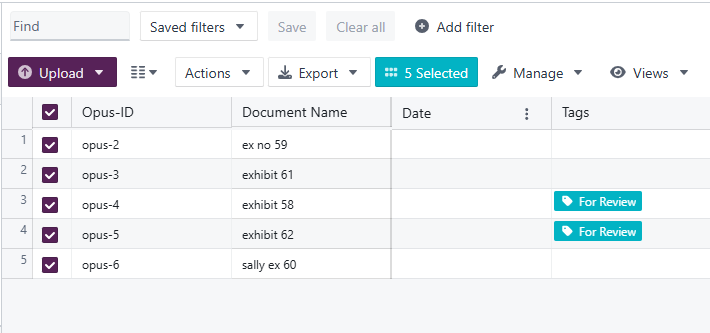
- Export the selected documents as either an
.xlsxor.csvfile.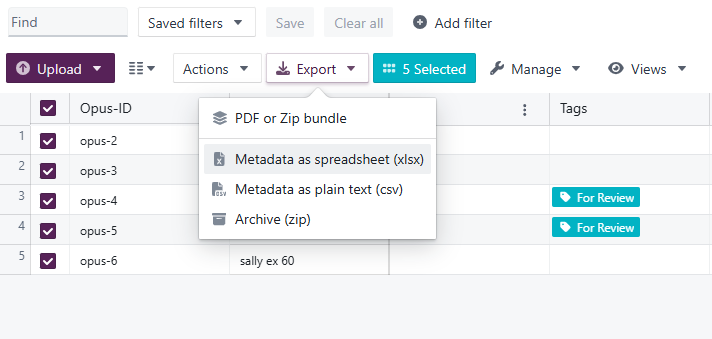
Step 2: Update the metadata spreadsheet
The spreadsheet must contain:
- An Opus ID column
- A column matching the relationship type to be created
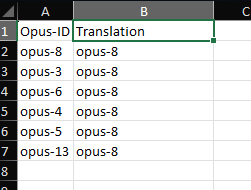
Important: The Opus ID used in the relationship column should identify the document that will act as the principal document within the family.Step 3: Import the metadata
- Navigate to Manage > Import Metadata.
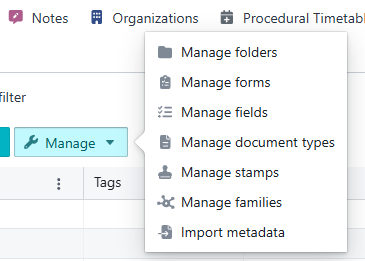
- Select the spreadsheet containing the relationship data.
- In the Import Document Metadata dialog:
- Set Match On to Opus ID.
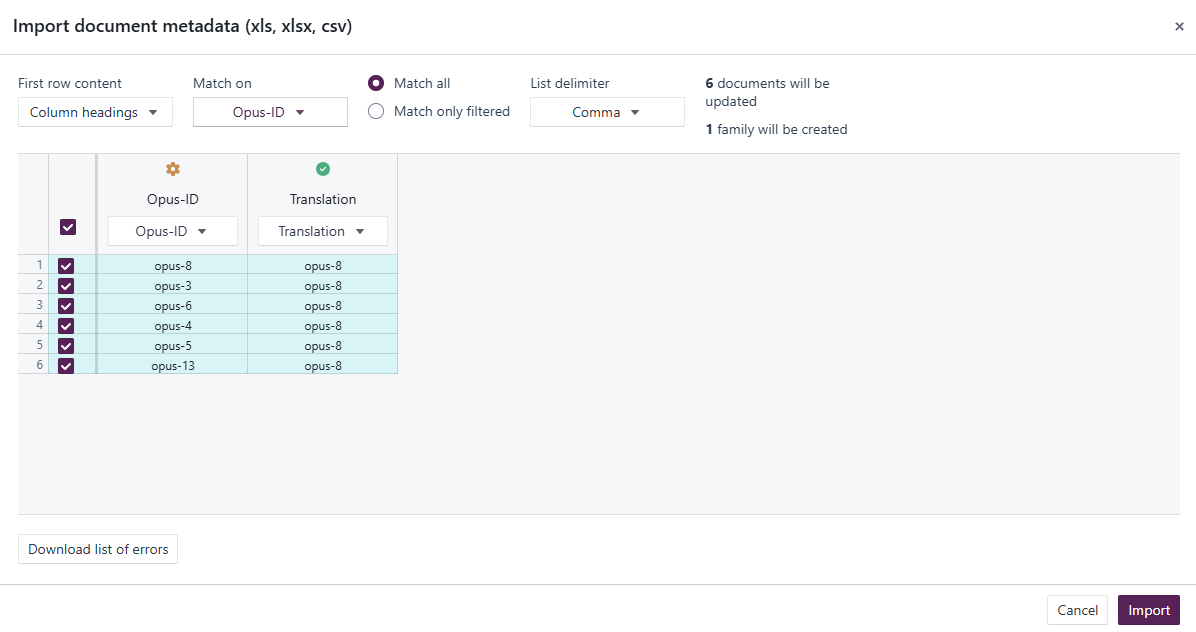
- Map the relationship column to the corresponding relationship field using the table below.
- Set Match On to Opus ID.
Spreadsheet column | Platform field |
|---|---|
| Translation | Translation |
| Attachment | Attachments |
| Duplicate | Duplicates |
| Email Thread | Email Thread |
| Redacted | Redacted |
| Source formats | Source Formats |
- Click Import
Note: When importing records into a Custom Relationship, the Custom Relationship name must already exist in the Platform before the import is performed. New Custom Relationships names cannot be created as part of the import process.
Step 4: Review the family
- Navigate to the Documents page.
- Select any document that was included in the import.
- Open the Details Pane.
- Select the Related Documents tab.
- Verify that:
- Related documents are displayed
- The correct relationship type has been applied
- Documents appear in the expected family grouping
Understanding family structure
When relationships are imported:
- The referenced document becomes the Principal Document.
- All related documents become members of the same family.
- The family is displayed in the Related Documents tab.
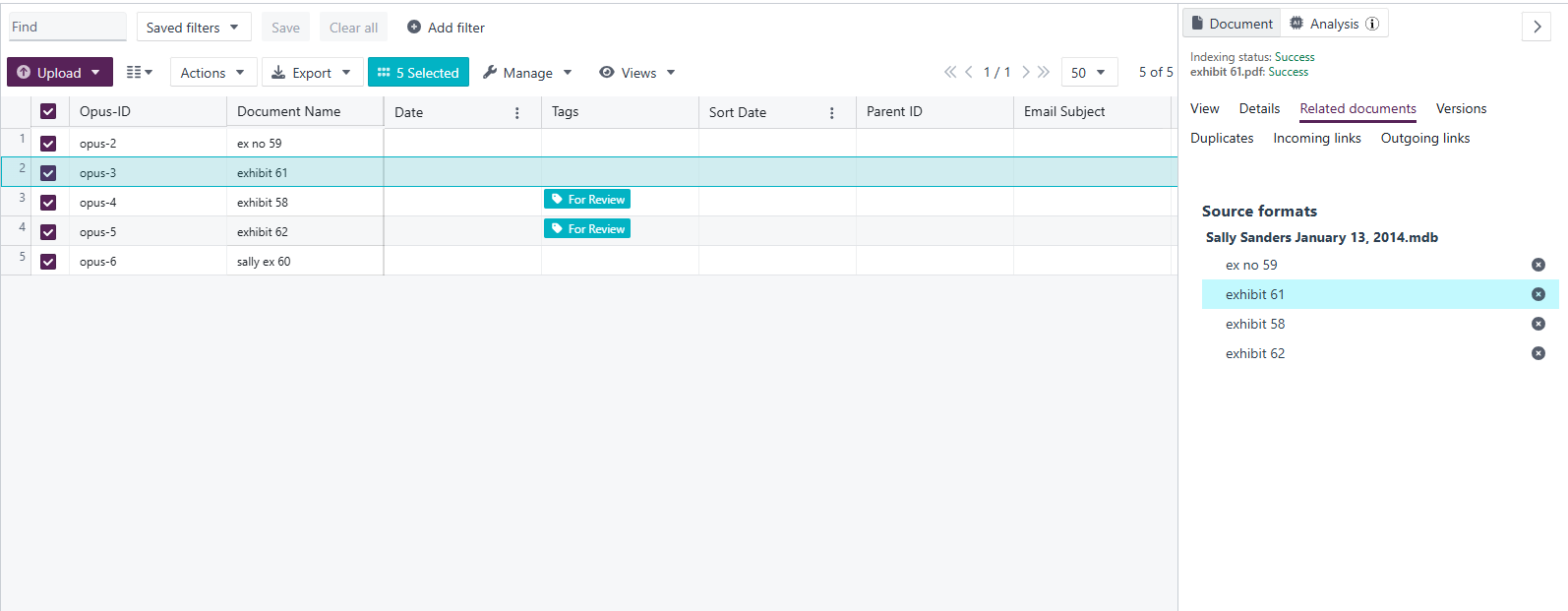
- Users can navigate between related documents directly.
Related links
Related documentation
Opus 2 has help information accessible within the application; click the question mark and then select Documentation in the upper-right area of the platform. You can also access the documentation at: Opus 2 Support.
How to contact us
To contact us about the documentation, or if you have any other questions or issues about Opus 2 solutions, contact Opus 2 Platform Support by emailing Opus 2 Platform Support.