
| Minimum Software Version | 8.18.10 |
| Solution(s) | Hearings ⨉ Cases International ✓ Cases US ✓ Institutions ⨉ Counsel ✓ |
What is the Link to... tool?
The Link to… tool allows users to connect relevant content across documents while annotating. Links can point either to a document as a whole (at a specific page) or directly to highlighted text within another document. These links are created during the annotation process and are visually indicated by underlined blue text or annotation regions.
When a linked annotation is selected, the destination document opens automatically at the linked page or passage, ensuring clear context and traceability across related materials.
Linking to an Entire Document
Step 1: Select the source passage
- Open a document in the document viewer.
- Use your mouse to select the passage or area you want to link from.
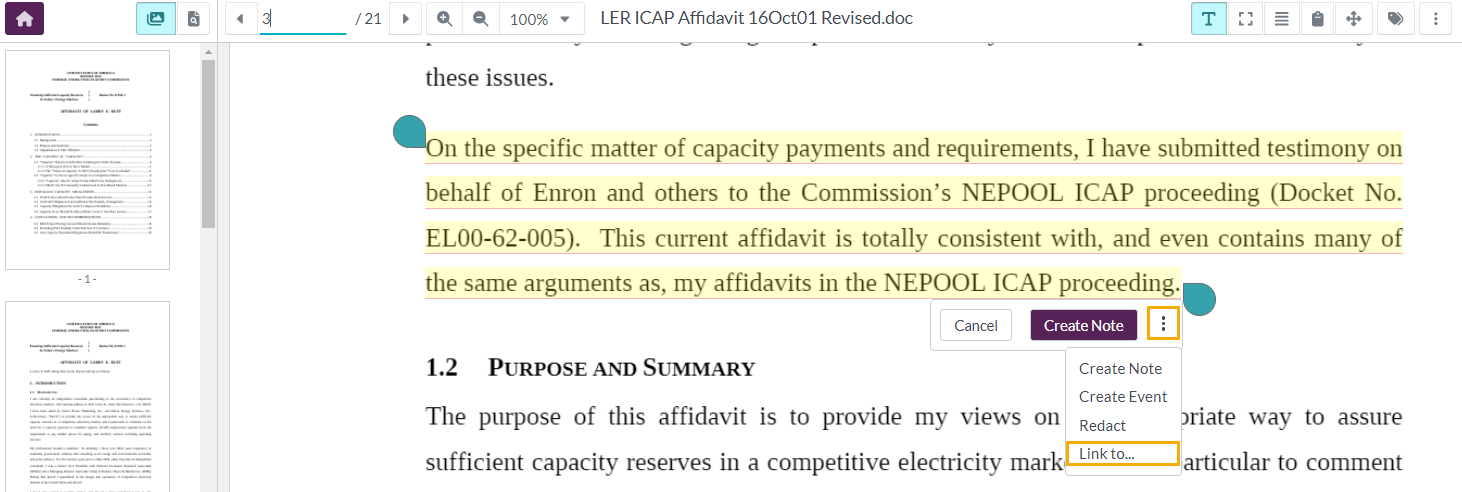
- In the annotation pop‑up, click the three‑dot (⋯) icon.
- Select Link to….
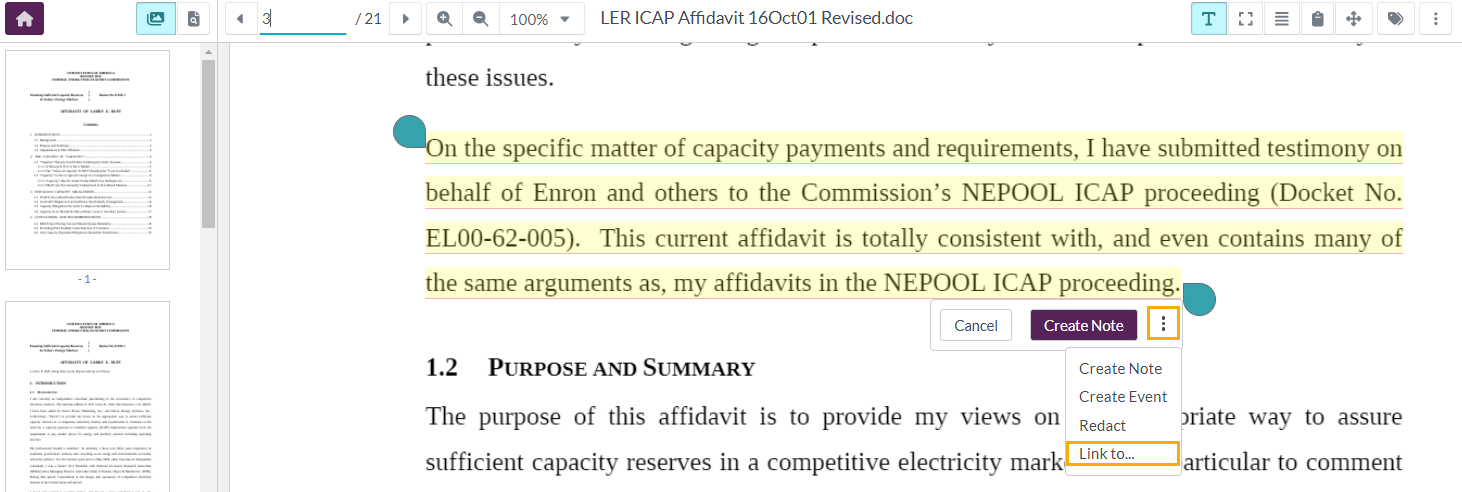
The annotation pop‑up displays the last annotation type used. Clicking the three‑dot icon shows all available annotation options.
The Link to… tool can be used with any of the three annotation types.
Step 2: Select the target document
- In the Select document dialog, navigate to the document you want to link to.
- Click the document row to select it.
- Click Select.
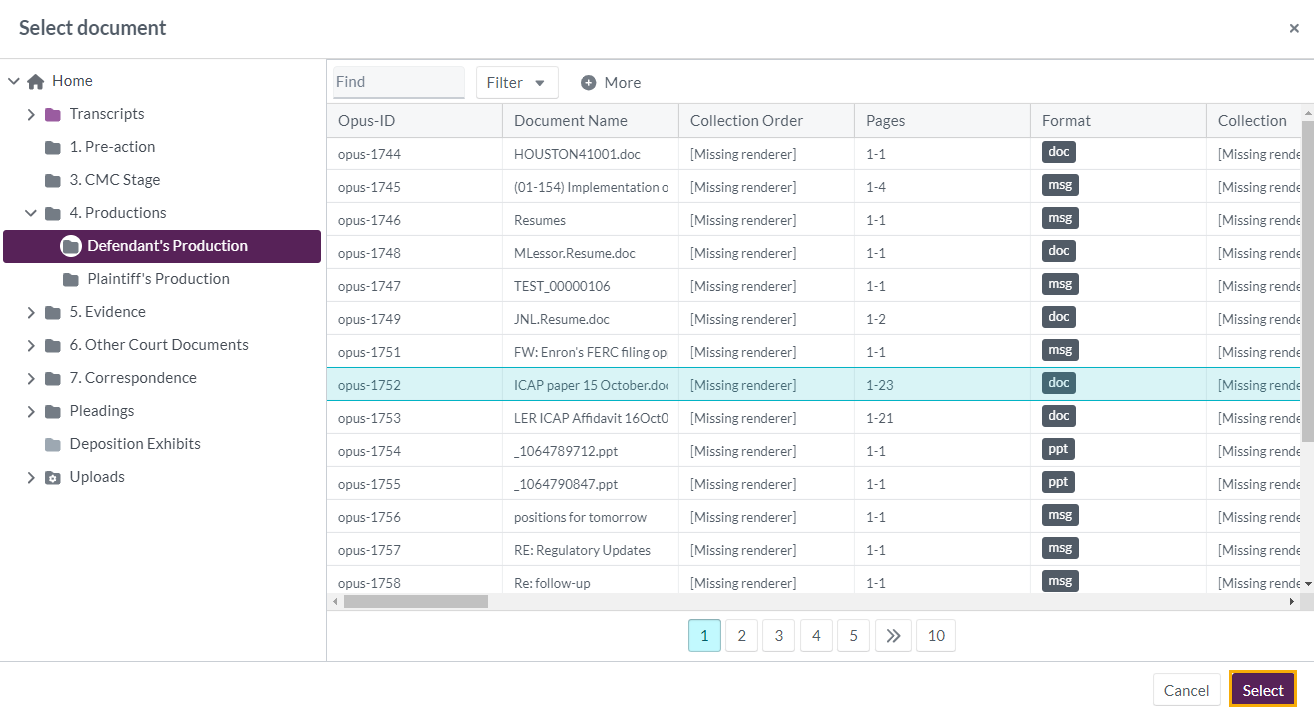
Use the Find and More filters to quickly locate the required document.
Step 3: Link to a page
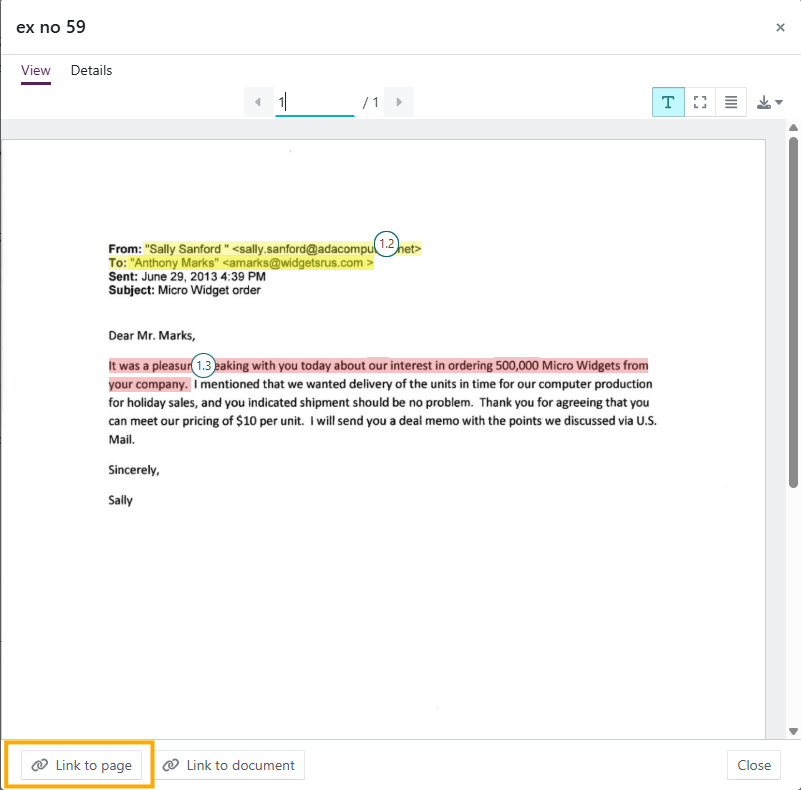
- The selected document opens in a preview window at the first page.
- Navigate to the page you want to link to.
- Click Link to page at the bottom.
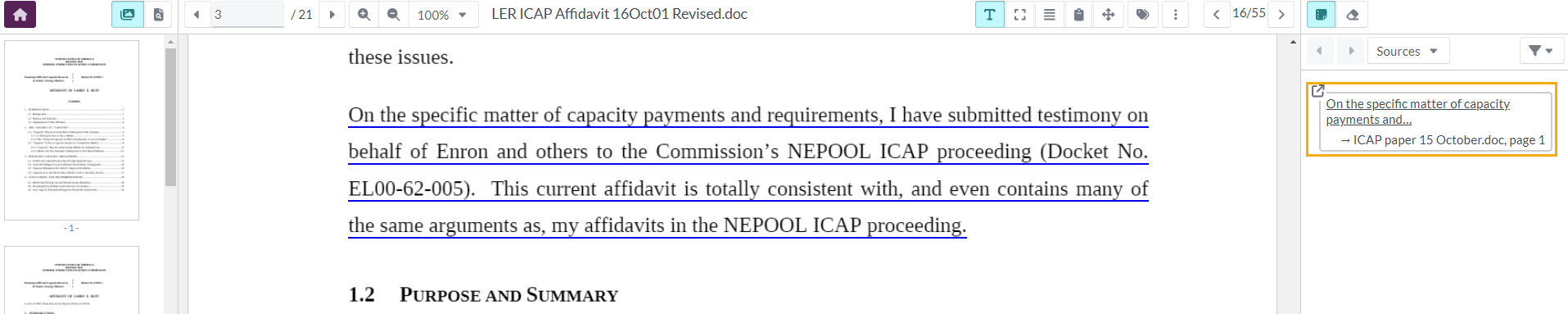
The preview closes and:
- The original passage is underlined in blue
- A summary appears in the right‑hand panel showing the linked document and page
- Clicking the underlined text opens the linked document at the chosen page
If the original annotation was created using the rectangle selection tool, a box appears over the selected region, and the link is accessed by clicking the annotation number in the top‑right corner of the box.
Linking to Text Within a Document
Step 1: Select the source passage
- In the document viewer, highlight the passage you want to link from.
- Click the three‑dot (⋯) icon in the annotation pop‑up.
- Select Link to….
Step 2: Select the target document
- In the Select document dialog, navigate to the required document.
- Click the document row to select it.
- Click Select.
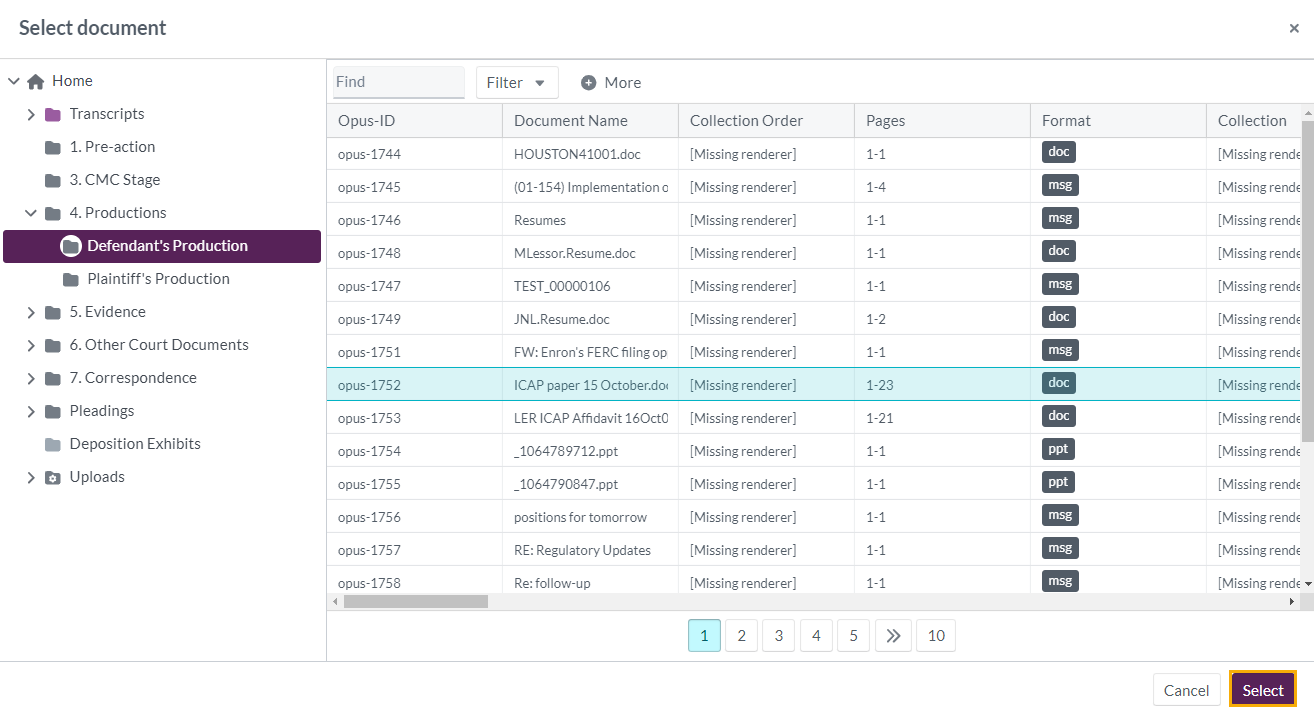
Use the Find and More filters to refine results if needed.
Step 3: Link to a specific passage
- The selected document opens in a preview window at page one.
- Navigate to the passage you want to link to.
- Highlight the target text in the preview.
- Click Apply to create the link.
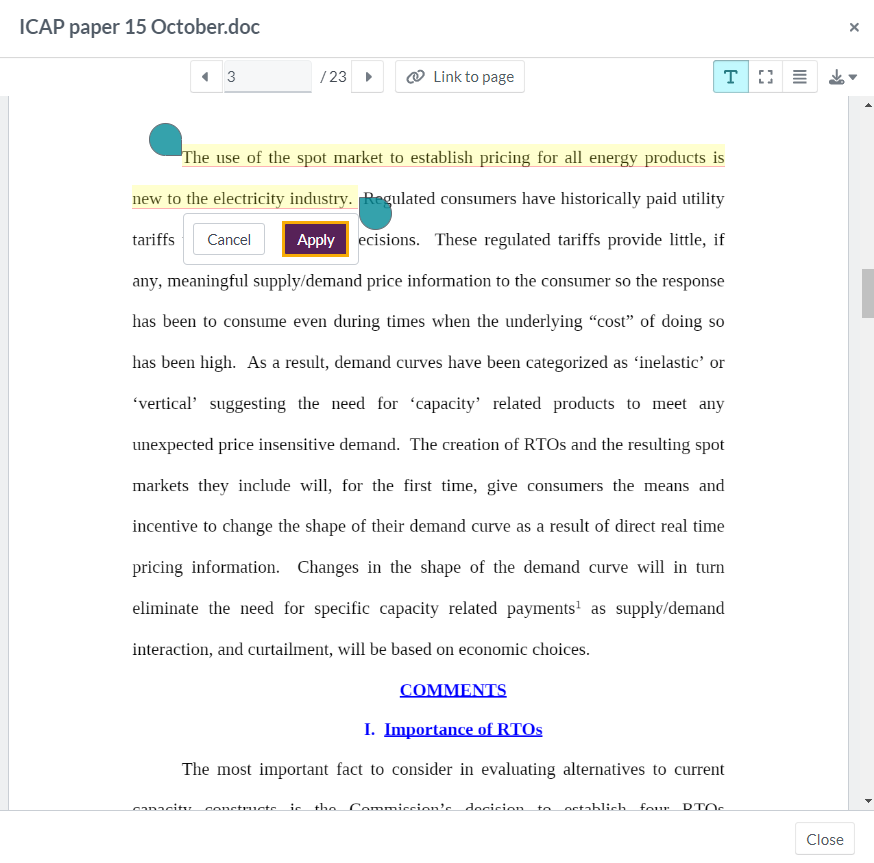
The preview closes and:
- The original passage is underlined in blue
- The right‑hand panel displays details of the linked document and passage
- Clicking the underlined text opens the document at the highlighted passage

If the source annotation was created using the rectangle selection tool, the link remains accessible through the annotation number.